Can You Print In Just Color Here Is The Full Guide
Yes, you can print in just color on most printers and devices. This guide shows you exactly how to set your color print settings to output only vibrant color pages. You will learn step-by-step methods for Windows, Mac, and mobile, plus how to troubleshoot when your printer color options go wrong.
Have you ever hit print and wondered why your document came out in black and white when you wanted full color printing? You are not alone. Many people struggle with printing in just color, especially when their printer defaults to a different mode. The good news is that fixing this is usually quick and easy. This guide walks you through everything you need to know about color print settings. You will learn how to print in color on every device, fix common problems, and save ink while doing it.
Whether you are printing photos, school projects, or work documents, getting the color output right matters. A plain black and white page can look dull when the original was full of life. So let us dive in and make sure your next print job comes out exactly how you want it. By the end of this guide, you will be a color printing pro.
Key Takeaways
- You can print in color only by adjusting your printer preferences on any device.
- Windows, Mac, and mobile devices all offer simple steps to enable color-only printing.
- Common issues like grayscale defaults or wrong printer driver settings can block color output.
- You can save ink and still get great color print quality with a few smart tips.
- Understanding the difference between grayscale, monochrome, and color modes helps you choose the right option.
- Expert insights show how to get the best results from every color printing job.
📑 Table of Contents
Understanding Color Printing Basics
How Color Printing Works
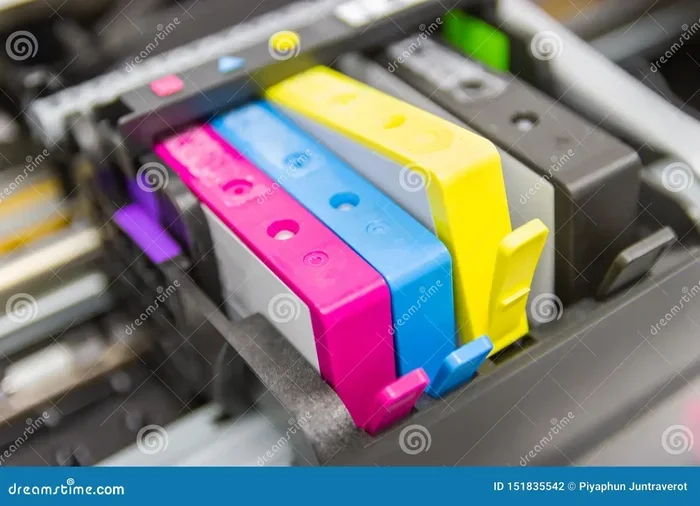
Before you change any settings, it helps to understand what happens behind the scenes. When you send a document to your color printer, the printer reads the file and mixes inks to create colors. Most printers use four ink colors: cyan, magenta, yellow, and black. This is called the CMYK model. Together, these inks produce the full range of colors you see on paper.
Your computer or phone sends a print job to the printer with instructions. These instructions include the color mode you selected. If you chose color mode, the printer uses all available inks. If you chose grayscale or black and white, it limits or skips the color inks entirely. So the printer preferences you set on your device control the final output.
The print quality settings also play a big role. Higher quality settings use more ink and take longer. Lower quality settings save ink but may look less vibrant. Understanding this balance helps you make smarter choices every time you print.
Color vs Grayscale vs Black and White
People often confuse these three modes. Here is a simple breakdown of each one.
- Color Printing: Uses all ink colors to reproduce the full range of hues. Best for photos, colorful charts, and graphics.
- Grayscale Printing: Uses only black ink to create shades of gray. Great for documents where color is not needed but you want richer tones than pure black and white.
- Black and White Printing: Uses only the black cartridge. Fastest and uses the least ink. Ideal for text-heavy documents.
When your goal is to print in just color, you want the first option every time. But sometimes your printer overrides your choice and still prints in grayscale. That is where the troubleshooting steps in this guide come in handy.
How to Print In Just Color on Windows
Step-by-Step for Windows 10 and 11
Printing in color on a Windows PC is straightforward. Follow these steps carefully to make sure you get color-only output every time.
- Open the document you want to print.
- Press Ctrl + P or click File and then Print.
- Look for the Printer Properties or Preferences link.
- Click on it to open the printer settings window.
- Find the Color or Print in Grayscale option.
- Make sure the color option is selected and grayscale is unchecked.
- Click Apply and then Print.
That is it. Your color printer settings are now configured for full color output. If you still get black and white pages, check the next section for common fixes.
Setting Color as the Default Print Mode
Do not want to change settings every time? You can set color printing as the default on your Windows PC. This saves you a step and prevents accidental grayscale prints.
- Open the Control Panel and go to Devices and Printers.
- Right-click your printer and select Printing Preferences.
- Navigate to the Advanced or Color tab.
- Set the default color mode to Color.
- Click Apply and OK to save the changes.
Now every print job will use color mode unless you manually change it. This is a great time-saver if you print colorful documents often.
How to Print In Just Color on Mac
macOS Print Settings Explained
Mac users have a slightly different path, but the process is just as simple. Apple makes it easy to access your printer color options right from the print dialog.
- Open your document and press Command + P.
- Click the dropdown menu that shows your printer name.
- Select Show Details to expand the full print options.
- Look for the Color Settings or Copies & Pages section.
- Choose Color from the available options.
- Make sure any grayscale or monochrome settings are turned off.
- Click Print to send your job.
Mac computers also let you save presets for your printer settings. You can create a preset called Color Only and reuse it anytime. This is especially helpful if you switch between color and black and white printing frequently.
Using Preview for Color Printing
The Preview app on Mac is a powerful tool for checking your print preview color before you print. Open your document in Preview, then go to File and Print. You will see a visual preview of how the page will look. If the preview shows color, your settings are correct. If it looks gray, double-check your color mode in the print settings.
How to Print In Just Color on Mobile Devices
Printing from iPhone and iPad
Apple devices make mobile color printing easy with AirPrint. Most modern printers support AirPrint, which lets you print wirelessly from your iPhone or iPad.
- Open the document or photo you want to print.
- Tap the Share button and select Print.
- Choose your AirPrint-compatible printer.
- Tap Options to expand more settings.
- Make sure the Color option is selected.
- Tap Print to send your job.
If you do not see the color option, your printer may not support AirPrint fully. In that case, try using the printer manufacturer’s app for better printer driver settings control.
Printing from Android Devices
Android phones and tablets also support wireless printing. Google Cloud Print or your printer brand’s app will help you manage color printing from your mobile device.
- Open the document or image you want to print.
- Tap the three-dot menu and choose Print.
- Select your printer from the list.
- Tap the gear icon or Options to access color settings.
- Ensure the color mode is set to Color, not Grayscale.
- Tap Print to start the job.
Mobile printing is getting better every year. Many newer printers now offer full color management right from your phone. Just make sure your printer firmware is up to date for the best results.
Common Color Printing Problems and How to Fix Them
When Your Print Comes Out Black and White
This is the most common issue people face when they want to print in just color. You set everything right, but the output is still gray or black. Here are the most likely reasons and how to fix them.
Reason 1: Grayscale is accidentally enabled. Check your printer preferences and make sure grayscale is turned off. This is the number one cause of accidental black and white prints.
Reason 2: Color ink cartridges are empty. If one or more color cartridges are low or empty, your printer may switch to grayscale automatically to save ink. Replace the empty cartridges and try again.
Reason 3: Printer driver is outdated. Old drivers can cause weird print configuration problems. Visit the printer manufacturer website and download the latest driver for your model.
Reason 4: Document settings override printer settings. Some programs like Microsoft Word or Excel have their own print settings that can override your global preferences. Always check both places.
Troubleshooting Print Issues in Excel
Excel users sometimes face unique printing problems. For example, you might have a line in your spreadsheet that just will not delete, and it shows up on every printed page even when you do not want it there. If you are dealing with a line that will not delete in Microsoft Excel, it can affect your color print output by adding unwanted elements to your page. Visit our guide on fixing this issue at A Line Wont Delete In Microsoft Excel to resolve the problem before you print.
Once your spreadsheet looks clean in the print preview, you can confidently send it to your color printer knowing the output will be exactly what you expect. Always use the Print Preview feature in Excel to check how your page looks before printing multiple copies.
When Colors Look Faded or Wrong
Sometimes your print comes out in color but the hues are wrong or faded. This usually points to a color management issue. Try these fixes.
- Run your printer’s built-in color calibration tool. Most printers have this in their maintenance menu.
- Check that you are using the correct paper type setting. Glossy paper needs different settings than plain paper.
- Clean the print heads. Clogged nozzles can cause uneven color distribution.
- Use original or high-quality compatible ink cartridges for the best color print quality.
Saving Ink While Printing in Color
Tips to Reduce Color Ink Usage
Color printing can be expensive, especially if you print often. Here are smart ways to save ink without sacrificing quality.
- Use Draft Mode for everyday documents. Draft mode uses less ink and still produces readable text. Reserve high-quality settings for photos and important presentations.
- Print only what you need. Use Print Preview to check your pages before printing. Avoid wasting ink on test pages or wrong documents.
- Choose the right paper. Thicker paper absorbs more ink. Standard copy paper uses less ink and dries faster.
- Consider high-yield ink cartridges. They cost more upfront but last much longer, lowering your cost per page.
- Print in color only when necessary. For text-heavy documents, grayscale or black and white saves a lot of ink over time.
Color Printing Cost Comparison
Understanding the cost of color printing helps you make budget-friendly choices. Here is a quick comparison of common printing modes.
- Full Color: Highest ink usage. Best for photos and marketing materials.
- Grayscale: Uses only black ink. Good for documents where color is not essential.
- Black and White: Lowest ink usage. Ideal for text documents and drafts.
- Draft Color: Reduced ink usage with decent color. Great for internal documents.
By choosing the right mode for each job, you can significantly cut your printing costs over time without sacrificing quality where it matters.
Expert Tips for Better Color Prints
Get the Best Color Accuracy
Want your color prints to look just like they do on screen? Follow these expert tips.
- Calibrate your monitor regularly. If your screen colors are off, your prints will be off too.
- Use color profiles designed for your specific printer and paper combination.
- Avoid printing in direct sunlight or humid conditions. Heat and moisture can affect how ink sets on paper.
- Let your prints dry fully before handling them. Smudging can ruin the color accuracy.
When to Use Photo Paper
Regular paper works fine for documents, but photo paper makes a huge difference for images and graphics. Photo paper has a special coating that holds ink more precisely, resulting in sharper colors and finer details. If you are printing photos or any visual content where color quality matters, invest in good photo paper. Your color print output will thank you.
Keeping Your Printer in Top Shape
A well-maintained printer produces better color prints and lasts longer. Here is a simple maintenance routine.
- Clean the print heads every two weeks or whenever you notice color issues.
- Replace ink cartridges before they run completely dry. Empty cartridges can damage the print head.
- Keep your printer in a cool, dry place away from direct sunlight.
- Update your printer drivers regularly to ensure compatibility with the latest operating systems.
- Run the printer’s built-in alignment tool after replacing cartridges.
These small habits make a big difference in the long run. Your printer will reward you with consistent, vibrant color printing every single time.
Key Takeaways
- You can print in just color by adjusting your device and printer settings correctly.
- Windows, Mac, and mobile devices all offer straightforward steps to enable color-only printing.
- Common issues like grayscale defaults, empty color cartridges, or outdated drivers can block your color print output.
- Always check both your software settings and printer preferences to avoid surprises.
- Saving ink while printing in color is possible with draft mode, the right paper, and smart cartridge choices.
- Regular printer maintenance keeps your color print quality high and your machine running smoothly.
- For Excel-specific print issues, fixing problems like a stubborn line in your spreadsheet ensures clean color printing every time.
Conclusion
Can you print in just color? Absolutely yes. With the right color print settings and a little know-how, you can get vibrant, professional-looking prints from any device. Whether you are using Windows, Mac, or a mobile device, the steps in this guide give you everything you need. Remember to check your printer preferences, keep your cartridges stocked, and maintain your machine regularly.
Do not let common printing problems stop you from getting the results you want. Use the troubleshooting tips above to fix issues fast and get back to printing with confidence. Share this guide with anyone who struggles with color printing and watch their print jobs improve instantly. Happy printing!
Frequently Asked Questions
Why does my printer keep printing in black and white even though I selected color?
This usually happens because the grayscale or monochrome setting is still enabled in your printer preferences. Check both your software print settings and the printer driver settings to make sure color mode is active. Sometimes the program you are using also has its own color override that can cause this issue.
Can I print in just color from my phone?
Yes, you can. Both iPhone and Android devices allow you to choose color printing from the print menu. Just look for the Color option in the print settings and make sure grayscale is turned off. If your printer supports AirPrint or Google Cloud Print, the process is very straightforward.
Does printing in color use more ink than black and white?
Yes, color printing uses significantly more ink because it mixes cyan, magenta, yellow, and black inks together. Black and white printing uses only the black cartridge, which lasts much longer. If you want to save ink, use grayscale or black and white for text documents and reserve color for images and graphics.
What is the difference between grayscale and black and white printing?
Grayscale printing uses only the black ink cartridge but creates different shades of gray by varying the dot patterns. Black and white printing produces only pure black and pure white with no shades in between. Grayscale gives you smoother gradients and is better for photos or detailed documents that do not need color.
How can I improve the color quality of my prints?
Use high-quality ink cartridges and the right paper type for your job. Run your printer’s color calibration tool regularly and keep the print heads clean. Also make sure your color management settings are correct in both your software and printer preferences. Using photo paper for images and graphics makes a noticeable difference.
Is it possible to print color on a printer that only has a black ink cartridge?
No, a printer with only a black cartridge cannot produce color output. Color printing requires at least cyan, magenta, and yellow inks in addition to black. If you need to print in color, you will need to replace or add the appropriate color cartridges to your printer. Some printers use a tri-color cartridge that contains all three color inks in one unit.