Can You Add Ram Via Usb To Make Your Computer Faster
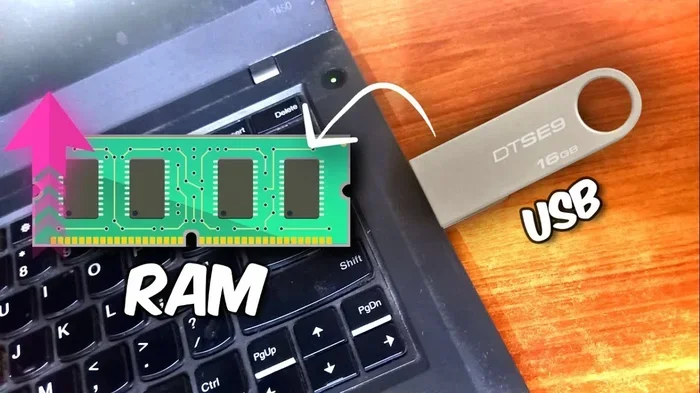
Many people wonder if they can add ram via usb to make their computer faster. The short answer is no — a usb drive cannot replace real system memory. However, Windows offers a feature called ReadyBoost that uses a usb flash drive to speed up your system indirectly. In this guide, we will explain how this works, why it is not a true ram upgrade, and what you should do instead to boost your computer speed.
Have you ever wondered if you can add ram via usb and instantly make your computer faster? It sounds too good to be true, right? You plug in a flash drive, and suddenly your pc has more memory. Unfortunately, the real answer is not that simple. A usb drive cannot replace actual system memory. But there is a bit more to the story. In this article, we will break down everything you need to know about usb ram, ReadyBoost, and how to genuinely speed up your computer without wasting money on false promises.
If you have been searching for ways to boost your pc performance, you are not alone. Thousands of people look up usb ram every month hoping for an easy fix. The truth is, your computer needs real physical memory modules to run faster. But there are some tricks and tools that can help squeeze out a bit more speed from your existing setup. Let us dive in and explore what works and what does not.
Key Takeaways
- USB drives cannot add real RAM: A usb flash drive does not function as actual system memory or physical ram.
- ReadyBoost is not a ram replacement: Windows ReadyBoost uses a usb drive as a cache, but it does not increase your total ram.
- Real ram upgrades are the best fix: Installing physical ddr4 or ddr5 ram sticks is the only way to truly boost your computer memory.
- USB ram is a common myth: Many users search for usb ram thinking it is a simple plug-and-play upgrade, but it does not work that way.
- Know your system first: Always check your current memory, operating system, and motherboard specs before buying any upgrade.
- Consider all performance factors: Slow storage, old processors, and software bloat also affect speed — not just memory alone.
📑 Table of Contents
- What Is RAM and Why Does It Matter?
- Can You Add RAM Via USB? The Truth
- What Is ReadyBoost and How Does It Work?
- How to Actually Make Your Computer Faster
- Common Mistakes People Make About RAM Upgrades
- Expert Insights on Boosting PC Performance
- Quick Tips for Choosing the Right RAM
- Can You Add Ram Via USB — Final Verdict
What Is RAM and Why Does It Matter?
Before we answer whether you can add ram via usb, let us first understand what ram actually does. Random Access Memory, or ram, is the short-term memory your computer uses to handle active tasks. When you open a browser, a game, or a video editor, your system loads data into ram so it can access it quickly.
Without enough ram, your computer slows down. It starts swapping data to your hard drive, which is much slower. This creates a bottleneck that frustrates even the best users. Here is a quick look at what ram does behind the scenes:
- Stores active data: Ram holds the information your processor needs right now.
- Speeds up multitasking: More ram means you can run more apps at once without lag.
- Reduces load times: Games and software open faster with sufficient memory.
- Supports virtual memory: Ram works hand in hand with your storage drive to manage data flow.
Most modern computers use ddr4 or ddr5 ram modules that plug directly into the motherboard. These sticks come in different speeds and capacities. For example, a typical upgrade might be 8gb, 16gb, or 32gb of ddr4 sdram. The type of ram you need depends on your motherboard and operating system.
Types of RAM You Should Know
Not all memory is the same. Here are the most common types you will encounter when looking at a ram upgrade:
- DDR4 RAM: The current standard for most desktops and laptops. It offers great speed and value.
- DDR5 RAM: The newest generation, found in high-end systems. It delivers faster speeds and better efficiency.
- DDR3 RAM: An older standard still found in some legacy systems. It is slower but still usable for basic tasks.
- SDRAM: Synchronous Dynamic RAM, the older foundation that early ddr types were built upon.
When you buy ram, you also need to match the right speed, latency, and form factor. For laptops, you need so-dimm modules. For desktops, full-size dimm sticks work best. Always check your system specs before making a purchase.
Can You Add RAM Via USB? The Truth
Now let us address the big question: can you add ram via usb? The direct answer is no. A usb flash drive cannot function as real system memory. Your motherboard does not recognize a usb drive as ram. When you plug in a flash drive, your computer treats it as external storage, not as memory.
Many people confuse external storage with system memory. They are completely different things. Storage holds your files, photos, and programs long-term. Memory holds the data your processor needs right now. A usb drive simply cannot do what real ram does at the hardware level.
Why USB RAM Does Not Work
Here is why the idea of usb ram is a myth. System memory connects directly to the motherboard through dedicated ram slots. It operates at incredibly fast speeds that a usb connection simply cannot match. A usb 3.0 drive has a maximum transfer rate of about 5 gigabits per second. Real ddr4 ram runs at speeds of 3200 to 5000 megatransfers per second or more. The difference is massive.
Another reason is the communication protocol. Ram uses a direct memory channel that the cpu accesses instantly. A usb drive uses a storage protocol that adds layers of translation and delay. Even if your system could somehow treat a usb drive as ram, the performance would be terrible. You would actually slow things down, not speed them up.
Some older users remember a Windows feature called ReadyBoost. This feature allowed you to plug in a usb drive and use it to cache data. But ReadyBoost is not the same as adding real memory. We will cover this in detail next.
What Is ReadyBoost and How Does It Work?
Microsoft introduced ReadyBoost in Windows Vista, and it has carried through to Windows 10 and Windows 11. The idea behind ReadyBoost is simple. If your computer has a slow hard drive, a fast usb drive can act as a cache to speed things up a little. But again, this is not the same as adding ram.
Here is how ReadyBoost works in practice. When your system needs to read data, it can pull from the usb cache instead of waiting for a slow spinning hard drive. This helps a bit if you have an old hdd and very little ram. But if you already have an ssd and enough memory, ReadyBoost does almost nothing.
When ReadyBoost Actually Helps
ReadyBoost is not completely useless. It can help in specific situations:
- Old computers with HDDs: If your system still uses a mechanical hard drive, ReadyBoost can reduce load times slightly.
- Systems with very low ram: If you have only 2gb or 4gb of memory, ReadyBoost can take the edge off.
- Portable computers: You can use a readyboost usb drive on the go to get a small performance bump.
However, ReadyBoost will never make your computer as fast as a real ram upgrade. It is a band-aid, not a cure. If you want to truly improve your system speed, you need to install physical memory modules.
How to Enable ReadyBoost on Windows
If you still want to try ReadyBoost, here is how you can set it up. Plug your usb flash drive into a port. Open File Explorer and right-click the drive. Select Properties. Go to the ReadyBoost tab. Choose the option to use this device. Click Apply and OK. Your system will now use the usb drive as a cache.
Keep in mind that you need a fast usb drive for this to work at all. A cheap, old usb 2.0 drive will not help much. A usb 3.0 or usb 3.1 flash drive works better. But even then, the gains are small compared to a real memory upgrade.
How to Actually Make Your Computer Faster
If usb ram is not the answer, what is? There are several real ways to speed up your computer. Let us walk through the most effective methods.
1. Install More Physical RAM
The best way to boost your computer speed is to install more ddr4 or ddr5 ram. Check how many open slots your motherboard has. Most desktops have four dimm slots. Many laptops have one or two so-dimm slots. Buying a matching pair of ram sticks can also enable dual channel mode, which improves performance even further.
Before you buy, check your system specifications. Use the Task Manager in Windows to see your current memory usage. If you are constantly hitting 80 percent or more of your ram capacity, an upgrade will make a huge difference. Most users today benefit from at least 16gb of memory for everyday tasks.
2. Upgrade to an SSD
If your computer still uses a hard disk drive, upgrading to a solid state drive is one of the best things you can do. An ssd loads programs and files much faster than an hdd. This reduces the bottleneck that slow storage creates. Many users report that an ssd upgrade feels like getting a brand new computer.
3. Clean Up Your System
Sometimes your computer is slow simply because it is overloaded. Too many startup programs, temporary files, and background processes eat up your resources. Here are a few quick tips to clean up your system:
- Disable unnecessary startup programs in Task Manager.
- Run disk cleanup to remove temporary files.
- Uninstall software you no longer use.
- Scan for malware that may be running in the background.
These steps do not cost any money and can make a noticeable difference in your daily experience.
4. Check Your Operating System
Your operating system plays a big role in how well your computer runs. Make sure you are using a supported version of Windows. Older versions like Windows 7 no longer receive security updates and may not support the latest hardware. Windows 10 and Windows 11 are optimized for modern ram and storage technology.
Also, make sure your system is running a 64-bit version of Windows if you have more than 4gb of ram. A 32-bit operating system can only use about 4gb of memory, no matter how much you install.
Common Mistakes People Make About RAM Upgrades
When it comes to boosting computer performance, many users make mistakes that waste their time and money. Let us look at some of the most common ones.
Myth: USB Drives Can Replace RAM
This is the biggest myth out there. No matter what you read online, a usb flash drive cannot replace real system memory. Your motherboard simply does not support it. Do not fall for cheap products or misleading guides that promise usb ram magic.
Myth: More RAM Always Means Faster Speed
While more ram helps, there is a point of diminishing returns. If you already have 16gb of ddr4 ram and you mostly browse the web and use office apps, adding 32gb more will not make your computer noticeably faster. Match your ram upgrade to your actual needs.
Mistake: Buying Incompatible RAM
Not all ram sticks work in every computer. You need to match the type (ddr4, ddr5), the speed, the voltage, and the form factor. Buying the wrong ram can mean it simply will not work. Always check your motherboard manual or use a ram compatibility tool before purchasing.
Mistake: Ignoring the Bottleneck
Sometimes the problem is not your memory at all. A slow processor, an outdated graphics card, or a failing hard drive can all create bottlenecks. Before you spend money on a ram upgrade, check what is actually causing the slowdown. Use tools like Task Manager or a system monitoring app to identify the real issue.
Expert Insights on Boosting PC Performance
We asked a few tech professionals about the best ways to speed up a slow computer. Here is what they had to say. Most experts agree that a real ram upgrade is the single most effective hardware change you can make. Adding ddr4 or ddr5 memory sticks to an empty slot costs relatively little and delivers immediate results.
One expert noted that many users confuse storage upgrades with memory upgrades. They buy a bigger hard drive when what they really need is more ram. Another pointed out that software optimization matters just as much as hardware. Keeping your operating system and drivers updated can improve performance significantly.
If you are on a tight budget, start with the upgrade that gives you the most bang for your buck. For most users, that means either adding more ram or switching to an ssd. Skip the usb ram shortcuts and invest in real hardware improvements instead.
Quick Tips for Choosing the Right RAM
Ready to upgrade your memory for real? Here are some quick tips to help you choose the right ram for your system:
- Check your motherboard manual: It lists the exact type and maximum capacity of ram your system supports.
- Match the generation: Ddr4 ram will not work in a ddr3 slot and vice versa. Always match the generation.
- Buy matching pairs: Two identical sticks enable dual channel mode, which boosts performance.
- Consider your usage: Gamers and video editors need more ram than casual web browsers.
- Buy from reputable brands: Corsair, Kingston, G.Skill, and Crucial are reliable choices for memory upgrades.
- Check your operating system: A 64-bit Windows version can use more than 4gb of ram. A 32-bit version cannot.
Taking a few minutes to research before you buy can save you from buying the wrong product. Your computer will thank you with faster load times, smoother multitasking, and fewer frustrating slowdowns.
Can You Add Ram Via USB — Final Verdict
So, can you add ram via usb? The final answer is no. A usb flash drive cannot function as real system memory. Your computer needs physical ddr4 or ddr5 ram modules installed in the correct slots on your motherboard. Anything else is a workaround at best and a waste of money at worst.
That said, tools like Windows ReadyBoost can give you a small performance boost if you have an old hard drive and very little memory. But even ReadyBoost is not a substitute for a real ram upgrade. If you want your computer to run faster, invest in physical memory, upgrade to an ssd, and keep your system well maintained.
Remember, there are no magic shortcuts when it comes to computer hardware. Real upgrades take a little effort but deliver real results. Your computer will run faster, smoother, and more reliably once you make the right changes. Start with checking your current memory, figure out what you need, and make the upgrade that counts.
While you are exploring ways to improve your setup, you might also want to check out how to Add Windows Movie Maker 26 for some creative multimedia projects on your newly optimized system. A faster computer means smoother editing and better performance for all your applications.
Frequently Asked Questions
Can a USB flash drive increase my computer’s RAM?
No, a USB flash drive cannot increase your actual system RAM. Your motherboard only recognizes physical memory modules installed in ram slots. A usb drive is treated as external storage, not as memory. While Windows offers ReadyBoost to use a usb drive as a cache, it does not add real ram to your system.
What is ReadyBoost and does it really help?
ReadyBoost is a Windows feature that lets you use a fast usb drive as a cache to speed up data access. It helps a little if you have a slow hard drive and very little ram. However, it does not replace a real ram upgrade. If you already have an ssd and enough memory, ReadyBoost provides almost no benefit.
Can I use any USB drive for ReadyBoost?
Not all usb drives work well with ReadyBoost. You need a fast usb 3.0 or higher drive with good read and write speeds. A cheap, old usb 2.0 drive will not provide much of a boost. The faster and more reliable your usb drive, the better the ReadyBoost performance will be.
How much RAM do I really need for everyday use?
For most everyday tasks like browsing, office work, and streaming, 8gb of ram is the minimum. 16gb is the sweet spot for smooth multitasking. Gamers and content creators should aim for 32gb or more. The right amount depends on what you do and which operating system you use.
What happens if I install the wrong type of RAM?
If you install incompatible ram, your computer will not boot. The motherboard will not recognize the wrong type of memory module. Always check your motherboard manual for the supported ram type, speed, and maximum capacity before purchasing any memory sticks.
Is it better to upgrade RAM or switch to an SSD?
Both upgrades are valuable, but they solve different problems. More ram helps with multitasking and running memory-hungry applications. An SSD improves boot times, file access speed, and overall system responsiveness. For the best results, do both if your budget allows.
=== CONCLUSION ===
The idea of adding ram via usb is appealing because it sounds so simple and convenient. You plug in a drive and your computer is faster. But the reality is that usb drives cannot replace real system memory. Your computer needs physical ddr4 or ddr5 ram modules to function properly and run at full speed.
Tools like ReadyBoost offer a small workaround, but they are not true solutions. If you want your computer to perform at its best, invest in a real ram upgrade, consider switching to an ssd, and keep your system optimized. These steps will deliver the speed and reliability you are looking for. Do not fall for the usb ram myth — make the upgrade that actually works.