Can Thunderbolt Be Converted To Hdmi On Your Device
Yes, you can convert Thunderbolt to HDMI using the right adapter or cable. Thunderbolt ports support video output, which means you can connect your laptop or desktop to an external monitor, TV, or projector. This guide covers everything you need to know about Thunderbolt to HDMI conversion, including adapter types, setup steps, troubleshooting, and expert tips for a smooth experience.
You have a Thunderbolt port on your laptop or desktop. You want to hook up an external monitor or share your screen on a bigger display. But your display only has an HDMI input. So what do you do? The good news is that converting Thunderbolt to HDMI is not only possible but also very common. Whether you are working from home, setting up a home theater, or giving a presentation, knowing how to make this connection works in your favor.
Thunderbolt to HDMI conversion is something many people run into every day. Apple MacBooks, Windows laptops, and even some tablets use Thunderbolt ports. These ports are incredibly versatile. They handle data transfer, charging, and video output all in one cable. But HDMI is the standard for most TVs, monitors, and projectors. So you need an adapter or a cable to bridge the gap. This guide will walk you through everything you need to know. We will cover adapter types, setup steps, common problems, and expert tips. By the end, you will feel confident making this connection yourself.
Let us start with the basics. Understanding what Thunderbolt is and how it differs from regular USB-C or HDMI ports makes the whole process much easier. Once you grasp the fundamentals, the rest is simple. You will be able to pick the right adapter, set up your display, and troubleshoot any issues that come up. Converting Thunderbolt to HDMI does not have to be complicated. It really is not. Let us dive in.
Key Takeaways
- Thunderbolt supports video output: You can absolutely convert Thunderbolt signals to HDMI for external displays.
- Active and passive adapters exist: Choosing the right one depends on your device and resolution needs.
- Compatibility matters: Not all Thunderbolt cables and adapters work with every device or setup.
- Setup is simple: With the correct adapter, connecting Thunderbolt to HDMI takes just a few seconds.
- Troubleshooting is straightforward: Most issues with Thunderbolt to HDMI connections have easy fixes.
- Thunderbolt 3 and 4 offer the best support: These versions handle high-resolution displays and audio seamlessly.
- Docking stations expand your options: A Thunderbolt docking station can add multiple HDMI ports and other connections.
📑 Table of Contents
- What Is Thunderbolt and Why Does It Matter?
- Can Thunderbolt Be Converted To HDMI?
- Types of Thunderbolt to HDMI Adapters and Cables
- Step-by-Step Guide to Converting Thunderbolt to HDMI
- Troubleshooting Common Thunderbolt to HDMI Issues
- Thunderbolt vs HDMI: Understanding the Differences
- Expert Tips for the Best Thunderbolt to HDMI Experience
- Final Thoughts
What Is Thunderbolt and Why Does It Matter?
Before we talk about conversion, it helps to understand what Thunderbolt actually is. Thunderbolt is a hardware interface developed by Intel in partnership with Apple. It was first introduced in 2011. Over the years, it has gone through several versions. Each version brought faster speeds and more capabilities. Today, Thunderbolt 3 and Thunderbolt 4 are the most widely used versions.
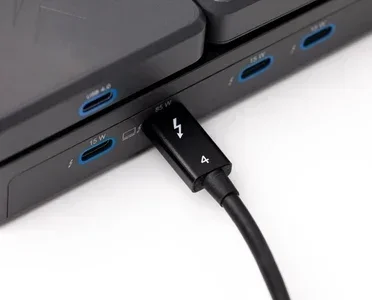
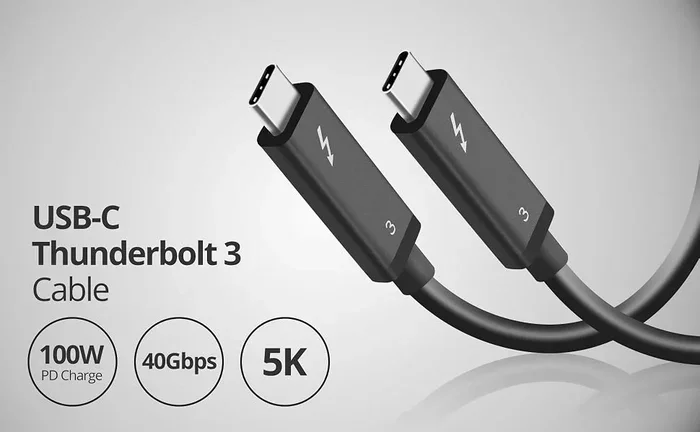
Thunderbolt uses the USB-C connector shape. This is important because USB-C and Thunderbolt look the same physically. But they are not the same thing. Thunderbolt cables and ports can do everything USB-C can do, plus more. They support data transfer speeds of up to 40 gigabits per second. They also support video output and power delivery. This makes Thunderbolt incredibly powerful for a single port.
Thunderbolt 3 vs Thunderbolt 4
Thunderbolt 3 came out in 2015. It introduced the USB-C form factor. It supports 4K displays at 60Hz and data transfer at 40Gbps. Thunderbolt 4 arrived in 2020. It builds on Thunderbolt 3 but adds some important improvements. Thunderbolt 4 guarantees support for two 4K displays or one 8K display. It also has stricter requirements for security and wake-from-sleep features. If you have a newer device, there is a good chance it uses Thunderbolt 4.
Both versions can output video through HDMI. This is the key fact that makes Thunderbolt to HDMI conversion possible. Your Thunderbolt port is essentially a video-out port in disguise. You just need the right adapter to unlock that capability.
Can Thunderbolt Be Converted To HDMI?
The short answer is yes. Can Thunderbolt be converted to HDMI? Absolutely. Thunderbolt ports carry a display signal. This means they can output video just like an HDMI port does. The trick is getting that signal from the Thunderbolt connector to an HDMI connector. You need a converter for that.
When you convert Thunderbolt to HDMI, you are changing the signal format. Thunderbolt uses a digital packet-based protocol. HDMI uses a different digital signaling standard. An adapter or active cable handles this conversion. It takes the Thunderbolt signal and translates it into an HDMI signal. Your TV or monitor then receives it just like it would from a regular HDMI source.
The process works on both Mac and PC. If you have a MacBook with Thunderbolt 3 or Thunderbolt 4, you can connect it to an HDMI monitor. If you have a Windows laptop with a Thunderbolt port, the same applies. The conversion process is universal. You do not need special software or drivers in most cases. Just plug in the adapter, and your display should show up automatically.
One thing to keep in mind is that not all adapters are created equal. Some adapters only support certain resolutions or refresh rates. Others may not carry audio. We will cover these details in the next section. For now, just know that the conversion is fully supported and widely used.
Types of Thunderbolt to HDMI Adapters and Cables
Not all adapters work the same way. There are different types of Thunderbolt to HDMI converters. Each one has its own strengths. Choosing the right one depends on your device, your display, and what you plan to do.
Passive Adapters
Passive adapters are simple and affordable. They do not need external power. They work by converting the signal directly inside the adapter housing. Passive adapters are great for basic setups. They work well for 4K at 30Hz or 1080p at 60Hz. If you just need to connect a monitor for everyday work, a passive adapter will do the job.
However, passive adapters have limits. They may not support higher refresh rates or resolutions. They also might not carry audio in all cases. If you need a simple, no-fuss connection, a passive Thunderbolt to HDMI adapter is a solid choice.
Active Adapters
Active adapters are more advanced. They have built-in chips that handle the signal conversion. These chips power the adapter and improve signal quality. Active adapters support higher resolutions and refresh rates. Many active adapters can handle 4K at 60Hz or even 8K in some cases.
Active adapters also tend to carry audio alongside video. This is important if you want sound to come through your HDMI display. If you are connecting your laptop to a TV for movies or presentations, an active adapter is the better option. The signal quality is stronger and more reliable.
Thunderbolt Docking Stations
A docking station is another option. Docking stations connect to your Thunderbolt port and offer multiple outputs. Many docking stations include HDMI ports. They also add USB ports, Ethernet, and SD card readers. A Thunderbolt docking station is ideal if you need more than just an HDMI connection. It turns your laptop into a full desktop setup with one cable.
Docking stations are more expensive than simple adapters. But they offer much more flexibility. If you work from a desk every day, a docking station can simplify your setup significantly. You just dock your laptop and everything connects.
USB-C to HDMI Cables
You might also see USB-C to HDMI cables on the market. These cables have a USB-C connector on one end and an HDMI connector on the other. They work with Thunderbolt ports because Thunderbolt uses USB-C. However, not all USB-C to HDMI cables support Thunderbolt features. Make sure the cable is rated for Thunderbolt if you want the best performance. A regular USB-C to HDMI cable might work, but it may not support the highest resolutions or data speeds.
Step-by-Step Guide to Converting Thunderbolt to HDMI
Setting up a Thunderbolt to HDMI connection is straightforward. You do not need to be tech-savvy. Follow these steps and you will be up and running in minutes.
- Check your Thunderbolt port. Look for the lightning bolt icon next to the port. This confirms it is a Thunderbolt port, not just a regular USB-C port. Sometimes USB-C ports look identical to Thunderbolt ports, so the icon matters.
- Choose your adapter or cable. Based on your needs, pick a passive adapter, active adapter, docking station, or USB-C to HDMI cable. If you need high resolution or audio, go with an active adapter.
- Connect the adapter to your device. Plug the Thunderbolt end into your laptop or desktop. Make sure it clicks into place.
- Connect the HDMI cable. Plug an HDMI cable into the adapter. Then plug the other end into your TV, monitor, or projector.
- Power on your display. Turn on your external monitor or TV. Switch it to the correct HDMI input. Most TVs have multiple HDMI ports. Use the remote to select the right one.
- Configure your display settings. On a Mac, go to System Settings and look for Displays. On Windows, go to Settings and then Display. You can choose to mirror your screen or extend it. You can also adjust the resolution and orientation here.
That is it. In just six steps, you have converted your Thunderbolt connection to HDMI. Your external display should now show your screen. If it does not, do not worry. We will cover troubleshooting in the next section.
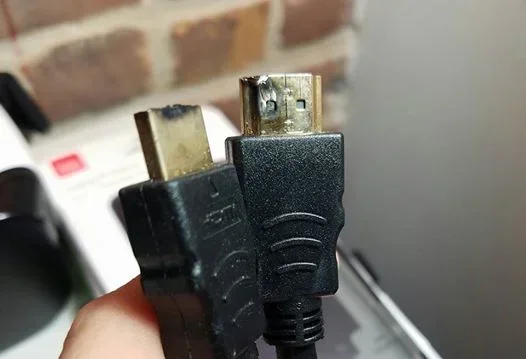
One quick tip: always use a high-quality HDMI cable. A cheap or damaged cable can cause signal issues. Even the best adapter will not perform well with a poor cable. Invest in a good HDMI cable and your setup will be much more reliable.
Troubleshooting Common Thunderbolt to HDMI Issues
Sometimes things do not work right away. This is normal. Most Thunderbolt to HDMI problems have simple solutions. Here are the most common issues and how to fix them.
No Signal on the External Display
If your external monitor shows no signal, the first thing to check is the connection. Make sure the adapter is firmly plugged in. Check that the HDMI cable is secure on both ends. Sometimes cables feel connected but are not fully seated. Unplug and replug everything. This alone fixes many issues.
Next, check your display settings. On Windows, press Windows plus P to open the projection menu. Make sure you have selected the right display mode. On Mac, go to System Settings and check the Displays section. Sometimes the display is detected but not enabled.
No Audio Through HDMI
If you have video but no sound, the issue is usually with audio output settings. On Mac, go to System Settings, then Sound. Under Output, select your HDMI display. On Windows, right-click the speaker icon in the taskbar. Choose Sound Settings and select your HDMI display as the output device.
Some adapters do not carry audio. This is more common with older or cheaper passive adapters. If audio is important to you, choose an active adapter that explicitly supports audio over HDMI.
Low Resolution or Flickering Display
If your external display looks blurry or flickers, the adapter or cable might be the problem. A passive adapter may not support the resolution your monitor is set to. Try lowering the resolution in your display settings. Also, try a different HDMI cable. A damaged cable often causes flickering or signal drops.
If you are using a docking station, make sure its firmware is up to date. Manufacturers often release updates that fix compatibility issues. Check the manufacturer’s website for the latest drivers and software.
Adapter Not Recognized by the Device
Sometimes your device does not recognize the adapter at all. This can happen with Thunderbolt 4 devices that have strict compatibility requirements. Try a different adapter if you have one. Also, make sure your device’s operating system is up to date. Software updates often include driver fixes that improve Thunderbolt compatibility.
Remember that not all adapters work with all devices. The same way you check compatibility details when adding prefixes to numbers on iPhone, you should always verify that your adapter supports your specific device model. Checking specs before buying saves a lot of frustration.
Thunderbolt vs HDMI: Understanding the Differences
Thunderbolt and HDMI are both connection standards, but they serve different purposes. Understanding the differences helps you make better decisions about your setup.
Thunderbolt is a universal port. It handles data, video, and power through a single cable. HDMI is designed specifically for audio and video. HDMI does not carry data or power (except in very limited cases with HDMI-CEC). Thunderbolt is much more versatile, but HDMI is still the standard for display connections in most homes and offices.
Here is a quick comparison of the two:
- Data Transfer: Thunderbolt supports up to 40Gbps. HDMI does not support data transfer at all.
- Video Output: Both support high-resolution video. Thunderbolt can drive multiple displays. HDMI connects to one display per cable.
- Power Delivery: Thunderbolt can charge your device up to 100W. HDMI cannot charge devices.
- Audio: HDMI carries high-quality audio natively. Thunderbolt carries audio through adapters but relies on the adapter for audio support.
- Compatibility: HDMI is found on almost every TV and monitor. Thunderbolt is found on select laptops and desktops.
The bottom line is that Thunderbolt is a Swiss Army knife. HDMI is a specialist. When you need to connect your Thunderbolt device to an HDMI display, you are bridging two different worlds. The right adapter makes that bridge strong and reliable.
For more ideas on useful tech gadgets and accessories, check out our 10 Gadgets To Make Moms Life Easier guide. You might find some helpful accessories that complement your Thunderbolt setup.
Expert Tips for the Best Thunderbolt to HDMI Experience
Now that you understand the basics, here are some expert tips to get the best results from your Thunderbolt to HDMI setup.
- Buy from reputable brands. Apple, Belkin, CalDigit, and Anker make high-quality Thunderbolt adapters. Cheap no-name adapters can cause signal problems and may even damage your port.
- Match your adapter to your needs. If you need 4K at 60Hz, get an active adapter. If you only need 1080p, a passive adapter will save you money.
- Keep your drivers updated. On Windows, update your graphics drivers regularly. On Mac, keep your macOS up to date. This ensures the best Thunderbolt compatibility.
- Use a docking station for permanent setups. If you work at a desk every day, a Thunderbolt docking station is worth the investment. It keeps your cables tidy and your connections stable.
- Test your setup before important meetings. Always test your Thunderbolt to HDMI connection before a presentation or movie night. Nothing is worse than discovering a problem when it matters most.
- Consider cable length carefully. Longer cables can weaken the signal. For best results, keep your HDMI cable under 6 feet. If you need a longer run, use an active HDMI cable that boosts the signal.
These tips come from real-world experience. They will save you time and frustration. Following them ensures your Thunderbolt to HDMI conversion works smoothly every time.
Final Thoughts
Converting Thunderbolt to HDMI is simple, reliable, and widely supported. Whether you use a passive adapter, an active adapter, a docking station, or a USB-C to HDMI cable, you have options. The key is choosing the right one for your specific needs and device.
Thunderbolt ports are incredibly versatile. They handle data, power, and video all in one. Adding HDMI output to that mix makes Thunderbolt even more useful. You can connect to any display, TV, or projector with an HDMI input. This opens up a world of possibilities for work, entertainment, and presentations.
Remember to check compatibility before you buy. Not all adapters work with all devices. Read the specs carefully and choose a brand you trust. If you run into issues, most problems have simple fixes. Check your connections, update your software, and adjust your display settings.
With the right setup, your Thunderbolt device and your HDMI display work together perfectly. You will wonder how you ever managed without the connection. Now you know the answer to the question: can Thunderbolt be converted to HDMI on your device. The answer is a definitive yes. And now you have everything you need to make it work.
Frequently Asked Questions
What is the difference between Thunderbolt 3 and Thunderbolt 4 for HDMI output?
Thunderbolt 3 supports 4K at 60Hz and data transfer at 40Gbps. Thunderbolt 4 guarantees support for two 4K displays or one 8K display. Both can convert to HDMI, but Thunderbolt 4 offers more consistent performance and better multi-display support.
Do I need a special adapter to convert Thunderbolt to HDMI?
Yes, you need a Thunderbolt to HDMI adapter or a USB-C to HDMI cable that supports Thunderbolt. Regular USB-C to HDMI cables may work but might not support the highest resolutions or carry audio reliably.
Can I connect a Thunderbolt MacBook to an HDMI TV?
Absolutely. MacBooks with Thunderbolt 3 or Thunderbolt 4 ports can connect to HDMI TVs using an adapter. Simply plug in the adapter, connect an HDMI cable to your TV, and switch to the correct input. Your Mac should detect the TV automatically.
Will a Thunderbolt to HDMI adapter support audio?
Most active Thunderbolt to HDMI adapters support audio alongside video. Passive adapters may not carry audio. If you need sound through your HDMI display, choose an active adapter and make sure it explicitly lists audio support in its specifications.
Why is my Thunderbolt to HDMI connection not working?
Common reasons include a loose cable connection, an incompatible adapter, outdated drivers, or incorrect display settings. Try replugging all connections, using a different adapter, updating your operating system, and checking your display settings. Most issues resolve with these simple steps.
Can I use a Thunderbolt docking station with an HDMI monitor?
Yes, many Thunderbolt docking stations include HDMI ports. A docking station is a great option if you need multiple connections, such as HDMI, USB, and Ethernet, all from a single Thunderbolt port on your laptop.
=== CONCLUSION ===
Can Thunderbolt be converted to HDMI on your device? Yes, and it is easier than you think. With the right adapter or cable, you can connect your Thunderbolt laptop or desktop to any HDMI display. Whether you choose a passive adapter for simple setups or an active adapter for high-resolution output, the process is straightforward and reliable.
We covered the types of adapters available, step-by-step setup instructions, common troubleshooting tips, and expert advice for the best experience. You now have everything you need to make this connection work. Do not let incompatible ports hold you back. Thunderbolt to HDMI conversion opens up new possibilities for your device. Try it today and enjoy the flexibility of connecting to any display with ease.