Can I Use Hp Smart Without An Account Heres The Answer
Yes, you can use HP Smart without an account for basic printing and scanning tasks. The HP Smart app allows wireless printing, document scanning, and printer management even without signing in. However, some advanced features like cloud printing and remote access require an HP account.
Key Takeaways
- Basic printing works without an account: You can print and scan using the HP Smart app without signing in.
- HP account unlocks premium features: Cloud printing, remote access, and ink ordering need an account.
- Setup is simple either way: You can connect your printer to Wi-Fi and start printing in minutes.
- Mobile printing is possible without login: Print from your phone or tablet without creating an HP account.
- Some limitations exist: Certain features like firmware updates and driver downloads may require an account.
- Security matters: An HP account offers better device management and security features.
- Offline printing still works: You do not need an internet connection for local printing jobs.
📑 Table of Contents
- Can I Use Hp Smart Without An Account? Heres The Answer
- What Is HP Smart And How Does It Work
- Using HP Smart Without An Account: What Works
- Features That Require An HP Account
- HP Smart App Setup Without An Account
- HP Smart Without Account Vs With Account: A Comparison
- Is It Safe To Use HP Smart Without An Account
- Common Mistakes People Make With HP Smart
- Expert Insights On Using HP Smart
- How To Get The Most Out Of HP Smart Without An Account
- Frequently Asked Questions
- Final Thoughts
Can I Use Hp Smart Without An Account? Heres The Answer
The short answer is yes. You can use HP Smart without an account for many everyday tasks. The app lets you print, scan, and manage your printer right from your phone or computer. You do not need to create an HP account just to get started.
But here is the thing. Not all features work without signing in. Some powerful tools are locked behind an HP account. This guide walks you through everything you need to know. We will cover what works, what does not, and how to get the most out of HP Smart with or without an account.
Whether you are setting up a new HP printer or just want to print a quick document, this article has you covered. Let us dive in and explore how HP Smart works without an account and what you might be missing out on.
What Is HP Smart And How Does It Work
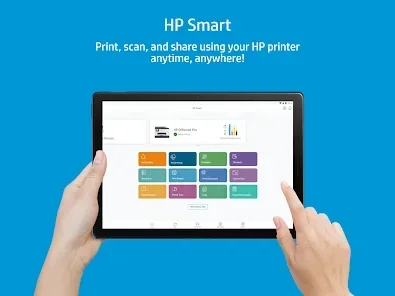
HP Smart is a free app made by HP Inc. It works with most HP printers sold today. The app turns your phone, tablet, or computer into a powerful printing hub. You can print, scan, and manage your printer from anywhere in your home.
The app uses wireless printing technology. It connects to your printer over your home Wi-Fi network. Once connected, you can send print jobs directly from your device. No cables are needed. No complicated setup is required.
HP Smart also supports mobile printing. This means you can print photos, documents, and web pages straight from your smartphone. The app is available for both Android and iOS devices. You can also use it on Windows and Mac computers.
How HP Smart Connects To Your Printer
When you open the app, it searches for HP printers on your network. It finds your printer automatically if both devices are on the same Wi-Fi. You can also add a printer manually using the IP address or Bluetooth.
The HP Smart app uses a simple setup process. You select your printer from the list, and the app handles the rest. Within minutes, your device is paired and ready to print. This makes printer setup fast and painless for everyone.
Using HP Smart Without An Account: What Works
You do not need an HP account to do a lot of things. Many core features work right out of the box. Here is what you can do without signing in.
Basic Printing
You can print documents and photos without logging in. The app sends your print job directly to the printer over your local network. This is called offline printing. It works even if your internet is down.
You can adjust print settings like paper size, color, and quality. These options are available without an account. You can also set the number of copies you need. The process is simple and straightforward.
Scanning Documents And Photos
Scanning works without an account too. You can use your printer’s scanner to digitize documents. The app lets you save scans as PDF or image files. You can also scan photos directly to your phone.
This is great for people who want to scan documents quickly. No account means no sign-up hassles. You just open the app, place your document on the scanner, and hit scan.
Printer Management
You can check ink levels and printer status without signing in. The app shows how much ink or toner is left. It also alerts you if there is a paper jam or other issue.
You can view printer details like model name and connection status. These features help you troubleshoot problems quickly. You do not need an account to keep your printer running smoothly.
Features That Require An HP Account
While many features work without an account, some need one. An HP account gives you access to premium tools. Here is what you will miss without signing up.
Cloud Printing
Cloud printing lets you send print jobs from anywhere. You can print from your office, a coffee shop, or even while traveling. This feature requires an HP account and an internet connection.
Without an account, you are limited to printing from your local network. If you are not near your printer, you cannot send a job. This can be a big limitation for people who work remotely.
Remote Printer Access
An HP account allows you to access your printer remotely. You can check ink levels, order supplies, and manage settings from your phone. This works even when you are not at home.
Without an account, you must be on the same Wi-Fi network. This means no remote management. If you are away from home, you cannot control your printer at all.
HP Instant Ink And Ink Ordering
HP Instant Ink is a subscription service that sends ink automatically. You need an HP account to sign up. The service tracks your ink usage and ships replacements before you run out.
Even if you do not use Instant Ink, you can order ink through the app. But this also requires an account. Without one, you must order ink through the HP website or retail stores.
Firmware Updates And Driver Downloads
Some firmware updates require an HP account. These updates keep your printer secure and running smoothly. Without them, your printer may miss important security patches.
Driver downloads for certain printer models also need an account. This is more common with newer HP printers. If you skip updates, your printer may not work with the latest devices.
HP Smart App Setup Without An Account
Setting up HP Smart without an account is easy. Follow these steps to get started quickly.
- Download the HP Smart app from the App Store or Google Play Store.
- Open the app and allow it to access your Wi-Fi network.
- Select your printer from the list of detected devices.
- Follow the on-screen prompts to complete the connection.
- Start printing or scanning right away.
That is it. You do not need to create an account or provide any personal information. The app works with just your printer and Wi-Fi connection.
Quick Tips For A Smooth Setup
- Make sure your phone and printer are on the same Wi-Fi network.
- Restart your printer before starting the setup process.
- Update your printer firmware if possible before setting up.
- Keep your printer close to your Wi-Fi router for a strong signal.
- Use the latest version of the HP Smart app for best results.
HP Smart Without Account Vs With Account: A Comparison
Here is a quick look at what you get with and without an HP account. This table makes it easy to see the differences.
| Feature | Without Account | With Account |
|---|---|---|
| Basic Printing | Yes | Yes |
| Scanning | Yes | Yes |
| Printer Status | Yes | Yes |
| Ink Level Check | Yes | Yes |
| Cloud Printing | No | Yes |
| Remote Access | No | Yes |
| HP Instant Ink | No | Yes |
| Firmware Updates | Limited | Full Access |
| Order Ink | No | Yes |
| Mobile Printing | Yes | Yes |
As you can see, the core printing and scanning features work without an account. But an HP account opens up a lot more. If you use your printer regularly, signing up is worth it.
Is It Safe To Use HP Smart Without An Account
Many people worry about privacy and security. They wonder if using HP Smart without an account is safe. The good news is that basic use is perfectly safe.
Without an account, the app does not collect personal data. Your print jobs stay local to your network. No information is sent to HP servers. This is a big plus for privacy-conscious users.
However, an HP account does offer some security benefits. It lets you manage printer access for multiple users. You can set permissions and track usage. If you share a printer at home or in an office, an account helps keep things organized.
For most home users, using HP Smart without an account is perfectly fine. You get all the essential features without sharing any personal information. It is a simple and private way to print and scan.
Common Mistakes People Make With HP Smart
Here are some mistakes to avoid when using HP Smart without an account.
Skipping Wi-Fi Setup
Some users try to print without connecting the printer to Wi-Fi. This will not work with the app. You need a wireless connection for HP Smart to find and communicate with your printer.
Ignoring App Updates
Not updating the app can cause problems. Older versions may not work with newer printer models. Always keep your app updated for the best experience.
Assuming All Features Work Without Login
Many users get frustrated when cloud features do not work. Remember, features like remote printing need an account. Check the feature list before you start using the app.
Not Checking Ink Levels Regularly
Without an account, you will not get automatic ink alerts. Make it a habit to check ink levels manually. Running out of ink mid-print can damage your printer.
Expert Insights On Using HP Smart
According to HP support experts, using HP Smart without an account is perfectly fine for most users. The app is designed to work with minimal setup. You do not need to create an account unless you want advanced features.
Experts also recommend creating an account if you use your printer for work. An account gives you better control and management tools. It also ensures you get timely firmware updates and security patches.
For casual home users, skipping the account is perfectly fine. You get fast, reliable printing and scanning without any sign-up. The choice depends on how you use your printer and what features matter to you.
How To Get The Most Out Of HP Smart Without An Account
Even without an account, you can get a lot from HP Smart. Here are some tips to maximize your experience.
- Use the scan-to-phone feature. This lets you digitize documents and photos quickly without any login.
- Print in draft mode for everyday documents. This saves ink and speeds up printing.
- Set up your printer on a stable Wi-Fi network. A strong connection means fewer print errors.
- Use the app to check ink levels weekly. This helps you avoid running out unexpectedly.
- Explore the built-in templates. HP Smart offers templates for flyers, labels, and cards. These work without an account.
- Keep the app installed on multiple devices. You can print from any device on your Wi-Fi network.
Frequently Asked Questions
Can I print wirelessly without creating an HP account?
Yes, you can print wirelessly without an HP account. The HP Smart app connects to your printer over Wi-Fi without requiring any sign-in. You can send print jobs from your phone or computer right away.
Do I need an HP account to scan documents?
No, you do not need an account to scan documents. The scan feature works without signing in. You can scan to PDF or image files and save them directly to your device.
What happens if I create an HP account later?
If you create an account later, all your printer settings sync with it. You gain access to cloud printing and remote management features. Your existing print jobs and settings remain intact.
Can I use HP Smart on multiple devices without an account?
Yes, you can install HP Smart on multiple devices. Each device can connect to your printer over the same Wi-Fi network. However, account-free use is limited to local network printing and scanning.
Is HP Smart free to use without an account?
Yes, HP Smart is completely free to download and use without an account. There are no hidden fees for basic printing and scanning features. The app works fully without any payment information.
Will my printer work if I never create an HP account?
Yes, your printer will work perfectly fine without an account. You can print, scan, and manage your printer through the app. Some advanced features will be unavailable, but core functions work without any account at all.
Final Thoughts
HP Smart is a powerful and versatile app. You can use it without an account for most everyday tasks. Basic printing, scanning, and printer management all work great without signing in.
But if you want cloud printing, remote access, and ink ordering, you will need an HP account. The choice is simple. Use the app as-is for free, or create an account to unlock premium features.
The bottom line is this: HP Smart without an account covers the essentials. It gives you everything you need for daily printing and scanning. No sign-up, no hassle, no personal information required. Give it a try and see how easy it is to get started.