How Do I Clear The Cache On My Ipad Fast And Simple
Clearing the cache on your iPad is one of the simplest ways to boost performance and free up valuable storage space. Whether you use Safari or third-party apps, this guide walks you through every method step by step. You will learn how to clear cache on iPad for your browser, individual apps, and overall device storage in just a few minutes.
If your iPad is running slow, freezing up, or running out of storage space, the answer might be simpler than you think. Your device collects temporary files called cache every time you browse the web, use apps, or download content. Over time, these temporary files pile up and can cause real problems. The good news is that learning how to clear cache on iPad takes just a few minutes and does not require any special tools or technical skills.
In this guide, I will walk you through every method step by step. You will learn how to clear safari cache, delete app data, manage your ipad storage management, and keep your device running like new. Whether you are dealing with a slow ipad or just want to free up storage space, this article has you covered. I will also share practical tips and common mistakes to avoid so you can get the best results every time.
Key Takeaways
- Clearing Safari cache is quick and easy: You can delete browsing data directly from your iPad settings in under a minute.
- Individual apps store their own cache: Offloading or reinstalling apps removes built-up app data and temporary files.
- Regular cache clearing improves ipad performance: It helps your device run faster and prevents storage issues.
- You do not need third-party apps: Apple provides all the tools you need right in the settings menu.
- Back up your data first: Always make sure your important information is saved before clearing any cache or data.
- Clear cache on iPad regularly: Making this a habit keeps your device running smoothly over time.
📑 Table of Contents
Why Clearing Your iPad Cache Matters
Think of cache as a short-term memory for your iPad. When you visit a website or open an app, your device saves small pieces of data so it can load things faster next time. This is helpful in the short term, but over time, these temporary files build up and take up significant space. A full cache can actually slow down your device instead of speeding it up.
Regular ipad maintenance includes clearing your cache. It helps your ipad performance stay fast and responsive. When your cache is clean, web pages load more smoothly, apps open faster, and your device has more room for the things that matter to you. Clearing your browsing data also helps protect your privacy by removing stored information about the websites you visit.
What Is Cache and Why Does It Build Up
Cache files are small pieces of data that your iPad saves to remember things about websites and apps. For example, when you visit a news website, your iPad might save the logo and layout so the page loads faster on your next visit. This is called website data. The problem is that these files never delete themselves automatically. They just keep accumulating until you manually clear them out.
Every time you scroll through social media, shop online, or watch videos, your iPad stores more cache. After weeks or months of regular use, this app data can take up several gigabytes of space. That is why clearing cache on iPad should be part of your regular device routine.
Signs Your iPad Needs a Cache Clear
How do you know it is time to clear your cache? Watch for these common signs:
- Your iPad feels slower than usual when opening apps or loading web pages.
- You get a “storage almost full” warning on your device.
- Web pages do not display correctly or show old content.
- Apps take longer than normal to load or respond.
- Your iPad overheats even when you are not using it heavily.
If you notice any of these issues, it is a good idea to delete browser history and clear your temporary files. The process is simple and takes only a few minutes.
How To Clear Cache On Safari Browser
Safari is the default web browser on every iPad. Over time, it collects a lot of website data, cookies, and browsing history. Clearing this data is the first step in learning how to clear cache on iPad effectively. Here is exactly how to do it.
Step-by-Step Guide For Safari
Follow these simple steps to clear your Safari cache:
- Open the ipad settings app on your home screen.
- Scroll down and tap on Safari in the left-hand menu.
- Tap on Clear History and Website Data.
- Confirm your choice by tapping Clear History and Data again.
- Wait a few seconds for the process to finish.
That is it! Your Safari cache, cookies, and browsing history are now cleared. Your reload web pages will load fresh data from the internet the next time you visit them. This simple step can make a noticeable difference in how fast your browser feels.
Clearing Cookies And Website Data Separately
If you want more control over what you delete, you can clear cookies and website data separately. In the Safari settings, scroll down to the Privacy & Security section. Tap on Block All Cookies if you want to prevent future tracking, or tap on Advanced to manage website data more carefully.
Keep in mind that blocking all cookies means some websites may not work properly. You will need to log in again to sites you visit frequently. For most users, simply clearing the history and website data as described above is the best approach.
| Method | What It Clears | Best For |
|---|---|---|
| Clear History and Website Data | Browsing history, cookies, cache | Full privacy reset and speed boost |
| Clear Cookies Only | Cookies and tracking data | Removing login sessions and trackers |
| Clear Cache Only | Temporary files and cached images | Fixing loading issues without losing logins |
Quick Tip: If you only want to free up space without losing your browsing history, go to Settings > Safari > Advanced > Website Data and tap Remove All Website Data. This clears the cache on ios without deleting your history.
How To Clear Cache For Individual Apps
Unlike Safari, most apps on your iPad do not have a simple “clear cache” button. Each app stores its own app data and temporary files in different ways. But do not worry, there are still effective methods to clear app cache and free up space.
Clearing App Data On Your iPad
The most reliable way to clear cache for a specific app is to offload or delete it. Here is how:
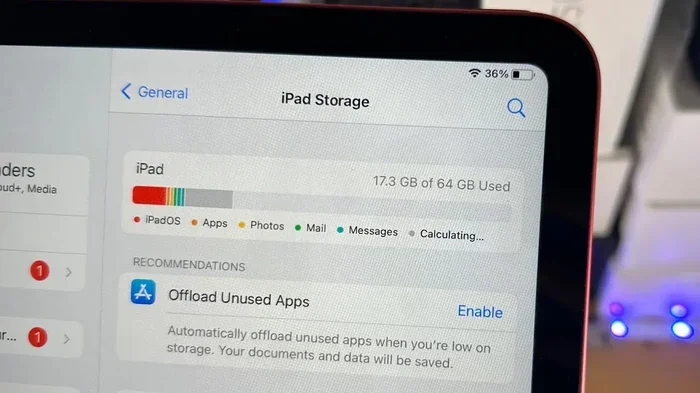
- Offload the app: Go to Settings > General > iPad Storage. Tap on the app you want to clean. Select Offload App. This removes the app but keeps your documents and data safe. When you reinstall the app, everything will be back, but the cached files will be gone.
- Delete and reinstall: Press and hold the app icon, tap Remove App, then tap Delete App. Reinstall it from the App Store. This gives you a completely fresh start with no cached data.
- Check in-app settings: Some apps like Spotify, YouTube, or social media platforms have their own cache-clearing options inside the app settings. Look for options like “Clear Cache” or “Storage” in the app’s settings menu.
Using The Offload Feature
The offload apps feature is one of the best tools Apple provides for ipad storage management. When you offload an app, your iPad removes the app itself but keeps all your personal data, documents, and settings intact. The app icon stays on your home screen with a small cloud icon next to it.
To offload apps automatically, go to Settings > App Store and turn on Offload Unused Apps. Your iPad will automatically remove apps you have not used in a while while keeping their data safe. This is a great way to free up storage space without losing anything important.
Expert Insight: According to Apple support guidelines, offloading apps is the safest way to remove cached data without losing your personal information. Unlike deleting an app completely, offloading preserves your settings and documents. This makes it the preferred method for regular ipad maintenance.
How To Free Up Storage Space On Your iPad
When your ipad storage full warning keeps popping up, clearing the cache is just the beginning. You also need to manage your overall storage to keep your device running smoothly. Apple makes it easy to see exactly what is taking up space on your iPad.
Checking Your Storage Usage
Here is how to check what is using space on your device:
- Open ipad settings.
- Tap on General.
- Tap on iPad Storage or iPhone Storage (if your iPad runs a newer iOS version).
- Wait a moment for your iPad to analyze your storage usage.
You will see a color-coded breakdown of everything on your device. Apps, photos, videos, and documents are all listed with their storage sizes. This view helps you identify which apps and files are hogging the most space so you can take action.
Deleting Unused Apps And Files
Once you know what is taking up space, you can make smart decisions about what to keep and what to remove. Apps you have not opened in months are good candidates for deletion. Large videos and downloaded files can also be moved to cloud storage or deleted entirely.
Here are some practical steps to free up storage space:
- Delete apps you no longer use. You can always reinstall them from the App Store later.
- Remove old messages and attachments, especially videos and photos.
- Clear out your Downloads folder by going to the Files app.
- Use iCloud Photos to store your photos and videos in the cloud instead of on your device.
- Delete offline content from streaming apps like Netflix or Spotify.
By combining cache clearing with smart storage management, you can keep your iPad running at its best. Regular clear cache ios habits make a big difference over time.
Quick Tips To Keep Your iPad Running Smoothly
Clearing your cache is just one part of keeping your iPad fast and responsive. Here are some simple habits that make a real difference in your ipad performance.
Daily Habits For Better Performance
- Restart your iPad regularly: A simple restart clears out temporary files and refreshes your system. Aim to restart your iPad at least once a week.
- Keep your iPad updated: Apple releases software updates that include performance improvements and bug fixes. Go to Settings > General > Software Update to check for the latest version.
- Close unused apps: Double-click the Home button or swipe up from the bottom of the screen to see your open apps. Swipe them away to free up memory.
- Limit background app refresh: Go to Settings > General > Background App Refresh and turn it off for apps that do not need to update in the background.
When To Restart Your Device
Restarting your iPad is one of the simplest and most effective things you can do for device maintenance. It clears out temporary memory, closes background processes, and refreshes your system. If your iPad feels sluggish, a quick restart often solves the problem immediately.
You should restart your iPad at least once a week. If you notice your device running slow, freezing, or acting strangely, a restart should be your first troubleshooting step before trying anything more complex.
Common Mistakes People Make When Clearing Cache
Even though clearing cache is straightforward, there are a few mistakes that people commonly make. Avoiding these errors will help you get the best results and protect your data.
What Not To Do
- Do not clear cache too frequently: Clearing your cache every day is unnecessary and can actually slow things down. Your iPad needs some cached data to function efficiently. Once a week or every two weeks is plenty.
- Do not delete important data by mistake: When clearing browsing data in Safari, make sure you only delete what you do not need. Review the options carefully before confirming.
- Do not ignore app-specific settings: Some apps manage their own cache internally. Deleting the app entirely is not always necessary. Check the app’s settings first for a built-in cache-clearing option.
- Do not skip backups: Before deleting any app or clearing significant data, make sure your important files are backed up to iCloud or your computer.
When To Seek Professional Help
Most cache-related issues can be resolved with the steps in this guide. However, if your iPad continues to run slowly even after clearing your cache and freeing up storage, there may be a deeper issue. In that case, it is worth contacting Apple Support or visiting an Apple Store for professional help. Sometimes hardware problems or software glitches need expert attention.
Final Thoughts On Clearing Cache On Your iPad
Learning how to clear cache on iPad is one of the most useful skills you can develop as an iPad user. It takes just a few minutes, requires no special tools, and can make a real difference in how your device performs. Whether you are clearing your Safari cache, removing app data, or managing your overall storage, the steps in this guide give you everything you need.
Make clear cache on iPad part of your regular device routine. Just like brushing your teeth or cleaning your home, a little maintenance goes a long way. Your iPad will thank you with faster speeds, smoother performance, and more available storage space. Start today by following the steps in this guide, and you will notice the difference right away.
Remember, a clean iPad is a happy iPad. Take a few minutes each week to clear your temporary files, review your storage usage, and keep your device in top shape. With these simple habits, you can enjoy a fast, responsive iPad for years to come.
Frequently Asked Questions
How often should I clear the cache on my iPad?
Once a week or every two weeks is usually enough for most users. If you use your iPad heavily for browsing and apps, you might want to clear it more often. Regular cache clearing keeps your device running smoothly without any negative effects.
Will clearing my iPad cache delete my photos or important files?
No, clearing your cache only removes temporary files and browsing data. Your photos, documents, contacts, and other personal files are completely safe. However, always back up your iPad regularly just to be safe.
Can I clear cache on iPad without deleting my browsing history?
Yes, you can. In Safari settings, you can clear just the website data or cache without deleting your full browsing history. Go to Settings > Safari > Advanced > Website Data and tap Remove All Website Data to clear cache while keeping your history intact.
What is the difference between clearing cache and offloading an app?
Clearing cache removes temporary files that an app has stored. Offloading an app removes the app itself but keeps your data and settings. Offloading is a more thorough way to clear app data and free up storage space while preserving your information.
Does clearing cache on iPad really improve performance?
Yes, it can make a noticeable difference. A full cache takes up storage space and can slow down your device. After clearing your cache, your iPad should feel faster, apps should open more quickly, and web pages should load more smoothly.
Is it safe to use third-party apps to clear cache on my iPad?
Apple provides all the tools you need to clear cache safely through the Settings app. Third-party cache-clearing apps are generally not necessary and can sometimes pose security risks. Stick to the built-in methods for the safest and most reliable results.