How Can I Turn My Phone Into A Hotspot For Free Now
Turning your phone into a free hotspot is simple and saves you money. You can share your cellular data with laptops, tablets, and other devices using Wi-Fi, Bluetooth, or USB tethering. This guide shows you exactly how to set up your mobile hotspot in just a few minutes, plus tips to keep it secure and avoid extra charges.
Have you ever been somewhere without Wi-Fi and wished your phone could share its internet connection? The good news is that turning your phone into a hotspot for free is something you can do right now. Whether you are at a coffee shop, in a hotel room, or traveling in a rural area, your phone can become a portable Wi-Fi hub. This guide walks you through every step in plain language. You will learn how to set it up on both Android and iPhone, how to stay safe, and how to avoid common pitfalls.
Using your phone as a mobile hotspot is called tethering. It lets you connect laptops, tablets, and other devices to the internet through your phone’s cellular data. The best part? You do not need to pay for any extra software or services. Everything you need is already inside your device. Let us dive in and get you connected.
Key Takeaways
- Free hotspot capability: Most modern phones already have built-in hotspot features at no extra cost.
- Multiple connection methods: You can use Wi-Fi, Bluetooth, or USB tethering depending on your needs.
- Easy setup process: The steps take less than five minutes on both Android and iPhone.
- Security matters: Setting a strong password protects your personal data from unauthorized users.
- Watch your data usage: Tethering can eat through your plan fast, so monitor carefully.
- Battery drain is real: Hotspot mode uses significant power, so plan accordingly.
- Third-party apps are optional: Built-in tools work great, but apps offer extra features if needed.
📑 Table of Contents
- What Is a Mobile Hotspot and Why Use It?
- How to Turn Your Phone Into a Hotspot for Free on Android
- How to Turn Your iPhone Into a Hotspot for Free
- How to Use Hotspot Apps as an Alternative
- How to Keep Your Hotspot Secure
- Managing Data Usage and Battery Life
- Can You Really Use a Hotspot for Free?
- Comparison: Wi-Fi vs Bluetooth vs USB Tethering
- Conclusion
What Is a Mobile Hotspot and Why Use It?
A mobile hotspot turns your phone into a Wi-Fi router. It broadcasts an internet signal that other devices can pick up. Think of it like sharing your home Wi-Fi, but it comes from your phone’s data plan instead of a cable or fiber connection.
There are three main ways to tether. Wi-Fi tethering is the most common. It creates a wireless network that nearby devices can join. Bluetooth tethering uses a short-range wireless connection. It is slower but uses less battery. USB tethering connects your phone to a computer with a cable. This method is fast and does not drain your battery as quickly.
People use portable hotspots for many reasons. You might need internet on a laptop while traveling. You might want to connect a tablet during a long flight. Or you might be at home when the main internet goes down. Whatever the reason, knowing how to set up a Wi-Fi hotspot is a handy skill everyone should have.
How to Turn Your Phone Into a Hotspot for Free on Android
Most Android phones come with built-in hotspot tools. You do not need to download anything extra. The exact steps can vary slightly depending on your phone brand, but the process is very similar across devices.
Step-by-Step Setup for Android
Follow these simple steps to activate your mobile hotspot:
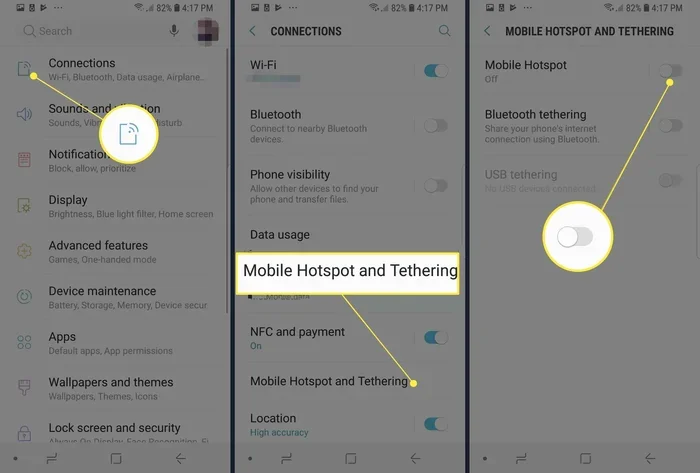
- Open the Settings app on your phone.
- Look for Network & Internet or Connections. The name varies by brand.
- Tap on Hotspot & Tethering or Mobile Hotspot.
- Toggle the Wi-Fi Hotspot switch to turn it on.
- Tap Set up Wi-Fi hotspot to name your network and create a password.
- Choose a network name that is easy to recognize.
- Set a strong password with at least eight characters.
- Select the security type. WPA3 or WPA2 are the best options.
- Save your settings and share the network name with your other devices.
That is it. Your phone is now broadcasting a Wi-Fi hotspot signal. Other devices can find it just like they would find any home router. The whole process takes less than three minutes once you know where to look.
Quick Tip: If you cannot find the hotspot setting, try searching for “hotspot” in your phone’s Settings search bar. This works on Samsung, Google Pixel, OnePlus, and most other Android brands.
Adjusting Android Hotspot Settings
You can customize your mobile hotspot for better performance. Here are some settings worth checking:
- AP Band: Choose between 2.4 GHz and 5 GHz. The 5 GHz band is faster but has a shorter range. The 2.4 GHz band reaches farther but is slower.
- Max Connections: Limit how many devices can connect at once. This helps protect your data and keeps speeds fast.
- Auto Turn-Off: Set a timer so your hotspot turns off when not in use. This saves battery and data.
- Bluetooth Tethering: Enable this if you want to connect a device via Bluetooth instead of Wi-Fi.
- USB Tethering: Turn this on when you plug your phone into a computer with a cable.
How to Turn Your iPhone Into a Hotspot for Free
iPhones also have a built-in personal hotspot feature. It works just as easily as the Android version. Here is how to set it up.
Step-by-Step Setup for iPhone
Follow these steps to share your iPhone’s internet connection:
- Open the Settings app.
- Tap Personal Hotspot. You may need to tap Cellular first, then look for Personal Hotspot.
- Toggle Allow Others to Join to turn it on.
- Your Wi-Fi password will appear on this screen. Make sure it is strong and memorable.
- If the password is weak, tap Wi-Fi Password and change it.
- On your other device, open Wi-Fi settings and find your iPhone’s network name.
- Enter the password and connect.
Your iPhone now acts as a portable hotspot. Other devices can browse the web, stream videos, and download files using your cellular data. The process is the same whether you have an iPhone 15 or an older model.
Quick Tip: If you do not see the Personal Hotspot option, go to Settings, then Cellular, then Cellular Data Options, and turn on Personal Hotspot there. Some carriers hide this feature and require you to enable it through your account settings.
iPhone Hotspot Connection Options
iPhones offer three ways to share your connection:
- Wi-Fi: The default and most common method. Other devices connect wirelessly to your iPhone.
- Bluetooth: Slower than Wi-Fi but useful for connecting a single device with low power usage.
- USB: Connect your iPhone to a Mac or PC with a Lightning or USB-C cable. This gives the most stable connection and charges your phone at the same time.
How to Use Hotspot Apps as an Alternative
While built-in tools work great, some people prefer using a hotspot app. These apps add extra features that the default settings may not offer. They can help you monitor data usage, set connection limits, and manage connected devices more easily.
Before downloading any app, make sure it comes from a trusted source. The Google Play Store and Apple App Store both have free hotspot management apps. Look for apps with good reviews and a high number of downloads.
Popular free hotspot apps include:
- FoxFi (Android) – Helps bypass carrier restrictions on some devices.
- PdaNet+ (Android and iOS) – Offers USB and Wi-Fi tethering options.
- Wi-Fi Hotspot Creator (Android) – Simple interface for quick setup.
- My Public Wi-Fi (iOS) – Helps you manage and secure your hotspot.
Keep in mind that some hotspot apps may not work with all carriers. Your carrier might block certain tethering methods. If the app does not work, stick with your phone’s built-in settings. They are reliable and always free.
Common Mistakes to Avoid: Do not download hotspot apps from unknown sources. Some fake apps contain malware or charge hidden fees. Always read reviews and check the developer before installing anything.
How to Keep Your Hotspot Secure
When you share your internet connection with others, security becomes important. An open or weak hotspot can expose your data to strangers. Follow these steps to keep your connection safe.
Essential Hotspot Security Tips
- Use a strong password: Your Wi-Fi password should be at least 10 characters long. Mix uppercase letters, lowercase letters, numbers, and symbols.
- Choose WPA3 or WPA2 encryption: These are the most secure options available. Never leave your hotspot open or use WEP encryption.
- Change the default network name: A custom name helps you spot your network and avoid connecting to fake networks.
- Limit connected devices: Set a maximum number of devices allowed. This prevents strangers from using your data.
- Turn off your hotspot when not in use: This saves battery and closes the door on unauthorized access.
- Monitor connected devices: Check your hotspot settings regularly to see who is connected.
- Avoid sensitive transactions: Do not enter banking passwords or personal information while others are using the same hotspot.
Expert Insight: A strong hotspot security practice is to change your password regularly. If you have shared it with guests or coworkers, updating it ensures only people you trust can access your connection. This small habit goes a long way in protecting your personal data.
Managing Data Usage and Battery Life
Using your phone as a Wi-Fi hotspot uses more data than normal browsing. Streaming videos or downloading large files on a connected laptop can eat through your data plan quickly. Here is how to stay in control.
Tracking Your Data Usage
Both Android and iPhone let you monitor how much data your hotspot uses. On Android, go to Settings, then Network & Internet, then Data Usage. On iPhone, go to Settings, then Cellular, and scroll down to see how much data each app has used.
Quick Tips to Save Data:
- Lower the screen brightness on connected devices.
- Close apps that run in the background and use data.
- Avoid streaming HD video over a hotspot. Use standard definition instead.
- Set a data usage warning in your phone settings.
- Use Wi-Fi calling or messaging apps that use less data than traditional calls.
Reducing Battery Drain
Running a mobile hotspot drains your phone battery fast. The phone works hard to broadcast a signal and manage connections. Here is how to reduce the drain:
- Plug your phone into a charger while using the hotspot.
- Use USB tethering instead of Wi-Fi when possible. It uses less power.
- Turn off the hotspot when you are done. Do not leave it running overnight.
- Reduce the hotspot range by keeping the phone close to connected devices.
- Lower the number of connected devices to reduce the workload.
Common Mistakes to Avoid: Do not leave your hotspot on all day just because it is convenient. This drains your battery and eats through your data plan. Turn it off the moment you no longer need it.
Can You Really Use a Hotspot for Free?
The short answer is yes. Your phone’s hotspot feature is built into the operating system and costs nothing extra to activate. However, there is one important catch. You are using your cellular data plan, which you already pay for each month. If you go over your data limit, your carrier might charge extra fees.
Here is what you need to know about carrier policies:
- Most carriers allow tethering: Major carriers like Verizon, AT&T, and T-Mobile include hotspot data in their plans.
- Some plans limit hotspot data: Your plan might give you 10 GB of regular data but only 5 GB for hotspot use. Check your plan details.
- Unlimited plans vary: Some unlimited plans slow down your speeds after a certain amount of hotspot data. Others have no limits at all.
- Prepaid plans are flexible: Many prepaid carriers offer generous hotspot data at lower prices.
Key Takeaway: Always check your carrier’s terms before using your phone as a Wi-Fi hotspot regularly. Understanding your data limits helps you avoid surprise charges on your next bill.
Expert Insight: If your carrier charges extra for tethering, you have options. You can switch to a carrier that includes hotspot data at no extra cost. Many budget carriers now offer unlimited hotspot data as part of their plans. It is worth comparing options before paying any additional fees.
Comparison: Wi-Fi vs Bluetooth vs USB Tethering
Each tethering method has its own strengths. Here is a quick comparison to help you choose the right one for your situation.
| Feature | Wi-Fi Tethering | Bluetooth Tethering | USB Tethering |
|---|---|---|---|
| Speed | Fast | Slow | Fast |
| Range | Short to medium | Very short | Cable length only |
| Battery Usage | High | Low | Low |
| Devices Supported | Multiple | One at a time | One at a time |
| Setup Difficulty | Easy | Easy | Easy |
| Best For | Multiple devices | Single device, low power | Laptop, charging |
For most people, Wi-Fi tethering is the best choice. It lets you connect multiple devices and works well for everyday tasks. Use Bluetooth tethering when you only need one device and want to save battery. Use USB tethering when you want the fastest connection and need to charge your phone at the same time.
Conclusion
Learning how can I turn my phone into a hotspot for free is one of the most useful skills you can develop. Your phone already has everything you need built right in. Whether you use Android or iPhone, the setup takes just a few minutes and costs nothing. You can share your cellular data with laptops, tablets, and other devices whenever you need to.
Remember to keep your hotspot security strong with a good password and encryption. Watch your data usage so you do not exceed your plan limits. And manage your battery by turning off the hotspot when you are done. With these simple steps, you will have a reliable portable hotspot wherever you go.
Start trying it today. The next time you need internet on your laptop and there is no Wi-Fi in sight, just open your phone settings and turn on your mobile hotspot. You will be glad you learned how easy it is. Stay connected, stay prepared, and enjoy the freedom of having internet in your pocket.
Frequently Asked Questions
Do I need any special app to turn my phone into a hotspot?
No, you do not need any special app. Both Android and iPhone have built-in hotspot features that work for free. You can find the settings in your phone’s main Settings menu. Third-party apps are optional and only add extra features.
Will turning on my hotspot cost me extra money?
The hotspot feature itself is free. However, you are using your cellular data plan when you tether. If you go over your data limit, your carrier might charge extra. Check your plan to see how much hotspot data you have included.
How many devices can connect to my phone hotspot?
Most phones allow between five and ten devices to connect at the same time. You can change this limit in your hotspot settings. Keeping the number low helps maintain good speeds and protects your data.
Why is my phone hotspot so slow?
Several factors can slow down your hotspot. Being far from connected devices, having too many devices connected, or using a weak cellular signal can all reduce speed. Try moving closer to your devices or switching to the 5 GHz band for better performance.
Can I use my phone hotspot while on a call?
Yes, you can use your hotspot while on a call on most phones. However, the connection quality may drop slightly if you are on a 3G network. On 4G or 5G networks, you should experience no issues at all.
How do I turn off my phone hotspot when I am done?
Go to your phone’s Settings, find the Hotspot or Personal Hotspot section, and toggle the switch off. You can also swipe down from the top of your screen on Android and tap the hotspot icon to turn it off quickly.