Can I Use A 3 0 Usb In A 2 0 Port Yes And Here Is Why
Yes, you can absolutely use a USB 3.0 device in a USB 2.0 port. The USB standard was designed with backward compatibility in mind, so your USB 3.0 flash drive, external hard drive, or peripheral will work when plugged into a USB 2.0 port. However, you will lose the high-speed benefits of USB 3.0 and your device will operate at USB 2.0 speeds.
Key Takeaways
- Full Compatibility: USB 3.0 devices work in USB 2.0 ports thanks to backward compatibility built into the USB standard.
- Speed Drops Significantly: You will lose the fast transfer speeds of USB 3.0 and be limited to USB 2.0 rates of up to 480 Mbps.
- Physical Fit: USB 3.0 Type-A connectors are designed to fit into USB 2.0 ports without any force or damage.
- No Extra Drivers Needed: Most operating systems recognize USB 3.0 devices in USB 2.0 ports automatically with plug and play support.
- Power Output May Differ: USB 2.0 ports supply less power than USB 3.0 ports, which can affect some bus-powered devices.
- Check Your Cable: Using the right USB cable ensures the best possible connection even when speed is limited.
📑 Table of Contents
Can I Use A 3 0 Usb In A 2 0 Port
If you have ever found yourself with a USB 3.0 flash drive and only a USB 2.0 port available, you are not alone. This is a common situation that many people run into at home, at the office, or even in a classroom. The short answer is yes, you can use a 3.0 USB in a 2.0 port. But there is more to the story than just a simple yes.
Understanding how USB ports and devices talk to each other helps you get the most out of your setup. Whether you are trying to transfer files from a USB flash drive, connect an external hard drive, or plug in a peripheral device, knowing what to expect saves you time and frustration. In this guide, we will walk through everything you need to know about using USB 3.0 devices in USB 2.0 ports.
What Happens When You Plug A 3.0 Device Into A 2.0 Port
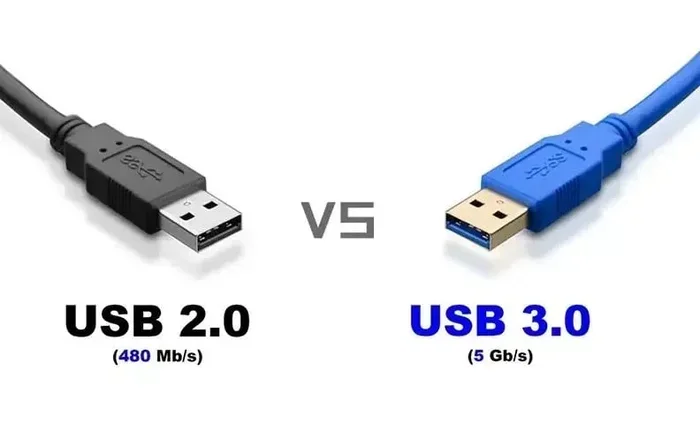
When you plug a USB 3.0 device into a USB 2.0 port, the connection works. Your computer will recognize the device. You can read and write files just like normal. But here is the catch: the data transfer speed will drop to USB 2.0 levels. This means your transfer rate will be limited to a maximum of 480 megabits per second, compared to the 5 gigabits per second that USB 3.0 offers.
Think of it like driving a sports car on a dirt road. The car is capable of going fast, but the road limits your speed. Your USB 3.0 device is the sports car. The USB 2.0 port is the dirt road. The device still works perfectly fine. It just cannot go as fast as it was designed to.
Most of the time, this is not a problem for everyday tasks. If you are just moving a few documents or photos, you probably will not notice much difference. But if you are transferring large files like video recordings or huge backups, the speed difference becomes very obvious.
Understanding USB Backward Compatibility
The USB standard was built with backward compatibility as a core feature. This means that newer USB versions are designed to work with older ports and devices. The USB Implementers Forum, the group that manages USB standards, made sure of this from the very beginning.
Here is how it works in practice:
- USB 3.0 devices can connect to USB 2.0 ports and function normally.
- USB 2.0 devices can connect to USB 3.0 ports and function normally.
- USB 1.1 devices can connect to USB 2.0 and USB 3.0 ports.
The USB connector design plays a big role in this compatibility. A USB 3.0 Type-A plug has extra pins inside the connector. These extra pins handle the faster data transfer of USB 3.0. When you plug it into a USB 2.0 port, those extra pins simply do not make contact. The device falls back to USB 2.0 communication. This happens automatically. You do not need to do anything special.
The USB-A connector shape has remained the same across USB 2.0 and USB 3.0. This physical consistency is what makes backward compatibility possible. Both ports share the same shape and pin layout for the basic connections. The USB 3.0 port just adds more pins inside for the extra speed.
Speed Differences You Will Notice
The speed gap between USB 2.0 and USB 3.0 is huge. Here is a quick comparison of what you can expect:
- USB 2.0 maximum transfer rate: 480 Mbps (about 60 megabytes per second)
- USB 3.0 maximum transfer rate: 5 Gbps (about 625 megabytes per second)
That means USB 3.0 is roughly ten times faster than USB 2.0 in real world use. When you plug a USB 3.0 device into a USB 2.0 port, you lose access to that speed boost. Your data transfer speed will match the slower port.
For small files like Word documents or spreadsheets, this difference barely matters. A few seconds here and there is not noticeable. But for large files, the gap is clear. A 4 gigabyte video file might take 30 seconds on a USB 3.0 port but could take 5 minutes or more on a USB 2.0 port.
If speed is important to your workflow, consider these options:
- Use a USB 3.0 port whenever one is available.
- Upgrade your computer or laptop with a USB 3.0 expansion card.
- Use a USB hub that has USB 3.0 ports.
- Compress large files before transferring them over a USB 2.0 connection.
Power Supply And Device Performance
Another thing to keep in mind is the USB power output. USB 2.0 ports typically provide up to 500 milliamps of power. USB 3.0 ports can supply up to 900 milliamps. This difference matters for devices that need more power to operate.
Some USB devices are bus powered. This means they draw their power directly from the port. If you plug a bus-powered USB 3.0 device into a USB 2.0 port, it might not get enough power. You could notice the device disconnecting or not working at full performance.
Common devices that might be affected include:
- External hard drives without their own power supply
- USB-powered cooling pads
- Some audio interfaces
- Certain webcams with built-in lighting
If you run into power issues, a USB cable with a Y-splitter can help. The Y-splitter pulls power from two USB ports at once. Alternatively, use a powered USB hub to give your device the power it needs.
Plug And Play: Does It Really Work
One of the best things about the USB standard is plug and play support. When you connect a USB 3.0 device to a USB 2.0 port, your operating system should recognize it right away. You do not need to install special drivers or restart your computer in most cases.
Windows, macOS, and Linux all handle this automatically. The system detects the device, identifies it as a USB mass storage device or peripheral, and loads the appropriate driver. This process usually takes just a few seconds.
However, there are a few situations where you might run into issues:
- Older operating systems may not recognize USB 3.0 devices properly in USB 2.0 ports.
- Device drivers might need updating if the device has special features.
- Damaged cables or ports can cause connection problems that look like compatibility issues.
If your device does not show up right away, try unplugging it and plugging it back in. You can also check your device manager on Windows or system information on macOS to see if the device is being detected. Most of the time, the issue is a simple cable problem, not a compatibility problem.
Can You Tell The Difference Between USB 2.0 And 3.0 Ports
Yes, you can usually tell the difference by looking at the port. USB 3.0 ports are often colored blue inside the connector. USB 2.0 ports are typically black or white. Some manufacturers use other colors, but blue is the most common indicator for USB 3.0.
The USB port labeling can also help. Look for a “SS” logo next to the port. SS stands for SuperSpeed, which is the marketing name for USB 3.0. If you do not see the SS logo or blue coloring, the port is most likely USB 2.0.
Knowing which port you are using helps you set the right expectations. If you plug a device into a USB 2.0 port by mistake, you now know why it might be running slower than usual.
Common Mistakes People Make
Here are some mistakes to avoid when working with USB 2.0 and USB 3.0 devices:
- Assuming all ports are the same speed. Always check which port you are using before transferring large files.
- Using damaged cables. A frayed or bent cable can limit speeds and cause connection drops. Replace old cables regularly.
- Ignoring power requirements. If your external drive keeps disconnecting, it might be a power issue, not a compatibility issue.
- Forcing the connector. USB plugs should slide in smoothly. If you have to force it, check the port and cable for damage.
- Not updating device drivers. Even with backward compatibility, outdated drivers can cause problems.
Quick Tips For Best Performance
Here are some quick tips to get the best experience when using USB devices:
- Always use the cable that came with your device. Third-party cables may not support the full speed.
- Keep your USB ports clean. Dust and debris can cause poor connections.
- Avoid plugging USB devices into extension cords or power strips. Plug directly into your computer when possible.
- If you need to connect multiple devices, use a USB hub with its own power supply.
- Restart your computer if a USB device is not recognized. This refreshes the USB controller.
Expert Insight: When To Upgrade Your USB Ports
If you find yourself constantly plugging USB 3.0 devices into USB 2.0 ports, it might be time to upgrade. A USB 3.0 expansion card for your desktop computer is affordable and easy to install. Most cards cost under $20 and can add multiple USB 3.0 ports to your system.
For laptop users, a USB 3.0 docking station is a great option. These devices connect to your laptop through a single port and provide several USB 3.0 ports on the dock. You get the speed of USB 3.0 without opening up your computer.
Upgrading your USB standard is especially important if you work with large files regularly. Video editors, photographers, and anyone who deals with big data sets will notice a huge improvement in workflow speed after the upgrade.
Key Takeaways
- USB 3.0 devices are fully compatible with USB 2.0 ports thanks to backward compatibility.
- Your transfer speed will be limited to USB 2.0 rates when using a USB 3.0 device in a USB 2.0 port.
- The physical connector fits both port types without any force or modification.
- Plug and play support works automatically in most modern operating systems.
- Power output is lower on USB 2.0 ports, which can affect bus-powered devices.
- Use quality cables and direct connections for the best results.
- Consider upgrading to USB 3.0 ports if you regularly transfer large files or use power-hungry devices.
Conclusion
So, can I use a 3.0 USB in a 2.0 port? The answer is a confident yes. Your USB 3.0 device will work in a USB 2.0 port without any special setup. The connection is seamless thanks to the backward compatibility built into the USB standard. You plug it in, your computer recognizes it, and you can start using it right away.
The trade off is speed. You will not get the blazing fast transfer rates that USB 3.0 is known for. Your device will operate at USB 2.0 speeds, which is perfectly fine for everyday tasks. But for large file transfers or power-hungry devices, you might notice the limitations.
The good news is that this situation is easy to manage. Check which ports you have, use the right cables, and consider upgrading your ports if speed is a regular concern. With the right setup, you can make the most of both USB 2.0 and USB 3.0 devices in your workflow.
Now that you know the answer and the reasons behind it, you can confidently plug in any USB device without worry. Your gear will work, and you will understand exactly what to expect.
Frequently Asked Questions
Will a USB 3.0 flash drive work in a USB 2.0 port?
Yes, it will work. The USB standard supports backward compatibility, so your USB 3.0 flash drive will function in a USB 2.0 port. The only difference is that your data transfer speed will be limited to USB 2.0 rates.
Can I damage my USB 3.0 device by plugging it into a USB 2.0 port?
No, you cannot damage your device. The USB 3.0 connector is designed to fit safely into a USB 2.0 port. The extra pins on the USB 3.0 connector simply do not make contact with the USB 2.0 port. There is no risk of damage.
Why is my USB 3.0 device slow when plugged into a USB 2.0 port?
Your device is slow because the USB 2.0 port limits the data transfer speed to 480 Mbps. USB 3.0 devices are capable of much faster speeds, but they can only go as fast as the port allows. This is a normal and expected behavior.
Do I need to install drivers for a USB 3.0 device in a USB 2.0 port?
In most cases, no. Modern operating systems like Windows 10, Windows 11, macOS, and Linux recognize USB devices automatically. You do not need to install special drivers for basic plug and play functionality.
Can I use a USB 3.0 external hard drive on a USB 2.0 port for backup?
Yes, you can use it for backup. The drive will work and your files will transfer successfully. However, the backup process will take longer than it would on a USB 3.0 port. For large backups, consider using a USB 3.0 port or a USB hub with USB 3.0 support.
How can I tell if my port is USB 2.0 or USB 3.0?
Look for a blue color inside the port. USB 3.0 ports are usually blue, while USB 2.0 ports are often black or white. You can also look for an “SS” logo next to the port, which stands for SuperSpeed and indicates a USB 3.0 port.