Can I Put My Printer On A Floating Shelf And Here Is Why
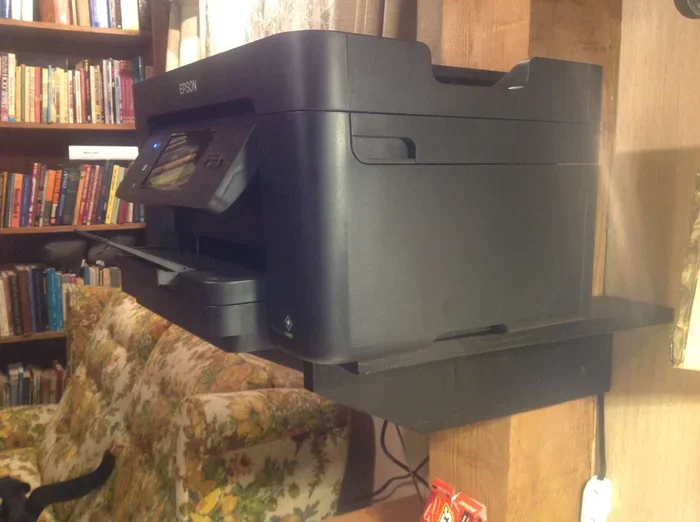
Yes, you can put your printer on a floating shelf, but you need to consider weight limits, ventilation, and cable management. A wall-mounted shelf saves desk space and keeps your office tidy. This guide covers everything from shelf strength to printer placement best practices so you can set up your workspace with confidence.
Have you ever looked at your cluttered desk and thought there has to be a better way? You are not alone. Many people want to free up valuable desk space, and one popular solution is mounting a printer on a floating shelf. But the question keeps popping up: can I put my printer on a floating shelf?
The short answer is yes. The longer answer is that it depends on a few important factors. Weight capacity, ventilation, cable routing, and shelf placement all play a role. In this guide, we will walk you through everything you need to know. You will learn how to choose the right shelf, avoid common mistakes, and set up your printer safely on a wall-mounted surface.
Whether you have a small home office or a full-blown workspace, this article has you covered. We will break down the pros and cons, share practical tips, and answer the most common questions people ask about this setup. Let us dive in.
Key Takeaways
- Floating shelves work great for printers: Most standard printers fit well on wall-mounted shelves when you follow weight and safety guidelines.
- Check the weight capacity first: A typical inkjet printer weighs 10-30 pounds, so choose a shelf with a rating well above that.
- Ventilation matters a lot: Printers generate heat, so avoid enclosed or poorly ventilated shelf setups.
- Cable management keeps your setup clean: Use cable clips and raceways to route cords neatly along the wall.
- Placement height affects usability: Keep the shelf at a comfortable working height to avoid strain when loading paper or changing ink.
- Safety comes first: Always anchor the shelf properly into wall studs and avoid placing heavy items on the same shelf.
- Regular maintenance ensures longevity: Dust your printer and shelf regularly to prevent buildup that can affect print quality.
📑 Table of Contents
Why People Choose Floating Shelves for Printers
More and more people are turning to wall-mounted solutions for their home offices. A floating shelf printer setup offers several real benefits. Let us explore why this trend is growing.
Space Saving Benefits
Desk space is precious. When you mount your printer on the wall, you instantly reclaim your work surface. No more printer taking up room next to your keyboard or piling papers on top of the machine. A wall-mounted printer shelf lifts the device off the floor and frees up prime real estate on your desk.
Small apartments and compact offices benefit the most from this approach. Every square foot counts when space is tight. A floating shelf gives you a dedicated spot for your printer without eating into your working area.
Aesthetic Appeal
Let us be honest. A bulky printer sitting on a messy desk does not look great. A floating shelf creates a clean, modern look. Your printer appears to float on the wall, giving the room a more organized and polished feel.
Many people also pair their floating shelf with other office accessories. You can place a small plant beside the printer or add a decorative box for extra storage. The result is a workspace that looks intentional and well-designed.
Easy Access
When your printer is at eye level, you do not have to bend down or reach awkwardly. This makes loading paper, swapping ink cartridges, and clearing jams much more convenient. A properly placed floating shelf puts your printer right where you need it.
Think about how often you interact with your printer during the day. Frequent access matters. Wall mounting at the right height turns a chore into a seamless part of your workflow.
Can You Really Put a Printer on a Floating Shelf
This is the big question, and the answer is more nuanced than a simple yes or no. Let us break it down by printer type, shelf type, and what to watch out for.
Weight Capacity: The Most Important Factor
Not all floating shelves are created equal. Before you mount anything, you need to know how much your printer weighs. Most inkjet printers weigh between 10 and 15 pounds. Laser printers can be heavier, ranging from 20 to 40 pounds or more.
Your floating shelf must support at least double the weight of the printer. This gives you a safety margin. A shelf rated for 30 pounds can handle a standard inkjet printer with room to spare. But if you have a heavy laser printer, you will need a much stronger bracket and a sturdier shelf.
Here is a quick comparison to help you plan:
- Standard inkjet printer: 10-15 lbs — most floating shelves handle this easily
- All-in-one printer: 15-25 lbs — choose a heavy-duty shelf with wall studs
- Laser printer: 25-40 lbs — requires reinforced brackets and solid wood shelving
- Large format printer: 40+ lbs — not recommended for a standard floating shelf
Shelf Material Matters
The material of your floating shelf plays a huge role in safety. Solid wood shelves are the strongest option and can support heavier printers without bending. Engineered wood works well for lighter models but may sag over time.
Metal shelves offer excellent strength but can be harder to install. Glass shelves look beautiful but are not ideal for heavy printers. They also lack the grip needed to keep a printer from sliding off.
For most people, a solid wood floating shelf with a weight rating of at least 30 pounds is the sweet spot. It is strong, looks great, and is relatively easy to install.
Ventilation Concerns
Printers generate heat. They have fans and moving parts that need airflow to work properly. When you place a printer on a floating shelf, you must ensure there is enough ventilation around the device.
Avoid shelves with solid backs or sides that trap heat. Open-backed shelves work best. Some people even use shelves with small gaps or perforations to allow air to circulate freely.
Heat buildup can cause several problems. Your printer may overheat during long print jobs. Ink cartridges can dry out faster in warm environments. In worst-case scenarios, excessive heat can damage internal components. Always leave space around the printer for airflow.
How to Install a Floating Shelf for Your Printer
Installing a floating shelf is not hard, but doing it right takes a little planning. Follow these steps to create a safe and stable setup for your printer.
Step 1: Choose the Right Location
Pick a spot on the wall that is away from direct sunlight and heat sources. Sunlight can fade printer components and cause paper to jam. Heat vents, radiators, and windows are all bad neighbors for your printer shelf.
Also consider proximity to your computer or router. If your printer connects via Wi-Fi, you have more flexibility with placement. But if you use a USB cable, keep the shelf within reach of your desk.
Step 2: Find the Wall Studs
This step cannot be skipped. Floating shelves mounted only into drywall will eventually pull away from the wall. Use a stud finder to locate the wooden studs behind your drywall. Then drill your bracket screws directly into those studs.
If you cannot hit a stud, use heavy-duty wall anchors rated for at least 50 pounds. But studs are always the safer option. A printer on a shelf that pulls away from the wall is a safety hazard.
Step 3: Mount the Bracket and Shelf
Attach the bracket to the wall studs using the screws provided with your shelf kit. Use a level to make sure the bracket is perfectly horizontal. A crooked shelf will make your printer unstable and could cause it to tip.
Once the bracket is secure, slide the shelf onto it. Give it a firm push to test stability. The shelf should not wobble or flex. If it does, recheck your anchor points and tighten all screws.
Step 4: Place the Printer and Manage Cables
Set your printer on the shelf carefully. Center the weight evenly across the shelf surface. Uneven weight distribution can cause the shelf to tilt or the printer to slide off.
Now comes the cable management part. Use cable clips or adhesive cable raceways to route cords along the wall. This keeps the area looking clean and prevents cables from dangling or getting caught. A tidy setup also reduces the risk of someone accidentally pulling the printer off the shelf.
Many people also find it helpful to label their cables. This way, if you ever need to unplug or move the printer, you know exactly which cord goes where. It is a small step that saves a lot of frustration later.
Common Mistakes to Avoid
Even with the best intentions, people make mistakes when setting up a printer on a floating shelf. Here are the most common ones and how to avoid them.
Overloading the Shelf
This is the number one mistake. Some people place their printer alongside stacks of paper, ink cartridges, and other heavy items. The shelf may hold it all at first, but over time the weight can cause the brackets to loosen or the shelf to bow.
Keep the shelf dedicated to the printer. If you need extra storage, use a separate shelf below or above. This distributes the weight across the wall and keeps each shelf stable.
Ignoring Cable Management
Loose cables look messy and create a tripping hazard. They can also put stress on the printer’s ports if someone accidentally yanks a cord. Take the extra five minutes to secure your cables properly.
Use Velcro ties instead of zip ties. Velcro is reusable and gentler on cables. You can also use a cable management box to hide power strips and excess cord length behind the shelf.
Skipping the Level
A crooked shelf might seem like a minor issue, but it is not. An unlevel printer can cause paper to feed unevenly and print quality to suffer. Always use a level during installation. It takes just a few extra seconds and saves you headaches down the road.
If you have ever dealt with a printer that pulls paper to one side, you know how frustrating that can be. Often, the culprit is an unlevel surface. A simple bubble level can fix this problem before it even starts.
Neglecting Dust and Maintenance
A printer on a floating shelf is higher up and may be harder to clean. Dust tends to settle on top of the machine and clog the print head. Make a habit of wiping down your printer and shelf every few weeks.
Use a soft microfiber cloth to avoid scratching the surface. For stubborn dust, a slightly damp cloth works well. Keeping your printer clean extends its life and keeps your print quality sharp.
Best Floating Shelves for Printers
Not all floating shelves are suitable for printers. Here are some features to look for when shopping.
- Weight capacity: Look for shelves rated at 30 pounds or higher for standard printers
- Material: Solid wood or reinforced metal shelves offer the best support
- Open back design: Allows air to flow freely around the printer
- Adjustable brackets: Make it easy to level the shelf after installation
- Cable management holes: Some shelves come with built-in channels for routing cords
- Anti-slip surface: A textured or rubberized top prevents the printer from sliding
When you are ready to buy, measure your printer’s dimensions first. You want the shelf to be at least a few inches wider and deeper than the printer base. This gives you room for airflow and easy access to all sides of the machine.
Some people also like to add a small lip or bumper to the front edge of the shelf. This prevents the printer from accidentally sliding forward if bumped. A simple strip of rubber or adhesive foam works perfectly for this purpose.
Remember that every workspace is different. What works for one person might not work for another. Take the time to assess your specific needs before making a purchase. Think about how often you print, what type of printer you have, and how much space you have available on your wall.
Also, consider the overall design of your room. A floating shelf should complement your existing furniture and decor. Many manufacturers now offer shelves in various finishes, from natural wood to matte black to white. You can find one that matches your office aesthetic while still being functional enough to support your printer safely.
If you are someone who likes to stay organized, you might also want to explore ways to streamline other parts of your tech setup. For example, organizing your phone’s file system, such as adding prefixes to numbers on your iPhone, can help you keep digital files in order just as much as a clean physical workspace does. Similarly, if you run into frustrating software issues like when a line won’t delete in Microsoft Excel, it helps to have a workspace that supports your productivity without adding physical clutter.
Expert Tips for a Perfect Printer Shelf Setup
We have covered the basics. Now let us share some expert tips that take your setup to the next level.
Use a Surge Protector Mounted on the Shelf
A small surge protector mounted directly on the shelf keeps your printer and its power cord close to the wall. This reduces cable clutter and protects your device from power spikes. Look for a compact model with enough outlets for your printer and any other peripherals you keep nearby.
Add a Small Tray for Paper Supplies
If your shelf has extra space, attach a small magnetic or adhesive tray to hold extra paper. This keeps ream of paper within arm’s reach without taking up shelf space. It is a simple addition that makes a big difference in daily convenience.
Check the Shelf Periodically
Over time, screws can loosen and brackets can shift. Make it a habit to check your floating shelf every few months. Tighten any loose screws and make sure the shelf remains level. A five-minute check can prevent a costly accident.
Consider a Two-Shelf Setup
If you have both a printer and a scanner or a second device, consider installing two floating shelves stacked vertically. This creates a neat, organized station that keeps all your devices off the desk and within easy reach.
Final Thoughts
So, can you put your printer on a floating shelf? Absolutely. With the right shelf, proper installation, and a little attention to ventilation and cable management, a wall-mounted printer setup can transform your workspace. You gain desk space, improve the look of your room, and enjoy easy access to your printer every day.
The key is to take it slow and do it right. Choose a shelf that can handle the weight, mount it securely into wall studs, and keep airflow in mind. Avoid the common mistakes we covered, and your printer will sit safely and stylishly on your wall for years to come.
Start planning your setup today. Measure your printer, pick the right shelf, and enjoy the satisfaction of a cleaner, more organized workspace. A floating shelf printer setup is one of the simplest upgrades you can make to your home office, and the results speak for themselves.
Frequently Asked Questions
Can any printer go on a floating shelf?
Most standard printers work well on a floating shelf, including inkjet and small laser models. However, very large or heavy printers may require reinforced shelving and industrial-grade brackets. Always check the weight of your printer against the shelf’s rated capacity before mounting.
How much weight can a typical floating shelf hold?
A standard floating shelf can hold between 15 and 30 pounds depending on the material and bracket type. Solid wood shelves with proper stud mounting can support more. Always check the manufacturer’s weight rating and choose a shelf that exceeds your printer’s weight by a comfortable margin.
Do I need special tools to install a floating shelf for a printer?
You will need a drill, a stud finder, a level, and appropriate screws or wall anchors. These are basic tools that most homeowners already have. If you are not comfortable drilling into walls, consider hiring a handyman for a quick and safe installation.
Will a floating shelf damage my wall?
When installed correctly into wall studs, a floating shelf should not cause significant damage. Small nail holes from the brackets are easy to patch and paint over. Avoid mounting shelves into drywall alone, as the weight of a printer can cause the shelf to pull away and damage the wall surface.
How do I prevent my printer from sliding off the shelf?
Choose a shelf with a textured or rubberized surface. You can also add adhesive rubber bumpers to the front edge of the shelf. Centering the printer and keeping the shelf level further reduces the risk of the printer sliding off during use.
Is it safe to leave my printer on a floating shelf for long periods?
Yes, it is safe as long as the shelf is properly mounted and the printer is within the weight limit. Ensure the area has good ventilation and check the shelf periodically for any loosening. Keeping the printer clean and the cables organized also contributes to long-term safety and performance.