Can I Print In Color Only Here Is Your Complete Answer
Yes, you can print in color only on most printers and devices. This guide shows you the exact steps for Windows, Mac, and mobile devices. You will also learn how to fix common color printing problems and save ink while keeping your documents vibrant.
Have you ever hit print and realized your document came out in black and white when you wanted full color printing? It happens to the best of us. The good news is that printing in color only is something you can control with just a few simple steps. Whether you are printing photos, charts, or marketing materials, getting the right color mode makes a huge difference.
In this guide, we will walk you through everything you need to know about color-only printing. We will cover how to change your settings, fix common problems, and save ink while keeping your output vibrant. By the end, you will feel confident every time you send a job to your printer.
So let us dive right in and answer the question once and for all: can I print in color only? The short answer is yes. The longer answer is right here.
Key Takeaways
- Color-only printing is possible on almost all modern printers with the right settings.
- You can change print settings on Windows, Mac, and mobile devices in just a few clicks.
- Common issues like grayscale defaults can block your color output easily.
- Ink-saving tips help you get great color without wasting cartridges.
- Printer drivers matter for controlling color mode and print quality.
- Not all documents need color — knowing when to use it saves time and money.
📑 Table of Contents
- What Does It Mean to Print in Color Only?
- How to Set Your Printer to Color Only Mode
- Color-Only Printing on Different Devices and Printers
- Common Problems When Printing in Color Only
- Tips to Save Ink While Printing in Color
- Expert Insights on Color-Only Printing
- Key Takeaways
- Frequently Asked Questions
- Conclusion
What Does It Mean to Print in Color Only?
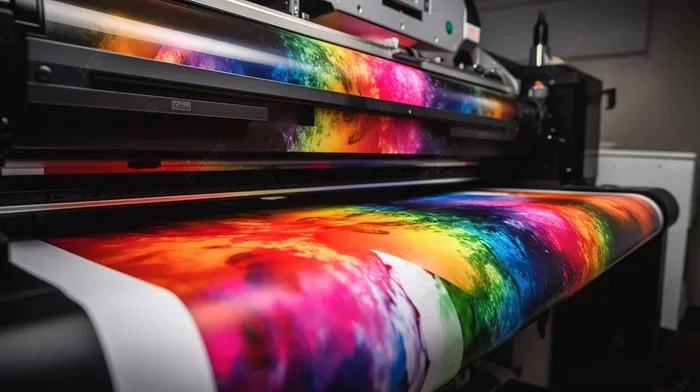
When you print in color only, your printer uses its color ink cartridges to produce the output. No black ink is used, and no grayscale conversion happens. Every shade, every hue, and every gradient stays true to what you see on your screen.
This is different from grayscale printing, which converts all colors to shades of gray. It is also different from monochrome print mode, which uses only black ink. Color-only mode keeps the full spectrum intact.
Why does this matter? Because color documents look more professional. Charts pop with life. Photos look natural. And presentations grab attention. When you need high-quality color output, you want every setting dialed in correctly.
When Should You Use Color-Only Printing?
There are many situations where color-only printing makes sense. Here are some common examples:
- Photo prints — family photos, event pictures, or portfolio images all need full color.
- Marketing flyers — bright colors attract attention and communicate brand identity.
- Charts and graphs — color-coded data is much easier to read than gray bars.
- Invitations and cards — special occasions deserve vibrant, eye-catching designs.
- Art prints — any creative work benefits from accurate color management.
On the flip side, simple text documents or internal drafts do not always need color. Knowing when to use it helps you manage ink usage wisely.
How to Set Your Printer to Color Only Mode
Setting up color-only printing is straightforward on most devices. The exact steps vary slightly depending on your operating system and printer model. But the general process is very similar across the board.
On Windows
Here is how you can change your print settings on a Windows computer:
- Open the document you want to print.
- Press Ctrl + P or click File, then Print.
- Click on Printer Properties or Preferences.
- Look for a tab labeled Color, Quality, or Advanced.
- Select Color or Print in Color instead of Grayscale or Black and White.
- Click Apply, then OK, and hit Print.
Some printers also let you adjust color balance and print resolution in these same settings. Higher resolution means sharper color, but it uses more ink.
On Mac
Mac users can follow these steps:
- Open your document and go to File, then Print.
- Expand the Print dialog by clicking the dropdown arrow.
- Find the Color Settings or Quality & Media option.
- Choose Color from the mode dropdown.
- Make sure the correct printer is selected.
- Click Print.
Mac computers handle color management very well out of the box. The system usually defaults to color mode unless you change it manually.
On Mobile Devices
Printing from a phone or tablet is also possible. Most inkjet printer brands offer mobile apps. You can adjust output settings right from your device. Look for the color option in the print menu before you hit the print button.
Color-Only Printing on Different Devices and Printers
Not all printers work the same way. The type of printer you have affects how color-only printing behaves. Let us look at the two most common types.
Inkjet Printers
Inkjet printers are the most popular choice for home users and small offices. They use liquid ink and produce excellent color output. Most inkjet models support full color mode by default.
If your inkjet is printing in black and white, check these things first:
- Make sure all color ink cartridges are installed and not empty.
- Check the printer preferences for grayscale or black-only settings.
- Update your printer driver to the latest version.
- Run a print quality check or nozzle test from the printer software.
Sometimes a clogged nozzle can make color printing look faded or uneven. Running a cleaning cycle through the printer software usually fixes this.
Laser Printers
Laser printers use toner instead of ink. Color laser printers can produce stunning color documents with sharp text and vibrant graphics. They are faster and more cost-effective for high-volume printing.
To set a laser printer to color-only mode:
- Open the print dialog and click Properties or Preferences.
- Navigate to the Color tab.
- Select Color Printing instead of Monochrome.
- Adjust the print resolution if needed for better quality.
Keep in mind that color toner cartridges can be expensive. If you are printing a lot, it is worth checking the cost per page before you start a large job.
Common Problems When Printing in Color Only
Even with the right settings, things can go wrong. Here are the most common issues people face with color-only printing and how to fix them.
Your Printer Defaults to Grayscale
This is the number one problem. Many printers save the last used setting, and if someone previously switched to grayscale, it stays that way. The fix is simple: go into printer preferences and switch back to color mode.
Faded or Dull Colors
If your output looks washed out, the ink cartridges might be low. Run a nozzle check to see if any colors are missing. Replacing an empty cartridge often solves this problem right away.
Wrong Colors on the Page
Sometimes the colors you see on screen do not match the printed result. This is called color drift and it happens because screens use light (RGB) while printers use ink (CMYK). You can adjust color balance in your printer settings or use color management tools to get closer matches.
Slow Printing in Color
Color printing takes longer than black and white because the printer lays down more ink. If speed is a concern, try lowering the print resolution slightly. This can speed things up without a noticeable drop in quality for everyday documents.
If you run into issues specifically with Excel files, a common problem is that certain formatting elements like lines or gridlines may not delete properly even after adjusting print settings. You can read more about this specific Excel issue on our A Line Wont Delete In Microsoft Excel guide for additional troubleshooting tips.
Tips to Save Ink While Printing in Color
Color printing uses more ink than black and white. That is a fact. But you do not have to waste ink to get great results. Here are some practical tips.
Use Draft Mode for Internal Documents
Draft mode reduces the amount of ink used per page. It is perfect for documents you are reviewing or sharing internally. The text is still perfectly readable, and you save a lot of ink over time.
Print in Black and White When Possible
Not every document needs color. If you are printing a text-heavy report or a simple email, switch to monochrome print mode. Save your color ink for the documents that really need it.
Use Print Preview
Always use the print preview feature before you print. It lets you see exactly what will come out of the printer. You can catch mistakes, adjust layouts, and avoid wasting paper and ink on reprints.
Buy High-Yield Cartridges
High-yield ink cartridges cost more upfront but last much longer. If you print in color regularly, they are a smart investment. The cost per page drops significantly compared to standard cartridges.
Turn Off Unnecessary Features
Features like photo printing mode or high-quality graphics use extra ink. Turn them off for everyday documents. You can always switch to a higher quality setting when you are printing something special.
Expert Insights on Color-Only Printing
Color management is both an art and a science. Professional printers use calibrated profiles to ensure every color is accurate. For home and office users, a few simple steps can go a long way.
First, always use genuine or high-quality compatible ink cartridges. Cheap cartridges may save money but often produce inconsistent colors. Second, keep your printer driver updated. Manufacturers release updates that improve color output and fix known bugs. Third, clean your print heads regularly. A clean printer produces sharper, more accurate colors every time.
Also, consider the type of paper you use. Glossy paper brings out vibrant colors in photos. Matte paper works better for documents and presentations. The right paper makes a noticeable difference in your final print quality.
Quick Tips for Better Color Printing
- Always run a nozzle check before an important print job.
- Store ink cartridges in a cool, dry place to prevent drying out.
- Use the printer software that came with your device for the most control.
- Print a test page before committing to a large batch.
- Check your page setup to make sure the paper size matches your document.
Key Takeaways
- Color-only printing is easy and works on almost all printers and devices.
- Check your print settings before every job to avoid grayscale surprises.
- Inkjet and laser printers both support color mode with slightly different setup steps.
- Common problems like faded colors or wrong settings have simple fixes.
- Saving ink while printing in color is possible with draft mode and smart cartridge choices.
- Regular maintenance like cleaning print heads keeps your color output sharp.
- Knowing when to use color saves both ink and money over time.
Frequently Asked Questions
Can I print in color only if my printer has only one black cartridge?
Yes, as long as your printer has color cartridges installed, you can print in color-only mode. The black cartridge is not required for color documents. However, some printers may use a small amount of black ink for text even in color mode. Check your printer manual for specific details.
Why does my printer keep switching to grayscale automatically?
This usually happens because the printer saves the last used setting. Someone may have changed it to grayscale previously, and the printer remembers that preference. Go to printer preferences and switch back to color mode to fix this.
Does color-only printing use more ink than normal printing?
Yes, color printing uses more ink than black and white because all color cartridges are engaged. To save ink, use draft mode for internal documents and reserve high-quality color output for important files and photos.
Can I print in color only from my phone?
Absolutely. Most modern printers support mobile printing through apps like AirPrint, Google Cloud Print, or manufacturer-specific apps. Look for the color setting in the print menu on your phone before you send the job.
How do I improve faded color prints?
Start by checking your ink levels and replacing any low or empty cartridges. Run a print head cleaning cycle through your printer software. Also, make sure you are using the right print resolution and paper type for the best results.
Is it better to use genuine or compatible ink cartridges for color printing?
Genuine cartridges from the printer manufacturer offer the most reliable color output and are less likely to cause issues. Compatible cartridges are cheaper and work well for most users, but quality can vary. Stick with reputable brands for consistent results.
Conclusion
The answer to can I print in color only is a clear and definite yes. You have the power to control your color output on every device and printer. With the right print settings, a little maintenance, and smart ink habits, you can get vibrant, professional-quality color every single time.
Remember to check your settings before each print job. Use draft mode when you do not need top quality. Keep your cartridges fresh and your printer clean. And always use the right paper for the right job. These simple steps make a world of difference.
Now that you have the complete answer, go ahead and put it into practice. Your documents, photos, and presentations will look better than ever. Happy color printing!