Can I Go From Displayport To Hdmi And How To Connect
You can absolutely go from DisplayPort to HDMI using the right adapter or cable. This guide covers every method, from passive adapters to active converters, so you can connect your PC, laptop, or gaming rig to any HDMI display. Whether you are setting up a home office, a gaming station, or a home theater, converting DisplayPort to HDMI is simple, affordable, and works with most modern devices.
Key Takeaways
- DisplayPort to HDMI conversion is fully possible with the right adapter or cable, and it works for monitors, TVs, and projectors.
- Passive adapters are cheap and easy but only work with certain DisplayPort outputs, while active adapters handle more complex setups.
- Audio can travel through HDMI even when your source device uses DisplayPort, which is a huge plus for home theater setups.
- 4K and high refresh rates are supported on most modern adapters, but you need to check compatibility before buying.
- Common problems like no signal or no audio are usually easy to fix with a few simple troubleshooting steps.
- Always buy from reputable brands to avoid cheap adapters that cause signal loss or flickering.
📑 Table of Contents
- Can I Go From Displayport To Hdmi And How To Connect
- What Is DisplayPort And How Does It Compare To HDMI?
- Can You Convert DisplayPort To HDMI?
- Types Of Adapters And Cables For DisplayPort To HDMI
- Step-By-Step Guide To Connecting DisplayPort To HDMI
- Common Problems And How To Fix Them
- Best Devices And Setups For DisplayPort To HDMI Connections
- Expert Tips For Getting The Best DisplayPort To HDMI Experience
- Conclusion
Can I Go From Displayport To Hdmi And How To Connect
If you have ever looked at the back of your computer or monitor and wondered whether you can plug a DisplayPort cable into an HDMI port, you are not alone. The short answer is yes. You can go from DisplayPort to HDMI, and it is a lot easier than most people think. All you need is the right adapter or cable, and you will be up and running in minutes.
Whether you want to connect a laptop to a TV, hook a gaming PC up to a monitor, or set up a dual-display workspace, converting DisplayPort to HDMI is one of the most common tech tasks today. The process is straightforward, and the cost is usually very low. In this guide, we will walk you through everything you need to know. We will cover the different types of adapters, step-by-step connection methods, common problems, and how to get the best results from your setup. Let us dive right in.
What Is DisplayPort And How Does It Compare To HDMI?
Before we get into the how-to, it helps to understand what these two ports actually are. DisplayPort is a digital display interface developed by VESA. It is commonly found on computers, graphics cards, and high-end monitors. HDMI, or High-Definition Multimedia Interface, is another digital standard that is everywhere in homes. You will find HDMI ports on TVs, projectors, gaming consoles, and most modern displays.
Both ports carry digital video and audio signals. However, they have different connector shapes and slightly different capabilities. DisplayPort connectors come in full-size and Mini DisplayPort versions. HDMI connectors come in standard, Mini, and Micro sizes. The good news is that converting between them is very doable.
Here are the key differences at a glance:
- DisplayPort is more common on PCs and workstations. It supports high resolutions and refresh rates very well.
- HDMI is the standard for TVs and home entertainment devices. It also carries audio through a single cable.
- Both support 4K resolution and beyond, depending on the version of the port or cable you use.
- DisplayPort uses a locking mechanism on its connector, which helps keep the cable secure. HDMI does not have this feature.
Understanding these differences makes it easier to choose the right adapter. If you want to learn more about connecting different devices, you might also enjoy our guide on 10 gadgets to make mom’s life easier, which covers useful tech accessories for everyday setups.
Can You Convert DisplayPort To HDMI?
Yes, you can convert DisplayPort to HDMI. This is done using an adapter or a special cable that has a DisplayPort connector on one end and an HDMI connector on the other. The adapter takes the signal from your DisplayPort output and converts it so it can display on an HDMI screen.
The conversion process works because both standards transmit digital video signals. The adapter simply changes the shape of the connection and, in some cases, handles the audio signal too. You do not need any special software or drivers for most adapters. They work plug and play on Windows, Mac, and Linux systems.
Here are the main scenarios where you might need this conversion:
- Your laptop has a DisplayPort output but your TV only has HDMI inputs.
- You want to connect a gaming PC to a monitor that uses HDMI.
- You are setting up a conference room and need to connect a laptop to a projector with HDMI.
- You are building a multi-monitor setup and need to mix different port types.
No matter the reason, the process is the same. You plug the DisplayPort side into your source device and the HDMI side into your display. If your setup also involves mobile devices, you might find our article on adding prefixes to numbers on iPhone helpful for managing call settings on the go.
Active vs Passive Adapters
Not all adapters are the same. There are two main types: passive adapters and active adapters. Knowing the difference is important because it affects what resolutions and features you can use.
Passive adapters are simple and inexpensive. They do not need any external power. They work when your DisplayPort output is set to HDMI-compatible mode. Most modern graphics cards and laptops support this. However, passive adapters may not work with all devices, especially older ones or certain Mac models.
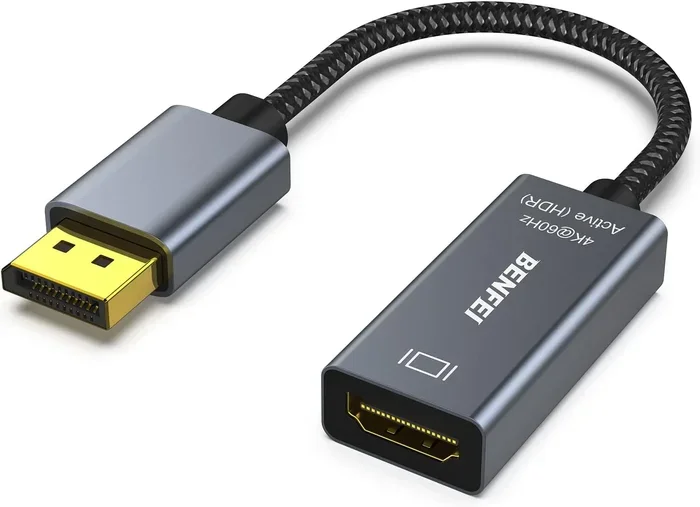
Active adapters have built-in chipsets that actively convert the signal. They usually require USB power or draw power from the DisplayPort connection. Active adapters are more reliable for complex setups. They support a wider range of resolutions and refresh rates. If you want to output 4K at 60Hz or higher, an active adapter is often the better choice.
| Feature | Passive Adapter | Active Adapter |
|---|---|---|
| Price Range | $5 – $15 | $15 – $50 |
| Power Required | No | Yes (USB or DP power) |
| 4K Support | Limited | Full 4K at 60Hz |
| Audio Support | Varies | Usually yes |
| Plug and Play | Yes | Yes |
| Best For | Simple setups | High-res and complex setups |
Types Of Adapters And Cables For DisplayPort To HDMI
When you shop for a DisplayPort to HDMI solution, you will see several options. Understanding what each one does helps you pick the right one for your needs.
DisplayPort to HDMI Adapter
This is a small dongle-style device. You plug it into your DisplayPort output and then connect a standard HDMI cable to it. These adapters are compact and portable. They are great for travel or temporary setups. Most passive adapters fall into this category.
DisplayPort to HDMI Cable
This is a single cable with a DisplayPort connector on one end and an HDMI connector on the other. It eliminates the need for a separate adapter. These cables are convenient but can be slightly bulkier at the connector points. They work well for permanent setups where you do not need to unplug often.
DisplayPort to HDMI Converter Box
For more advanced setups, a converter box offers extra features. These boxes often include additional HDMI ports, audio extraction options, and support for higher resolutions. They are ideal for home theater setups or professional workstations where signal quality matters most.
USB-C to HDMI Adapters (For Modern Laptops)
Many modern laptops use USB-C ports that support DisplayPort Alt Mode. This means you can use a USB-C to HDMI adapter as an alternative to a direct DisplayPort to HDMI adapter. Check your laptop specs to confirm it supports DisplayPort Alt Mode before buying one of these.
Step-By-Step Guide To Connecting DisplayPort To HDMI
Connecting your device is easy. Follow these steps and you will have your DisplayPort to HDMI connection working in no time.
- Identify your DisplayPort output. Look at the back of your computer, laptop, or graphics card. Find the DisplayPort or Mini DisplayPort connector. It is rectangular with one corner cut off.
- Choose the right adapter or cable. Decide whether you need a passive adapter, an active adapter, or a direct cable based on your resolution needs and budget.
- Plug the DisplayPort end into your source device. Push it in firmly until it clicks into place. The locking mechanism on DisplayPort helps keep it secure.
- Connect the HDMI end to your display. Plug the HDMI cable into your TV, monitor, or projector.
- Power on both devices. Turn on your computer and your display. Switch your display input to the correct HDMI port.
- Check the display settings. On Windows, right-click the desktop and select Display Settings. On Mac, go to System Preferences and then Displays. Make sure the display is detected and set to the correct resolution.
That is it. In most cases, the connection works immediately. If you do not see an image, do not worry. We will cover troubleshooting in the next section.
Quick Tips For A Smooth Connection
- Always use a high-quality HDMI cable to avoid signal issues.
- If using a passive adapter, make sure your DisplayPort is set to DP++ mode in your device settings.
- Restart both devices after connecting if the display is not detected.
- Keep your graphics drivers up to date for the best compatibility.
Common Problems And How To Fix Them
Sometimes things do not work right away. Here are the most common issues you might face when converting DisplayPort to HDMI, and how to solve them.
No Signal On The Display
If your screen stays black, the first thing to check is the physical connections. Make sure both cables are firmly plugged in. Try unplugging and replugging both ends. If that does not work, test with a different HDMI cable or a different adapter. Sometimes the adapter itself is faulty.
No Audio Through HDMI
DisplayPort to HDMI adapters sometimes do not carry audio by default. To fix this, go to your sound settings on your computer and set HDMI as the default audio output device. On Windows, right-click the speaker icon in the taskbar, select Open Sound Settings, and choose your HDMI device under Output.
Low Resolution Or Flickering
If your display looks blurry or flickers, your adapter may not support the resolution you are trying to use. Try lowering the resolution in your display settings. If you are using a passive adapter, consider upgrading to an active one. Passive adapters can struggle with resolutions above 1080p on some systems.
Adapter Not Recognized
Some adapters need to be recognized by the system before they work. Try disconnecting the adapter, restarting your computer, and plugging it back in. Updating your graphics drivers can also help. On Windows, go to Device Manager and check for any unknown devices or driver warnings.
Best Devices And Setups For DisplayPort To HDMI Connections
DisplayPort to HDMI connections are useful in many different situations. Here are some of the best setups where this conversion shines.
Gaming Setups
Gamers often have powerful PCs with DisplayPort outputs. But many gaming monitors and TVs use HDMI inputs. Using a quality DisplayPort to HDMI adapter lets you connect your gaming rig to any display. For the best experience, choose an active adapter that supports high refresh rates and resolutions. This ensures you do not lose any performance during gameplay.
Home Office And Work From Home
If you work from home, you might connect your laptop to an external monitor or TV for a bigger screen. Many modern laptops have DisplayPort outputs. A simple adapter lets you hook up to any HDMI monitor in your office. This is a great way to create a dual-screen workspace without buying a new monitor.
Home Theater And Entertainment
Want to use your PC as a media center? Connecting it to your TV via DisplayPort to HDMI is a great way to stream content on a big screen. The audio and video travel through a single HDMI cable, making the setup clean and simple. For the best picture quality, use an adapter that supports 4K resolution.
Multi-Monitor Setups
If you use multiple monitors and they have different input types, a DisplayPort to HDMI adapter helps you mix and match. You can connect some monitors via DisplayPort and others via HDMI, all from the same computer. This is especially useful in creative workspaces where different monitors are used for different tasks.
Expert Tips For Getting The Best DisplayPort To HDMI Experience
Here are some expert tips that can help you get the most out of your DisplayPort to HDMI setup.
- Buy adapters from trusted brands. Cheap no-name adapters can cause signal loss, flickering, and audio issues. Brands like Cable Matters, UGREEN, and StarTech are reliable choices.
- Check your DisplayPort version. DisplayPort 1.2 supports 4K at 60Hz. DisplayPort 1.4 supports even higher resolutions. Your adapter should match or exceed your port version.
- Use the shortest cable possible. Longer cables can lead to signal degradation. Keep your HDMI cable as short as your setup allows.
- Update your GPU drivers regularly. Graphics card manufacturers often release updates that improve display compatibility and performance.
- Test audio separately. If you are using the connection for both video and audio, test each one independently to make sure both work before relying on the setup.
Conclusion
Going from DisplayPort to HDMI is simple, affordable, and works with almost any modern setup. Whether you use a passive adapter for a quick connection or an active converter for high-resolution displays, the process is straightforward and reliable. You can connect your PC to your TV, your laptop to a monitor, or your gaming rig to a projector in just a few minutes.
Remember to choose the right type of adapter for your needs, keep your cables and drivers updated, and troubleshoot any issues using the tips in this guide. With the right setup, your DisplayPort to HDMI connection will deliver crisp video and clear audio every time. Now you have everything you need to make the connection work perfectly. Go ahead and try it out, and enjoy your new display setup.
Frequently Asked Questions
Do I need an active or passive adapter for DisplayPort to HDMI?
For most basic setups, a passive adapter works fine. If you want 4K resolution, high refresh rates, or are using a Mac, an active adapter is the safer choice. Active adapters handle more complex signal conversions and offer better compatibility across devices.
Will I lose audio quality when converting DisplayPort to HDMI?
No, you should not lose audio quality. HDMI carries both video and audio through a single cable. Make sure your computer’s sound settings are set to output through the HDMI device, and you should get clear audio alongside your video.
Can I use a DisplayPort to HDMI adapter for gaming?
Yes, you can. For gaming, choose an active adapter that supports high refresh rates and resolutions. Passive adapters may limit your frame rate or resolution. Always check the adapter specs to make sure it supports the gaming performance you need.
Why does my DisplayPort to HDMI connection show no signal?
This usually happens because of a loose cable, incorrect display input selection, or an incompatible adapter. Try reseating both cables, switching your TV or monitor to the correct HDMI input, and restarting your computer. If the problem persists, test with a different adapter or cable.
Can I connect multiple monitors using DisplayPort to HDMI adapters?
Yes, you can. As long as your graphics card has enough DisplayPort outputs, you can use multiple adapters to connect HDMI monitors. Each adapter handles one display connection. Just make sure your GPU supports the total number of displays you want to run.
Are USB-C to HDMI adapters the same as DisplayPort to HDMI adapters?
Not exactly. USB-C to HDMI adapters work when your laptop or device supports DisplayPort Alt Mode over USB-C. They are not the same as a direct DisplayPort to HDMI adapter, but they serve a similar purpose for modern laptops that only have USB-C ports.