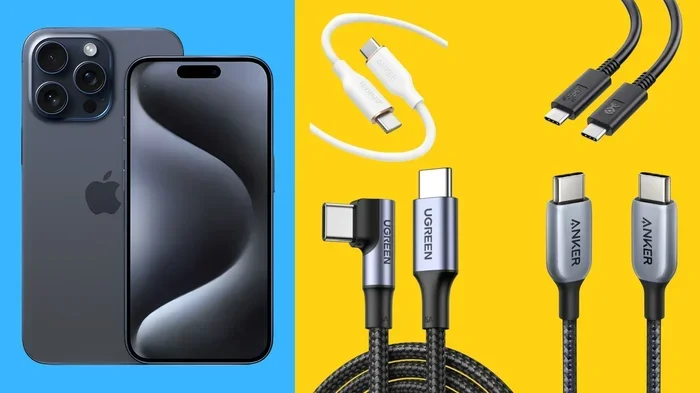
Can I Plug My Iphone Into A Usb C Port Without Issues
Yes, you can plug your iPhone into a USB-C port, and it is easier than you think. Newer iPhones like the iPhone 15 and 16 come with USB-C built right in, while older models need a simple adapter. This guide covers everything from charging speeds to data transfer and helps you pick the right cable for your needs.
You picked up your new charger or found a USB-C cable lying around, and now you are wondering whether it will work with your iPhone. The short answer is yes. But the full picture has some important details you should know before you plug anything in.
USB-C has taken over the tech world. Laptops, tablets, Android phones, and now even iPhones use this small, reversible connector. If you have been using the old Lightning cable for years, switching to USB-C might feel like a new adventure. But do not worry. This guide walks you through everything step by step.
We will cover which iPhones support USB-C, how to make the connection, what benefits you get, and how to avoid common problems. By the end, you will feel confident plugging your iPhone into any USB-C port without a second thought.
Key Takeaways
- iPhone 15 and newer models use USB-C natively, no adapter needed.
- Older iPhones (iPhone 14 and earlier) need a Lightning-to-USB-C adapter to connect.
- USB-C offers faster charging and quicker data transfer compared to the old Lightning cable.
- Not all USB-C cables are equal — cable quality and wattage matter for performance.
- Common connection issues are usually easy to fix with simple troubleshooting steps.
- USB-C is reversible, so you never have to worry about plugging it in the wrong direction.
📑 Table of Contents
What Is USB-C and Why Does It Matter for iPhones?
USB-C is a type of connector that has become the standard for charging and data transfer across many devices. It is small, oval-shaped, and reversible, meaning you can flip it either way and it will plug in perfectly every time. No more flipping the cable three times to get the right orientation.
Apple made the switch to USB-C starting with the iPhone 15 lineup. This change happened because of European regulations pushing for a universal charging standard. But honestly, USB-C is better for everyone. It charges faster, transfers data quicker, and works with more devices than the old Lightning connector ever did.
USB-C vs Lightning: What Is the Difference?
The Lightning connector has been Apple’s go-to cable for over a decade. It served its purpose well. But USB-C brings several clear advantages to the table.
- Speed: USB-C supports much faster data transfer rates than Lightning.
- Power: USB-C can deliver higher wattage, which means faster charging.
- Universality: You can use one USB-C cable for your phone, laptop, tablet, and more.
- Reversibility: Both connectors are reversible, but USB-C is more durable over time.
If you have been using an older iPhone, you might want to check how to add prefixes to numbers on iPhone for better organization of your files when transferring them via USB-C. It is a small trick that makes a big difference when managing lots of data.
Which iPhones Support USB-C?
Not every iPhone has USB-C built in. Apple rolled out the new connector gradually, so knowing which model you have matters a lot before you grab a USB-C cable.
iPhone Models That Use USB-C Natively
The following iPhones come with USB-C right out of the box. You can plug them directly into any USB-C port without any extra accessories.
- iPhone 15 — the first iPhone with USB-C.
- iPhone 15 Plus — same connector, bigger battery.
- iPhone 15 Pro — USB-C with faster data transfer speeds.
- iPhone 15 Pro Max — top-tier USB-C performance.
- iPhone 16 and iPhone 16 Plus — continued USB-C support.
- iPhone 16 Pro and iPhone 16 Pro Max — latest USB-C enhancements.
iPhone Models That Still Use Lightning
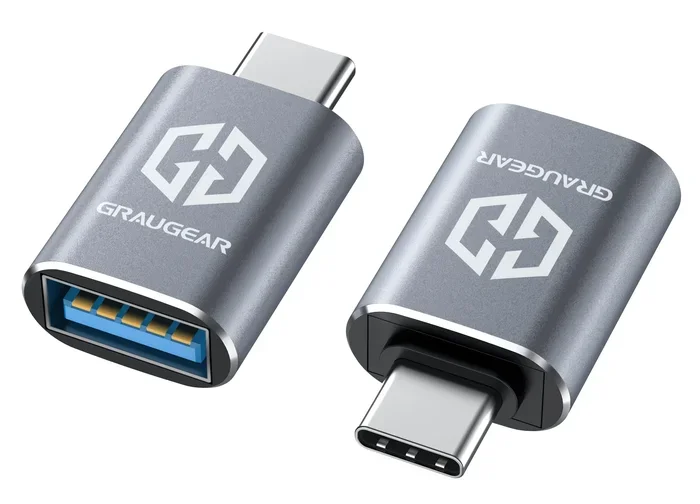
If you have an iPhone 14 or older, your phone still uses the Lightning connector. You will need a Lightning-to-USB-C adapter to plug your iPhone into a USB-C port. These adapters are inexpensive and widely available. Apple sells its own version, but many third-party options work just as well.
Here is a quick comparison to help you figure out where your iPhone stands.
| iPhone Model | Connector Type | USB-C Direct? |
|---|---|---|
| iPhone 13 and older | Lightning | No, adapter needed |
| iPhone 14 / 14 Plus | Lightning | No, adapter needed |
| iPhone 15 / 15 Plus | USB-C | Yes |
| iPhone 15 Pro / Pro Max | USB-C | Yes |
| iPhone 16 / 16 Plus | USB-C | Yes |
| iPhone 16 Pro / Pro Max | USB-C | Yes |
How to Plug Your iPhone Into a USB-C Port
The process is simple, but there are a few things worth knowing to do it safely and get the best results.
Step-by-Step Guide
- Check your iPhone model. Know whether you have a USB-C or Lightning iPhone.
- Get the right cable. Use a quality USB-C cable that supports power delivery.
- Find a USB-C port. This could be on your laptop, a wall charger, a car charger, or a portable battery pack.
- Plug the cable in. The USB-C connector is reversible, so just insert it either way.
- Check your iPhone. You should see a charging icon on the screen. If you are transferring data, your iPhone may ask for trust permissions.
Using a USB-C Hub or Adapter
If you want to connect multiple devices at once, a USB-C hub is a great investment. You can plug your iPhone into a hub and then connect it to a computer, a monitor, or a power source all at the same time. This is especially useful for people who work with their iPhone as a secondary display or file transfer device.
Quick tip: always use cables and adapters from reputable brands. Cheap cables can damage your device or charge very slowly. Look for cables that are MFi certified (Made for iPhone). This certification guarantees compatibility and safety.
What About Data Transfer?
Plugging your iPhone into a USB-C port does more than just charge it. You can also transfer photos, videos, files, and backups. When you connect your iPhone to a computer with a USB-C cable, your computer should recognize the device. On a Mac, it works seamlessly through Finder. On Windows, you may need to install iTunes or use the Photos app.
For faster transfers, make sure your cable supports USB 3.0 or higher. Not all USB-C cables handle data the same way. A basic charging cable might not move files quickly at all.
Benefits of Using USB-C with Your iPhone
Switching to USB-C brings real advantages that go beyond just having one cable for all your devices. Let us look at the biggest benefits.
Faster Charging
USB-C supports USB-C power delivery, which can charge your iPhone much faster than the old Lightning cable. With the right power adapter, an iPhone 15 or newer can reach a full charge in about an hour or less. This is a huge improvement over the Lightning charging speed.
If you are constantly on the go, fast charging means less time waiting and more time using your phone. A 20-watt or higher USB-C charger is all you need to take advantage of this speed boost.
Speedy Data Transfer
USB-C cables, especially those that support USB 3.0 or Thunderbolt, transfer data at impressive speeds. Moving a folder full of photos from your iPhone to your computer takes seconds instead of minutes. For content creators who shoot lots of video and photos, this difference is a game changer.
One Cable for Everything
This might be the best benefit of all. With USB-C, you can use the same cable to charge your iPhone, iPad, MacBook, AirPods case, and even some accessories. It reduces cable clutter and saves you from carrying multiple chargers. If you have ever forgotten the right cable for a trip, you know how nice this is.
Future-Proofing Your Setup
USB-C is not a trend. It is here to stay. More and more devices are adopting this standard every year. By switching to USB-C now, you are future-proofing your accessory collection. Any new device you buy will likely use the same connector.
Quick Tips for Getting the Most Out of USB-C
- Use cables rated for high wattage to get the fastest charging speeds.
- Keep your cables away from sharp edges and extreme heat.
- Unplug gently — even though USB-C is durable, rough handling can wear it out.
- Store cables loosely coiled instead of tightly wound to prevent internal damage.
- If your iPhone is not charging, try a different cable or port before assuming something is broken.
Common Problems and How to Fix Them
Even with USB-C, you might run into issues from time to time. Here are the most common problems and simple fixes.
iPhone Not Recognizing the USB-C Connection
This happens more often than you might think. Usually, it is a simple fix.
- Try a different cable. Faulty cables are the number one cause of connection problems.
- Clean the port. Dust and lint can build up inside the USB-C port on your iPhone. Use a soft brush or compressed air to clear it out.
- Restart your iPhone. A quick restart can reset the connection and fix recognition issues.
- Update your iPhone. Go to Settings, then General, then Software Update. Sometimes Apple releases fixes for connectivity bugs.
Slow Charging Speeds
If your iPhone is charging slowly over USB-C, the cable or charger might be the problem. Not all USB-C cables support the same wattage. A basic 5-watt cable will charge your phone much slower than a 20-watt or 30-watt cable. Check the wattage rating on your charger and cable to make sure they match your iPhone’s capabilities.
Cable Feels Loose in the Port
A loose connection can be annoying. Over time, the USB-C port on your iPhone can accumulate debris or experience wear. Try cleaning the port first. If the problem persists, the cable itself might be worn out. Replace it with a new one from a trusted brand.
When tech problems pop up, they can feel like a puzzle. Sometimes it reminds me of when a line wont delete in Microsoft Excel — the fix is usually simpler than you think, and a fresh start solves most issues.
Sudden Disconnects During Charging
If your iPhone keeps disconnecting from the USB-C charger, check a few things. Make sure the port is clean. Try a different wall outlet. Avoid using extension cords or power strips, as they can sometimes reduce the power delivery. Plugging directly into the wall outlet usually gives the most stable connection.
Best USB-C Cables and Accessories for iPhone
Not all USB-C cables are created equal. The market is full of options, and choosing the right one can make a big difference in your daily experience.
What to Look for in a USB-C Cable
- MFi certification: This means Apple has approved the cable for use with iPhones. Always look for this label.
- Wattage rating: Choose cables rated for at least 20 watts for fast charging.
- Data transfer speed: If you need to move files quickly, look for USB 3.0 or Thunderbolt compatibility.
- Cable length: Pick a length that suits your setup. Six feet is a good all-around length.
- Durability: Braided cables tend to last longer than rubber ones.
Top Recommendations
- Apple USB-C to Lightning Cable: The official Apple option. Reliable and fully compatible.
- Anker USB-C Cable: Great value, strong build quality, and fast charging support.
- Belkin USB-C Cable: Premium option with excellent durability and MFi certification.
- UGREEN USB-C Cable: A solid budget-friendly choice that still delivers good performance.
Investing in a good cable pays off. Cheap cables might save you a few dollars upfront but can lead to slow charging, data transfer issues, or even safety concerns. Stick with trusted brands and your iPhone will thank you.
Final Thoughts
So, can you plug your iPhone into a USB-C port? Absolutely. Whether you have the latest iPhone 16 Pro or an older iPhone 14 with an adapter, USB-C works beautifully. The benefits are clear: faster charging, quicker data transfers, and one cable for all your devices.
The switch to USB-C might feel like a small change, but it makes a big difference in everyday use. You spend less time waiting for your phone to charge and less time hunting for the right cable. Once you make the switch, you will not want to go back.
Take a moment to check your current setup. Do you have a quality USB-C cable? Is your adapter working properly? A little attention to these details saves you time and frustration down the road. Plug in with confidence and enjoy everything USB-C has to offer with your iPhone.
Frequently Asked Questions
Can I use any USB-C cable to charge my iPhone?
You can use most USB-C cables, but for the best results and safety, look for MFi-certified cables. These are specifically tested and approved by Apple for use with iPhones. Non-certified cables might work, but they can be slower or even damage your device over time.
Will USB-C charge my iPhone faster than Lightning?
Yes, USB-C charges significantly faster than Lightning, especially when paired with a 20-watt or higher USB-C power adapter. The exact speed depends on your iPhone model and the cable quality, but most users notice a clear improvement in charging time.
Do I need an adapter if I have an iPhone 14?
Yes, if you have an iPhone 14 or any model older than the iPhone 15, you need a Lightning-to-USB-C adapter. The iPhone 14 still uses the Lightning connector, so you cannot plug it directly into a USB-C port without one.
Can I transfer files from my iPhone to a computer using USB-C?
Absolutely. When you connect your iPhone to a computer with a USB-C cable, your computer will recognize the device. You can transfer photos, videos, documents, and even create full backups. On Macs, this works through Finder. On Windows, you can use the Photos app or iTunes.
Is USB-C the same as Thunderbolt?
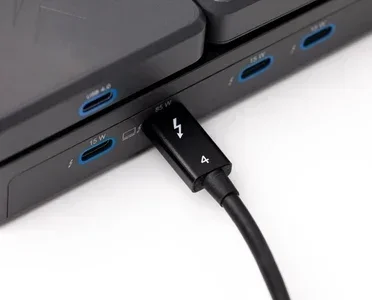
Not exactly. Thunderbolt uses the USB-C connector shape but is a faster, more advanced protocol. Thunderbolt 3 and Thunderbolt 4 offer even faster data transfer speeds than standard USB-C. However, all Thunderbolt cables work with USB-C devices, making them a great upgrade option.
What should I do if my iPhone does not recognize the USB-C cable?
Start by trying a different cable or port. Clean the USB-C port on your iPhone with a soft brush to remove any dust or lint. Restart your device and check for software updates. If none of these steps work, the cable or adapter may be faulty and need replacement.