Can I Connect Hdmi To Usb C Monitor Without Any Hassle
Yes, you can connect HDMI to USB C monitor with the right adapter or cable. This simple process lets you expand your display setup in minutes. Whether you use a laptop, tablet, or desktop, understanding your options makes the setup hassle-free. We will walk you through every method, compatibility check, and troubleshooting tip you need.
Have you ever stared at your HDMI to USB C setup and wondered if it would actually work? You are not alone. Many people want to connect their HDMI monitor to a device with a USB-C port but feel confused by all the cables and adapters out there. The good news is that this connection is simpler than most people think. With the right gear and a few minutes of your time, you can have your monitor up and running in no time.
This guide breaks everything down for you. We will cover every method, every compatibility issue, and every common mistake. By the end, you will know exactly what to buy, how to plug it in, and what to do if something goes wrong. Let us get into it.
Key Takeaways
- USB-C supports video output: Many USB-C ports can carry HDMI signals with the correct adapter or cable.
- Adapters are widely available: You can find USB-C to HDMI adapters at most electronics stores for affordable prices.
- Check your port type first: Not all USB-C ports support video output, so verify your device specs before buying an adapter.
- Thunderbolt 3 and 4 ports offer full compatibility: These ports handle HDMI connections with ease and high quality.
- Troubleshooting is simple: Most connection issues can be fixed with a quick reset or cable swap.
- Quality matters: Using a certified adapter ensures the best picture quality and reliable performance.
📑 Table of Contents
- What Is USB-C and Why Does It Matter for Monitors?
- How to Connect HDMI to USB C Monitor
- Compatibility: Which Devices Work with HDMI to USB C?
- Choosing the Right Adapter for Your Setup
- Troubleshooting Common Connection Issues
- Expert Tips for the Best HDMI to USB C Experience
- Common Mistakes to Avoid
- Final Thoughts
What Is USB-C and Why Does It Matter for Monitors?
USB-C is a small, reversible connector that has become the standard for modern devices. You will find it on laptops, tablets, smartphones, and even some desktops. One of the biggest reasons USB-C matters so much is its versatility. It can carry data, power, and video signals all through a single cable.
Here is what makes USB-C special for display connections:
- Alt Mode support: This feature lets USB-C ports send video signals to external displays.
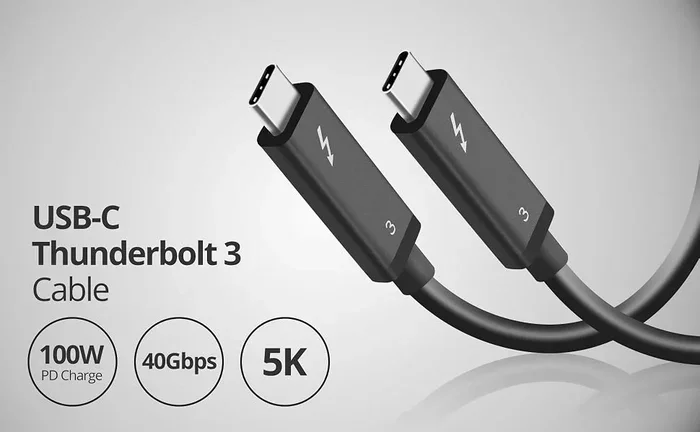
- Thunderbolt compatibility: Thunderbolt 3 and 4 use the USB-C connector and offer full video output.
- Power delivery: Many USB-C cables can charge your device while also sending video to a monitor.
- Compact design: The small connector works well with slim laptops and tablets.
Not every USB-C port supports video output, though. Some ports are designed only for data transfer or charging. This is why checking your device specifications matters before you buy an adapter. Look for terms like “DisplayPort Alt Mode” or “Thunderbolt” in your device manual or specs page.
How to Check If Your USB-C Port Supports Video
Before you rush out to buy an adapter, confirm that your port can handle video. Here are a few quick ways to find out:
- Check the device manual: Look for terms like “video output” or “display support” in the USB-C section.
- Search online: Type your device model name followed by “USB-C video output” in a search engine.
- Look for the Thunderbolt symbol: A lightning bolt next to the USB-C port usually means full video support.
- Visit the manufacturer website: Most brands list port capabilities in their support or specs section.
Taking this small step saves you time and money. You will avoid buying an adapter that simply will not work with your device.
How to Connect HDMI to USB C Monitor
The actual connection process is straightforward once you have the right equipment. You need two things: a USB-C to HDMI adapter or cable, and an HDMI-compatible monitor. Let us walk through the steps.
Method 1: USB-C to HDMI Adapter
This is the most popular and flexible option. A small adapter plugs into your USB-C port, and the HDMI end connects to your monitor.
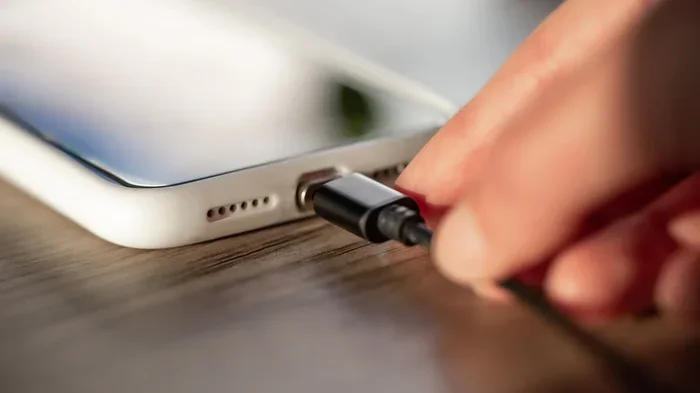
- Plug the USB-C end of the adapter into your device.
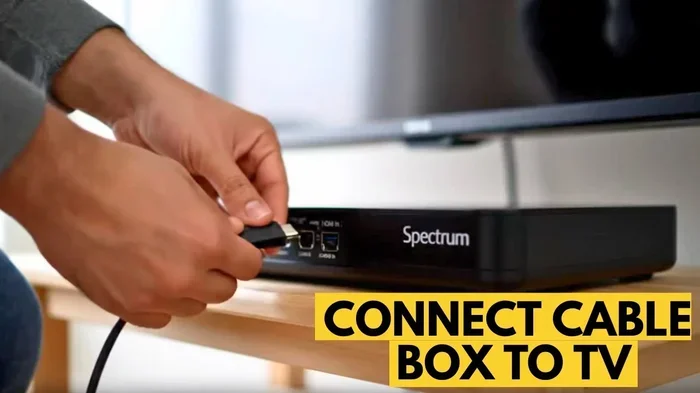
- Connect an HDMI cable from the adapter to your monitor.
- Switch your monitor to the correct HDMI input source.
- Your device should automatically detect the external display.
Most adapters work on a plug-and-play basis. You do not need to install any special software. Just connect and go. If your screen does not appear right away, try unplugging the adapter and plugging it back in.
Method 2: USB-C to HDMI Cable
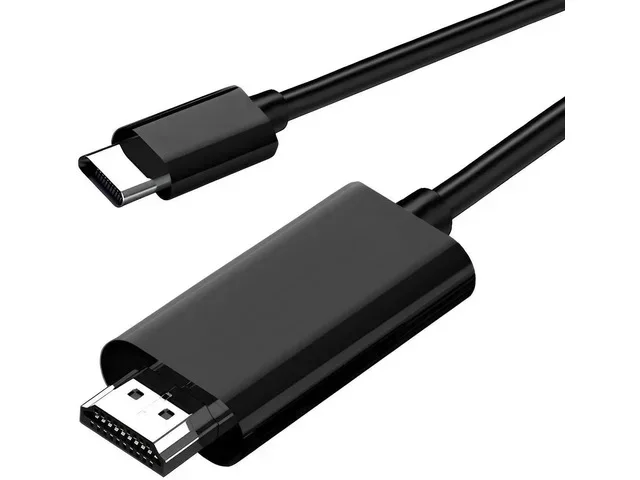
A direct USB-C to HDMI cable combines the adapter and cable into one piece. This option is great for people who want a cleaner, simpler setup. You just plug the USB-C end into your device and the HDMI end into your monitor.
Pros of this method:
- No extra adapter needed.
- Less cable clutter on your desk.
- Easy to carry when traveling.
Cons of this method:
- Less flexibility if you need to switch between devices.
- Cable length is fixed.
Method 3: USB-C Docking Station
If you use multiple peripherals, a USB-C docking station is a great choice. These stations connect to your device through one USB-C cable and offer multiple ports, including HDMI output. You can connect your monitor, keyboard, mouse, and external hard drive all at once.
Docking stations are especially helpful for people who work from home or in office setups. They keep your workspace organized and reduce the number of cables you need to manage. Many users also find them handy for quickly switching between a laptop and a desktop monitor setup.
For those who love staying on top of the latest tech gear, checking out 10 gadgets that make life easier can give you some great ideas for upgrading your workspace. A good docking station often makes that list!
Compatibility: Which Devices Work with HDMI to USB C?
Compatibility is the biggest concern for most people. The truth is that most modern devices with USB-C ports support video output. But there are exceptions. Let us break this down by device type.
Laptops
The vast majority of modern laptops come with USB-C ports that support video output. Brands like Dell, HP, Lenovo, Apple, and Microsoft all use USB-C with display capabilities on most of their current models. Apple MacBook models, for example, rely entirely on USB-C for all connectivity, including external displays.
If you own a Windows laptop or a Chromebook, check the specs to confirm your USB-C port supports Alt Mode or Thunderbolt. Older budget laptops sometimes include USB-C ports that only handle data and charging.
Tablets
Tablets like the iPad Pro and Samsung Galaxy Tab series use USB-C for video output. These devices can connect to external monitors for presentations, media consumption, or even as a second screen while working.
Smartphones
Some Android smartphones with USB-C support video output. Samsung, Google Pixel, and OnePlus phones often include this feature. You can mirror your phone screen to a monitor using a USB-C to HDMI adapter. This works great for sharing photos, watching videos, or giving presentations.
On the other hand, iPhones use Lightning or USB-C (newer models) and may need a specific Apple adapter for monitor connections. If you are curious about managing connections on your phone, you might find our guide on adding prefixes to numbers on iPhone useful for organizing your device settings.
Choosing the Right Adapter for Your Setup
Not all adapters are created equal. Choosing the wrong one can lead to poor image quality, no signal, or even damage to your device. Here is what to look for when shopping.
Resolution Support
Check the maximum resolution the adapter supports. Most modern adapters handle 4K at 60Hz, which is more than enough for everyday use. If you need 8K or high refresh rates for gaming, look for adapters that specifically advertise those capabilities.
| Resolution | Best For | Typical Adapter Cost |
|---|---|---|
| 1080p (Full HD) | Basic office work, browsing | $10 – $20 |
| 4K at 60Hz | Creative work, media, general use | $20 – $40 |
| 4K at 120Hz / 8K | Gaming, professional video editing | $40 – $80+ |
Build Quality and Certification
Always go for certified adapters. Look for USB-IF certification or Thunderbolt certification on the packaging. Certified adapters undergo testing for safety and performance. Cheap, uncertified adapters might work at first but can cause signal drops, overheating, or even harm your device over time.
Cable Length Matters
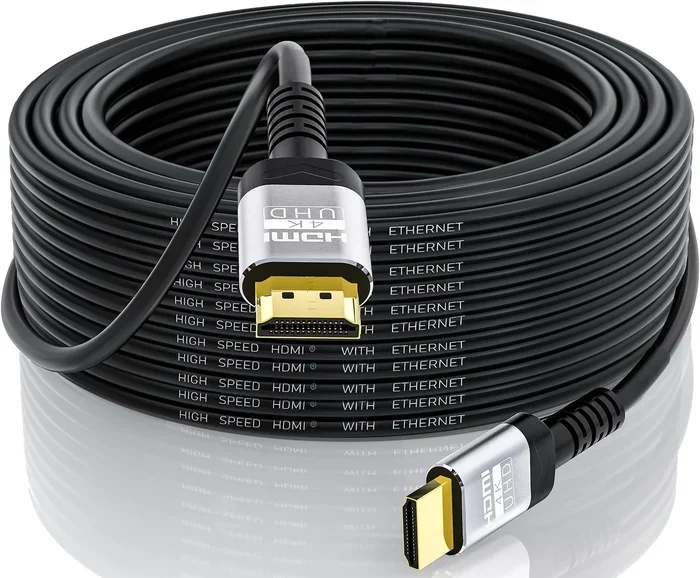
The length of your HDMI cable affects signal quality. For most desk setups, a 3 to 6-foot cable works perfectly. If your monitor sits farther away, consider an active HDMI cable that boosts the signal over longer distances. Passive cables longer than 6 feet may lose signal quality, especially at 4K resolution.
Troubleshooting Common Connection Issues
Even with the right adapter, you might run into problems. Do not worry. Most issues have simple fixes. Here are the most common problems and how to solve them.
No Signal on the Monitor
This is the most common issue. Try these steps in order:
- Unplug the USB-C adapter from your device.
- Wait 10 seconds, then plug it back in.
- Make sure the monitor is set to the correct HDMI input.
- Try a different HDMI cable.
- Restart your device and check again.
Usually, a simple reseat of the cable fixes the problem. If not, the adapter or cable might be faulty.
Poor Image Quality or Flickering
Flickering or blurry images often point to a bandwidth issue. Try lowering the resolution on your device to see if the picture stabilizes. Also, check that your HDMI cable supports the resolution you are trying to use. A cable rated for 1080p will struggle with 4K content.
Audio Not Working
Some USB-C to HDMI adapters do not carry audio by default. Check your device sound settings and make sure the HDMI output is selected as the audio device. On Windows, right-click the speaker icon in your taskbar and choose the HDMI output. On Mac, go to System Settings and select the HDMI monitor as your output device.
Adapter Overheating
If your adapter gets hot during use, stop using it immediately. Overheating can damage your device. This usually happens with cheap, uncertified adapters. Replace it with a certified one from a reputable brand.
Expert Tips for the Best HDMI to USB C Experience
Here are some pro tips that make a real difference in your daily setup.
- Buy a docking station with built-in HDMI: This gives you more ports and a cleaner desk setup.
- Label your cables: It sounds silly, but labeling your HDMI and USB-C cables saves confusion when you have multiple devices.
- Keep a spare adapter at work: If you switch between devices, having a backup adapter in your bag is a lifesaver.
- Update your device drivers: Sometimes display issues come from outdated graphics drivers. A quick update can fix them.
- Use a powered USB-C hub: If you connect multiple devices, a powered hub ensures stable performance without draining your laptop battery.
These small habits add up over time. They keep your setup running smoothly and save you from frustrating moments.
Common Mistakes to Avoid
Learning from other people’s mistakes saves you a lot of headaches. Here are the most common errors people make when setting up HDMI to USB C connections.
- Assuming all USB-C ports support video: This is the number one mistake. Always verify your port capabilities first.
- Buying the cheapest adapter: A $5 adapter from an unknown brand often causes more problems than it solves. Invest in quality.
- Using the wrong cable length: Too long or too short can affect signal quality. Measure your setup before buying.
- Ignoring firmware updates: Sometimes a simple firmware update on your device fixes display compatibility issues.
- Not checking the monitor input: It sounds obvious, but many people forget to switch their monitor to the right input source.
Avoiding these mistakes ensures a smooth and reliable connection every time.
Final Thoughts
Connecting an HDMI monitor to a USB-C device is easier than most people expect. With the right adapter, cable, or docking station, you can set up a dual monitor workspace or extend your display in just a few minutes. The key is to know your device’s capabilities and choose compatible, certified gear.
Whether you are a student setting up a home office, a professional needing a second screen, or someone who wants to mirror content for a presentation, the HDMI to USB C connection gives you the flexibility you need. Start with the steps in this guide, and you will be up and running without any hassle.
Take a few minutes today to check your setup. You might be surprised at how simple and rewarding it is to connect your devices the right way.
Frequently Asked Questions
Can I connect any HDMI monitor to a USB-C laptop?
Most modern laptops with USB-C ports support video output. However, you need to confirm that your specific laptop’s USB-C port supports Alt Mode or Thunderbolt. Check your laptop’s specifications or user manual to verify compatibility before purchasing an adapter.
Do I need a special driver for USB-C to HDMI adapters?
In most cases, no. USB-C to HDMI adapters work on a plug-and-play basis. Your operating system should recognize the external monitor automatically. If you experience issues, updating your graphics drivers usually resolves the problem.
Can I use a USB-C hub instead of a dedicated adapter?
Yes, a USB-C hub with an HDMI port works just as well as a dedicated adapter. In fact, a hub offers more flexibility because you can connect multiple devices like keyboards, mice, and external drives alongside your monitor. Just make sure the hub supports video output.
Why does my monitor show no signal when connected via USB-C to HDMI?
This usually happens because the monitor is set to the wrong input source, the adapter is not fully seated, or the cable is faulty. Try switching your monitor to the correct HDMI input, reseating the adapter, or testing with a different HDMI cable to isolate the issue.
Does USB-C to HDMI support audio?
Yes, most USB-C to HDMI adapters carry both video and audio signals. If you do not hear sound through your monitor, check your device’s sound output settings and make sure the HDMI monitor is selected as the audio output device.
What is the difference between USB-C Alt Mode and Thunderbolt for HDMI output?
USB-C Alt Mode supports basic video output to an external display. Thunderbolt 3 and 4 also support Alt Mode but offer higher bandwidth, faster data transfer, and the ability to daisy-chain multiple devices. Thunderbolt provides a more robust and versatile connection for demanding setups.