Can Hdmi Transmit Audio Data The Definitive Answer
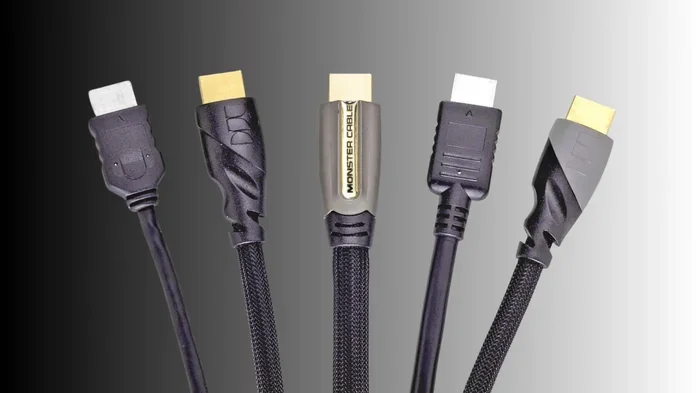
Yes, HDMI can absolutely transmit audio data alongside video signals through a single cable. This digital connection supports everything from basic stereo to lossless multichannel surround sound. Understanding how HDMI handles audio helps you get the best sound from your home entertainment setup.
HDMI cables are everywhere in our homes. They connect our TVs, soundbars, gaming consoles, and streaming devices. But here is a question many people overlook: can HDMI transmit audio data? The short answer is yes, and the full story is more interesting than you might think.
When you plug in an HDMI cable, you are not just sending a picture to your screen. You are also sending sound. This tiny cable handles a lot of work behind the scenes. Let us dive deep into how HDMI handles audio, what formats it supports, and how you can get the best sound from your setup.
Many people assume audio and video travel through separate cables. That was true back in the day. But modern HDMI technology changed all of that. A single HDMI cable now carries both high-definition video and digital audio. This makes setup simpler and keeps your entertainment area less cluttered.
Understanding how your HDMI connection handles audio can save you from frustration. It can also help you unlock better sound quality. Whether you are watching movies, playing games, or listening to music, the way audio travels through HDMI matters. Let us break it all down.
Key Takeaways
- HDMI Carries Both Audio and Video: A single HDMI cable transmits high-quality digital audio and video signals simultaneously.
- Multiple Audio Formats Supported: HDMI supports stereo, surround sound, Dolby Atmos, DTS, and uncompressed audio formats.
- HDMI ARC and eARC Matter: These features enable two-way audio communication between your TV and soundbar or receiver.
- Version Differences Exist: Older HDMI versions may not support the latest audio codecs or higher bandwidth formats.
- Common Issues Are Fixable: Most HDMI audio problems stem from settings, cable quality, or device compatibility.
- Data Security Matters Too: When your HDMI cable transmits data across devices, consider how your connected devices handle personal information.
📑 Table of Contents
- How HDMI Transmits Audio and Video Together
- Can HDMI Transmit Audio Data: The Formats Explained
- HDMI ARC and eARC: The Audio Return Channel
- Common HDMI Audio Problems and How to Fix Them
- Quick Tips for the Best HDMI Audio Experience
- How HDMI Audio Compares to Other Connections
- The Future of HDMI Audio Transmission
- Conclusion
How HDMI Transmits Audio and Video Together
HDMI stands for High-Definition Multimedia Interface. The name itself tells you the purpose. It was designed to carry both multimedia types through one cable. This includes high-quality digital audio and video signals.
When your device sends a signal through an HDMI cable, it bundles audio and video data together. Think of it like a digital highway. The video data takes one lane, and the audio signal takes another. Both travel at the same time and arrive at the same destination. Your TV or receiver then separates them for playback.
This bundled transmission is what makes HDMI so convenient. You do not need separate audio cables for most setups. One cable does the job. But not all HDMI cables are the same. The version of HDMI you use affects what kind of audio data it can carry.
The Role of HDMI Versions in Audio Transmission
HDMI has gone through several versions over the years. Each new version brings better bandwidth and support for more advanced audio formats. Here is a quick look at how versions affect audio:
- HDMI 1.0 to 1.4: These older versions support basic stereo and surround sound. They handle standard audio codecs well.
- HDMI 2.0: This version introduced support for higher-quality audio. It can handle uncompressed audio and more channels.
- HDMI 2.1: The latest version supports the most advanced audio formats. It includes ultra-high bandwidth for future audio technologies.
If you want to know whether your setup can handle lossless audio, check your HDMI version. Older cables and ports may limit what audio formats you can use. This is a common mistake many people make when setting up their home theater.
Can HDMI Transmit Audio Data: The Formats Explained
Now that we know HDMI can carry audio, let us look at what kinds of audio it actually supports. The range of audio formats is impressive. But not every format works on every HDMI port or cable.
Here are the main audio formats that HDMI can transmit:
- Stereo PCM: The basic two-channel audio format. Works on virtually every HDMI device.
- Dolby Digital: The classic surround sound format. Commonly used for TV broadcasts and DVDs.
- DTS: Another popular surround sound codec. Often found on Blu-ray discs and streaming content.
- Dolby Digital Plus: An enhanced version with better audio quality. Supports up to 7.1 channels.
- Dolby TrueHD: A lossless format that preserves every detail of the original recording.
- DTS-HD Master Audio: Another lossless format known for its high fidelity.
- Dolby Atmos: The cutting-edge immersive audio format. Creates a three-dimensional sound experience.
Each format has different bandwidth requirements. Lossless audio formats like Dolby TrueHD need more data space. Your HDMI cable and port must support enough bandwidth to carry these formats. If the connection cannot handle the data, your device may downsample the audio to a lower quality format.
Understanding Uncompressed vs. Compressed Audio
This is an important distinction. Uncompressed audio keeps every bit of the original recording intact. It sounds the best but requires more bandwidth. Compressed audio removes some data to save space. It still sounds good but is not as detailed.
HDMI can carry both types. Newer HDMI versions handle uncompressed formats with ease. Older versions may only support compressed formats. This is why checking your HDMI version before buying cables or devices matters so much.
HDMI ARC and eARC: The Audio Return Channel
You have probably seen the labels ARC or eARC on the back of your TV. These stand for Audio Return Channel and Enhanced Audio Return Channel. They are special features that make HDMI audio transmission even more useful.
HDMI ARC lets your TV send audio back to a soundbar or receiver. Without ARC, you would need a separate cable running from your TV to your sound system. ARC uses the same HDMI cable to send audio in both directions. This simplifies your setup and reduces cable clutter.
HDMI eARC takes this further. It supports higher-quality audio formats. This means you can get Dolby Atmos and uncompressed audio through the return channel. eARC also has a faster data transfer rate, which reduces audio lag.
Not all HDMI ports support ARC or eARC. Look for the specific label on your TV or receiver. Using a standard HDMI port for ARC will not work. You need a port that is specifically designed for this feature.
Why ARC Matters for Your Setup
If you use a soundbar or home theater receiver, ARC is a game changer. It lets you control the volume with your TV remote. It also allows your TV to send audio from built-in apps directly to your sound system. Without ARC, you might miss out on audio from streaming apps.
Here are some quick benefits of using ARC or eARC:
- One cable handles both video input and audio output.
- Volume control works through your TV remote.
- Supports advanced audio formats like Dolby Atmos.
- Reduces the number of cables you need.
- Enables automatic audio switching between devices.
When setting up your home entertainment system, always check for ARC or eARC support. It makes a real difference in how your audio and video devices work together.
Common HDMI Audio Problems and How to Fix Them
Even though HDMI audio transmission is reliable, problems do happen. Here are the most common issues and simple fixes for each one.
No Sound Through HDMI
This is the most frustrating problem. You have a picture but no sound. The first thing to check is your TV audio output setting. Many TVs default to internal speakers. You need to change the output to HDMI.
Go to your TV settings and look for audio output or speaker settings. Select HDMI or external speaker option. This simple change often solves the problem right away.
Audio and Video Are Out of Sync
Sometimes the sound does not match the picture. This is called audio lag. It happens when the audio and video signals take different paths or processing times.
Try these fixes:
- Enable audio sync or lip-sync settings on your TV.
- Use an HDMI cable that supports the right bandwidth for your format.
- Check if your soundbar or receiver has an audio delay setting.
- Make sure your HDMI cable is not damaged or too long.
Audio Cuts In and Out
Intermittent audio is annoying. It usually points to a loose connection or a faulty cable. Try unplugging the HDMI cable and plugging it back in firmly. If the problem persists, swap the cable with a known good one.
Also check if your HDMI splitter or switch is causing the issue. Some cheaper devices do not handle audio data well. They may drop the signal or cause interruptions.
Wrong Audio Format Selected
Your device might be sending audio in a format your sound system cannot decode. This results in silence or a limited audio experience. Check the audio output settings on your source device. Set it to a format that matches your receiver or soundbar capabilities.
Quick Tips for the Best HDMI Audio Experience
Getting great sound through HDMI is not hard. A few smart choices make a big difference. Here are tips that actually work.
- Use the right HDMI cable: For high-quality audio, use an HDMI Premium High Speed cable or an Ultra High Speed cable. These support the bandwidth needed for lossless formats.
- Check your HDMI port labels: Not all ports on your TV are the same. Look for ports labeled ARC or eARC if you want audio return features.
- Update your device firmware: Manufacturers often update audio compatibility through firmware. Keep your TV, soundbar, and receiver up to date.
- Set audio output to auto: Let your device detect the best audio format automatically. This prevents format mismatch issues.
- Keep cables short and undamaged: Longer cables can weaken the signal. Keep HDMI runs under 15 feet for best results.
- Use a quality HDMI switch: If you have many devices, a reliable HDMI switch prevents signal loss and audio dropouts.
These tips apply whether you are setting up a simple soundbar or a full home theater. Following them ensures your digital audio sounds its best through every HDMI connection.
How HDMI Audio Compares to Other Connections
HDMI is not the only way to carry audio. Let us compare it to other common connections so you can see why HDMI is often the best choice.
| Connection Type | Audio Quality | Video Included | Ease of Use |
|---|---|---|---|
| HDMI | Excellent, supports lossless formats | Yes | Very easy, single cable |
| Optical (TOSLINK) | Good, supports compressed surround | No | Easy, but separate from video |
| 3.5mm Aux | Fair, limited to stereo | No | Very easy |
| Bluetooth | Good, but compressed | No | Wireless convenience |
| RCA (Analog) | Basic, analog quality | No | Simple but outdated |
As you can see, HDMI stands out for combining both audio and video in one cable. Optical cables are a good backup option, but they cannot carry uncompressed or immersive formats like Dolby Atmos. Bluetooth is convenient but compresses the audio, which reduces quality.
For the best multichannel audio experience, HDMI is the clear winner. It delivers the full range of sound without compression or extra cables.
The Future of HDMI Audio Transmission
HDMI technology keeps evolving. HDMI 2.1 already supports incredible audio bandwidth. Future versions will likely bring even more advanced formats. The trend is toward higher quality, more channels, and immersive experiences.
One thing is certain: HDMI will continue to be the backbone of home audio and video connections. As high-definition audio formats become more common, HDMI will be ready to carry them. Investing in good HDMI cables and compatible devices now sets you up for the future.
Also, keep in mind that whenever your HDMI cable transmits data across your home setup, the overall security of your connected devices matters. While HDMI itself is a secure digital protocol, the devices it connects to can still be vulnerable. For more on protecting your data across connected devices, you can explore resources on VPN settings and data security to ensure your entire home network stays safe.
Conclusion
The answer to whether can HDMI transmit audio data is a clear and definitive yes. HDMI carries a wide range of audio formats, from basic stereo to immersive Dolby Atmos. It handles both compressed and uncompressed audio with ease. And features like ARC and eARC make it even more versatile for modern home entertainment.
By understanding your HDMI version, choosing the right cable, and checking your device settings, you can get the most out of every audio connection. Simple steps like using a quality HDMI cable and enabling the right audio output settings go a long way.
Do not let common problems like no sound or audio lag ruin your experience. Most issues have quick and easy fixes. With the right setup, your HDMI connection will deliver outstanding sound every time you watch a movie, play a game, or listen to music.
Take control of your audio setup today. Check your cables, update your settings, and enjoy the rich, high-quality sound that HDMI was designed to deliver.
Frequently Asked Questions
Does every HDMI cable support audio?
Yes, virtually every HDMI cable supports audio transmission. Even the earliest HDMI versions carried stereo and basic surround sound. However, newer audio formats like Dolby Atmos require HDMI 2.1 or at least HDMI 2.0 with the right cable. Always check your cable specifications if you want advanced audio features.
Can I get surround sound through HDMI?
Absolutely. HDMI supports surround sound formats including Dolby Digital, DTS, and Dolby TrueHD. For the best experience, use HDMI 2.0 or higher with a cable that supports sufficient bandwidth. This ensures your multichannel audio plays without compression or quality loss.
What is the difference between HDMI ARC and eARC?
HDMI ARC (Audio Return Channel) lets your TV send audio to a soundbar or receiver. HDMI eARC (Enhanced Audio Return Channel) does the same thing but with higher bandwidth. eARC supports advanced formats like Dolby Atmos and uncompressed audio. It also reduces audio lag compared to standard ARC.
Why is there no sound when I connect via HDMI?
This usually happens because your TV is set to use internal speakers instead of the HDMI output. Go to your TV audio settings and switch the output to HDMI or external speakers. If that does not work, try a different HDMI port or cable to rule out a hardware issue.
Can an HDMI splitter affect audio quality?
Yes, some HDMI splitters can degrade audio quality. Cheap splitters may not support all audio formats or sufficient bandwidth. Look for a splitter that explicitly supports the audio formats you need, such as uncompressed audio or Dolby Atmos. A quality splitter preserves your audio data without loss.
Do I need a special HDMI cable for Dolby Atmos?
You need an HDMI cable that supports enough bandwidth for Dolby Atmos. An HDMI Premium High Speed cable or an Ultra High Speed cable works well. Older cables may not carry the data required for this immersive format. Always check the cable specifications before purchasing.
=== CONCLUSION ===
Can HDMI transmit audio data? The answer is a resounding yes. HDMI cables carry rich digital audio alongside video, supporting a wide range of formats from basic stereo to immersive surround sound. Whether you are using HDMI ARC, eARC, or a standard connection, understanding how your setup works helps you get the best possible sound.
Take a few minutes to check your HDMI version, cable quality, and device settings. These small steps make a huge difference in your audio experience. With the right knowledge and equipment, your HDMI connection will deliver crystal-clear, powerful sound for years to come.