Can Dvi D Be Converted To Hdmi Here Is What You Need
Yes, you can convert DVI-D to HDMI using a simple adapter or cable. The good news is that both DVI-D and HDMI carry digital signals, making the conversion straightforward. This guide walks you through everything from choosing the right adapter to troubleshooting common issues.
Key Takeaways
- DVI-D to HDMI conversion is simple: Both use digital signals, so a passive adapter usually works perfectly.
- You do not need an active adapter: Since DVI-D and HDMI both carry uncompressed digital video, a passive adapter is almost always sufficient.
- Audio is not carried over DVI-D: You will need a separate audio connection if your setup requires sound.
- Resolution support is excellent: DVI-D can handle resolutions up to 1920×1200, which covers most HD and Full HD displays.
- Check your devices first: Not all ports are the same. Verify whether your graphics card or display uses DVI-D, DVI-I, or another connector type.
- Cable length matters: Longer cables can degrade signal quality, so keep your DVI-D to HDMI cable as short as practical.
- HDCP compliance is important for protected content: Make sure your adapter supports HDCP if you plan to watch copyrighted movies or stream protected content.
📑 Table of Contents
What Is DVI-D and How Does It Work
DVI-D stands for Digital Visual Interface – Digital. It is a video display interface developed to deliver high-quality digital video signals from a source device to a display. You will find DVI-D connectors on older monitors, graphics cards, and projectors.
The DVI-D connector comes in two main forms: single link and dual link. A single link DVI-D supports resolutions up to 1920×1200 at 60Hz. A dual link DVI-D can handle even higher resolutions, though most users find single link more than enough for everyday use.
Here is something important to know. DVI-D only carries video signals. It does not transmit audio. This is one of the biggest differences when comparing DVI-D to HDMI. HDMI carries both audio and video over a single cable, which makes it more convenient for many setups.
If you are setting up a home theater or a gaming station, this distinction matters. You need to plan for a separate audio path when using DVI-D. More on that later.
DVI-D Connector Types
There are a few variations of the DVI connector you should know about:
- DVI-D (Digital only): Sends a purely digital signal. This is the type we focus on in this guide.
- DVI-A (Analog only): Carries an analog signal. Not relevant for HDMI conversion.
- DVI-I (Integrated): Supports both digital and analog signals. You can use a DVI-I to HDMI adapter as well.
For this article, we are talking specifically about DVI-D to HDMI conversion. But knowing the difference helps you avoid buying the wrong adapter.
How DVI-D to HDMI Conversion Works
The good news is that converting DVI-D to HDMI is one of the easiest signal conversions you can do. Both DVI-D and HDMI use the same digital signaling protocol for video. This means the conversion is essentially a matter of matching the physical connector pins.
HDMI was designed to be backward compatible with DVI. In fact, the HDMI standard is based on the DVI specification. The video signal path is nearly identical. The main difference is that HDMI adds support for audio and uses a different connector shape.
Because of this shared foundation, you typically do not need any fancy signal processing. A simple passive adapter will do the job. The adapter changes the physical shape of the connector from DVI-D to HDMI without altering the digital signal itself.
This also means there is virtually no loss in signal quality when converting from DVI-D to HDMI. The digital signal stays intact from end to end. You get the same crisp image quality as you would with a direct DVI-D connection.
Passive vs Active Adapters
Not all adapters are created equal. Here is a quick breakdown:
- Passive adapter: Simply changes the connector shape. No signal conversion happens. This is all you need for DVI-D to HDMI. It is cheap and reliable.
- Active adapter: Contains circuitry to convert the signal. You need an active adapter when converting between different signal types, like VGA to HDMI or HDMI to DVI-D with audio extraction.
For DVI-D to HDMI, a passive adapter is almost always the right choice. Save your money and skip the active adapters unless you have a specific need.
Types of Adapters and Cables for the Conversion
When you go shopping for a DVI-D to HDMI solution, you will find several options. Let us break them down so you can pick the right one for your setup.
DVI-D to HDMI Adapter
This is the most common and affordable option. It is a small dongle that plugs into your DVI-D output and provides an HDMI port for your cable. These adapters are compact and easy to store. They work great for desktop computers and fixed setups.
DVI-D to HDMI Cable
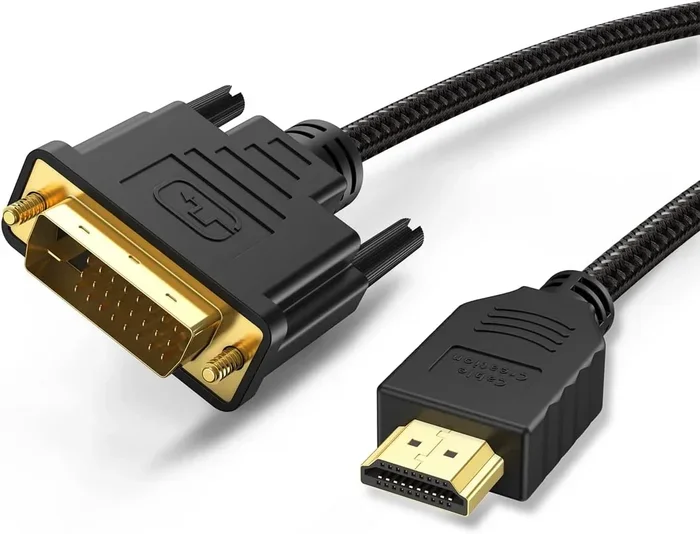
This is a single cable with a DVI-D connector on one end and an HDMI connector on the other. It eliminates the need for a separate adapter. The downside is that you are locked into a fixed cable length. If you need flexibility, go with an adapter and separate HDMI cable instead.
DVI-I to HDMI Adapter
If your device has a DVI-I port instead of DVI-D, you can still use an HDMI display. A DVI-I to HDMI adapter works the same way. Just make sure your output is set to digital if your graphics card supports both digital and analog modes.
What to Look For When Buying
Here are some quick tips for choosing the right product:
- Check that the adapter supports HDCP if you plan to watch protected content.
- Make sure the adapter is rated for your desired resolution.
- Choose a gold-plated connector for better durability and signal conductivity.
- Read reviews to avoid cheaply made adapters that may not work reliably.
You can also explore some useful tech accessories at 10 Gadgets To Make Moms Life Easier for general tech tips and tools that complement your setup.
Step-by-Step Guide to Converting DVI-D to HDMI
Setting up your DVI-D to HDMI connection is straightforward. Follow these steps and you will be up and running in minutes.
Step 1: Identify Your DVI-D Port
Look at the back of your computer or graphics card. Find the DVI-D port. It has a flat pin surrounded by two rows of smaller pins. If the port has additional analog pins, it is a DVI-I port, which also works with these instructions.
Step 2: Choose Your Adapter or Cable
Decide whether you want an adapter plus a separate HDMI cable or a combined DVI-D to HDMI cable. For most users, an adapter with a separate cable gives more flexibility.
Step 3: Connect the Adapter
Plug the DVI-D end of the adapter into your source device. Push it in firmly until it clicks into place. Do not force it. If it does not fit, double-check that you have a DVI-D port and not a DVI-A or VGA port.
Step 4: Connect the HDMI Cable
Plug one end of the HDMI cable into the adapter. Plug the other end into your display. Make sure both connections are secure.
Step 5: Power On and Configure
Turn on your display and your source device. Your computer should automatically detect the new display. If it does not, go to your display settings and select the HDMI output. You may need to adjust the resolution to match your display.
For more tech tips on managing your devices, check out Adding Prefixes To Numbers On Iphone for helpful guides on device management.
Common Problems and How to Fix Them
Even with a simple setup like DVI-D to HDMI conversion, you might run into some issues. Here are the most common problems and their solutions.
No Signal on the Display
This is the most frequent issue. Try these fixes:
- Check that the DVI-D adapter is fully seated in the port.
- Make sure the HDMI cable is firmly connected on both ends.
- Try a different HDMI cable to rule out a faulty cable.
- Restart your computer and display.
- Check your display settings and make sure the correct input source is selected on your monitor.
No Audio Through HDMI
Remember that DVI-D does not carry audio. If you need sound, you have a few options:
- Connect speakers or headphones directly to your computer.
- Use a separate audio cable from your computer to your display or sound system.
- Use a DVI-D to HDMI active adapter that extracts and passes audio, though this is rare for DVI-D to HDMI since the source device usually handles audio separately.
Low Resolution or Fuzzy Image
If your image looks blurry or the resolution is lower than expected:
- Go to your display settings and manually set the native resolution of your monitor.
- Make sure your graphics card drivers are up to date.
- Try a shorter HDMI cable. Longer cables can sometimes cause signal degradation.
- Check that your adapter supports the resolution you are trying to use.
HDCP Errors When Watching Movies
If you get a black screen or error message when trying to watch a Blu-ray or stream protected content:
- Make sure your adapter and cable are HDCP compliant.
- Check that your graphics card supports HDCP output.
- Try a different adapter, as some cheap adapters do not properly pass HDCP signals.
Expert Tips for the Best Conversion Results
Here are some pro tips to get the most out of your DVI-D to HDMI setup:
- Keep your cable runs short. A shorter HDMI cable means a stronger signal. Try to keep it under 6 feet for the best results.
- Update your graphics drivers. Updated drivers ensure the best compatibility with your display and adapter.
- Use a cable with ferrite cores. These reduce electromagnetic interference and can improve signal stability.
- Test your setup with different content. Check both video and desktop usage to make sure everything looks right.
- Label your cables. If you have multiple connections, labeling helps you troubleshoot faster in the future.
These small steps can make a big difference in your daily experience. Whether you are building a gaming setup or a home theater, getting the right DVI-D to HDMI connection ensures you enjoy the best picture quality without any headaches.
The bottom line is that DVI-D to HDMI conversion is simple, reliable, and inexpensive. You do not need expensive equipment or technical expertise. A basic passive adapter and a standard HDMI cable will get the job done in most cases. Just remember that DVI-D does not carry audio, so plan your sound setup accordingly.
With the right adapter and a little patience, you can connect almost any DVI-D source to an HDMI display without any fuss. The digital signal stays clean, the image stays sharp, and you get a seamless connection that just works.
Now that you know how DVI-D to HDMI conversion works, you can shop with confidence. Pick the right adapter, follow the steps, and enjoy your display. Whether you are connecting an older monitor to a modern computer or setting up a secondary screen, this guide has you covered.
Frequently Asked Questions
Can I Convert DVI-D to HDMI Without an Adapter?
No, you need either a DVI-D to HDMI adapter or a DVI-D to HDMI cable. The connectors are physically different, so you cannot plug a DVI-D cable directly into an HDMI port. A passive adapter is the easiest and most affordable solution.
Does DVI-D to HDMI Conversion Support Audio?
No, DVI-D does not carry audio signals. You will need a separate audio connection, such as a 3.5mm cable or Bluetooth speakers, to get sound. HDMI supports audio, but the DVI-D side of the connection does not.
Is a Passive or Active Adapter Better for DVI-D to HDMI?
A passive adapter is better for DVI-D to HDMI conversion. Both DVI-D and HDMI use the same digital video signal, so no signal conversion is needed. An active adapter is only necessary for converting between different signal types, like VGA to HDMI.
What Resolution Can I Get with DVI-D to HDMI?
With a single link DVI-D connection, you can get up to 1920×1200 at 60Hz. With a dual link DVI-D connection, you can achieve even higher resolutions. Most modern HDMI displays support these resolutions natively, so you will not have any issues.
Will My DVI-D to HDMI Setup Support HDCP Content?
It depends on your adapter and cable. Make sure both your DVI-D to HDMI adapter and your HDMI cable are HDCP compliant if you plan to watch protected movies or stream copyrighted content. Most modern adapters support HDCP, but cheap or old ones may not.
Can I Use a DVI-D to HDMI Cable Instead of an Adapter?
Yes, a DVI-D to HDMI cable works just as well as an adapter plus a separate HDMI cable. The advantage is simplicity, but the downside is a fixed cable length. If you need flexibility to change cable length or reposition your setup, go with an adapter and separate cable.
=== CONCLUSION ===
Converting DVI-D to HDMI is one of the simplest and most affordable upgrades you can make to your display setup. The digital signal compatibility between DVI-D and HDMI means you get a clean, lossless connection with minimal effort. A passive adapter, a good HDMI cable, and you are good to go.
Remember the key points. DVI-D carries video only, so plan for separate audio. A passive adapter is all you need in most cases. Check for HDCP support if you watch protected content. And always verify your port type before buying an adapter.
With this guide, you have everything you need to make a successful DVI-D to HDMI conversion. Pick your adapter, follow the steps, and enjoy your display. The process is quick, the results are reliable, and the cost is minimal. You will wonder why you did not do it sooner.