Can A Usb 3 0 Be Used In A 3 2 Port
Yes, a USB 3.0 device works in a USB 3.2 port because USB 3.2 is fully backward compatible. You will get the best speed your device and cable support, but the connection will default to USB 3.0 speeds. Understanding this helps you avoid confusion and makes sure your peripherals work without any hassle.
Have you ever plugged a USB 3.0 device into a USB 3.2 port and wondered if it would work? Maybe you just bought a new external hard drive or a flash drive and noticed the port on your computer looks the same but is labeled differently. This is a common question, and the answer is simpler than you might think.
The short answer is yes. A USB 3.0 device can absolutely be used in a USB 3.2 port. USB was designed with backward compatibility in mind from the very start. This means older devices work with newer ports without any special setup. But there are some details you should know to get the best experience.
In this guide, we will walk through everything you need to know about USB 3.0 and USB 3.2 compatibility. We will cover speed differences, connector types, cable quality, and practical tips. By the end, you will feel confident plugging in any USB device without worry.
Key Takeaways
- Full Backward Compatibility: USB 3.0 devices plug into USB 3.2 ports without any issues.
- Speed Drops to USB 3.0 Levels: Your device will run at USB 3.0 speeds, not the faster USB 3.2 speeds.
- Connector Type Matters: Type-A and Type-C both work, but the right cable improves performance.
- No Drivers Needed: USB is plug and play across all versions.
- Power Delivery Stays Reliable: USB 3.2 ports can power USB 3.0 devices just fine.
- Check Your Cable Quality: A bad cable can limit speeds more than the port version.
📑 Table of Contents
- What Is the Difference Between USB 3.0 and USB 3.2?
- Can You Plug a USB 3.0 Device into a USB 3.2 Port?
- USB Connector Types and Compatibility
- Speed Differences: What to Expect
- Do You Need Any Adapters or Converters?
- Power Delivery and Charging Compatibility
- Expert Insights on USB Compatibility
- Key Takeaways
- Conclusion
What Is the Difference Between USB 3.0 and USB 3.2?
Before we dive into compatibility, it helps to understand what each USB version brings to the table. The names can be confusing, but the differences are straightforward once you break them down.
USB 3.0 at a Glance
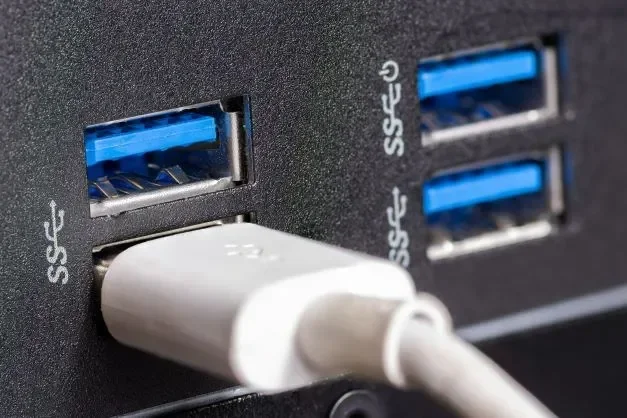
USB 3.0 was released back in 2008. It introduced what is called SuperSpeed USB, which offered data transfer rates up to 5 Gbps. This was a huge leap from USB 2.0, which topped out at 480 Mbps. USB 3.0 ports are often colored blue on the inside to help you identify them.
USB 3.0 uses the Type-A connector most commonly found on desktops and laptops. It also supports basic power delivery for charging smaller devices like phones and tablets.
USB 3.2 at a Glance
USB 3.2 came along in 2017 and built on the foundation of USB 3.0 and USB 3.1. The USB 3.2 Gen 2 version doubles the speed to 10 Gbps, and USB 3.2 Gen 2×2 pushes that even further to 20 Gbps. These faster speeds are possible thanks to improved encoding and better use of the available bandwidth.
USB 3.2 ports often use the USB Type-C connector, which is smaller, reversible, and more versatile. However, USB 3.2 Type-A ports also exist, especially on high-end motherboards and docking stations.
Can You Plug a USB 3.0 Device into a USB 3.2 Port?
This is the core question, and the answer is a resounding yes. USB 3.2 ports are designed to accept USB 3.0 devices, USB 3.1 devices, and even older USB 2.0 devices. The backward compatibility is built right into the standard.
When you plug in a USB 3.0 device, the port and device negotiate the best connection they both support. In this case, the connection will default to USB 3.0 speeds. Your device will work perfectly, but it will not magically run at USB 3.2 speeds.
Why Does This Happen?
Think of it like plugging a standard garden hose into a high-pressure sprinkler system. The system supports high pressure, but the hose can only handle so much. The connection works, but it operates at the capacity of the weakest link. In USB terms, the device’s controller and cable determine the maximum speed, not just the port.
Here are the key things to keep in mind:
- The device will work without any errors or issues.
- Data transfer speeds will cap at USB 3.0 levels (5 Gbps).
- Power delivery remains stable and reliable.
- No drivers or software updates are needed.
USB Connector Types and Compatibility
One of the reasons people get confused about USB compatibility is the variety of connector types. Let us break down the most common ones and how they interact with USB 3.0 and USB 3.2 ports.
USB Type-A
The USB Type-A connector is the classic rectangular plug most people recognize. USB 3.0 Type-A plugs fit perfectly into USB 3.2 Type-A ports. The pin layout is compatible, so there is no risk of damage or poor connection.
Most external hard drives, flash drives, and keyboards use Type-A connectors. If your device has a Type-A plug, you can plug it directly into a USB 3.2 Type-A port with confidence.
USB Type-C
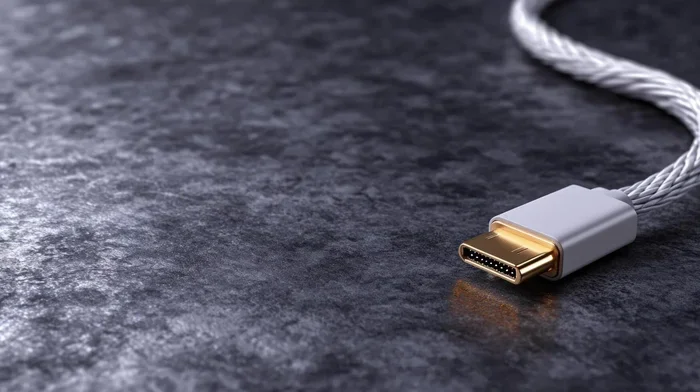
USB Type-C is the newer, smaller, reversible connector. It has become the standard on modern laptops, tablets, and smartphones. USB 3.2 Type-C ports are very common, and they fully support USB 3.0 Type-C cables and devices.
One thing to watch for is the cable quality. A cheap or damaged USB-C cable can limit your speeds significantly, even if the port supports faster standards. Always use cables that are rated for the speed you need.
USB Type-B and Mini/Micro
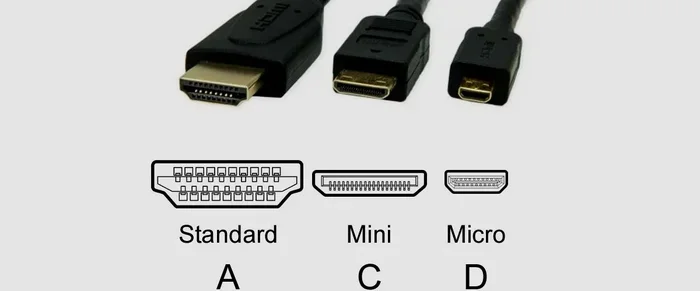
USB Type-B connectors are typically found on printers and some external drives. Mini and Micro USB connectors are common on older devices. These all work in USB 3.2 ports when paired with the right adapter or cable. The backward compatibility holds across all connector types.
Speed Differences: What to Expect
While your USB 3.0 device will work in a USB 3.2 port, the speed will not match the port’s maximum capability. Here is a simple comparison to set expectations.
| USB Version | Max Speed | Typical Use |
|---|---|---|
| USB 3.0 | 5 Gbps | External drives, flash drives |
| USB 3.1 Gen 1 | 5 Gbps | Same as USB 3.0 |
| USB 3.1 Gen 2 | 10 Gbps | Fast external SSDs |
| USB 3.2 Gen 1 | 5 Gbps | Same as USB 3.0 |
| USB 3.2 Gen 2 | 10 Gbps | High-speed peripherals |
| USB 3.2 Gen 2×2 | 20 Gbps | Professional storage, eGPUs |
As you can see, when a USB 3.0 device connects to a USB 3.2 port, the speed caps at 5 Gbps. This is still very fast and suitable for most everyday tasks. You will notice the difference most when transferring very large files like video projects or massive photo libraries.
Quick Tips for Maximizing Speed
Want to get the most out of your USB connections? Here are some practical tips:
- Use high-quality cables. Cheap cables often have thinner wiring that limits data transfer rates.
- Check your device specifications. Your USB 3.0 device may already be running at its maximum possible speed.
- Avoid USB hubs when possible. Each hub adds a small bottleneck to the connection.
- Keep your device drivers updated. Even though USB is plug and play, updated drivers can improve stability.
- Use a direct connection to the motherboard. Front panel USB ports on desktops sometimes have slower internal wiring.
Do You Need Any Adapters or Converters?
In most cases, no. USB 3.0 devices plug directly into USB 3.2 ports without any adapter. The physical connectors are designed to match across versions. However, there are a few situations where an adapter might come in handy.
If your device uses a USB Type-B connector and your computer only has USB-C ports, you will need a USB-C to Type-B cable or adapter. These are inexpensive and widely available. The same applies if you have a Micro-USB device but only a Type-C port on your computer.
Here are common adapter scenarios:
- USB-C to USB-A adapter: Lets you plug a USB 3.0 Type-A device into a USB 3.2 Type-C port.
- USB-C to Micro-USB adapter: Useful for older phones and devices.
- USB 3.0 to USB-C cable: Gives you a direct connection with full speed support.
Always make sure any adapter you buy supports the USB standard you need. A cheap adapter that only supports USB 2.0 will bottleneck your USB 3.0 device, even if the port is USB 3.2.
Power Delivery and Charging Compatibility
USB is not just about data. It also delivers power to charge devices. The good news is that USB 3.2 ports provide ample power for USB 3.0 devices. You should not experience any charging issues.
USB 3.0 ports typically provide up to 900 mA of power at 5 volts. USB 3.2 ports can deliver the same or more, depending on the port type and the device’s power requirements. Most USB 3.0 devices draw well within these limits.
If you are charging a phone or tablet, USB 3.2 ports with USB Power Delivery (USB PD) support can charge even faster. The USB PD standard negotiates the right voltage and current automatically with your device.
Common Mistakes to Avoid
Here are some mistakes people make when mixing USB versions:
- Assuming the device will run at USB 3.2 speeds. It will not. The speed is limited by the device.
- Using damaged or frayed cables. This can cause connection drops and data corruption.
- Plugging into a USB hub without checking its specs. A USB 2.0 hub will slow down a USB 3.0 device.
- Ignoring cable length. Longer cables can reduce signal quality and speed.
Expert Insights on USB Compatibility
Industry experts agree that USB backward compatibility is one of the strongest features of the USB standard. The USB Implementers Forum (USB-IF) rigorously tests devices to ensure they work across versions. You should never worry about damaging your hardware by plugging an older device into a newer port.
One thing experts do recommend is paying attention to the USB logo on your devices and cables. The SuperSpeed USB logo (the letter “SS” inside a circle) indicates USB 3.0 or higher support. If you see this logo on both your device and cable, you are set for optimal performance.
Another expert tip is to check your operating system’s device manager after plugging in a new device. On Windows, you can see the exact USB version the system is reporting. On macOS, the System Information app provides similar details. This can help you confirm that your USB 3.0 device is being recognized correctly on a USB 3.2 port.
Key Takeaways
- USB 3.0 devices work perfectly in USB 3.2 ports thanks to built-in backward compatibility.
- Speed will default to USB 3.0 levels (5 Gbps) and will not reach USB 3.2 maximums.
- Connector types like Type-A and Type-C are cross-compatible with the right cables.
- No drivers or special setup is required. USB is plug and play across all versions.
- Cable quality matters more than you think. A good cable can make a big difference in performance.
- Power delivery works reliably between USB 3.0 devices and USB 3.2 ports.
- Adapters are helpful but choose wisely. Make sure they support USB 3.0 speeds or higher.
Conclusion
To answer the question directly: yes, a USB 3.0 device can be used in a USB 3.2 port. The connection is seamless, and you do not need any special equipment or technical knowledge. Just plug it in, and it works. The only thing that changes is the speed, which will operate at USB 3.0 levels rather than the faster USB 3.2 speeds.
This backward compatibility is one of the best features of the USB standard. It means your older devices remain useful even as technology moves forward. Whether you are using an external hard drive, a flash drive, a printer, or any other USB peripheral, you can trust that your USB 3.0 device will work with a USB 3.2 port without any issues.
The key takeaway is to focus on cable quality and connector compatibility. A good USB cable ensures stable data transfer and reliable power delivery. With the right setup, your USB 3.0 device will perform exactly as it should, giving you years of dependable use.
So go ahead and plug in that USB 3.0 device. Your USB 3.2 port has you covered. You now know exactly what to expect, and you can use your devices with total confidence.
Frequently Asked Questions
Will a USB 3.0 flash drive work in a USB 3.2 port?
Yes, it will work perfectly. The flash drive will connect at USB 3.0 speeds, which is still very fast for everyday file transfers. No adapters or special setup are needed.
Can I damage my USB 3.0 device by plugging it into a USB 3.2 port?
No, you cannot. USB is designed with backward compatibility in mind. The port and device negotiate the safest connection automatically. There is no risk of damage from plugging older devices into newer ports.
Why is my USB 3.0 device slower when plugged into a USB 3.2 port?
The device itself limits the speed. USB 3.0 has a maximum data transfer rate of 5 Gbps, and the connection will default to this speed regardless of the port’s capability.
Do I need a special cable to use a USB 3.0 device with a USB 3.2 port?
Not necessarily. The standard cable that came with your USB 3.0 device will work fine. However, using a high-quality cable rated for SuperSpeed USB can improve stability and performance.
Can I use a USB 3.0 device with a USB-C port on my laptop?
Yes, as long as the USB-C port supports USB 3.0 or higher. Most modern USB-C ports do. You may need a USB-C to USB-A adapter if your device uses a Type-A connector.
Does USB 3.2 charge devices faster than USB 3.0?
USB 3.2 can deliver more power thanks to USB Power Delivery support, but most USB 3.0 devices only draw the power they need. Charging speeds depend more on the device’s internal charging controller than the USB version of the port.