How Do I Connect My Airpods Without The Setup Button
You can connect your AirPods without the setup button by using Bluetooth settings, resetting your AirPods, or pairing through your device’s quick menu. This guide covers every method for AirPods connection without the traditional pairing button, including tricks for AirPods Pro, AirPods Max, and standard AirPods. Whether your button is broken or you just want a faster setup, these Bluetooth pairing methods work every time.
Have you ever found yourself staring at your AirPods case, wondering how to get them connected without pressing that tiny setup button? Maybe the button is broken, or maybe you just misplaced it. Either way, you are not stuck. There are several reliable ways to get your wireless earbuds paired and ready to go.
Connecting AirPods without the setup button is simpler than most people think. You do not need any special tools or technical skills. Whether you are trying to pair with an iPhone, iPad, Mac, or even an Android phone, the methods in this guide will get your audio flowing in minutes.
The good news is that Apple built multiple pathways into their devices specifically for situations like this. Your AirPods pairing experience does not have to depend on a single small button. Let us walk through every method so you can pick the one that works best for you.
Key Takeaways
- Manual Bluetooth Pairing: You can connect AirPods through your device’s Bluetooth settings without ever pressing the setup button.
- Reset Method Works Wonders: Resetting your AirPods puts them into pairing mode automatically, bypassing the need for the setup button entirely.
- Works Across All Models: These methods apply to AirPods Pro, AirPods Max, standard AirPods, and even third-generation AirPods.
- Troubleshooting Tips Included: Learn how to fix common connection issues that prevent AirPods from pairing without the button.
- Quick Pairing Shortcuts: Discover hidden shortcuts that make connecting AirPods faster than ever before.
📑 Table of Contents
- Understanding How AirPods Pairing Works
- Method 1: Connect Through Bluetooth Settings
- Method 2: Reset Your AirPods to Enter Pairing Mode
- Method 3: Use the Control Center on iPhone
- Method 4: Connect AirPods to Non-Apple Devices
- Method 5: Use Siri or Voice Commands
- Common Mistakes That Prevent AirPods From Connecting
- When to Seek Professional Help
- Final Thoughts
Understanding How AirPods Pairing Works
Before diving into the methods, it helps to understand what happens behind the scenes when you connect AirPods to a device. Most people think the setup button is the only way to initiate pairing. In reality, it is just one of several triggers that put your AirPods into Bluetooth pairing mode.
When AirPods are in pairing mode, they broadcast a signal that nearby devices can detect. The setup button simply shortcuts this process. But there are other ways to trigger that same broadcast. Understanding this makes the whole process feel less mysterious and gives you confidence when troubleshooting.
The Role of the Setup Button
The setup button on the back of the AirPods case serves one main purpose: it forces the AirPods into discovery mode. When you press it, the LED light on the front of the case flashes white, telling your device that the AirPods are ready to be found. Without pressing it, your AirPods normally stay in a low-power standby state.
However, there are situations where pressing this button is not ideal. Maybe the button feels sticky, or perhaps the case has been dropped and the mechanism is damaged. In these cases, you need alternative paths to the same destination. That is exactly what this guide provides.
What Happens When the Setup Button Fails
A broken setup button does not mean your AirPods are useless. The internal electronics still function normally. The button is just a physical trigger for a software state. You can achieve the same software state through other means, which we will cover in detail below.
Common reasons the setup button stops working include physical damage, moisture inside the case, or simply wear and tear over time. Whatever the cause, the solution remains the same: find an alternative way to enter pairing mode.
Method 1: Connect Through Bluetooth Settings
The most straightforward way to pair your AirPods without the setup button is through your device’s Bluetooth settings. This method works on iPhones, iPads, Macs, and even Windows PCs. It takes just a few taps and does not require any special equipment.
Here is how to do it step by step. First, make sure your AirPods are charged. Place them in the case but leave the lid open. Next, go to your device’s Bluetooth settings and make sure Bluetooth is turned on. Now, press and hold the back of the AirPods case near your device. Even without pressing the setup button, simply holding the case close can sometimes trigger detection.
On your iPhone or iPad, go to Settings, then Bluetooth. Look for your AirPods in the list of available devices. Tap on them to connect. If they do not appear immediately, try opening the case closer to your device or gently lifting and closing the lid a few times. This movement can sometimes wake the AirPods up enough to broadcast their signal.
Troubleshooting Bluetooth Settings Method
If your AirPods still do not show up in Bluetooth settings, do not panic. Try these quick fixes. First, toggle Bluetooth off and back on. Second, restart your device. Third, make sure your AirPods are not already connected to another device nearby. Sometimes Bluetooth troubleshooting is as simple as checking for interference from other devices.
You can also try resetting your network settings on your phone. This clears out old Bluetooth connections that might be causing conflicts. Just be aware that this will remove all saved Wi-Fi networks too, so make sure you know your passwords before proceeding.
Method 2: Reset Your AirPods to Enter Pairing Mode
Resetting your AirPods is one of the most powerful tricks for getting them connected without using the setup button. When you reset, your AirPods automatically enter pairing mode, which means they are ready to be found by any nearby device.
The reset process is the same regardless of which AirPods model you own. Place your AirPods in the case and close the lid. Wait about 30 seconds, then open the lid. On the back of the case, locate the setup button. Press and hold it for about 15 seconds. The LED light will flash amber a few times, then flash white. This means your AirPods have been reset and are now in pairing mode.
Now here is the key insight. Once your AirPods are in pairing mode after a reset, you do not need to keep pressing the button. They will stay discoverable for a short window, giving you plenty of time to connect them through your device’s Bluetooth settings. This is especially useful if your setup button is physically damaged but still clicks.
When Reset Does Not Work
If resetting your AirPods does not put them into pairing mode, there might be a deeper issue. Try cleaning the setup button with a dry cotton swab. Sometimes dust or lint gets trapped around the button and prevents it from registering presses. A gentle cleaning can work wonders.
Also check that your AirPods are charged. A deeply discharged case might not have enough power to complete the reset process. Place the case on a charger for at least 10 minutes before trying again. If none of these steps work, the issue might be with the AirPods themselves rather than the button.
Method 3: Use the Control Center on iPhone
If you are using an iPhone, the Control Center offers a fast and intuitive way to connect your AirPods without needing the setup button. This method is especially convenient because it gives you a visual confirmation of the connection process.
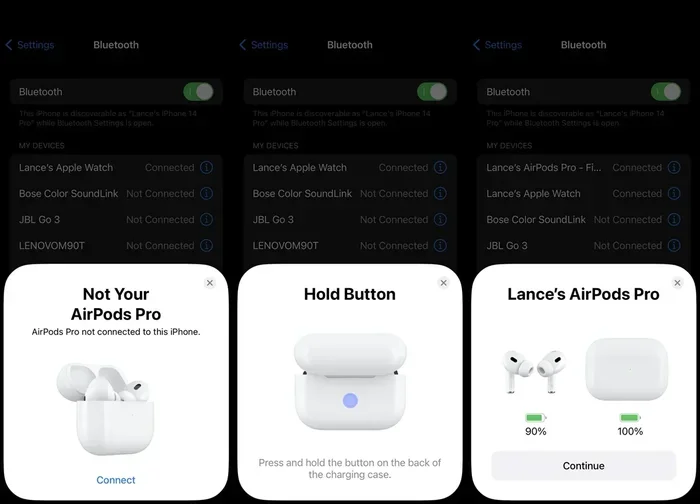
Swipe down from the top right corner of your screen to open Control Center. Make sure Bluetooth is enabled. Then, simply open the AirPods case near your iPhone. Your iPhone should detect the AirPods automatically and show a connection prompt. Tap connect, and you are done.
The beauty of this method is that it leverages your iPhone’s built-in proximity detection. The iPhone senses the AirPods case nearby and initiates the pairing process automatically. You never need to touch the setup button at all. This works best when your AirPods are already known to your iPhone from a previous connection.
Making Control Center Work Better
For this method to work reliably, make sure your iPhone is running the latest version of iOS. Apple regularly improves the proximity detection algorithms in each update. Also, keep your AirPods case clean and free of debris, as dirt can interfere with the sensors that detect when the case is open.
If your iPhone does not recognize the AirPods through Control Center, try going to Settings, then Bluetooth, and forgetting the AirPods from the list of previously connected devices. Then retry the Control Center method. This clears any stale connection data that might be causing confusion.
Method 4: Connect AirPods to Non-Apple Devices
One of the great things about AirPods is that they work with non-Apple devices too. Whether you want to connect to an Android phone, a Windows laptop, or even a smart TV, you can do so without the setup button. The process is slightly different on each platform, but the core idea remains the same.
On Android devices, go to Settings, then Bluetooth. Make sure Bluetooth is on. Open your AirPods case near the phone and wait. The AirPods should appear in the list of available devices. Tap on them to pair. On Windows laptops, the process is similar. Go to Settings, then Devices, then Bluetooth and other devices. Turn on Bluetooth and look for your AirPods in the list.
For smart TVs, the process depends on your TV model. Most modern smart TVs have a Bluetooth settings menu. Navigate there, turn on Bluetooth, and look for your AirPods. Some TVs may require you to put the AirPods into pairing mode manually, which is where the reset method from Method 2 comes in handy.
Connecting AirPods to Gaming Consoles
Many people ask whether they can use AirPods with PS5 or other gaming consoles. The answer is yes, but the process varies. On PlayStation consoles, you typically need to go through the Bluetooth settings and put the AirPods into pairing mode. Since the PS5 does not have native AirPods support, you may experience slight audio delays. But for casual gaming, the connection works well enough.
Similarly, you can connect AirPods to Xbox consoles using the Xbox Wireless Adapter or through Bluetooth settings on newer models. The setup button is not required for any of these connections. The reset method works perfectly as a substitute for initiating pairing mode on any device.
Method 5: Use Siri or Voice Commands
If you have a Siri-enabled device, you can use voice commands to help connect your AirPods without touching the setup button. This hands-free approach is perfect when your hands are busy or the button is genuinely broken.
Simply say, “Hey Siri, connect my AirPods.” Siri will attempt to find and connect your AirPods automatically. This works best when your AirPods have been previously connected to the same device. Siri remembers your paired devices and can re-establish connections with a simple voice command.
For Mac users, you can also use the Bluetooth menu bar item. Click the Bluetooth icon in the top menu bar, and your AirPods should appear if they are in range and powered on. Click connect, and your AirPods will pair without ever needing the setup button.
Making Siri Work for You
To get the best results with Siri, make sure “Hey Siri” is enabled on your device. Go to Settings, then Siri and Search, and toggle on Listen for “Hey Siri.” Also, keep your AirPods charged and within close proximity. Siri works best when the connection signal is strong.
If Siri cannot find your AirPods, try the reset method first to put them into active pairing mode, then ask Siri to connect. Combining the reset method with voice commands creates a powerful workaround that bypasses the setup button completely.
Common Mistakes That Prevent AirPods From Connecting
Even with the right method, some common mistakes can derail your AirPods connection efforts. Knowing what to avoid saves you frustration and time. Here are the most frequent pitfalls people encounter when trying to pair without the setup button.
- Not charging the AirPods enough: Low battery is the number one reason AirPods fail to enter pairing mode. Always charge your case before attempting any connection method.
- Ignoring distance: Keep your AirPods case within 3 feet of your device during pairing. Greater distances can prevent detection.
- Forgetting to forget old connections: If your AirPods are still paired with another device, they might prioritize that connection. Go to Bluetooth settings and remove old pairings.
- Skipping the reset: Sometimes a simple reset is all you need. Do not skip this step if other methods fail.
- Using outdated software: Make sure your device has the latest firmware and operating system updates. Compatibility issues can block pairing.
Quick Tips for Seamless Connection
Here are some bonus tips that make the entire process smoother. Always keep your AirPods case lid open during pairing attempts. The sensors inside the case detect the lid position and adjust behavior accordingly. Also, try different angles when holding the case near your device. Sometimes the Bluetooth antenna alignment matters more than you would think.
If you are in a crowded area with many Bluetooth devices, move to a quieter location. Interference from other devices can confuse your phone’s Bluetooth scanner. A clean environment gives your AirPods the best chance of being detected quickly. These small adjustments make a big difference.
When to Seek Professional Help
Most connection issues can be resolved with the methods above. However, there are times when professional help is the right call. If your AirPods still will not connect after trying every method, the internal hardware might be faulty. This is especially true if the AirPods were exposed to water or experienced a significant drop.
Apple Support can walk you through advanced troubleshooting steps. They can also check your warranty status and arrange for repairs or replacements if needed. Apple’s one-year warranty covers manufacturing defects, and AppleCare+ extends that coverage. Do not hesitate to reach out if you suspect a hardware issue.
For those who have tried connecting AirPods to a laptop or other secondary devices without success, remember that some devices have stricter Bluetooth requirements. Older laptops or budget devices may not support the Bluetooth profiles that AirPods use. In these cases, a Bluetooth adapter can help bridge the gap.
Final Thoughts
Connecting your AirPods without the setup button is entirely possible and surprisingly easy once you know the right methods. Whether you use Bluetooth settings, the reset method, Control Center, Siri, or direct pairing to non-Apple devices, you have multiple paths to success. The setup button is a convenience, not a requirement.
Keep these methods in mind the next time your AirPods refuse to connect the usual way. A quick reset or a Bluetooth settings check solves most problems in under a minute. With a little patience and the right approach, your wireless earbuds will be playing your favorite music in no time.
Remember to keep your devices updated, your AirPods charged, and your Bluetooth settings clean. These simple habits prevent most connection issues before they start. Happy listening!
Frequently Asked Questions
Can I connect my AirPods without pressing any button at all?
Yes, you can connect AirPods without pressing any button by using the reset method or by relying on your device’s automatic detection. Simply open the case near your paired device, and it may connect automatically if the AirPods were previously linked to that device.
Why won’t my AirPods show up in Bluetooth settings?
If your AirPods do not appear in Bluetooth settings, they might be out of battery, too far from your device, or already connected to another device. Try resetting them, ensuring they are charged, and moving closer to your device. Also check that no other device is currently connected to the AirPods.
Do AirPods work with Android phones without the setup button?
Yes, AirPods work with Android phones without needing the setup button. Simply go to your Android phone’s Bluetooth settings, open the AirPods case near the phone, and look for the AirPods in the list of available devices. Tap to pair and connect.
How long do AirPods stay in pairing mode after a reset?
After resetting, AirPods typically stay in pairing mode for about 3 to 5 minutes. During this window, any nearby device can detect and connect to them. If you miss this window, simply reset them again to re-enter pairing mode.
Can I use AirPods with PS5 without the setup button?
Yes, you can use AirPods with PS5 without the setup button. Put your AirPods into pairing mode using the reset method, then go to your PS5 Bluetooth settings and connect. Note that there may be slight audio latency, but the connection works for most games and media.
What should I do if the setup button is physically damaged?
If the setup button is physically damaged, use the reset method by holding the case near your device and opening the lid. The reset process only requires the button to be functional briefly. If the button is completely non-responsive, rely on automatic detection through Bluetooth settings or Control Center to pair your AirPods.
=== CONCLUSION ===
Connecting your AirPods without the setup button is a skill that every AirPod owner should know. It saves time, avoids frustration, and keeps your audio experience seamless. The methods in this guide give you multiple fallback options no matter what situation you find yourself in.
From Bluetooth settings to resets, Control Center to voice commands, you now have a complete toolkit for AirPods pairing without relying on a single small button. Try each method and see which one works best for your setup and device combination.
Keep this guide bookmarked for the next time your AirPods act up. Share it with friends who struggle with the same issue. And most importantly, enjoy your wireless audio without letting a tiny button get in the way of your listening pleasure.