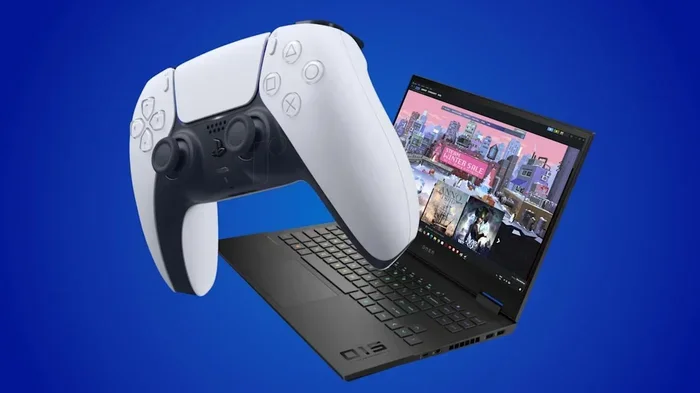
How Do I Connect Dualsense Controller To My PC Via Bluetooth
Connecting your DualSense controller to your PC via Bluetooth is simple and unlocks wireless PC gaming with your PlayStation 5 controller. This guide walks you through every step, from checking compatibility to troubleshooting common issues. You will have your DualSense paired and gaming in no time.
If you have been wondering how do I connect DualSense to my PC via Bluetooth, you are in the right place. The DualSense controller from the PlayStation 5 is one of the best gaming controllers out there. It offers great haptic feedback, a built-in microphone, and a sleek design. But the real question is whether it works on your PC. The good news is it does, and the process is easier than you might think.
Many PC gamers prefer wireless controllers over keyboards and mice. The DualSense gives you that wireless freedom without sacrificing performance. Whether you are playing indie games on Steam or trying out PC ports of PlayStation titles, this controller has you covered. In this guide, we will walk you through every step. You will learn what you need, how to pair the controller, and how to fix any issues that come up along the way.
We have also included tips on using the DualSense with different platforms and games. So whether you are a casual player or a hardcore gamer, this guide has something for you. Let us get started.
Key Takeaways
- Bluetooth pairing is straightforward: You can connect your DualSense to a PC without any extra hardware in most cases.
- Steam and DS4Windows are your best friends: Both tools make the DualSense work seamlessly on PC games.
- A Bluetooth adapter may be needed: Older PCs without built-in Bluetooth will need a USB Bluetooth dongle.
- Common issues are easy to fix: Most connection problems come from outdated drivers or incorrect pairing mode.
- Wireless gaming has low latency: The DualSense performs well over Bluetooth for most casual and competitive games.
- You can also connect via USB: A USB-C cable offers a wired backup if Bluetooth fails.
📑 Table of Contents
- What Is the DualSense Controller and Why Use It on PC?
- What You Need Before You Start
- How to Connect DualSense to PC via Bluetooth
- Setting Up the DualSense for PC Gaming
- Troubleshooting Common Bluetooth Connection Issues
- Wireless vs Wired: Which Is Better for Gaming?
- Common Mistakes to Avoid When Connecting DualSense to PC
- Expert Insights: Getting the Most Out of Your DualSense on PC
- Key Takeaways
- Conclusion
What Is the DualSense Controller and Why Use It on PC?
The DualSense controller is the official gamepad for the PlayStation 5. It replaced the DualShock 4 from the PS4 era. Sony designed it with advanced features that set it apart from other controllers. The adaptive triggers give you different levels of resistance. The haptic feedback lets you feel textures and sensations in games. These features make gaming more immersive than ever before.
Using the DualSense on PC opens up a lot of possibilities. Many PC games now support PlayStation controllers natively. Steam, for example, has built-in support for the DualSense. This means you do not need any extra software to get it working. You can also use it for games that do not officially support controllers. Tools like DS4Windows make this possible.
Another big reason to use the DualSense on PC is comfort. The controller fits well in your hands. The grips are textured and comfortable for long gaming sessions. The built-in speaker and microphone also add convenience. You can chat with friends or get in-game audio without a headset. If you want to know more about using Bluetooth audio devices for gaming, check out our guide on can I use my Bluetooth headset as a mic for more tips.
What You Need Before You Start
Before you pair your DualSense to your PC, you need a few things ready. Having everything prepared saves you time and frustration. Here is what you will need:
- A PC with Bluetooth: Most modern laptops have Bluetooth built in. Desktop PCs may need a Bluetooth adapter.
- A DualSense controller: Make sure it is charged. A low battery can cause pairing issues.
- A Bluetooth adapter (if needed): If your PC does not have Bluetooth, get a USB Bluetooth dongle. Look for one that supports Bluetooth 4.0 or higher.
- Steam or DS4Windows: Steam is free and works great. DS4Windows is another option for more advanced customization.
- A USB-C cable (optional): This helps during the initial setup. You can also use it as a wired backup.
Check if your PC has Bluetooth by going to Settings > Devices > Bluetooth & other devices. If you see a Bluetooth toggle, you are good to go. If not, you will need to buy a Bluetooth adapter. These are affordable and easy to install. Just plug them into a USB port and your PC is ready.
Also, make sure your DualSense firmware is up to date. You can update it through a PS5 or by connecting it to a PC via USB. Updated firmware ensures the best compatibility. If you are curious about other Bluetooth device connections, you might find our article on can I use Bluetooth headphones for gaming helpful for understanding Bluetooth performance in gaming setups.
How to Connect DualSense to PC via Bluetooth
Now let us get to the main part. Here is a step-by-step guide to pairing your DualSense controller with your PC over Bluetooth. Follow these steps carefully and you will be gaming in minutes.
Step 1: Put Your DualSense in Pairing Mode
First, you need to put the controller into pairing mode. This tells the controller to be visible to other devices. Here is how to do it:
- Turn on your DualSense controller by pressing the PS button in the center.
- Locate the small reset button on the back of the controller near the L2 trigger.
- Use a paperclip or a small pin to press and hold the reset button for about 5 seconds.
- Alternatively, you can hold the PS button and the Create button (the one next to the touchpad) together for about 3 seconds.
- The light bar on the controller will start flashing rapidly. This means it is ready to pair.
The flashing light bar is your signal that the controller is in pairing mode. Do not skip this step. If the light bar is not flashing, the PC will not find the controller.
Step 2: Open Bluetooth Settings on Your PC
Next, go to your PC Bluetooth settings. Here is how:
- Click the Start menu and go to Settings.
- Select Devices, then click on Bluetooth & other devices.
- Turn on Bluetooth if it is not already on.
- Click Add Bluetooth or other device.
- Select Bluetooth from the list of options.
Your PC will now search for nearby Bluetooth devices. This may take a few seconds. Make sure your DualSense is close to your PC during this process.
Step 3: Pair the DualSense Controller
When your PC finds the DualSense, it will show up as “Wireless Controller.” Click on it to select it. Then click Connect. The light bar on the controller will stop flashing and stay solid. This means the pairing was successful.
If you do not see the controller, try the following:
- Move the controller closer to your PC.
- Make sure the light bar is still flashing.
- Restart your PC Bluetooth adapter.
- Try putting the controller back in pairing mode and repeat the process.
Step 4: Test the Connection
Once paired, test the controller to make sure everything works. You can do this in a few ways:
- Open Steam and go to Controller Settings. The DualSense should appear as a connected device.
- Go to Windows Game Controllers in the Control Panel. You should see Wireless Controller listed.
- Open a game that supports controllers and test the buttons and triggers.
If the controller is recognized and buttons work, you are all set. If not, do not worry. We will cover troubleshooting in the next section.
Setting Up the DualSense for PC Gaming
Pairing the controller is only half the battle. To get the best experience, you need to set it up properly for PC gaming. This section covers the tools and settings you need.
Using Steam with DualSense
Steam is the most popular PC gaming platform. It has native support for the DualSense controller. Here is how to set it up:
- Open Steam and go to Settings.
- Click on Controller in the left menu.
- Check the box for PlayStation Controller Support.
- The DualSense should now work in most Steam games automatically.
Steam also lets you customize button mappings. You can change which buttons do what for each game. This is great for games that do not natively support the DualSense layout. You can also adjust the touchpad sensitivity and gyro settings in Steam.
Using DS4Windows for Advanced Setup
DS4Windows is a free tool that gives you more control over your DualSense. It is especially useful for games that do not have native controller support. Here is what you need to know:
- Download DS4Windows from the official GitHub page.
- Install the tool and run it. It will detect your DualSense automatically.
- DS4Windows creates a virtual Xbox controller. This makes the DualSense work with almost any game.
- You can customize light bar colors, trigger sensitivity, and more.
DS4Windows also lets you use the DualSense as a virtual Xbox 360 controller. This is useful for older games that only support Xbox controllers. The software is well maintained and regularly updated. It is a must-have for serious PC gamers who use the DualSense.
One thing to note is that DS4Windows may conflict with Steam controller support. If you experience issues, try disabling Steam controller support while using DS4Windows. You can also check out our guide on can I pair Bluetooth headphones to Xbox One for more Bluetooth pairing tips that apply to controllers as well.
Configuring Haptic Feedback and Adaptive Triggers
The DualSense features like haptic feedback and adaptive triggers are what make it special. To use these features on PC, you need the right software:
- Steam: Supports haptic feedback in games that are designed for it. Check the game’s controller settings.
- DS4Windows: Offers more advanced haptic customization. You can adjust vibration intensity and trigger resistance.
- Third-party tools: Some games have their own DualSense support with custom settings.
Not all PC games fully support DualSense features yet. However, support is growing with each update. Popular titles like Astro Bot, Hogwarts Legacy, and Returnal have excellent DualSense support on PC.
Troubleshooting Common Bluetooth Connection Issues
Sometimes things do not go as smoothly as we hope. Bluetooth connections can be finicky at times. Here are the most common issues and how to fix them.
Controller Not Showing Up in Bluetooth Settings
If your PC does not find the DualSense, try these steps:
- Make sure the controller is in pairing mode (flashing light bar).
- Restart your PC Bluetooth adapter by turning Bluetooth off and on again.
- Move the controller closer to your PC. Bluetooth range is about 30 feet.
- Remove any other Bluetooth devices that might be causing interference.
- Update your PC Bluetooth drivers through Device Manager.
Outdated Bluetooth drivers are a common cause of connection issues. Go to your PC manufacturer’s website and download the latest Bluetooth drivers. This alone fixes many problems.
Controller Connects But Does Not Work in Games
If the controller pairs but does not register in games, try this:
- Make sure Steam controller support is enabled (if using Steam).
- Check that the controller is set as the input device in the game settings.
- Restart the game after connecting the controller.
- Try using DS4Windows to create a virtual Xbox controller profile.
Lag or Input Delay During Gaming
Bluetooth does add a small amount of latency. For most games, this is not noticeable. But if you are playing competitive games, it might matter. Here is how to reduce lag:
- Keep the controller close to your PC.
- Reduce Bluetooth interference by moving away from other wireless devices.
- Consider using a wired USB-C connection for competitive games.
- Make sure your Bluetooth adapter supports the latest Bluetooth version.
If you want to explore more about reducing input lag and improving Bluetooth performance for gaming, our guide on can I use Bluetooth speaker without Bluetooth has some useful insights on Bluetooth connectivity optimization.
Quick Tips for a Smooth Connection
- Always charge your DualSense before a gaming session. A low battery causes disconnections.
- Keep your PC Bluetooth drivers updated.
- Restart both your PC and controller if you experience issues.
- Use DS4Windows for the best compatibility with non-Steam games.
- Avoid connecting too many Bluetooth devices at once.
Wireless vs Wired: Which Is Better for Gaming?
One of the biggest questions DualSense users face is whether to use Bluetooth or a USB cable. Both options have their pros and cons. Let us compare them side by side.
| Feature | Bluetooth (Wireless) | USB-C Cable (Wired) |
|---|---|---|
| Latency | Slightly higher, but fine for most games | Near zero, best for competitive gaming |
| Convenience | No cables, full freedom of movement | Cable can be restrictive |
| Battery Life | Uses controller battery while playing | Does not use battery, charges while playing |
| Setup | Requires Bluetooth pairing | Plug and play, no setup needed |
| Compatibility | Works with most modern PCs | Works with all PCs |
| Haptic Feedback | Full support | Full support |
For most casual and mid-core gamers, Bluetooth is the way to go. It offers freedom and convenience without any noticeable downsides. If you are a competitive esports player, a wired connection gives you the edge. The input lag is lower, and you never have to worry about battery dying mid-match.
The good news is you can switch between wireless and wired anytime. Just plug in the USB-C cable when you want a wired connection, and unplug it when you want to go wireless again. The DualSense handles this transition seamlessly.
If you are interested in learning more about using Bluetooth devices for different purposes, our article on can I use my Bluetooth headset as a mic explores how Bluetooth devices can serve multiple roles in your setup.
Common Mistakes to Avoid When Connecting DualSense to PC
Even with a simple process like Bluetooth pairing, people make mistakes. Here are the most common ones and how to avoid them.
- Skipping the pairing mode: Many people forget to put the controller in pairing mode. Always check that the light bar is flashing before searching on your PC.
- Using outdated software: Old versions of DS4Windows or Steam can cause compatibility issues. Always keep your software updated.
- Ignoring driver updates: Outdated Bluetooth drivers are the number one cause of connection problems. Update them regularly.
- Connecting too many Bluetooth devices at once: This can cause interference. Keep the number of active Bluetooth devices to a minimum during gaming.
- Not charging the controller: A low battery can cause the controller to disconnect randomly. Keep it charged above 30 percent before gaming.
- Using the wrong USB cable: If you use a USB cable for setup, make sure it is a data cable, not just a charging cable. Some cables only charge and do not transfer data.
Expert Insights: Getting the Most Out of Your DualSense on PC
After helping many gamers set up their DualSense controllers, here are some expert tips that make a big difference.
First, always update your DualSense firmware before connecting. Sony releases updates that improve Bluetooth stability and compatibility. You can update through a PS5 or by connecting the controller to a PC via USB and using the Sony Update Creator tool.
Second, invest in a quality Bluetooth adapter if your PC does not have built-in Bluetooth. Cheap adapters can cause lag and connection drops. Look for adapters that support Bluetooth 5.0 or higher. These offer better range and more stable connections.
Third, customize your button mappings in Steam or DS4Windows. The DualSense layout is different from Xbox controllers. Taking a few minutes to set up custom mappings can greatly improve your gaming experience. This is especially important for fighting games and shooters.
Finally, keep your controller clean. The touchpad and buttons collect dust over time. Use a soft cloth and isopropyl alcohol to clean the surface. A clean controller responds better and lasts longer.
Key Takeaways
- Bluetooth pairing is simple: Put the controller in pairing mode and add it through your PC Bluetooth settings.
- Steam and DS4Windows provide the best support: Steam offers native support while DS4Windows gives advanced customization.
- A Bluetooth adapter may be needed: Desktop PCs without built-in Bluetooth require a USB dongle.
- Troubleshooting is usually easy: Most issues are fixed by updating drivers or re-pairing the controller.
- Wireless is great for most gaming: Bluetooth latency is low enough for casual and most competitive games.
- Wired USB-C is best for competitive play: Zero latency and no battery concerns make it ideal for esports.
- Avoid common mistakes: Always enter pairing mode, update software, and keep your controller charged.
Conclusion
Connecting your DualSense controller to your PC via Bluetooth is a straightforward process that anyone can do. You do not need to be a tech expert. Just follow the steps in this guide, and you will be gaming wirelessly in minutes. The DualSense is a fantastic controller that works beautifully on PC. Its advanced features like haptic feedback and adaptive triggers make your games feel more alive.
Remember to keep your software and drivers updated for the best experience. Use Steam for native support or DS4Windows for advanced customization. If you run into any issues, the troubleshooting tips in this guide should help you resolve them quickly.
Now that you know how do I connect DualSense to my PC via Bluetooth, you can enjoy wireless PC gaming with one of the best controllers available. Grab your DualSense, follow the steps, and start playing. Happy gaming.
Frequently Asked Questions
Can I connect DualSense to any PC via Bluetooth?
Most modern PCs with Bluetooth 4.0 or higher can connect to the DualSense. If your desktop PC does not have built-in Bluetooth, you can use a USB Bluetooth adapter. Just make sure the adapter supports the Bluetooth version needed for stable connections.
Do I need to install any software to use DualSense on PC?
No, you do not need any software for basic use. Steam has native DualSense support. However, if you want advanced features like custom button mappings or haptic feedback in non-Steam games, you should install DS4Windows. It is free and easy to use.
Why does my DualSense keep disconnecting from my PC over Bluetooth?
Disconnections are usually caused by low battery, outdated Bluetooth drivers, or interference from other wireless devices. Try charging your controller fully, updating your Bluetooth drivers, and moving closer to your PC. Reducing the number of active Bluetooth devices can also help.
Can I use DualSense on non-Steam PC games?
Yes, you can. DS4Windows creates a virtual Xbox controller that works with almost any PC game. This includes games that do not natively support PlayStation controllers. Just install DS4Windows, and your DualSense will work as an Xbox controller in most games.
Is Bluetooth latency a problem for competitive gaming with DualSense?
Bluetooth adds a small amount of latency, but it is usually not noticeable for casual gaming. For competitive or esports games, a wired USB-C connection provides the lowest latency. Most players find Bluetooth perfectly fine for ranked play, but if you are a professional or highly competitive player, wired is the better choice.
Can I charge my DualSense while connected via Bluetooth?
Yes, you can charge your DualSense while it is connected via Bluetooth. Simply plug in a USB-C cable to the controller and a power source. The controller will continue to work wirelessly while charging. This is a great way to ensure your battery does not die during long gaming sessions.