How Do I Clear The Cache On My Samsung Tv Right Now
Clearing the cache on your Samsung TV is one of the simplest ways to fix slow performance, buffering, and app crashes. Whether you own a Samsung Smart TV or a QLED model, the process is quick and does not require any technical skills. In this guide, we walk you through every method to clear the cache on your Samsung TV right now, so you can get back to streaming your favorite shows without interruptions.
If your Samsung TV is running slow, apps keep crashing, or videos keep buffering, the problem might be a full cache. Cache is temporary data that your TV stores to help apps load faster. But over time, this data builds up and causes more harm than good. Clearing the cache on your Samsung TV is the easiest fix, and you do not need to be a tech expert to do it.
In this guide, we will show you exactly how to clear the cache on your Samsung TV right now. We cover every method, from clearing cache for individual apps to resetting the entire Smart Hub. By the end, your TV should feel faster and work better. Let us get started.
Key Takeaways
- Clearing cache fixes slow performance: Removing cached data frees up storage and speeds up your Samsung TV.
- Multiple methods work: You can clear cache through Settings, the Smart Hub, or by resetting individual apps.
- No technical skills needed: The steps are simple and take only a few minutes.
- Regular maintenance helps: Clearing cache periodically keeps your TV running smoothly.
- Do not confuse cache with factory reset: Clearing cache deletes temporary files only; it does not remove your apps or settings.
- Network issues may persist: If clearing cache does not help, check your router connection or router setup.
📑 Table of Contents
- Why Clearing Cache Matters On Your Samsung TV
- How To Clear Cache On Samsung TV Step By Step
- Common Samsung TV Cache Problems And How To Fix Them
- How Often Should You Clear Cache On Your Samsung TV?
- Clear Cache Vs Factory Reset: What Is The Difference?
- When Clearing Cache Does Not Work
- Expert Tips To Keep Your Samsung TV Running Like New
- Final Thoughts
Why Clearing Cache Matters On Your Samsung TV
Every time you open an app on your Samsung TV, it saves temporary files. These files include thumbnails, login tokens, and playback data. The idea is that the app loads faster next time you open it. But here is the problem. Over weeks and months, these files pile up. They take up valuable storage space and can slow down your entire system.
Think of it like a cluttered desk. When you have too many papers scattered around, it takes longer to find what you need. The same thing happens with your TV. A bloated cache can cause:
- Slow app loading times
- Frequent app crashes
- Video buffering during playback
- Error messages when opening apps
- Unresponsive remote or voice commands
- Smart Hub lagging or freezing
Clearing the cache removes all these temporary files. Your TV gets a fresh start. Apps reload their data from scratch, which often resolves glitches and performance issues. It is like giving your TV a quick tune-up.
Does Clearing Cache Delete Anything Important?
No. Clearing the cache does not delete your apps, account logins, or personal settings. It only removes temporary files that the TV no longer needs. This is why it is a safe first step before trying anything more drastic like a factory reset. You will not lose any of your favorite shows, installed apps, or login information.
How To Clear Cache On Samsung TV Step By Step
The method you use depends on your Samsung TV model and the year it was made. Most newer Samsung Smart TVs share a similar menu structure. Below, we cover the most common methods.
Method 1: Clear Cache Through Settings
This is the most direct way to clear cache on Samsung TV. Follow these steps:
- Press the Home button on your Samsung remote.
- Navigate to Settings. It looks like a gear icon.
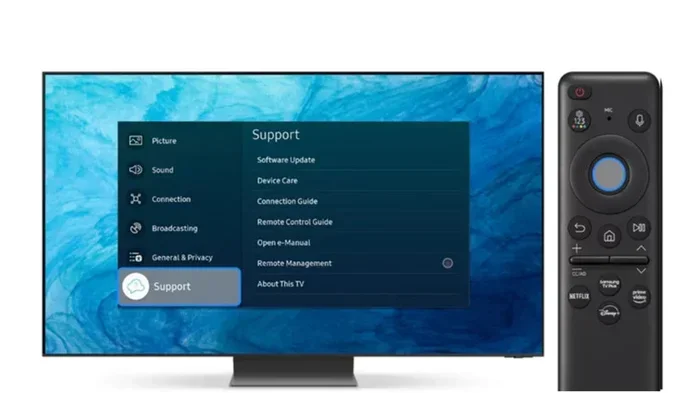
- Select Support from the menu.
- Choose Self Diagnosis.
- Select Reset.
- Enter your PIN if prompted. The default PIN is usually 0000 or 1234.
- Choose Clear Cache instead of a full factory reset.
- Wait for the TV to finish the process.
- Restart your TV and check if performance improves.
This method clears the general system cache. It does not remove any apps or personal data. If your TV has been acting sluggish, this alone often solves the problem.
Method 2: Clear Cache For Individual Apps
Sometimes only one app is causing trouble. Maybe Netflix keeps crashing or YouTube won’t load. In that case, you can clear the cache for just that app. Here is how:
- Press the Home button on your remote.
- Go to Apps and find the problematic app.
- Highlight the app and press Enter.
- Select Options (the three-line icon).
- Choose Clear Cache or Clear Data.
- Confirm your choice.
- Restart the app and check if the issue is resolved.
Clearing cache for a single app is great when you know exactly which app is giving you trouble. It is faster than clearing the entire system cache and targets the problem directly.
Method 3: Reset The Smart Hub
The Smart Hub is Samsung’s main interface for accessing apps, streaming services, and smart features. If the Smart Hub itself is slow or glitchy, resetting it can help. This clears the Smart Hub cache and refreshes the entire interface.
- Press the Home button.
- Go to Apps and then select Smart Hub.
- Navigate to Settings within the Smart Hub.
- Look for Reset Smart Hub or Reinstall Smart Hub.
- Confirm the reset.
- Wait for the TV to restart and reload the Smart Hub.
After the reset, you may need to sign back into some apps. But the Smart Hub should feel much faster and more responsive. This is especially helpful if you have multiple apps open at once and notice lag.
Common Samsung TV Cache Problems And How To Fix Them
Different problems require different approaches. Here are the most common cache-related issues Samsung TV owners face and how to fix them.
TV Is Slow And Unresponsive
If your Samsung TV takes forever to open apps or navigate menus, the cache is likely the culprit. Start by clearing the system cache using Method 1 above. If that does not work, try clearing cache for your most-used apps individually. Also, make sure your TV software is up to date. Sometimes a Samsung TV software update can resolve performance issues on its own.
Apps Keep Crashing Or Freezing
App crashes often happen when the cached data becomes corrupted. Clearing the cache for that specific app usually fixes the problem. If the app still crashes, try uninstalling and reinstalling it. This gives the app a completely fresh start. Make sure you remember your login details before uninstalling.
Videos Keep Buffering
Buffering can be caused by a full cache, but it can also be a network issue. If clearing the cache does not help, your internet connection might be the problem. You can plug your router directly into your TV for a more stable connection. Also, try restarting your router and modem. A strong, stable connection makes a big difference in streaming quality.
Smart Hub Won’t Load
A frozen Smart Hub is frustrating. Try resetting the Smart Hub using Method 3 above. If that does not work, a full system cache clear through Settings may be necessary. Restarting the TV completely (unplug it for 30 seconds, then plug it back in) can also help before you try any resets.
Error Messages When Opening Apps
Error messages like “App Not Responding” or “Connection Failed” often point to corrupted cache data. Clear the cache for the specific app first. If the error persists across multiple apps, clear the system cache. This removes all temporary data and forces every app to rebuild its cache from scratch.
How Often Should You Clear Cache On Your Samsung TV?
There is no strict rule, but making it a habit helps. We recommend clearing your Samsung TV cache every few months. If you use your TV heavily for streaming, gaming, or using multiple apps daily, you might want to do it monthly. Pay attention to warning signs like slow performance or app crashes. Those are your cues to clear the cache.
Think of it like cleaning your room. A little regular maintenance prevents big messes later. The same principle applies to your TV. A few minutes spent clearing cache every couple of months saves you from bigger headaches down the road.
Quick Tips To Prevent Cache Build-Up
- Restart your TV regularly. A weekly restart clears minor cache buildup automatically.
- Keep your TV software updated. Updates often include performance improvements.
- Delete apps you do not use. Unused apps still generate cache data in the background.
- Avoid leaving apps running in the background. Close apps when you are done using them.
- Use a wired connection when possible. A stable connection reduces streaming errors that contribute to cache issues.
Clear Cache Vs Factory Reset: What Is The Difference?
It is important to understand the difference between clearing cache and performing a factory reset. They are not the same thing, and one is much less drastic than the other.
| Action | What It Does | Data Lost | Time Required |
|---|---|---|---|
| Clear Cache | Removes temporary files only | None | 2-5 minutes |
| Clear Data For One App | Resets a single app to default | App login and preferences | 3-5 minutes |
| Reset Smart Hub | Refreshes the main interface | Smart Hub layout and some logins | 5-10 minutes |
| Factory Reset | Wipes everything and restores original settings | All apps, logins, and settings | 15-30 minutes |
Always try clearing the cache first. It is fast, safe, and solves most problems. A factory reset should be your last resort. It takes longer and requires you to set up your TV from scratch again.
When Clearing Cache Does Not Work
In some cases, clearing the cache may not fix the issue. If you have tried all the methods above and your Samsung TV still has problems, here are a few next steps to consider:
- Check for a software update. Go to Settings, then Support, then Software Update. Install any available updates.
- Check your internet speed. A slow connection can mimic cache problems. Try mirroring your phone to your smart TV to test if the connection is stable.
- Uninstall and reinstall problematic apps. This gives the app a completely clean slate.
- Check for overheating. Make sure your TV has proper ventilation. Overheating can cause performance issues that look like cache problems.
- Contact Samsung Support. If nothing else works, Samsung’s customer service team can walk you through advanced troubleshooting steps.
Sometimes the issue is not the cache at all. It could be a hardware problem, a network issue, or a software bug. Clearing cache is the first diagnostic step, but it is not a cure-all. Understanding what else to try makes you better equipped to solve TV problems on your own.
Expert Tips To Keep Your Samsung TV Running Like New
Beyond clearing cache, there are simple habits that keep your Samsung TV in top shape. Here are some expert tips that many people overlook:
- Restart your TV at least once a week. This clears temporary memory and refreshes the system. It is the easiest maintenance habit you can build.
- Keep at least 10% of your storage free. A full storage drive slows down any device, including your TV. Delete unused apps and clear downloaded files regularly.
- Use the official Samsung remote app. You can connect your phone to your TV with an HDMI cable for a more reliable connection when troubleshooting. The Samsung SmartThings app also lets you manage your TV settings from your phone.
- Disable unused features. Features like voice recognition and motion control use background resources. Turn them off if you do not use them.
- Avoid installing too many apps. Each app takes up storage and generates cache data. Only keep the apps you actually use.
These small habits add up over time. They prevent cache buildup before it becomes a problem. Think of them as routine maintenance for your TV, just like you would maintain any other expensive device in your home.
Final Thoughts
Clearing the cache on your Samsung TV is one of the most effective and easiest troubleshooting steps you can take. It takes just a few minutes and does not require any technical knowledge. Whether your TV is slow, apps keep crashing, or videos keep buffering, clearing the cache should be your first move.
We covered three main methods in this guide: clearing cache through Settings, clearing cache for individual apps, and resetting the Smart Hub. Each method serves a different purpose, and all are safe to perform. Remember, clearing cache does not delete your apps, settings, or personal data. It only removes temporary files that are no longer needed.
Make cache clearing a regular part of your TV maintenance routine. Just like you clean your home or maintain your car, your Samsung TV benefits from a little regular care. A few minutes every couple of months can keep your TV running smoothly for years to come.
If you ever run into issues that cache clearing does not solve, reach out to Samsung Support or explore other troubleshooting guides. Your Samsung TV is a powerful device, and with the right care, it will keep delivering a great viewing experience for a long time.
Frequently Asked Questions
Will clearing the cache on my Samsung TV delete my apps?
No. Clearing the cache only removes temporary files that apps use to load faster. Your installed apps, login information, and personal settings remain untouched. This is one of the safest troubleshooting steps you can take.
How long does it take to clear the cache on a Samsung TV?
The process usually takes between 2 and 5 minutes. Clearing cache for a single app is even faster. A full system cache clear or Smart Hub reset may take up to 10 minutes, depending on your TV model.
How often should I clear the cache on my Samsung TV?
Every 2 to 3 months is a good routine for most users. If you use your TV heavily for streaming or gaming, consider doing it monthly. Watch for signs like slow performance or app crashes, which indicate it is time to clear the cache.
Can clearing the cache fix buffering issues on my Samsung TV?
Yes, in many cases. Corrupted cache data can cause streaming problems. Clearing the cache gives apps a fresh start and often resolves buffering. If buffering persists after clearing the cache, check your internet connection or try moving your router closer to the TV.
What is the difference between clearing cache and factory resetting my Samsung TV?
Clearing cache removes only temporary files and does not affect your apps, settings, or data. A factory reset wipes everything and restores the TV to its original out-of-the-box state. Always try clearing cache first before considering a factory reset.
My Samsung TV cache keeps filling up. How can I prevent this?
Restart your TV weekly, delete unused apps, keep your software updated, and avoid leaving apps running in the background. These habits reduce cache buildup significantly. If the problem persists, consider clearing the cache on a more frequent schedule.
=== CONCLUSION ===
Clearing the cache on your Samsung TV is a simple, fast, and safe way to keep your TV running at its best. Whether you use the Settings menu, clear cache for individual apps, or reset the Smart Hub, each method targets a different aspect of your TV’s performance. The key is to act early. Do not wait until your TV is completely unresponsive before taking action.
Make this a regular habit. A few minutes of maintenance every couple of months saves you from frustrating slowdowns, app crashes, and buffering headaches. Your Samsung TV works hard to deliver your favorite content. A little care goes a long way in keeping it performing its best.