How Can I Identify Bluetooth Devices Quickly and Easily
Knowing how to identify Bluetooth devices is essential for anyone using wireless technology today. This guide walks you through simple steps to discover, name, and manage your Bluetooth connections on any device. You will learn platform-specific methods, troubleshooting tips, and expert tricks to keep your wireless devices running smoothly.
Have you ever looked at your screen and wondered what Bluetooth devices are nearby? Maybe your phone is buzzing with unknown connections, or your laptop shows a long list of devices you do not recognize. Identifying Bluetooth devices might seem tricky, but it is actually quite simple once you know the basics.
Wireless technology has taken over our daily lives. From headphones to speakers, keyboards to game controllers, Bluetooth connects everything. But with so many devices around, knowing how to tell them apart matters. This guide will show you exactly how to identify Bluetooth devices on any platform, fix common problems, and keep your connections organized.
Whether you are trying to pair a new headset or figure out why your Bluetooth connectivity keeps dropping, you are in the right place. We will cover everything from basic discovery to advanced troubleshooting. Let us get started.
Key Takeaways
- Easy Discovery: You can identify Bluetooth devices in just a few taps on smartphones, laptops, and tablets.
- Platform-Specific Steps: Windows, macOS, Android, and iOS each have unique ways to find and list paired devices.
- Pairing Mode Matters: Putting a device into Bluetooth pairing mode is the first step to successful identification.
- Troubleshooting Helps: Simple fixes like restarting Bluetooth or checking visibility settings solve most identification problems.
- Multiple Devices Need Management: Naming and organizing your Bluetooth device list prevents confusion and connection issues.
- Security Is Key: Always verify unknown devices before pairing to protect your data and privacy.
📑 Table of Contents
- What Are Bluetooth Devices and How Do They Work
- How to Identify Bluetooth Devices on Different Platforms
- Understanding Bluetooth Pairing and Device Discovery
- Common Bluetooth Device Types You Can Identify
- Troubleshooting When You Cannot Identify a Bluetooth Device
- Expert Tips for Managing Multiple Bluetooth Devices
- Key Takeaways
- Conclusion
What Are Bluetooth Devices and How Do They Work
Bluetooth is a short-range wireless technology that lets devices talk to each other without cables. It uses radio waves to send data over short distances, usually within 30 feet. When two devices connect, they form a Bluetooth pairing that lets them share information like audio, files, or commands.
Every Bluetooth device has a unique address called a MAC address. This is like a fingerprint for your device. When you scan for Bluetooth devices, your phone or computer reads these addresses to tell devices apart. The device name you see on screen, like “AirPods Pro” or “JBL Speaker,” comes from the manufacturer’s settings.
How Bluetooth Discovery Works
When you open your Bluetooth settings and turn on discovery mode, your device starts sending out a signal. This signal asks nearby Bluetooth devices to introduce themselves. Each device responds with its name, type, and MAC address. This process is called device discovery, and it is the first step to identifying anything wireless nearby.
Some devices stay visible all the time. Others only show up when you hold down a button to enter Bluetooth pairing mode. Understanding this difference helps you figure out why a device might not appear on your list.
How to Identify Bluetooth Devices on Different Platforms
Every operating system handles Bluetooth a little differently. Your phone, tablet, and computer each have their own way of showing nearby devices. Here is how to find and identify Bluetooth devices on the most common platforms.
Identifying Bluetooth Devices on Windows
On Windows, click the Start button and open Settings. Then go to Bluetooth and devices. You will see a list of paired devices and a section for adding new ones. Click “Add device” to start scanning. Windows will show you all discoverable devices within range.
Each device name tells you what kind of it is. You might see “Mouse,” “Keyboard,” “Audio,” or “Other” next to the device name. This helps you quickly sort through your device list and find what you need. If a device shows up but you do not recognize it, you can right-click and remove it from the list.
Identifying Bluetooth Devices on macOS
On a Mac, click the Apple menu and choose System Settings. Then click Bluetooth in the sidebar. You will see all your paired devices and any new ones that appear during a scan. Mac makes it easy to see the battery level of each connected device right in the Bluetooth menu.
If you want to rename a device, click the name and type a new one. This is helpful when you have multiple audio devices and need to tell them apart fast. Naming your devices clearly saves time when you are trying to connect Bluetooth accessories quickly.
Identifying Bluetooth Devices on Android
On Android phones, open Settings and tap Bluetooth. You will see a list of paired devices and available devices below. Tap on any device to see more details like its type and MAC address. Android also shows you whether a device is currently connected or just paired.
Some Android phones let you rename devices right from the Bluetooth menu. This is great for keeping your wireless devices organized. If you are using a device like a smart speaker for calls, you can check its connection status right here.
Identifying Bluetooth Devices on iOS
On iPhone and iPad, open Settings and tap Bluetooth. The screen shows all paired devices and any new ones that are broadcasting. Tapping the “i” icon next to a device gives you more details, including its connection status and the option to forget the device.
iOS also groups devices by type, so you can easily see which ones are audio devices, input devices, or others. This makes identifying Bluetooth devices on your iPhone fast and straightforward. You can also check if a device like AirPods is connected through your iOS settings.
Understanding Bluetooth Pairing and Device Discovery
Pairing is the process that links two Bluetooth devices together. Before you can identify a device properly, it needs to be discoverable. Most devices stay hidden by default to save battery and protect your privacy. You need to put them into pairing mode to make them visible.
Putting a Device into Pairing Mode
The method varies by device. For most headphones, you hold down the power button for five seconds until the LED light flashes blue or red. For speakers, there is often a dedicated Bluetooth button. Some devices like Bluetooth headsets require you to hold a specific button combination to become visible.
Once the device is in pairing mode, it broadcasts its name and type to nearby devices. Your phone or computer picks up this signal and displays it in the list of available devices. This is how you identify a device that has never been connected before.
Understanding Bluetooth Visibility
Visibility refers to whether a device can be seen by others during a scan. There are two modes: visible and hidden. A visible device shows up on every scan. A hidden device only connects to devices it has previously paired with. If you cannot find a device, check if it is set to visible mode.
Some devices stay visible for only a few minutes after you enter pairing mode. After that, they go back to hiding. This is a security feature that prevents strangers from connecting to your devices. If you miss the window, simply put the device back into pairing mode and try again.
Common Bluetooth Device Types You Can Identify
Bluetooth devices come in many shapes and sizes. Knowing the common types helps you identify them faster when they pop up on your screen. Here are the most common categories you will encounter.
Audio Devices
Audio devices include headphones, earbuds, speakers, and microphones. These are the most common Bluetooth devices people use every day. When you see a device type listed as “Audio” or “Audio Sink,” it means the device plays sound. “Audio Source” means the device sends sound.
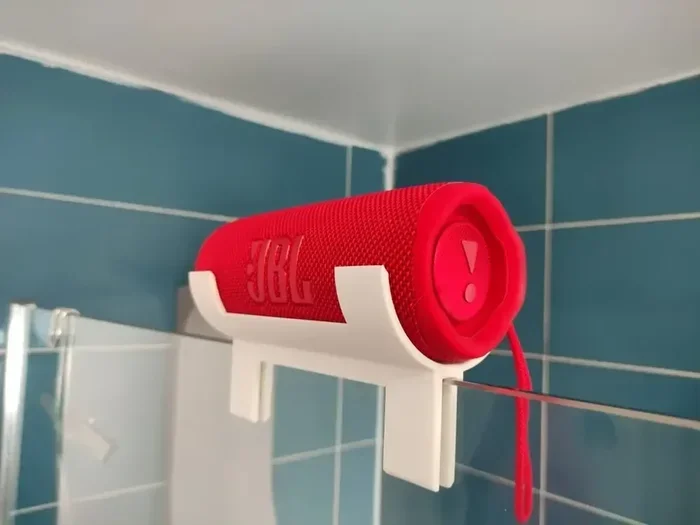
For example, your wireless headphones show up as an audio sink because they receive audio from your phone. A Bluetooth speaker can be both an audio sink and source depending on how you use it. If you are looking for ways to boost your audio setup, you might explore options like using a Bluetooth speaker to amplify your voice or turning regular speakers into Bluetooth-compatible ones.
Input Devices
Input devices include keyboards, mice, and game controllers. These devices send commands to your computer or console. When you identify an input device on your Bluetooth list, it usually shows up with a type label like “Input Device” or “Keyboard.”
Game controllers are a popular type of input device. If you have ever tried to pair Bluetooth headphones to an Xbox One, you know that identifying input devices alongside audio devices can get tricky. Your console may list both types in the same Bluetooth menu.
Other Device Types
Beyond audio and input, you will also find fitness trackers, smartwatches, printers, and even car stereos in the Bluetooth world. Each type has its own profile that determines what it can do. A fitness tracker, for instance, uses a health device profile, while a car stereo uses an audio distribution profile.
Understanding these profiles helps you identify what a device does even before you connect it. If you see an unknown device on your list, check its type label. It will usually tell you whether it is an audio device, input device, or something else entirely.
Troubleshooting When You Cannot Identify a Bluetooth Device
Sometimes things do not go as planned. You scan for devices, but nothing shows up. Or you see a device you cannot identify. Do not worry. Most Bluetooth identification problems have simple solutions.
Device Not Showing Up on the List
If a device does not appear during a scan, the first thing to check is distance. Bluetooth has a limited range, usually around 30 feet. Move closer to the device and try again. Walls, furniture, and even your body can weaken the Bluetooth signal.
Next, make sure the device is in pairing mode. Many people forget this step. A device that is already connected to another phone will not show up as available. Turn off Bluetooth on other devices nearby and try scanning again. You can also restart your own device’s Bluetooth adapter to refresh the connection.
Unknown Device Showing Up
Sometimes you see a device name you do not recognize. This could be a neighbor’s device, a shared accessory, or even a device you paired weeks ago and forgot about. Check the device type and MAC address to help identify it. If you still do not know what it is, it is safe to ignore or remove it from your list.
Always be cautious with unknown devices. Never pair with a device you do not recognize, especially in public places. Someone could try to connect to your device intentionally. Keeping your Bluetooth visibility turned off when you are not actively pairing is a smart security habit.
Connection Drops and Identification Issues
If a device keeps disconnecting or shows up with a different name each time, the Bluetooth version might be the cause. Older devices sometimes have trouble communicating with newer ones. Check if your device supports the same Bluetooth version as the accessory you are trying to identify.
Restarting both devices often fixes these issues. You can also try removing the device from your list and pairing it fresh. This clears any old connection data that might be causing confusion. For more on managing Bluetooth audio, check out guides on using Bluetooth for gaming or connecting Bluetooth speakers in different setups.
Expert Tips for Managing Multiple Bluetooth Devices
If you use many Bluetooth devices daily, staying organized is key. A crowded device list leads to confusion and slow connections. Here are some expert tips to keep things running smoothly.
Rename Your Devices
Take a few minutes to rename each device with a clear, descriptive name. Instead of “JBL Flip 5,” call it “Living Room Speaker.” Instead of “WH-1000XM4,” call it “Work Headphones.” This small step makes a huge difference when you are trying to connect the right device quickly.
Keep Your Device List Clean
Go through your Bluetooth device list regularly and remove devices you no longer use. Old connections take up space and can slow down scanning. A clean list means faster identification and fewer connection problems. On most platforms, you can forget a device with just one tap.
Use Device Groups
Some operating systems let you group Bluetooth devices by type or room. Use this feature to organize your wireless setup. Grouping helps you quickly find the right device without scrolling through a long list. It also makes it easier to switch between devices during your day.
Update Your Bluetooth Drivers and Firmware
Outdated drivers can cause identification and connection problems. On Windows, check for driver updates through Device Manager. On phones, keep your operating system up to date. Manufacturers often release firmware updates that improve Bluetooth performance and device compatibility.
Key Takeaways
- Easy Discovery: You can identify Bluetooth devices in just a few taps on smartphones, laptops, and tablets.
- Platform-Specific Steps: Windows, macOS, Android, and iOS each have unique ways to find and list paired devices.
- Pairing Mode Matters: Putting a device into Bluetooth pairing mode is the first step to successful identification.
- Troubleshooting Helps: Simple fixes like restarting Bluetooth or checking visibility settings solve most identification problems.
- Multiple Devices Need Management: Naming and organizing your Bluetooth device list prevents confusion and connection issues.
- Security Is Key: Always verify unknown devices before pairing to protect your data and privacy.
Conclusion
Identifying Bluetooth devices does not have to be complicated. With the right knowledge, you can scan, discover, and manage your wireless connections in minutes. Whether you are on Windows, Mac, Android, or iOS, the steps are straightforward and easy to follow.
Remember to always put devices into pairing mode before scanning. Keep your Bluetooth visibility settings in check. And do not be afraid to clean up your device list regularly. These simple habits will keep your wireless experience smooth and stress-free.
Technology should make your life easier, not harder. Now that you know how to identify Bluetooth devices quickly and easily, you can connect with confidence. Try these steps today and see how much simpler your wireless setup becomes.
Frequently Asked Questions
How do I make my Bluetooth device visible for identification?
Most devices have a pairing mode that makes them visible to other devices. Hold down the Bluetooth or power button for several seconds until the LED light starts flashing. Check your device manual for the exact steps. Once visible, your device will show up on other devices’ Bluetooth scans.
Can I identify a Bluetooth device by its MAC address?
Yes, every Bluetooth device has a unique MAC address that acts like a fingerprint. You can find this address in your device’s Bluetooth settings under the device details. This is helpful when you need to tell two similar devices apart or troubleshoot connection issues.
Why does my Bluetooth device keep changing names on my screen?
This usually happens when a device supports multiple Bluetooth profiles. For example, a headset might show as “Audio” in one connection and “Phone” in another. Check the device type in your Bluetooth settings to understand why the name changes. Updating the device firmware can also fix this issue.
Is it safe to pair with unknown Bluetooth devices?
No, you should never pair with a device you do not recognize. Unknown devices could be a security risk. Always verify the device name and type before accepting a connection. Keep your Bluetooth turned off when you are not actively using it to stay safe.
What should I do if my device does not show up during a Bluetooth scan?
First, make sure the device is in pairing mode and within 30 feet of your device. Restart Bluetooth on both devices and try again. You can also toggle Airplane Mode on and off to refresh the connection. If the problem persists, remove the device from your list and try pairing fresh.
How many Bluetooth devices can I connect at once?
The number depends on your device and its Bluetooth version. Most modern phones support connecting to 7 or more devices at once. However, only a few can be actively connected at the same time. Check your device specifications to know the exact limit for your setup.