Can I Pair Bluetooth Headphones To Xbox One Wirelessly
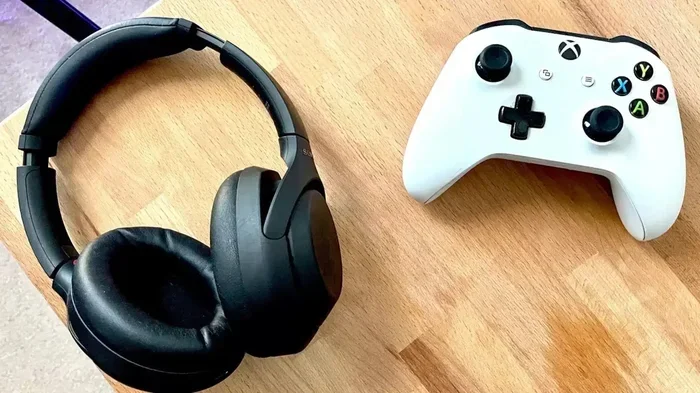
Yes, you can pair Bluetooth headphones to Xbox One, but it requires a few extra steps since the console does not support direct Bluetooth audio. Using a wireless adapter, the Xbox One controller, or a Bluetooth transmitter is the key to getting wireless audio while you game. This guide walks you through every method so you can enjoy lag-free, immersive sound without any wires holding you back.
Key Takeaways
- Xbox One does not support direct Bluetooth audio: You need a workaround like a wireless adapter or Bluetooth transmitter.
- Multiple methods work: You can use the Xbox Wireless Adapter, a 3.5mm jack on the controller, or a Bluetooth transmitter plugged into the console.
- Not all Bluetooth headphones are compatible: Some models work better than others, and latency can be a factor.
- Setup is simple once you know the right method: Most solutions take under 10 minutes to configure.
- Wireless gaming audio has improved a lot: Modern adapters and transmitters offer near-zero latency for a great experience.
- Check your headphone model first: Compatibility varies, so verify before buying any adapter or transmitter.
📑 Table of Contents
- Can I Pair Bluetooth Headphones To Xbox One Wirelessly?
- Why Xbox One Does Not Support Direct Bluetooth Audio
- Method 1: Using a Bluetooth Transmitter
- Method 2: Using the Xbox Wireless Adapter for Windows
- Method 3: Using a Compatible Wireless Headset
- Troubleshooting Common Bluetooth Pairing Issues
- Tips for the Best Wireless Audio Experience on Xbox One
- Can You Use AirPods or Other Popular Bluetooth Headphones?
- Final Thoughts
Can I Pair Bluetooth Headphones To Xbox One Wirelessly?
The short answer is yes. You can pair Bluetooth headphones to Xbox One and enjoy wireless audio while gaming. But the process is not as simple as flipping a switch. Xbox One does not have built-in Bluetooth audio support, which surprises a lot of people. You need a middleman device or a specific workaround to make it happen.
If you have been searching for ways to get wireless gaming audio on your Xbox One, you are in the right place. This guide covers every method that works in 2024. We will walk you through each step, share tips, and help you avoid common mistakes. Whether you are a casual gamer or a hardcore player, you will find a solution that fits your setup.
Many players ask, “Why can’t I just connect my Bluetooth headphones to Xbox One directly?” The reason comes down to Microsoft’s design choices. Xbox One uses its own proprietary wireless protocol for accessories. This means standard Bluetooth headphones cannot communicate with the console without extra help. The good news is that help is easy to find and affordable.
Before we dive into the methods, let us talk about why wireless audio matters. Nobody wants to sit tangled in wires while playing their favorite game. Wireless headphones give you freedom of movement and a cleaner gaming setup. They also let you immerse yourself in the game without disturbing anyone else in the room. Pairing Bluetooth headphones to Xbox One makes all of this possible with the right approach.
Why Xbox One Does Not Support Direct Bluetooth Audio
Here is something that confuses many gamers. Your phone connects to Bluetooth headphones instantly. So why does your Xbox One not do the same? The answer lies in how Microsoft handles wireless connections on the console.
Xbox One uses a custom wireless protocol called Xbox Wireless. This protocol is designed for Xbox accessories like controllers, headsets, and charging docks. It prioritizes low latency and stable connections. Standard Bluetooth audio would add interference and potential lag to the gaming experience.
Microsoft made this choice to keep the gaming experience smooth and responsive. When you are in the middle of a competitive match, even a small audio delay can hurt your performance. The proprietary protocol ensures your audio stays synced with what is happening on screen.
That said, Microsoft has not completely ignored Bluetooth. The Xbox One does use Bluetooth for the controller connection to PCs and mobile devices. But for audio output, the console relies on wired connections or its own wireless ecosystem. This is why you need a workaround to use Bluetooth headphones with Xbox One.
The Controller 3.5mm Jack Method
The simplest way to get wireless-ish audio is through your Xbox One controller. Every Xbox One controller made after 2015 has a 3.5mm audio jack at the bottom. You can plug wired headphones directly into the controller and hear game audio through them.
But what if you want truly wireless headphones? Here is the trick. You can buy a Bluetooth transmitter that plugs into the controller’s 3.5mm jack. The transmitter sends audio to your Bluetooth headphones wirelessly. This method works well and costs very little. It is a great option if you already own Bluetooth headphones and do not want to buy new gear.
One thing to keep in mind. The controller’s 3.5mm jack outputs audio, but it does not support Bluetooth input. So you need that external transmitter to bridge the gap. This is a small extra step, but it makes a huge difference in your setup.
Method 1: Using a Bluetooth Transmitter
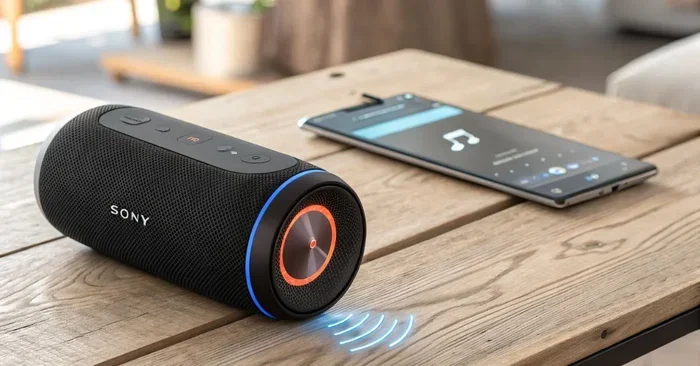
A Bluetooth transmitter is the most popular way to connect Bluetooth headphones to Xbox One. This small device plugs into the Xbox One’s optical audio output or 3.5mm jack. It then pairs with your Bluetooth headphones just like any other device.
Here is how it works step by step:
- Plug the Bluetooth transmitter into your Xbox One’s optical audio out port or the 3.5mm jack on the controller.
- Power on the transmitter if it requires a USB connection.
- Put your Bluetooth headphones in pairing mode.
- Select your headphones from the transmitter’s Bluetooth menu.
- Test the audio by playing a game or a movie.
Most Bluetooth transmitters support aptX or aptX Low Latency codecs. These codecs reduce audio delay significantly. Without them, you might notice a slight lag between what you see on screen and what you hear. For casual gaming, this is usually fine. For competitive shooters, it can be annoying.
When choosing a Bluetooth transmitter, look for one that supports low-latency codecs. Brands like Avantree, 1Mii, and TaoTronics make reliable options. Some transmitters also let you connect two headphones at once, which is great for couples or parents who want to game together. This is one of those tools to simplify a moms daily routine if you are sharing your gaming setup with family members who also enjoy listening along.
Best Bluetooth Transmitters for Xbox One
Not all transmitters are created equal. Here are some factors to consider when picking one:
- Latency: Look for transmitters with aptX Low Latency support. This reduces audio delay to near-zero levels.
- Battery life: Some transmitters are rechargeable, while others need a USB power source. Choose based on your setup.
- Connection range: Most transmitters offer a range of 30 to 50 feet. This is plenty for most living rooms.
- Codec support: aptX, aptX HD, and AAC are the codecs to look for. They deliver better sound quality.
- Dual pairing: Some transmitters let you connect two pairs of headphones simultaneously.
Setting up a Bluetooth transmitter takes less than five minutes. Once paired, your headphones will automatically connect every time you turn on the transmitter. It is one of the easiest ways to enjoy wireless headphones for Xbox One without spending a lot of money.
Method 2: Using the Xbox Wireless Adapter for Windows
Microsoft sells a device called the Xbox Wireless Adapter for Windows. While it is designed for PC gaming, it can also help you connect Bluetooth headphones to Xbox One in certain setups. This method works best if you also use your Xbox One as a media center or connect it to a PC.
The adapter plugs into a USB port on your PC or laptop. It creates a dedicated Xbox Wireless connection that your PC can use to communicate with the console. From there, you can route audio through your PC and out to Bluetooth headphones.
This method is a bit more complex than using a Bluetooth transmitter. It also requires a PC or laptop to act as a bridge. However, it works well if you already own the adapter and want a more integrated setup.
The adapter supports both Xbox Wireless and Bluetooth connections. This means you can connect your Xbox controller to your PC wirelessly and then stream audio to your Bluetooth headphones. It is a versatile solution for gamers who split time between Xbox and PC.
Step-by-Step Setup for the Xbox Wireless Adapter
- Plug the Xbox Wireless Adapter into a USB port on your PC.
- Install the Xbox Accessories app from the Microsoft Store.
- Pair your Xbox One controller to the PC using the adapter.
- Connect your PC to your Xbox One using the Xbox app.
- Pair your Bluetooth headphones to your PC.
- Set your PC audio output to the Bluetooth headphones.
This setup lets you use your Xbox One while listening through Bluetooth headphones connected to your PC. The audio streams from the console to the PC and then to your headphones. There may be a slight delay depending on your Bluetooth version and codec, but most users find it perfectly acceptable.
Method 3: Using a Compatible Wireless Headset
If you want the easiest wireless experience, consider buying a headset designed for Xbox One. These headsets connect using the Xbox Wireless protocol or a USB dongle. They do not rely on Bluetooth at all, which means zero latency and perfect audio sync.
Popular options include the Xbox Wireless Headset by Microsoft, the SteelSeries Arctis Nova series, and the HyperX Cloud Stinger 2. These headsets connect directly to your Xbox One without any extra adapters or transmitters.
Now, you might wonder why we are talking about non-Bluetooth headsets in an article about Bluetooth. The reason is simple. If your goal is wireless audio on Xbox One, a dedicated Xbox wireless headset is often the best solution. It avoids all the hassle of adapters and transmitters.
However, if you already own Bluetooth headphones and do not want to buy a new headset, the methods above will work perfectly. Many gamers prefer to use their existing Bluetooth headphones with Xbox One. It saves money and keeps things simple. If you are looking for gadgets that make moms life easier, a simple Bluetooth transmitter that works with your existing headphones is a perfect example of smart, budget-friendly tech.
Comparing Wireless Headset Options
Here is a quick comparison of the main wireless audio options for Xbox One:
- Xbox Wireless Headset: Direct connection, zero latency, built-in mic, $99.99.
- Bluetooth Transmitter + Your Headphones: Works with any Bluetooth headphones, slight latency possible, $20-$50 for the transmitter.
- Xbox Wireless Adapter + PC: Requires a PC, versatile setup, $24.99 for the adapter.
- Third-Party Wireless Headsets: USB dongle connection, great sound quality, varies by brand.
Each option has its pros and cons. The Xbox Wireless Headset offers the best experience but costs more. A Bluetooth transmitter is the most affordable and flexible option. Choose based on your budget and how much you value audio quality versus convenience.
Troubleshooting Common Bluetooth Pairing Issues
Even with the right method, you might run into problems when trying to pair Bluetooth headphones to Xbox One. This is normal. Bluetooth connections can be finicky sometimes. Here are the most common issues and how to fix them.
No Sound After Pairing
If you paired your headphones but hear no sound, the first thing to check is your Xbox One audio settings. Go to Settings, then General, then Volume & Audio Output. Make sure the audio output is set to the correct source. If you are using a Bluetooth transmitter, ensure the transmitter is selected as the audio output device.
Also check that your headphones are not muted and the volume is turned up on both the headphones and the Xbox One. It sounds obvious, but this is the most common reason for no sound.
Audio Lag or Delay
Audio lag is the most frustrating Bluetooth issue. You see the action on screen, but the sound comes a split second later. This is usually caused by using a standard Bluetooth codec instead of a low-latency one.
To fix this, make sure your Bluetooth transmitter supports aptX Low Latency. If it does, enable it in the transmitter settings. If your headphones do not support aptX, consider upgrading to a model that does. The difference in latency is noticeable immediately.
Headphones Keep Disconnecting
Intermittent disconnections happen when the Bluetooth signal is weak or interrupted. Make sure your transmitter is within range of your headphones. Avoid placing the transmitter near other wireless devices that might cause interference.
If you are using the controller 3.5mm jack method, try a different transmitter. Some cheap transmitters have poor antennas that lose connection easily. Investing in a quality transmitter solves this problem most of the time.
Xbox One Does Not Detect the Transmitter
If your Xbox One does not recognize the Bluetooth transmitter, try unplugging it and plugging it into a different port. Optical ports and USB ports can behave differently. Also, make sure the transmitter is powered on and in pairing mode.
Sometimes a simple restart of the Xbox One fixes detection issues. Turn off the console, unplug the transmitter, wait 30 seconds, and plug it back in. This resets the connection and often solves the problem.
Tips for the Best Wireless Audio Experience on Xbox One
Once you get your Bluetooth headphones connected to Xbox One, you want the best experience possible. Here are some tips to help you get there.
- Keep your firmware updated: Both your headphones and your transmitter should have the latest firmware. Updates often improve connectivity and audio quality.
- Reduce interference: Keep your transmitter away from Wi-Fi routers, microwaves, and other wireless devices. These can disrupt the Bluetooth signal.
- Use a dedicated USB port: If your transmitter uses USB for power, plug it directly into the console or PC. Avoid USB hubs, which can cause power issues.
- Test in a quiet environment: Before a gaming session, test your audio setup in a quiet room. This helps you identify any lag or quality issues.
- Invest in quality gear: A good Bluetooth transmitter makes a huge difference. Cheap transmitters often have poor range and high latency.
These tips apply whether you use a Bluetooth transmitter, the Xbox Wireless Adapter, or any other method. Small adjustments can significantly improve your wireless audio experience. Think of it like setting up 10 gadgets to make moms life easier — once everything is configured correctly, it just works seamlessly in the background.
Can You Use AirPods or Other Popular Bluetooth Headphones?
AirPods are one of the most popular Bluetooth headphones, and many Xbox One owners want to use them. The answer is yes, you can connect AirPods to Xbox One, but not directly. You will need one of the methods described above.
The Bluetooth transmitter method works great with AirPods. Simply pair your AirPods to the transmitter, and you are good to go. The same applies to Sony WH-1000XM5 headphones, Bose QuietComfort headphones, and most other popular Bluetooth models.
One thing to note. Some Bluetooth headphones have a feature called multipoint connection. This lets them connect to two devices at the same time. If your headphones support this, you can pair them to both your phone and the Xbox One transmitter. This gives you flexibility to switch between devices easily.
Just remember that Xbox One does not natively support Bluetooth audio devices. You always need the extra step of a transmitter or adapter. But once set up, the experience is smooth and enjoyable.
Final Thoughts
Pairing Bluetooth headphones to Xbox One is absolutely possible, even though the console does not support direct Bluetooth audio. Whether you use a Bluetooth transmitter, the Xbox Wireless Adapter, or a dedicated wireless headset, you have options that fit every budget and setup.
The Bluetooth transmitter method is the most affordable and flexible. It works with almost any Bluetooth headphones you already own. The Xbox Wireless Adapter method is great if you also game on PC. And a dedicated Xbox wireless headset gives you the best performance with zero hassle.
Take your time setting up your wireless audio. Follow the steps in this guide, troubleshoot any issues, and enjoy the freedom of wireless gaming. Once you experience lag-free audio without wires, you will never want to go back to a wired setup.
Wireless audio on Xbox One has come a long way. With the right gear and a little patience, you can transform your gaming experience. Put on your favorite Bluetooth headphones, dive into your game, and enjoy the immersive sound that wireless audio provides. Your setup will never feel the same again.
Frequently Asked Questions
Can I connect Bluetooth headphones directly to Xbox One without any extra devices?
No, Xbox One does not support direct Bluetooth audio connections. You need a Bluetooth transmitter, the Xbox Wireless Adapter, or a compatible wireless headset to get wireless audio on your console.
What is the easiest way to pair Bluetooth headphones with Xbox One?
The easiest method is using a Bluetooth transmitter that plugs into your Xbox One’s optical audio output or the 3.5mm jack on your controller. It pairs with your headphones in minutes and costs between $20 and $50.
Will Bluetooth headphones cause lag when gaming on Xbox One?
Standard Bluetooth headphones may have slight audio lag. To minimize this, use a Bluetooth transmitter that supports aptX Low Latency. This reduces delay to near-zero levels and makes gaming much more responsive.
Can I use AirPods with Xbox One?
Yes, you can use AirPods with Xbox One. Since Xbox One does not support direct Bluetooth audio, you need a Bluetooth transmitter or the Xbox Wireless Adapter for Windows to connect your AirPods wirelessly.
Do I need a special headset to get wireless audio on Xbox One?
No, you do not need a special headset. You can use any Bluetooth headphones with a transmitter or adapter. However, dedicated Xbox wireless headsets offer the best performance and zero latency without extra accessories.
Is there a way to connect two pairs of Bluetooth headphones to Xbox One?
Yes, some Bluetooth transmitters support dual pairing. This lets you connect two pairs of headphones to the same transmitter, so you can share audio with a friend or family member during gaming sessions.
=== CONCLUSION ===
Pairing Bluetooth headphones to Xbox One wirelessly is a straightforward process once you know the right method. Xbox One does not have built-in Bluetooth audio, but that does not stop you from enjoying wireless sound. A Bluetooth transmitter is the most affordable and flexible option. The Xbox Wireless Adapter works well for PC-to-Xbox setups. And a dedicated wireless headset delivers the best performance.
Choose the method that fits your budget and setup. Follow the step-by-step instructions, and you will be gaming wirelessly in no time. Remember to troubleshoot any issues using the tips above. With the right gear, your Xbox One audio experience will be immersive, lag-free, and completely wireless.