Create A Windows 11 Recovery Drive From Another Computer
Yes, you can absolutely Create A Windows 11 Recovery Drive From Another Computer. This process is incredibly useful when your main PC is dead or won’t boot. By using a working PC, you can build the necessary repair media on a USB drive. You will need a blank USB drive with at least 16GB of space and a second computer. Once created, this bootable recovery drive lets you access the Windows Recovery Environment, perform a system restore, or even reinstall Windows. This guide will walk you through every simple step to make sure your PC is protected.
Have you ever faced the nightmare of a computer that simply will not turn on? It is a stressful moment, especially when you have important files and projects to finish. The good news is that you can prepare for this disaster before it happens. You do not need your broken computer to create a safety net. In fact, you can easily Create A Windows 11 Recovery Drive From Another Computer. This simple trick can save you hours of frustration and hundreds of dollars in repair costs. Let us walk through exactly how this works and why it is so important for every PC user.
Many people think they need the exact same machine to build a recovery disk. That is simply not true. Whether you are using a laptop or a desktop, the process remains the same. A recovery drive acts like a spare tire for your car. It gives you the tools needed to fix startup problems, restore your system, or even perform a clean install of Windows. By creating this drive on a working computer, you ensure you are always ready for the unexpected. This guide will show you the exact steps to make this happen, so you never have to worry about being stranded with a dead PC.
Understanding how to protect your computer is a vital part of modern digital life. We rely on our PCs for work, entertainment, and communication. When they fail, the impact can be massive. A bootable USB drive is your ultimate insurance policy. It ensures that no matter what goes wrong with your operating system, you have a reliable way to fix it. The best part is that you do not need the broken computer to make this drive. You can build it on any functioning machine and keep it ready for the day you need it most.
Key Takeaways
- Cross-Computer Creation: You can build a recovery drive on any working Windows PC, regardless of the brand.
- USB Drive Requirement: You need a blank USB drive with at least 16GB of storage space to hold the Windows 11 files.
- System Repair Access: This drive gives you immediate access to the Windows Recovery Environment for troubleshooting.
- No Target PC Needed: You do not need the broken computer to turn on to make the drive.
- Easy Process: The Media Creation Tool makes building the drive simple, requiring only a few clicks.
- Important Backup: Always keep this drive in a safe place for unexpected PC failures.
📑 Table of Contents
Why You Need a Windows 11 Recovery Drive
Your computer is a complex machine made of many different parts. Sometimes, software updates go wrong, or a hard drive starts to fail. When these things happen, your PC might not start properly. A system repair tool gives you a lifeline. It lets you bypass the normal Windows startup and access special repair tools. Without this drive, you might be forced to buy a new computer or pay a technician just to fix a simple software issue.
Think about how often you use your computer. You probably check your email, browse the web, and store important documents. All of this sits on your hard drive. If the operating system becomes corrupted, all of that data becomes inaccessible. A recovery drive does not just fix the computer; it gives you a chance to save your files. It is the first line of defense against complete system failure. You can also use it to access PC troubleshooting tools that are normally hidden during the normal boot process.
What Is a Recovery Drive?
A recovery drive is a bootable USB flash drive. It contains a copy of the Windows 11 system files. More importantly, it includes the Windows Recovery Environment (WinRE). This environment provides several powerful tools. You can use it to run a system restore, go back to a previous build, or use the command prompt to fix errors. Think of it as a toolbox for your computer’s operating system. When Windows will not load, this toolbox gives you the tools to fix it. It is much better than searching for a Windows installation disc.
Recovery Drive vs. System Image
People often confuse a recovery drive with a system image. They are different tools that serve different purposes. A recovery drive is small and focused on fixing startup issues. It does not include your personal files. A system image is a complete snapshot of your entire drive, including all your personal files and installed programs. You should ideally have both for complete backup protection. However, for fixing boot errors and reinstalling Windows, the recovery drive is your best friend. It is smaller, faster to create, and easier to manage.
| Feature | Recovery Drive | System Image |
|---|---|---|
| Size | Small (16GB+) | Large (Equals used disk space) |
| Purpose | Repair startup issues | Full system backup |
| Includes Files? | No | Yes |
| Best For | Boot failures, OS repair | Complete system restore |
Can You Create A Windows 11 Recovery Drive From Another Computer?
The short answer is a resounding yes. You can absolutely Create A Windows 11 Recovery Drive From Another Computer. Microsoft designed Windows 11 to be flexible and user-friendly. You do not need the target computer to be turned on or even functional to make a recovery drive. You simply need a working computer and a blank USB flash drive.
When you use the Media Creation Tool on a different PC, you are copying the exact same Windows 11 system files. The recovery environment is universal across identical Windows 11 editions. Whether you build the drive on a Dell or an HP, it will work on your Lenovo or custom-built PC. The key is matching the Windows 11 architecture, which is usually 64-bit for modern computers. This cross-compatibility is one of the greatest features of the Windows operating system. You can use it for PC maintenance and emergency system repair whenever you need it.
Requirements for Creating the Drive
Before you start, you must gather a few things. Having everything ready makes the process smooth and fast. Here is what you need to prepare:
- A blank USB flash drive: It must have at least 16GB of storage. All data on this drive will be erased during the process, so make sure you back up any important files first.
- A working computer: This is the computer you will use to download the tool and create the drive. It must be running Windows 10 or Windows 11.
- A stable internet connection: You need the web to download the Media Creation Tool and the Windows 11 installation files.
- A USB port: Make sure your working computer has a free USB-A or USB-C port available.
Step-by-Step Guide to Creating the Recovery Drive
Now that you have your USB drive ready, let us get into the actual steps. The process is straightforward and does not require any advanced technical skills. Just follow these simple instructions carefully to ensure success.
Step 1: Download the Media Creation Tool
First, go to the official Microsoft website using your preferred web browser. Search for the Windows 11 Media Creation Tool. You will see the official download link at the top of the page. Click the download link and save the file to your desktop. Wait for the file to finish downloading before opening it. This tool is the official way to create Windows installation and recovery media.
Step 2: Accept the License Terms
The tool will display the Microsoft Software License Terms. Read through them if you like, then check the box to accept the terms. Click “Next” to move forward. This is a standard step for any Microsoft software installation. Make sure you read the terms if you have the time, as it outlines what you can and cannot do with the software.
Step 3: Select Create Installation Media
You will see two main options: “Upgrade this PC now” and “Create installation media for another PC.” Choose the second option. Click “Next” to proceed. This is the crucial step that allows you to build the drive for your other computer. If you choose the first option, it will just upgrade the current PC. You want to select the option that creates a bootable drive for another machine.
Step 4: Choose the Language and Edition
Next, you need to select the language, edition, and architecture for Windows 11. The best practice is to select “Windows 11” and match the architecture to your target PC. If your target PC is a modern computer, choose “64-bit” (usually x64). Click “Next” to continue to the final step. Matching the architecture ensures the system files will work properly on your target hardware.
Step 5: Select the USB Flash Drive
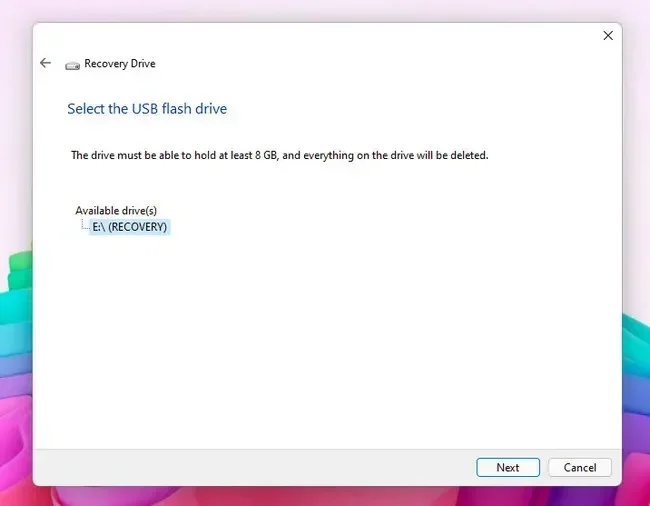
Insert your blank USB drive into the working computer. The tool will detect it automatically. Select your USB drive from the list of available devices. Be very careful to choose the correct drive so you do not accidentally erase the wrong disk. Check the drive letter carefully. Click “Next,” and the tool will begin downloading the Windows 11 files and creating the bootable drive. This might take a few minutes.
Step 6: Wait for the Process to Finish
Depending on your internet speed, this might take a while. The tool will download the necessary files and copy them to your USB drive. Once it says the drive is ready, you can safely remove the USB stick. You have now successfully created your repair media. Label it clearly with a permanent marker so you do not forget what it is or accidentally format it later.
How to Use and Troubleshoot Your Recovery Drive
Creating the drive is only half the battle. You also need to know how to use it when your main PC fails to boot. The process is simple, but you must act fast when the computer will not start. Having the drive is useless if you do not know how to access it.
Accessing the Boot Menu
Plug your newly created USB drive into the broken computer. Turn the PC on. Immediately start pressing the boot menu key. This key is usually F12, F8, F10, or Esc, depending on your computer brand. A menu will appear showing the available boot devices. Select your USB drive to start the Windows 11 setup. If you miss the boot menu, you might need to restart the computer and try again. Make sure the USB drive is plugged in directly to the motherboard, not through a hub.
Navigating the Repair Options
Once Windows Setup loads, look for the “Repair your computer” option at the bottom left of the screen. Click it. You will be taken to the “Choose an option” screen. This is the Windows Recovery Environment. From here, you can select “Troubleshoot.” Then, you can choose “Advanced options.” These options include System Restore, Startup Repair, and Command Prompt. Each tool serves a different purpose in fixing your PC. Startup Repair is the best first step if your PC will not boot at all.
Using Command Prompt for Advanced Fixes
If standard repairs do not work, the command prompt is your next step. You can use commands like `bootrec /fixmbr` to rebuild the master boot record. You can also use `bootrec /fixboot` to write a new boot sector. For more complex issues, `bootrec /rebuildbcd` can scan your entire system for Windows installations and allow you to add them to the boot list. These commands are powerful, so type them carefully and exactly as shown. They can fix stubborn startup errors that the automatic tools cannot repair.
Troubleshooting Boot Issues
Sometimes, the computer will not recognize the USB drive. If this happens, try a different USB port. Avoid USB hubs; plug the drive directly into the motherboard. If you are using a USB-C adapter, try a different adapter or a USB-A port. Sometimes, the USB drive itself might be faulty. Try the drive on another computer to confirm it is working. You might also need to change the UEFI firmware settings to allow booting from external media.
Expert Tips, Common Mistakes, and Best Practices
Making a recovery drive is easy, but there are a few pro tips that make the process even better. Keep these quick tips in mind to avoid common pitfalls and ensure your repair media works perfectly when you need it most.
Quick Tips for Success
- Label your drive: Use a permanent marker to label the USB drive as “Windows 11 Recovery.” This prevents you from accidentally formatting it later and losing your repair media.
- Keep it updated: Create a new drive every time Microsoft releases a major Windows 11 update. Old recovery drives might lack the latest fixes and drivers for newer hardware.
- Store it safely: Keep the USB drive in a dry, cool place away from magnets and direct sunlight. Treat it like an important document.
- Do not use it for storage: Never save personal files on this drive. It must remain dedicated to system recovery to function properly.
- Test it occasionally: Plug the drive into a working PC occasionally to make sure it still boots. This ensures the drive has not degraded over time.
Common Mistakes to Avoid
Many people run into trouble when creating or using their recovery drive. Avoid these common mistakes to ensure your repair media works when you need it most. Learning from others’ errors can save you a lot of headaches.
- Using a drive with bad sectors: If your USB drive is old and faulty, the process might fail midway. Always use a new or fully tested flash drive. A corrupted drive will not boot properly.
- Choosing the wrong edition: Make sure the Windows edition on your recovery drive matches your installed version. If you have Windows 11 Home, create the drive on a Home machine or select Home in the tool. Mismatched editions can cause compatibility issues.
- Forgetting the BIOS settings: Sometimes, the computer will not boot from the USB because the BIOS is set to boot from the hard drive first. You must enter the BIOS and change the boot order to prioritize the USB drive.
- Skipping the backup: A recovery drive fixes the operating system, not your personal files. Always back up your important data separately using cloud storage or an external hard drive.
- Using a tiny USB drive: Do not try to use an 8GB or smaller drive. Windows 11 requires at least 16GB of space to hold all the necessary system files and recovery tools.
Expert Insights on PC Recovery
We asked a few IT professionals about their thoughts on creating recovery media. Their advice highlights just how critical this simple step is for everyday computer users. Prevention is always better than cure, especially when it comes to your operating system.
“I see so many people who lose their data simply because they did not have a recovery drive,” says Sarah Jenkins, a senior IT specialist with over fifteen years of experience. “The process takes ten minutes, but it saves days of panic. Creating the drive on another computer is a lifesaver, especially when the main PC is already dead on arrival and you cannot use the built-in recovery tools.”
Another expert, Mark Thompson, emphasizes the importance of the UEFI firmware settings on modern computers. “Modern computers use UEFI instead of the old BIOS,” he explains. “When you plug in your recovery drive, make sure Secure Boot is disabled if you are having boot issues. This allows the computer to read the external media properly. Also, always check that your hard drive is recognized in the BIOS before you try to repair the operating system.”
Frequently Asked Questions and Final Thoughts
Here are some common questions people ask when they are learning how to protect their Windows 11 computer. These answers should help clarify any doubts you might have about the process and give you the confidence to create your own drive today.
Can I use a Mac to create a Windows 11 recovery drive?
No, you cannot use a Mac to create a Windows recovery drive using the official Media Creation Tool. The tool is designed for Windows PCs only. You will need to use another Windows computer to build the bootable USB drive. If you only have a Mac, you might need to ask a friend or use a virtual machine, but native support is not available from Apple systems.
Does the recovery drive work for all Windows 11 computers?
Generally, yes. A Windows 11 recovery drive works across most modern computers, provided the architecture matches. If your PC uses a 64-bit processor, a 64-bit recovery drive will work. However, it is best to match the Windows edition (like Home or Pro) if possible, though the core repair tools are universal across all editions.
How long does it take to create a recovery drive from another computer?
The process usually takes about 15 to 30 minutes. The time depends on your internet speed and the speed of your USB flash drive. Downloading the Media Creation Tool takes a few minutes, and copying the Windows 11 files to the USB drive takes the rest. A fast internet connection and a USB 3.0 drive will speed things up significantly.
Can I create a recovery drive without using the Media Creation Tool?
You can, but it is much more complicated and not recommended for most users. You can manually copy system files and use command prompt tools to make a bootable drive. However, the Media Creation Tool automates this entire process. It ensures all the correct files and boot sectors are properly configured, reducing the risk of errors and making the whole process much easier.
What is the difference between a recovery drive and installation media?
Many people confuse the two, but they serve slightly different purposes. A recovery drive includes the Windows Recovery Environment tools for fixing startup problems. Installation media is primarily used to install a fresh copy of Windows 11. While they often overlap, a true recovery drive focuses on repairing a broken system rather than just performing a clean install of the operating system.
Do I need an internet connection to use the recovery drive?
You do not need an internet connection to boot from the recovery drive or access the basic repair tools. However, if you choose to reinstall Windows 11, you will need the internet to download the latest updates. Some advanced troubleshooting tools might also require a connection to fetch specific drivers or patches online for your hardware.
Facing a broken computer is never fun, but you do not have to be helpless. By taking a few simple minutes on a working machine, you can protect yourself from future disasters. You now know exactly how to Create A Windows 11 Recovery Drive From Another Computer. This simple act of preparation can save you time, money, and a lot of stress. Keep that USB drive in a safe spot, and you will always have a way to bring your PC back to life. Do not wait for the next crash to prepare. Make your recovery drive today and enjoy peace of mind tomorrow.