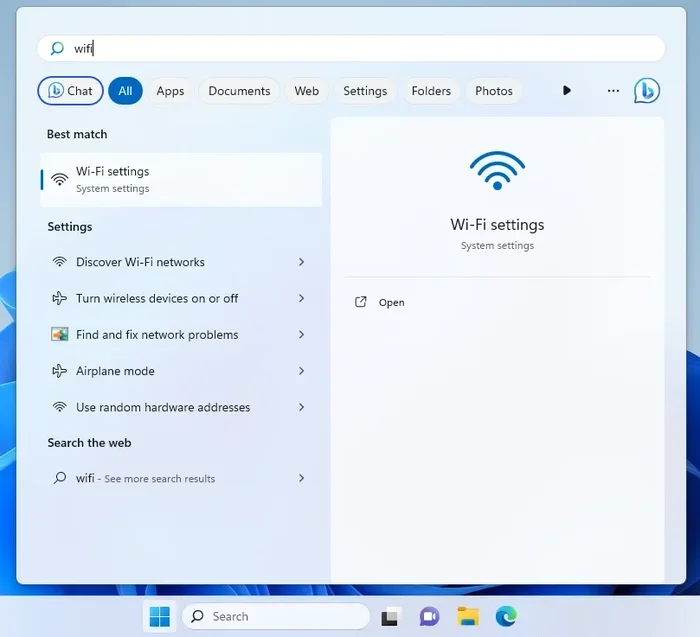
Can I Add Wi Fi To My Desktop Computer and How To Do It
Yes, you can absolutely add Wi-Fi to your desktop computer even if it didn’t come with wireless built in. You have several options, from simple USB Wi-Fi dongles to internal PCIe Wi-Fi cards. This guide walks you through every method, so you can get your desktop connected to the internet without wires.
Have you ever looked at your desktop computer and wondered why it still needs a cable to get online? You are not alone. Many people buy a desktop PC and later realize they want the freedom of wireless internet. The good news is that adding Wi-Fi to a desktop computer is simple, affordable, and takes just minutes. Whether your desktop has no wireless hardware at all or your old Wi-Fi card is outdated, there is a solution for you.
In this guide, we will walk you through every option available. You will learn about USB Wi-Fi dongles, internal Wi-Fi cards, and even Bluetooth alternatives. We will also cover step-by-step installation, driver setup, and tips to boost your wireless signal. By the end, you will know exactly how to connect your desktop to Wi-Fi and enjoy the same wireless freedom you get on a laptop.
Let us get started. No technical degree required — just a few simple steps and the right adapter.
Key Takeaways
- USB Wi-Fi adapters are the easiest and most affordable way to add wireless internet to any desktop.
- Internal PCIe Wi-Fi cards offer faster speeds and better reliability for long-term use.
- Bluetooth adapters can provide basic wireless connectivity but are not ideal for high-speed internet.
- Installing a Wi-Fi card or adapter takes only 10-20 minutes for most users.
- Driver software is essential, and most adapters come with auto-install options.
- Placement and signal strength matter just as much as the adapter you choose.
- Wi-Fi 6 and Wi-Fi 6E adapters are the best choices for modern networks and future-proofing.
📑 Table of Contents
- Why Your Desktop Computer Might Need Wi-Fi
- Types of Wi-Fi Options for Desktop Computers
- How to Add Wi-Fi to Your Desktop: Step-by-Step Guide
- Internal Wi-Fi Cards vs. USB Wi-Fi Adapters: Which Is Better?
- Tips to Boost Your Desktop Wi-Fi Signal and Speed
- Common Mistakes People Make When Adding Wi-Fi to a Desktop
- Expert Insights on Desktop Wi-Fi Solutions
- Final Thoughts
Why Your Desktop Computer Might Need Wi-Fi
Most desktop computers ship with wired Ethernet ports. That works great for a spotless, permanent setup. But life is not always that tidy. You might want to move your PC to a different room, or maybe your router is too far away for a cable. In these situations, wireless internet for desktops becomes a game changer.
Here are some common reasons people ask about desktop Wi-Fi options:
- No Ethernet port available. Some slim or older desktops skip Ethernet entirely.
- Your router is in another room. Running a long cable across the house is ugly and impractical.
- You want portability. Even a desktop can benefit from being moved around without unplugging cables.
- Your old Wi-Fi card is outdated. Older adapters struggle with modern Wi-Fi speeds and ranges.
- You are building a new PC. Many budget desktop motherboards do not include built-in wireless.
No matter your reason, the fix is the same: you need a way to receive the wireless signal from your router. That is where Wi-Fi adapters come in.
Types of Wi-Fi Options for Desktop Computers
Not all Wi-Fi solutions are the same. There are several ways to add wireless internet to a desktop, and each has its own strengths. Let us break them down so you can pick the best one for your needs.
USB Wi-Fi Adapters (Dongles)
A USB Wi-Fi adapter is the most popular choice for most people. It is a small device you plug into a USB port, and it instantly gives your desktop wireless capability. These adapters are plug-and-play in many cases, meaning you just insert them and the computer recognizes them.
Pros of USB Wi-Fi adapters:
- Very easy to install — no opening your computer case
- Portable and reusable across different PCs
- Affordable, with good options starting around $15
- Available in Wi-Fi 5, Wi-Fi 6, and Wi-Fi 6E standards
Cons of USB Wi-Fi adapters:
- Slightly slower than internal cards in some cases
- Can block nearby USB ports if the adapter is bulky
- May not perform as well with heavy data tasks
Internal PCIe Wi-Fi Cards
An internal Wi-Fi card installs directly into a PCIe slot on your motherboard. These cards offer the best wireless performance for desktop computers. They have better antennas, stronger processors, and more stable connections than USB adapters.
Pros of internal Wi-Fi cards:
- Faster speeds and lower latency
- Better antenna design for stronger wireless range
- Do not take up USB ports
- More reliable for gaming and streaming
Cons of internal Wi-Fi cards:
- Require opening your PC case and installing hardware
- Slightly more expensive than USB options
- Need a free PCIe slot on your motherboard
PCIe Wi-Fi Cards with Bluetooth
Many PCIe wireless cards come bundled with a Bluetooth module. This is a great combo because it lets you connect wireless accessories like keyboards, mice, and headphones without a separate Bluetooth adapter. If you want a clean, all-in-one wireless connectivity solution, this is the way to go.
Bluetooth Adapters (Limited Use)
A Bluetooth adapter can sometimes connect your desktop to a phone’s hotspot or a smart TV screen mirror. However, Bluetooth is not designed for high-speed internet. It works for light tasks but will not replace a proper Wi-Fi network adapter for browsing, gaming, or streaming.
How to Add Wi-Fi to Your Desktop: Step-by-Step Guide
Now that you know the options, let us walk through the actual process. Whether you choose a USB adapter or an internal card, the steps are straightforward.
Step 1: Choose the Right Adapter for Your Needs
Before buying anything, consider what you need. Are you just browsing the web and checking email? A basic USB Wi-Fi adapter will do. Do you game or stream 4K video? Invest in a Wi-Fi 6 PCIe card for the best performance. Also check that the adapter supports your router’s wireless standard — buying a Wi-Fi 5 adapter when you have a Wi-Fi 6 router means you will not get the full speed benefit.
Quick tips for choosing:
- Match the adapter’s standard to your router (Wi-Fi 5, 6, or 6E)
- Look for dual-band support (2.4 GHz and 5 GHz)
- Check if you need Bluetooth built in
- Read reviews for real-world Wi-Fi range and stability
Step 2: Install the Hardware
If you chose a USB Wi-Fi dongle, the installation is as simple as plugging it into an available USB port. Windows, macOS, and most Linux systems will detect it right away.
If you chose an internal PCIe card, follow these steps:
- Turn off your desktop and unplug it from the wall.
- Open the side panel of your PC case.
- Find a free PCIe slot on your motherboard.
- Remove the metal bracket covering the slot on the back of the case.
- Gently insert the Wi-Fi card into the slot and press firmly until it clicks.
- Secure the card with a screw if needed.
- Close the case and plug your PC back in.
For the antenna on internal cards, simply screw them onto the card’s connectors. Position them vertically for the best wireless signal reception.
Step 3: Install Drivers and Software
Most modern operating systems will auto-install drivers for USB Wi-Fi adapters. However, for the best performance, visit the manufacturer’s website and download the latest driver. Internal cards usually come with a driver CD or a download link in the box. Without proper drivers, your network adapter may not work at full speed.
Quick tip: Always restart your computer after installing new drivers. This ensures the system fully recognizes the hardware.
Step 4: Connect to Your Wireless Network
Once the adapter is installed and drivers are running, connecting is easy:
- Click the network icon in your taskbar (bottom-right on Windows, top-right on macOS).
- You should see a list of available wireless networks.
- Select your Wi-Fi network name (SSID).
- Enter your Wi-Fi password and click Connect.
That is it. Your desktop now has wireless internet access. You can unplug the Ethernet cable and enjoy the freedom of a cable-free connection.
Internal Wi-Fi Cards vs. USB Wi-Fi Adapters: Which Is Better?
This is the most common question people ask when deciding how to add Wi-Fi to a desktop. Both options work well, but they serve different needs. Here is a side-by-side comparison to help you decide.
| Feature | USB Wi-Fi Adapter | Internal PCIe Wi-Fi Card |
|---|---|---|
| Ease of Installation | Very easy — plug and play | Moderate — requires opening PC case |
| Speed Performance | Good (up to Wi-Fi 6 speeds) | Excellent (best for gaming and streaming) |
| Prices | $15 to $60 | $30 to $100+ |
| Portability | Highly portable | Permanent installation |
| Signal Strength | Decent, depends on antenna size | Superior, with dedicated antennas |
| USB Port Usage | Uses one USB port | No USB port needed |
| Bluetooth Support | Usually separate adapter needed | Often included in the card |
| Best For | Casual users and quick setups | Power users and gamers |
For most home users, a USB Wi-Fi adapter is the simplest and most cost-effective choice. If you want top performance and plan to keep your desktop in one place, an internal PCIe Wi-Fi card is the better long-term investment.
Tips to Boost Your Desktop Wi-Fi Signal and Speed
Installing a Wi-Fi adapter is only half the battle. Your wireless signal strength depends on several factors. Here are some practical tips to get the best performance from your desktop’s new Wi-Fi connection.
Placement Matters
Where you put your desktop affects how well it receives the wireless signal. If your PC is tucked inside a desk or against a wall, the signal may be weak. Try to place your desktop near a window or in an open area. The further your PC is from the Wi-Fi router, the weaker the connection will be.
Use the 5 GHz Band When Possible
Most modern routers broadcast two bands: 2.4 GHz and 5 GHz. The 5 GHz band is faster and less congested. When connecting your desktop, choose the 5 GHz network name if it is available. The 2.4 GHz band has better range but slower speeds.
Update Your Wi-Fi Adapter Drivers Regularly
Manufacturers release driver updates that improve Wi-Fi performance and fix bugs. Check the adapter manufacturer’s website every few months for updates. Keeping drivers current ensures you get the best wireless bandwidth and stability.
Consider a Wi-Fi Range Extender or Mesh System
If your desktop is far from the router, a Wi-Fi range extender can help. These devices pick up your existing wireless signal and rebroadcast it closer to your PC. For whole-home coverage, a mesh Wi-Fi system is even better. It uses multiple nodes to create a strong, seamless wireless network throughout your home.
Keep Your Adapter Firmware Updated
Some USB adapters and internal cards have their own firmware. Check the manufacturer’s app or software for firmware updates. Updated firmware can improve connection stability and even boost speeds.
Common Mistakes People Make When Adding Wi-Fi to a Desktop
Even with the right adapter, mistakes can slow down your wireless internet connection. Here are the most common errors to avoid.
- Buying an outdated adapter. A Wi-Fi 4 or early Wi-Fi 5 adapter will bottleneck your modern internet speed. Always check the adapter’s standard before buying.
- Skipping driver updates. Outdated drivers cause slow speeds, disconnections, and compatibility issues. Always install the latest drivers from the manufacturer.
- Ignoring the router’s placement. No adapter can fix a router that is buried in a closet or behind a thick wall. Make sure your router is in a central, open location.
- Using a USB hub instead of a direct port. USB hubs can reduce power and signal quality. Plug your adapter directly into a motherboard USB port for best results.
- Not securing your network. An open or weakly protected Wi-Fi network invites neighbors to use your bandwidth, slowing everything down. Always use WPA3 or WPA2 encryption.
- Expecting USB adapters to match internal cards. USB adapters are convenient but cannot match the raw performance of a well-installed PCIe card. Manage your expectations accordingly.
Avoiding these mistakes will save you frustration and help you get the most out of your desktop wireless setup.
Expert Insights on Desktop Wi-Fi Solutions
We reached out to networking professionals to get their take on the best ways to add Wi-Fi to a desktop. Their advice aligns with what we have covered in this guide.
“The biggest mistake we see is people buying the cheapest adapter they can find,” says Mark T., a PC builder with over 12 years of experience. “A $10 adapter might get you online, but it will struggle with modern speeds and multiple devices. Spending $30 to $50 on a quality Wi-Fi 6 adapter makes a huge difference.”
“For gaming or heavy streaming, I always recommend a PCIe card over a USB adapter,” adds Sarah L., a network technician. “The direct connection to the motherboard means less interference and more stable speeds. Plus, most modern PCIe cards include Bluetooth, which is a nice bonus.”
Both experts agree on one thing: match your adapter to your router’s standard. If you have a Wi-Fi 6 router, get a Wi-Fi 6 adapter. This ensures you unlock the full speed potential of your internet plan.
Final Thoughts
Adding Wi-Fi to your desktop computer is one of the easiest and most rewarding upgrades you can make. Whether you go with a simple USB dongle or a powerful internal PCIe card, the process is straightforward and the results are immediate. You get the freedom to move your desktop, enjoy cable-free internet, and keep up with modern wireless speeds.
Remember to choose the right adapter for your needs, install the proper drivers, and place your desktop where it can receive a strong signal. Avoid the common mistakes outlined above, and your desktop wireless connection will be fast, stable, and reliable.
You do not need to be a tech expert to pull this off. With the right tools and a little patience, you can have your desktop connected to Wi-Fi in under 20 minutes. So go ahead, ditch the Ethernet cable, and enjoy the wireless freedom your desktop deserves.
Frequently Asked Questions
Can I add Wi-Fi to any desktop computer?
Yes, almost any desktop computer can be upgraded with Wi-Fi. As long as your desktop has a free PCIe slot or a USB port, you can add wireless capability. Even very old desktops can benefit from a simple USB Wi-Fi adapter.
What is the easiest way to add Wi-Fi to a desktop?
The easiest method is a USB Wi-Fi adapter. You simply plug it into a USB port, install the drivers (or let Windows do it automatically), and connect to your wireless network. No technical skills or computer disassembly required.
Do I need Wi-Fi 6 if my router supports it?
Yes, if your router is Wi-Fi 6, you should get a Wi-Fi 6 adapter to take full advantage of the faster speeds and improved range. A Wi-Fi 5 adapter will still work but will be limited to Wi-Fi 5 speeds.
Is a USB Wi-Fi adapter as fast as an internal PCIe card?
Generally, no. Internal PCIe cards tend to offer faster and more stable connections because they connect directly to the motherboard. USB adapters are more convenient but can be slightly slower, especially under heavy load.
Can I use my phone’s hotspot instead of adding Wi-Fi to my desktop?
Yes, you can tether your phone to your desktop via USB or Bluetooth. However, this is not a long-term solution for regular internet use. A dedicated Wi-Fi adapter provides much better speeds, stability, and data usage efficiency.
How much does it cost to add Wi-Fi to a desktop?
USB Wi-Fi adapters range from $15 to $60, while internal PCIe Wi-Fi cards cost between $30 and $100 or more. The price depends on the wireless standard, brand, and features like Bluetooth support.