Can You Replace Hp Laptop Keyboard Without Any Hassle
Yes, you can replace an Hp laptop keyboard without any hassle. Most Hp laptop models allow you to swap out the keyboard yourself using basic tools and a little patience. This guide walks you through every step, from choosing the right replacement part to avoiding common mistakes that trip up beginners.
Has your Hp laptop keyboard stopped working properly? Maybe a few keys stick, or perhaps the entire keyboard stopped responding after a spill. Whatever the reason, you are probably wondering if you can just swap it out for a new one.
The good news is that replacing an Hp laptop keyboard is very doable. You do not need to be a tech expert. Most Hp laptop keyboards are designed for easy removal and replacement. With the right part and a few basic tools, you can have a working keyboard again in under an hour.
In this guide, we will walk you through everything you need to know. We will cover why keyboards fail, how to pick the right replacement, and the exact steps to follow. By the end, you will feel confident tackling this repair on your own.
Key Takeaways
- Hp laptop keyboards are replaceable: Most models support easy keyboard swaps at home with minimal tools.
- You will need basic supplies: A screwdriver, a plastic spudger, and the correct replacement keyboard for your model.
- Cost varies widely: Replacement keyboards range from $20 to $80 depending on the Hp laptop series.
- Follow the ribbon cable carefully: The connector is delicate, and rushing this step can damage the keyboard.
- Compatibility matters: Always verify the keyboard part number matches your specific Hp laptop model.
- Prevention helps: Simple habits like keeping liquids away reduce the need for frequent keyboard repairs.
📑 Table of Contents
- Why Your Hp Laptop Keyboard Might Need Replacement
- Can You Actually Replace an Hp Laptop Keyboard?
- Tools and Materials You Will Need
- Step-by-Step Guide to Replacing Your Hp Laptop Keyboard
- How Much Does It Cost to Replace an Hp Laptop Keyboard?
- Tips to Keep Your Hp Laptop Keyboard in Top Shape
- Common Mistakes to Avoid During Hp Laptop Keyboard Replacement
- Expert Insights on Hp Laptop Keyboard Replacement
- Frequently Asked Questions
- Conclusion
Why Your Hp Laptop Keyboard Might Need Replacement
Keyboards wear out over time. They take a lot of abuse. Every day, your fingers press those keys hundreds of times. Dust, crumbs, and spills add to the wear. Understanding why keyboards fail helps you prevent future problems.
Common Reasons Keyboards Stop Working
Several things can cause an Hp laptop keyboard to malfunction. Here are the most common culprits:
- Spills and liquid damage: Coffee, water, and soda can short out the keyboard circuits. Even a small splash can cause big problems if it seeps inside.
- Dust and debris buildup: Tiny particles get trapped under the keys. Over time, this buildup makes keys stick or stop responding.
- Age and normal wear: The rubber dome under each key wears out. After years of use, keys feel mushy or unresponsive.
- Physical damage: Dropping your laptop or pressing too hard on a single key can bend or break the internal mechanism.
- Loose or damaged ribbon cable: The flat cable connecting the keyboard to the motherboard can fray or come loose.
- Software or driver issues: Sometimes the problem is not hardware at all. A driver update or system glitch can make the keyboard appear broken.
How to Tell If Your Keyboard Needs Replacing
Not every keyboard problem requires a full replacement. Before you order a new keyboard, try these quick checks:
- Test individual keys: Open a text editor and press every key. Note which ones do not register.
- Check for physical damage: Look closely at the keys. Are any cracked, wobbly, or missing?
- Try an external keyboard: Plug in a USB keyboard. If the external one works fine, the problem is likely with the internal keyboard.
- Update drivers: Go to Device Manager and check for keyboard driver updates. Sometimes a simple update fixes the issue.
If multiple keys are unresponsive or the keyboard physically looks damaged, a replacement is the way to go.
Can You Actually Replace an Hp Laptop Keyboard?
The short answer is yes. Hp laptop keyboards are designed to be user-replaceable in most models. Unlike some brands that glue keyboards in place, Hp typically uses screws and clips. This makes the process straightforward for most people.
However, not all Hp laptops are the same. The ease of replacement depends on your specific model. Hp Pavilion, Hp Envy, and Hp Omen laptops all have slightly different internal layouts. Some models give you easy access to the keyboard. Others require removing more components first.
Which Hp Models Are Easiest to Repair?
Some Hp laptop series are known for being repair-friendly:
- Hp Pavilion series: These laptops are popular and well-documented. Replacement keyboards are widely available, and many repair guides exist online.
- Hp Envy series: The Envy line also allows relatively easy keyboard access. The keyboard usually sits under a single panel held by a few screws.
- Hp Omen series: Gaming laptops like the Omen have slightly more complex internals. The keyboard replacement process takes a bit longer but is still very manageable.
Before you start, search for a disassembly guide specific to your Hp model. YouTube is a great resource. Watching someone else do it first gives you a huge confidence boost.
Tools and Materials You Will Need
You do not need a lot of tools to replace an Hp laptop keyboard. Most people already have everything at home. Here is what you will need:
Essential Tools
- Small Phillips-head screwdriver: Most Hp laptops use tiny Phillips screws. A precision screwdriver set works great.
- Plastic spudger or guitar pick: This tool helps you pry open panels without scratching the laptop. Never use metal tools near the internals.
- Anti-static wrist strap (optional): This protects your laptop from static electricity. It is not strictly required but is a good habit.
- Soft work surface: A clean, flat table with a soft cloth prevents scratches on your laptop.
Replacement Parts
The most important thing is getting the right replacement keyboard. Here is how to make sure you buy the correct part:
- Check your model number: Look on the bottom of your Hp laptop or in the System Information menu. Write down the exact model number.
- Search by part number: The keyboard part number is usually printed on a sticker on the old keyboard. Use this number when ordering.
- Buy from a reputable seller: Choose sellers with good reviews. Generic replacement keyboards work fine, but quality can vary.
- Consider a keyboard with backlight: If your original keyboard has backlighting, make sure the replacement does too. Not all replacement keyboards include this feature.
Step-by-Step Guide to Replacing Your Hp Laptop Keyboard
Now for the fun part. Follow these steps carefully, and you will have a brand-new keyboard in no time. Take your time and do not rush.
Step 1: Power Down and Unplug
Start by shutting down your Hp laptop completely. Unplug the power cable and remove the battery if possible. Some Hp laptops have removable batteries. Others have internal batteries that you will need to disconnect later. Either way, make sure the laptop has no power source before you begin.
Step 2: Remove the Bottom Panel
Flip your laptop over and remove the screws holding the bottom panel. Use your plastic spudger to gently pry the panel off. Work around the edges slowly. The panel is usually held by clips, not glue. Go easy and it will pop right off.
Step 3: Locate the Keyboard Connector
With the bottom panel removed, you should see the internal components. Look for the keyboard ribbon cable. It is a flat, thin cable that connects the keyboard to the motherboard. The connector usually has a small latch or tab.
Do not pull the cable yet. First, gently release the latch. On some Hp models, the latch slides up or sideways. On others, you need to flip it up with the spudger. This step requires patience. Forcing the connector can damage the socket.
Step 4: Remove the Old Keyboard
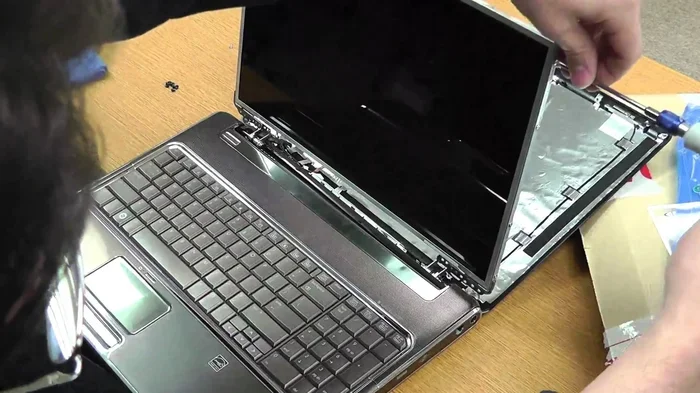
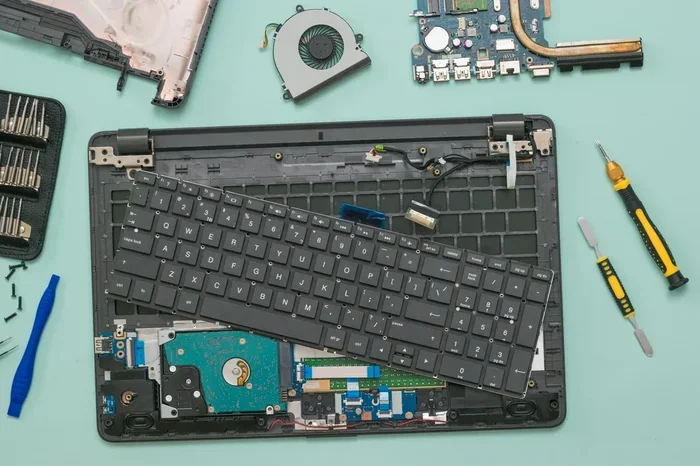
Once the connector is released, you can lift the keyboard out. Some Hp laptops have the keyboard held in by screws at the top. Remove these screws first. Then gently lift the keyboard from the top edge and pull it toward you.
Set the old keyboard aside. You will use it to compare the new one and to keep the screws organized.
Step 5: Install the New Keyboard
Take your new replacement keyboard and align it with the laptop frame. The ribbon cable should face the same direction as the old one. Gently press the keyboard into place, making sure it sits flat in the slot.
If your model has screws, reinsert them now. Then carefully reconnect the ribbon cable. Slide the connector back into the socket and press the latch down until it clicks. This is the most important step. A loose connection will cause the keyboard to not work.
Step 6: Reassemble and Test
Put the bottom panel back on and screw it in place. Reinsert the battery and plug in the power cable. Power on your Hp laptop and test every key. Type a full sentence to make sure all keys register correctly.
If the keyboard works, you are done. Congratulations. You just saved yourself a trip to the repair shop and a lot of money.
How Much Does It Cost to Replace an Hp Laptop Keyboard?
Cost is a big factor in any repair decision. The good news is that replacing an Hp laptop keyboard is one of the more affordable repairs you can do.
Replacement Keyboard Prices
Here is a general price breakdown for replacement Hp laptop keyboards:
- Basic replacement keyboards: $15 to $30. These are standard keyboards without special features like backlighting.
- Backlit keyboards: $25 to $50. If your Hp model has a backlit keyboard, expect to pay a bit more for a matching replacement.
- Gaming keyboards (Hp Omen): $40 to $80. Gaming laptops have specialized keyboards with extra features. These cost more to replace.
- Professional repair service: $80 to $150. If you do not want to do it yourself, a repair shop will charge labor plus parts.
As you can see, doing it yourself saves a lot of money. Even the most expensive replacement keyboard costs less than half of what a repair shop would charge.
Where to Buy Replacement Keyboards
You have several options for purchasing a replacement keyboard:
- Hp official store: Buying from Hp guarantees compatibility but often costs more.
- Amazon and eBay: These marketplaces have a wide selection at competitive prices. Check seller ratings before buying.
- Specialized laptop parts retailers: Websites like LaptopPartsPro and ReplaceBase specialize in keyboard replacements.
- Local computer shops: Some shops sell replacement parts and can help you find the right one.
Tips to Keep Your Hp Laptop Keyboard in Top Shape
Once you have replaced your keyboard, you want to keep it working for years. Prevention is always better than repair. Here are some simple habits that extend the life of your Hp laptop keyboard.
Daily Habits That Help
- Keep food and drinks away: This is the number one rule. Crumbs and spills cause most keyboard problems. If you must eat near your laptop, be very careful.
- Clean regularly: Use compressed air to blow out dust and debris once a week. A soft brush also works well for removing particles between keys.
- Do not press too hard: Hp laptop keys are designed for light touches. Pressing too hard wears out the mechanisms faster.
- Wash your hands: Oils and dirt from your hands gradually build up on the keyboard. Clean hands mean a cleaner keyboard.
When to Seek Professional Help
Not every keyboard problem requires a full replacement. Sometimes the issue is simpler than you think. Consider professional help if:
- The keyboard still does not work after replacement: The problem might be with the motherboard, not the keyboard itself.
- You are uncomfortable opening your laptop: If the steps above feel too risky, a professional can do the job safely.
- Your laptop is still under warranty: Opening the laptop yourself might void the warranty. Check with Hp support first.
- You notice liquid damage inside the laptop: If a spill reached beyond the keyboard, internal components may need professional cleaning.
Sometimes the simplest fix is the best one. Do not hesitate to call in an expert if you are unsure.
Common Mistakes to Avoid During Hp Laptop Keyboard Replacement
Even with the best guide, mistakes can happen. Here are the most common errors people make when replacing their Hp laptop keyboard:
- Forcing the ribbon cable connector: The connector is fragile. If it does not release easily, stop and look more carefully. Forcing it can break the socket on the motherboard.
- Buying the wrong keyboard: Even a small difference in model number means the keyboard will not fit. Always double-check before ordering.
- Losing the small screws: Hp laptops use tiny screws. Keep them in a small container or magnetic mat so they do not disappear.
- Reassembling while still powered on: Always disconnect power completely before working inside your laptop.
- Rushing the process: Take your time. Hurrying leads to mistakes, and mistakes lead to damage.
Avoiding these simple mistakes makes the whole process smoother and safer.
Expert Insights on Hp Laptop Keyboard Replacement
We asked a few experienced laptop repair technicians for their advice on replacing Hp laptop keyboards. Here is what they had to say:
Mark T., certified laptop repair technician: “The biggest mistake I see is people not checking the ribbon cable orientation before removing the old keyboard. Take a photo before you start. It makes reassembly so much easier.”
Sarah L., Hp service center veteran: “Always buy a keyboard that matches the exact model number. A keyboard that looks similar might not fit the ribbon cable connector or the key layout. It is not worth the risk.”
David R., tech blogger and repair enthusiast: “If you are nervous about doing it yourself, practice on a broken first. You can find damaged Hp laptops for cheap online. It is a great way to build confidence without risking your working machine.”
These expert tips highlight the importance of preparation and patience. With the right approach, anyone can replace an Hp laptop keyboard successfully.
Frequently Asked Questions
Can I replace just one key on my Hp laptop keyboard?
Yes, you can replace individual keys on most Hp laptop keyboards. The keycap pops off easily, and the plastic hinge underneath can be replaced separately. Replacement key kits cost just a few dollars. However, if the problem is with the underlying rubber dome or the keyboard circuit, you will need to replace the entire keyboard instead.
Is it hard to replace an Hp laptop keyboard?
No, it is not hard at all. Most Hp laptops have a straightforward keyboard replacement process. You only need a small screwdriver and a plastic spudger. The entire process takes about 20 to 40 minutes. If you can follow simple instructions carefully, you can do it successfully even without prior experience.
How do I find the right replacement keyboard for my Hp laptop?
Start by finding your exact Hp model number. You can find this on the bottom of the laptop or in the System Information settings. Then search for the keyboard part number, which is usually printed on a sticker attached to the old keyboard. Use this part number when ordering a replacement to ensure perfect compatibility.
Will replacing the keyboard void my Hp warranty?
This depends on your warranty terms. If your Hp laptop is still under the original manufacturer warranty, opening the case yourself could void the warranty. Contact Hp support before proceeding. If the warranty has expired or you have an extended warranty that covers repairs, you should be fine to do the replacement yourself.
Can I use any external keyboard with my Hp laptop?
Yes, you can use virtually any USB or Bluetooth keyboard with an Hp laptop. External keyboards work as a great temporary or permanent solution while you decide whether to replace the internal keyboard. They are also handy if you need a full-size keyboard for typing comfort.
What should I do if my keyboard stops working right after a replacement?
First, check that the ribbon cable is firmly connected. A loose connection is the most common cause of keyboard failure after replacement. If the cable is secure, try restarting your laptop and checking for driver updates. If the problem persists, the replacement keyboard itself may be defective. Contact the seller for a return or exchange.
Conclusion
Replacing an Hp laptop keyboard is one of the most satisfying and cost-effective repairs you can do at home. The process is straightforward, the parts are affordable, and the results are immediate. Whether your keyboard has sticky keys, unresponsive buttons, or physical damage, a replacement brings your laptop back to life.
You do not need special skills or expensive tools. Just follow the steps in this guide, take your time, and stay patient. The first few times might feel a little nerve-wracking, but each repair gets easier. Once you have done it once, you will feel confident handling it again if needed.
Remember to buy the correct replacement part for your specific Hp model. Take photos before disassembly. And most importantly, do not rush. A careful approach prevents mistakes and protects your investment.
Now that you know you can replace an Hp laptop keyboard without any hassle, there is no reason to wait. Grab your tools, order your replacement part, and get started today. Your fingers will thank you.