Can I Copy Windows 10 Installer To USB And Make It Bootable
Yes, you can copy a Windows 10 installer to USB and make it bootable. This process lets you install Windows 10 on any PC using a simple flash drive. You only need a USB drive with at least 8 GB of space and the right tools. Two popular methods include using the Media Creation Tool or Rufus. By the end of this guide, you will know exactly how to create your own bootable USB drive in minutes.
Have you ever wanted to install Windows 10 on a computer but did not have a DVD drive? Maybe your laptop does not even have one anymore. The good news is that you can easily copy a Windows 10 installer to USB and use it instead. A bootable USB drive is one of the simplest and fastest ways to install Windows 10 on almost any computer.
In this guide, we will walk you through everything you need to know. We will cover what a bootable USB actually is, what tools you need, and the exact steps to follow. By the time you finish reading, you will feel confident enough to create your own bootable USB drive right away. Let us get started.
Key Takeaways
- It is absolutely possible: You can easily copy a Windows 10 installer to USB and make it bootable with the right tools.
- Two main methods work well: The Media Creation Tool and Rufus are both reliable and free options.
- A USB drive of 8 GB or more is required: Smaller drives will not hold the full Windows 10 installer files.
- BIOS settings matter: You must change the boot order in your BIOS to start your PC from the USB drive.
- Avoid common mistakes: Skipping USB formatting or using the wrong file system can cause boot failures.
- A bootable USB is reusable: You can use the same drive multiple times for fresh installations.
📑 Table of Contents
What Does It Mean to Copy Windows 10 Installer to USB?
When we talk about copying a Windows 10 installer to USB, we mean putting all the installation files onto a flash drive. Once those files are on the drive in the right format, the computer can start up from it. This is what people call making the USB drive bootable.
A regular USB drive just stores files. A bootable USB drive can tell your computer to start the Windows setup process. It works just like a Windows installation DVD. But a USB drive is faster, more convenient, and works with most modern computers.
The process involves formatting the USB drive and copying specific files in a specific way. You cannot just drag and drop the installer files and expect it to work. The drive needs to be set up correctly so the computer recognizes it as a bootable device. We will show you exactly how to do that below.
Think of it like preparing a recipe card before you start cooking. You gather the ingredients, lay everything out, and then follow the steps. Creating a bootable USB works the same way. You prepare the drive, gather the files, and follow a few simple steps.
What You Need Before You Start
Before you begin, make sure you have everything ready. Here is a quick checklist of what you need to copy Windows 10 installer to USB successfully.
USB Flash Drive
You need a USB flash drive with at least 8 GB of storage. Some older versions of Windows needed 4 GB, but Windows 10 files are larger. A 16 GB drive gives you extra room and avoids any space issues. Make sure the drive is empty or that you have backed up anything on it. The formatting process will erase all data on the drive.
A Working Computer
You need a computer that is already working and connected to the internet. This computer is used to download the Windows 10 files and prepare the USB drive. It does not need to be a powerful machine. Even an older computer will work fine for this task.
Internet Connection
A stable internet connection is important. The Windows 10 installer file is about 5 to 6 GB in size. A slow or unstable connection can cause the download to fail. Make sure you have a reliable connection before you start.
The Right Tools
You will need one of two free tools to create the bootable USB. We will cover both options in detail. These tools handle all the technical work for you, so you do not need to be a tech expert.
Method 1: Use the Media Creation Tool
The Media Creation Tool is Microsoft’s official free tool. It is the safest and most straightforward way to copy a Windows 10 installer to USB. Since it comes directly from Microsoft, you know it is reliable and up to date.
Step-by-Step Instructions
Here is how to use the Media Creation Tool to create a bootable USB drive.
- Go to the Microsoft website. Search for “Download Windows 10” and you will find the official page.
- Download the Media Creation Tool. Click the “Download Tool Now” button and save the file to your computer.
- Run the tool. Open the downloaded file and accept the license terms.
- Choose your option. Select “Create installation media for another PC” and click Next.
- Pick your language and edition. Choose the language, Windows edition, and architecture (64-bit or 32-bit) you want.
- Select USB flash drive. This is the option you want. Click Next.
- Pick your USB drive. Select your USB drive from the list and click Next.
- Wait for the process to finish. The tool will download Windows 10 and copy the files to your USB drive. This may take 15 to 30 minutes depending on your internet speed.
Once the process is complete, your USB drive is ready to use. You can safely remove it and use it on the computer where you want to install Windows 10.
Why This Method Works Well
The Media Creation Tool handles everything automatically. It formats the USB drive with the correct file system. It copies all the necessary boot files. And it ensures the drive is properly set up to start the installation process. This is why most people prefer this method. It removes almost all chances of making a mistake.
Quick Tip: Always use the latest version of the Media Creation Tool. Microsoft updates it regularly to include the newest Windows 10 features and security patches.
Method 2: Use Rufus to Create a Bootable USB
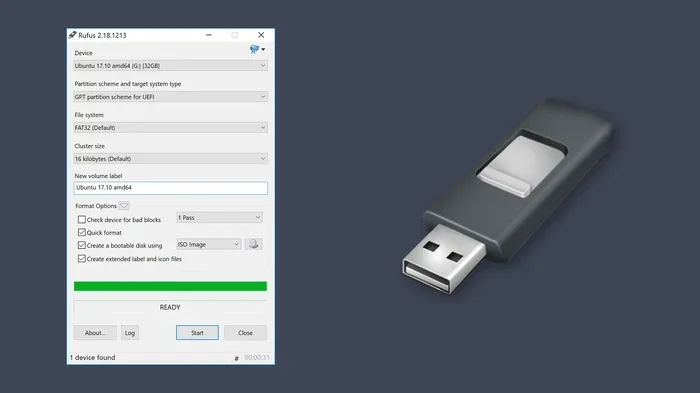
Rufus is a popular free tool that many people use to create bootable USB drives. It is lightweight, fast, and works with Windows ISO files. If you already have a Windows 10 ISO file downloaded, Rufus is a great option.
What Is Rufus?
Rufus is a small free application that helps you format and create bootable USB drives. It has been around for many years and is trusted by millions of users. It works on Windows computers and supports many different operating systems and file types.
Step-by-Step Instructions
Here is how to use Rufus to copy a Windows 10 installer to USB.
- Download Rufus. Go to the official Rufus website and download the latest version. It is a very small file and downloads quickly.
- Download the Windows 10 ISO file. You can get this from the Microsoft website. Choose the “Download ISO file” option.
- Insert your USB drive. Plug in your USB flash drive with at least 8 GB of space.
- Open Rufus. Run the Rufus application on your computer.
- Select your USB drive. Rufus will show your USB drive in the Device dropdown. Select it.
- Select the ISO file. Click the “SELECT” button and choose your Windows 10 ISO file.
- Choose the partition scheme. For most modern computers, select GPT. For older computers, choose MBR.
- Choose the file system. NTFS is the best choice for Windows 10 installations.
- Click Start. Rufus will format the USB drive and copy all the necessary files.
- Wait for it to finish. The process usually takes 10 to 20 minutes.
Once Rufus finishes, your USB drive is bootable and ready to use. You can now use it to install Windows 10 on any compatible computer.
Media Creation Tool vs Rufus
| Feature | Media Creation Tool | Rufus |
|---|---|---|
| Made by | Microsoft | Independent developer |
| Ease of use | Very easy | Moderate |
| Requires ISO file | No | Yes |
| Customization options | Limited | Many options |
| Works offline after setup | Yes | Yes |
| Free to use | Yes | Yes |
Both tools are excellent. If you want the simplest experience, go with the Media Creation Tool. If you want more control and customization, Rufus is the better choice.
How to Boot from Your USB Drive
Now that your USB drive is ready, you need to boot your computer from it. This means telling your computer to start up from the USB drive instead of the hard drive. The process is simple but requires you to access your BIOS settings.
What Is BIOS?
BIOS stands for Basic Input/Output System. It is the software that runs when you first turn on your computer. It checks your hardware and decides which device to start from. You can change the boot order in the BIOS so your computer starts from the USB drive first.
Step-by-Step Instructions
Here is how to boot from your USB drive after you have created it.
- Plug in your bootable USB drive. Insert it into the USB port of the computer where you want to install Windows 10.
- Restart the computer. Turn it off completely and then turn it back on.
- Press the boot menu key. As soon as the computer starts, press the key that opens the boot menu. Common keys include F12, F2, F10, F8, or Del. The key depends on your computer brand.
- Select your USB drive. From the boot menu, choose your USB drive. It may be listed by brand name or as “USB HDD.”
- Press Enter. Your computer will now start from the USB drive.
- Follow the Windows setup prompts. Choose your language, click “Install Now,” and follow the on-screen instructions.
If you are not sure which key to press, check your computer manufacturer’s website or look for a message on the screen during startup. Most computers show the key briefly right after you turn them on.
Quick Tip: If your computer does not recognize the USB drive, try a different USB port. USB 2.0 ports are more universally compatible than USB 3.0 ports for booting purposes.
UEFI vs Legacy Boot
Modern computers use something called UEFI instead of the old BIOS. UEFI is faster and more secure. When you boot from your USB drive, make sure you select the UEFI option if available. This ensures the best compatibility with Windows 10. If you see both “UEFI: Your USB Drive” and “Your USB Drive” in the boot menu, always choose the UEFI version.
Common Mistakes to Avoid
Creating a bootable USB drive is not difficult, but some common mistakes can cause problems. Here are the ones to watch out for.
Using a USB Drive That Is Too Small
The Windows 10 installer needs at least 8 GB of space. A 4 GB drive will not work. Always check your USB drive capacity before you start. A 16 GB or 32 GB drive is even better because it gives you extra room.
Skipping the Format Step
Do not try to skip formatting the USB drive. Both the Media Creation Tool and Rufus handle formatting for you. But if you try to manually copy files without formatting, the drive will not boot properly. Always let the tool format the drive as part of the process.
Using the Wrong Partition Scheme
This is one of the most common mistakes. If you use MBR partition scheme on a computer that supports UEFI, the USB drive will not boot. And if you use GPT on an older computer that only supports Legacy BIOS, it will also fail. Make sure you match the partition scheme to your computer’s firmware type.
Not Backing Up Important Data
Formatting the USB drive erases everything on it. But more importantly, installing Windows 10 on a computer will erase everything on that computer’s hard drive. Always back up your important files before you begin the installation process.
Using a Slow or Unreliable USB Drive
A cheap or old USB drive can cause problems during the installation process. It might disconnect during writing, or it might be too slow to read the files properly. Use a reliable brand of USB flash drive for the best results.
Can You Reuse a Bootable USB Drive?
Yes, you can reuse a bootable USB drive multiple times. After you install Windows 10 using the drive, it still contains all the installation files. You can use it again to install Windows 10 on another computer. This makes a bootable USB drive a very useful tool to keep around.
If you want to reuse the drive for something else, simply format it using your computer’s built-in formatting tool. Right-click the drive in File Explorer, select “Format,” and choose your preferred file system. The drive will be clean and ready for new use.
Some people keep multiple bootable USB drives with different versions of Windows. This is a smart habit. It saves time when you need to set up new computers or help friends and family with installations.
Final Thoughts
Copying a Windows 10 installer to USB and making it bootable is easier than most people think. Whether you use the Media Creation Tool or Rufus, the process is straightforward and does not require advanced technical skills. You just need a USB drive, a working computer, and a few minutes of your time.
A bootable USB drive gives you the freedom to install Windows 10 on any computer without needing a DVD or an internet connection during the install. It is a practical skill that comes in handy more often than you might expect. Whether you are setting up a new PC, reinstalling Windows, or helping someone else, a bootable USB drive is an essential tool.
Now that you know how to create one, you are ready to go. Gather your supplies, follow the steps in this guide, and you will have a working bootable USB drive in no time. Do not wait until you need it to learn how. Create your bootable USB drive today and keep it in your tech kit for whenever you need it.
The process works reliably every time as long as you follow the steps correctly. Avoid the common mistakes we covered, use a good quality USB drive, and always double-check your BIOS settings before you start. With these tips in mind, you will have a smooth and successful Windows 10 installation every single time.
Frequently Asked Questions
Can I use any USB flash drive to create a bootable Windows 10 installer?
You can use most USB flash drives, but they must have at least 8 GB of storage. Smaller drives will not have enough space for the Windows 10 installation files. Also, make sure the USB drive is working properly and is not damaged or corrupted.
Will creating a bootable USB erase everything on the drive?
Yes, the process formats the USB drive completely. All existing data on the drive will be erased. Make sure you back up any important files from the USB drive before you start creating the bootable installer.
Can I use the bootable USB on multiple computers?
Absolutely. Once you create a bootable USB drive, you can use it on any compatible computer. Just plug it in, change the boot order in the BIOS, and follow the Windows setup prompts. The same USB drive works for fresh installations and reinstallations.
What is the difference between GPT and MBR partition schemes?
GPT (GUID Partition Table) is the newer standard used by modern computers with UEFI firmware. MBR (Master Boot Record) is the older standard used by older computers with Legacy BIOS. You need to match the partition scheme to your computer’s firmware type for the USB drive to boot properly.
How long does it take to create a bootable USB drive?
The process usually takes between 15 and 30 minutes. Most of that time is spent downloading the Windows 10 files. The actual copying and formatting process is much faster, typically taking only a few minutes.
Do I need an internet connection to install Windows 10 from a bootable USB?
You do not need an internet connection during the actual installation process. The bootable USB contains all the files needed to install Windows 10. However, you will need an internet connection to download the ISO file and create the bootable USB drive in the first place.
=== CONCLUSION ===
Copying a Windows 10 installer to USB and making it bootable is a simple process anyone can do. You have two great options: the Media Creation Tool from Microsoft or the Rufus application. Both are free, reliable, and easy to use. With just a USB drive and a few minutes, you can create a powerful installation tool that works on any compatible computer.
Remember to use a USB drive with at least 8 GB of space, back up your data before formatting, and match your partition scheme to your computer’s firmware type. Avoid the common mistakes we discussed, and you will have a smooth experience every time.
Now you have all the knowledge you need to create your own bootable USB drive. Put this guide to use today, and you will always be ready to install Windows 10 whenever you need to. Keep that bootable USB in your tech toolkit. You will be glad you did.