Do Any Tvs Have Bluetooth Here Is What You Need To Know
Do any TVs have Bluetooth? Yes, many modern smart TVs come with built-in Bluetooth for wireless audio streaming. Whether you own a Samsung, LG, or Sony TV, you can connect headphones, speakers, and soundbars without cables. If your TV does not support Bluetooth, you can still add it using a simple adapter.
Do any TVs have Bluetooth? This is one of the most common questions people ask when they want to cut the cord and go wireless with their home entertainment setup. The short answer is yes, many TVs do come with Bluetooth built right in. But the full story is a bit more nuanced, and it is worth understanding what you are getting before you buy.
Bluetooth on a TV opens up a lot of possibilities. You can pair wireless headphones for late-night watching without disturbing anyone. You can connect a Bluetooth speaker for better sound in a small room. You can even use a soundbar without running a long cable across the floor. It is a game changer for how we watch TV at home.
In this guide, we will cover everything you need to know about Bluetooth on TVs. We will look at which brands offer it, how to connect your devices, what to do if your TV does not have it, and some common problems you might run into. By the end, you will know exactly what to look for and how to get the most out of your setup.
Key Takeaways
- Many modern smart TVs include Bluetooth: Brands like Samsung, LG, Sony, and Toshiba offer Bluetooth on many models.
- Bluetooth lets you go wireless: You can connect headphones, speakers, and soundbars to your TV without any cables.
- Not all TVs have it: Budget and older models may lack Bluetooth, but you can add it with an adapter.
- Pairing is usually simple: Most TVs have a straightforward Bluetooth settings menu you can access in minutes.
- Bluetooth range matters: Keep your devices within 30 feet for the best connection quality.
- Audio lag can be an issue: Some Bluetooth connections cause a slight delay between video and audio.
📑 Table of Contents
- What Does It Mean When a TV Has Bluetooth?
- Which TV Brands Offer Bluetooth?
- How to Connect Bluetooth Devices to Your TV
- What If Your TV Does Not Have Bluetooth?
- Benefits of Having Bluetooth on Your TV
- Common Bluetooth TV Problems and How to Fix Them
- Do Any TVs Have Bluetooth Built In From the Factory?
What Does It Mean When a TV Has Bluetooth?
When a TV has Bluetooth, it means the television can send and receive audio wirelessly using short-range radio waves. You do not need any cables to connect your headphones, speakers, or other audio devices. The TV acts as a source device, and your Bluetooth accessory acts as the receiving device.
Most TVs use Bluetooth version 4.0 or newer. The higher the version, the better the range and sound quality. Bluetooth 5.0 is becoming common on newer models and offers a much more stable connection. This matters if you like to sit far from the TV or if you want to move around the room freely.
How Bluetooth Audio Works on a TV
Here is how it works in simple terms. Your TV sends an audio signal through the air to your Bluetooth device. The device receives the signal and plays the sound. This happens almost instantly, though there can be a small delay on some setups. This delay is called audio lag, and we will talk more about that later.
Most TVs support something called A2DP, which stands for Advanced Audio Distribution Profile. This is the technical standard that lets your TV stream high-quality audio to Bluetooth headphones and speakers. It is built into almost every device that supports Bluetooth audio today.
Types of Bluetooth Connections on TVs
Not all Bluetooth connections are the same. Here are the main types you will encounter:
- Audio streaming: This is the most common use. Your TV sends music, movie audio, and game sounds to Bluetooth headphones or speakers.
- Audio return channel: Some soundbars use Bluetooth to receive audio from the TV, though most use HDMI or optical cables for better quality.
- Remote control: Some Bluetooth headphones can double as a TV remote using built-in microphones and controls.
Understanding these types helps you pick the right Bluetooth accessories for your setup. If you just want to watch TV late at night, simple audio streaming is all you need.
Which TV Brands Offer Bluetooth?
Do any TVs have Bluetooth across all brands? The answer is no, not all of them. But most major brands now include Bluetooth on many of their models, especially on smart TVs. Here is a closer look at what to expect from the big names.
Samsung TVs and Bluetooth
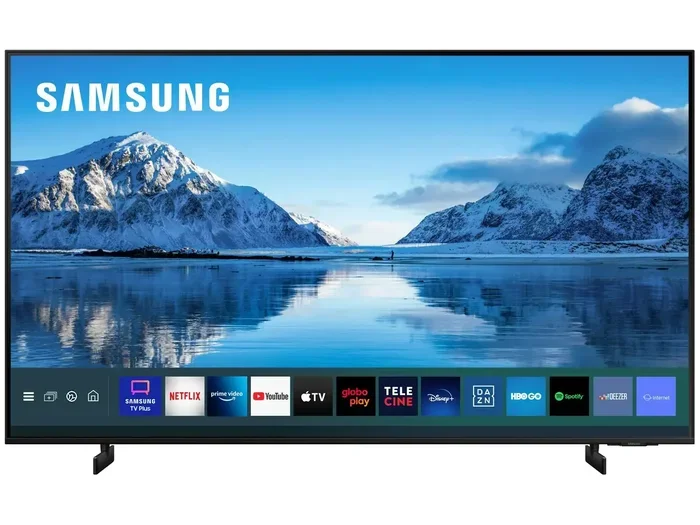
Samsung is one of the leaders in smart TV technology, and most of their TVs from the past few years include Bluetooth. You can find Bluetooth on Samsung QLED, OLED, and many of their mid-range models. To connect a device, go to Settings, then Sound, then Sound Output, and select Bluetooth Speaker List. Samsung TVs also support the ability to use your phone as a remote through their SmartThings app.
LG TVs and Bluetooth
LG TVs also come with Bluetooth on most models. Their webOS smart TVs are known for being user-friendly, and Bluetooth setup is no different. LG offers Bluetooth on their OLED, NanoCell, and many UHD models. The settings are usually found under Sound settings, where you can search for and pair new devices quickly.
Sony TVs and Bluetooth
Sony is another brand that widely supports Bluetooth on their TVs. Their Android TV and Google TV platforms make it easy to find and connect Bluetooth devices. Sony TVs also tend to have excellent audio processing, so when you pair them with a good Bluetooth speaker or headphones, the sound quality is impressive.
Toshiba, Vizio, and Other Brands
Toshiba and Vizio are popular budget brands, and their Bluetooth support varies. Some models include it, while others do not. Always check the specifications before buying if Bluetooth is important to you. Smaller brands like Hisense and TCL also vary, so reading the product details carefully is a smart move.
How to Connect Bluetooth Devices to Your TV
If your TV has Bluetooth, connecting a device is usually straightforward. Here is a step-by-step guide that works for most smart TVs.
Step-by-Step Pairing Process
- Turn on your Bluetooth device: Make sure your headphones, speaker, or soundbar is powered on and in pairing mode.
- Open your TV settings: Use your remote to navigate to Settings or the gear icon.
- Find the Bluetooth menu: Look for Sound settings or Connection settings, then select Bluetooth.
- Search for devices: Select the option to search for new devices. Your TV will scan for nearby Bluetooth accessories.
- Select your device: When your device appears on the list, select it to pair.
- Test the connection: Play some audio to make sure the sound is coming through your Bluetooth device.
The whole process usually takes less than two minutes. If your TV does not find your device, make sure the device is in pairing mode and within close range.
Quick Tips for Better Bluetooth Audio
- Keep your Bluetooth device within 30 feet of the TV for the best signal.
- Remove obstacles like walls between the TV and your device.
- Turn off other Bluetooth devices that are not in use to reduce interference.
- If you experience audio lag, try moving closer to the TV.
- Update your TV firmware regularly to get the latest Bluetooth improvements.
One thing many people ask is whether they can use a Bluetooth speaker without Bluetooth on the TV. The answer is yes, but you need a Bluetooth transmitter or adapter on the TV side. We will cover this more in the next section.
What If Your TV Does Not Have Bluetooth?
Not every TV comes with Bluetooth, especially older models or very budget options. But do not worry, you are not stuck with wired audio forever. There are several ways to add Bluetooth to any TV, even if it does not have it built in.
Bluetooth Transmitters and Adapters
A Bluetooth transmitter is the easiest way to add wireless audio to any TV. These small devices plug into your TV’s audio output, either through a 3.5mm jack or an optical cable. The transmitter then sends the audio wirelessly to your Bluetooth headphones or speakers. You can find a good Bluetooth transmitter for under $30 online.
Some transmitters also support aptX and aptX Low Latency codecs, which significantly reduce audio lag. This is important if you watch a lot of action movies or play video games where timing matters.
Using a Bluetooth Soundbar
If you want better sound quality, a Bluetooth soundbar is a great option. Many soundbars connect to your TV via HDMI or optical cable and then act as a Bluetooth receiver. This means you can also pair your phone or tablet to the soundbar directly for music streaming.
Some soundbars even let you turn regular wired speakers into Bluetooth speakers by connecting them to the soundbar. This is a cost-effective way to upgrade your TV audio without replacing your existing speakers.
Using Your Phone as a Bridge
Another option is to use your phone as a bridge. You can connect your phone to your TV via an HDMI cable or screen mirroring, and then use your phone’s Bluetooth to connect headphones or speakers. This works well for casual viewing, though it is not the most elegant solution.
If you want a more direct approach, you can also turn your phone into a Bluetooth speaker and play audio from your TV through it. This is not ideal for movie watching, but it works in a pinch.
Benefits of Having Bluetooth on Your TV
Once you experience wireless audio on your TV, it is hard to go back to cables. Here are the biggest benefits of having Bluetooth on your television.
Freedom to Move Around
With Bluetooth, you are not tied to your couch. You can walk around the house, do chores, or even go outside while still hearing your TV audio. This is especially great for people who like to listen to music or podcasts while cooking or cleaning.
Late-Night Watching Without Disturbing Others
This is one of the most popular reasons people use Bluetooth with their TVs. Wireless headphones let you watch your favorite shows at full volume without waking up your partner or neighbors. It is a lifesaver for households with different sleep schedules.
Cleaner, Clutter-Free Setup
No more cables running across your living room floor. Bluetooth eliminates the need for extra wires between your TV and your audio devices. Your setup looks cleaner and more organized, which makes a big difference in how your entertainment area feels.
Easy Device Switching
Most modern TVs remember multiple paired Bluetooth devices. You can quickly switch between your headphones, a Bluetooth speaker, and a soundbar without re-pairing every time. This makes the experience smooth and convenient for everyone in the household.
Better Accessibility
Bluetooth headphones can be a game changer for people with hearing difficulties. You can adjust the volume directly on the headphones without affecting the TV volume. This is a simple but powerful feature that improves the viewing experience for many people.
Common Bluetooth TV Problems and How to Fix Them
Bluetooth is not perfect, and you may run into some issues from time to time. Here are the most common problems and how to solve them.
Audio Lag or Delay
Audio lag is the most common Bluetooth complaint. You see the lips move, but the sound comes a fraction of a second later. This can be distracting, especially during dialogue-heavy scenes.
To fix this, try these steps:
- Move your Bluetooth device closer to the TV.
- Check if your TV has a low-latency audio mode in the settings.
- Use a Bluetooth transmitter that supports aptX Low Latency.
- Reduce the number of wireless devices in the area to minimize interference.
If you are gaming on your TV, audio lag can be especially frustrating. Some people use their Bluetooth headphones for gaming and find that a wired connection works better for competitive play. Bluetooth is fine for casual gaming and watching, but competitive players may want to stick with wired options.
Device Not Showing Up in the Pairing List
If your Bluetooth device does not appear when your TV searches for it, try these fixes:
- Make sure your device is in pairing mode (usually indicated by a flashing LED light).
- Turn Bluetooth off and back on on both the TV and the device.
- Restart both devices and try again.
- Check if the device is already connected to another device and disconnect it first.
Poor Sound Quality
If your Bluetooth audio sounds muffled or distorted, the issue is often related to distance or interference. Move closer to the TV and remove any obstacles between the devices. You can also try changing the Bluetooth codec in your TV settings if your model supports it.
Another common issue is connecting to a Bluetooth speaker that is not designed for TV use. Portable Bluetooth speakers are great for outdoor use, but they may not deliver the best audio experience for television watching. Look for speakers that are specifically designed for TV or home audio use.
Connection Drops Frequently
If your Bluetooth connection keeps dropping, it could be caused by interference from other wireless devices. Wi-Fi routers, microwaves, and even USB 3.0 ports can interfere with Bluetooth signals. Try moving your TV and Bluetooth device away from these sources and see if the connection stabilizes.
You can also check if there are firmware updates available for your TV. Manufacturers often release updates that improve Bluetooth performance and fix connection issues. Keeping your TV up to date is one of the easiest ways to maintain a stable Bluetooth connection.
Do Any TVs Have Bluetooth Built In From the Factory?
To give you a clear picture, here is a comparison of popular TV brands and their Bluetooth support:
| Brand | Bluetooth on Most Models? | Typical Bluetooth Version |
|---|---|---|
| Samsung | Yes, on most smart TVs | 4.2 – 5.0 |
| LG | Yes, on most smart TVs | 4.2 – 5.0 |
| Sony | Yes, on most smart TVs | 4.2 – 5.0 |
| Toshiba | Yes, on mid-range and above | 4.0 – 4.2 |
| Vizio | Yes, on most smart TVs | 4.0 – 4.2 |
| Hisense | Varies by model | 4.0 – 4.2 |
| Roku TV | No, on most models | N/A |
| Budget/Generic Brands | Often no | N/A |
As you can see, most major brands include Bluetooth on their smart TVs. Budget brands and streaming-focused TVs like Roku are less likely to have it. Always check the specifications before purchasing if Bluetooth is a must-have feature for you.
If you are shopping for a new TV and Bluetooth is important, look for the term “Bluetooth” in the product specifications. You can also check the settings menu on display models at the store. Most retailers will let you test the Bluetooth connection before you buy.
One more thing to keep in mind is that having Bluetooth on your TV does not mean it works the same way as Bluetooth on gaming consoles or phones. TV Bluetooth is primarily designed for audio streaming, not for controller connections or file transfers. Keep this in mind when setting up your devices.
The future of TV audio is wireless. As Bluetooth technology continues to improve, we can expect better range, higher quality audio, and less lag on all TVs. If you are buying a new TV today, Bluetooth should be a standard feature you expect to find. It is one of those features that makes a real difference in your daily viewing experience.
So, do any TVs have Bluetooth? The answer is a clear yes, and more TVs are getting it every year. Whether you want to watch movies in silence with wireless headphones or fill your room with music from a Bluetooth speaker, the option is there on most modern smart TVs. Just check your model, grab your Bluetooth device, and enjoy the freedom of wireless audio.