Can You Use iPhone With A Projector For Big Screen Fun
Yes, you can absolutely use your iPhone with a projector for big screen fun. Whether you want to stream movies, share photos, or play games on a larger display, connecting your iPhone to a projector is simple and affordable. This guide walks you through every method, from wired HDMI adapters to wireless screen mirroring, so you can pick the best option for your setup.
Have you ever wanted to watch your favorite show or share vacation photos on a huge screen? Using your iPhone with a projector makes that dream come true. It is easier than most people think, and you do not need expensive gear to get started.
Whether you are setting up a backyard movie night or giving a presentation at work, knowing how to connect your iPhone to a projector opens up a world of possibilities. In this guide, we will cover every method, every cable you need, and every tip to make your big screen experience the best it can be.
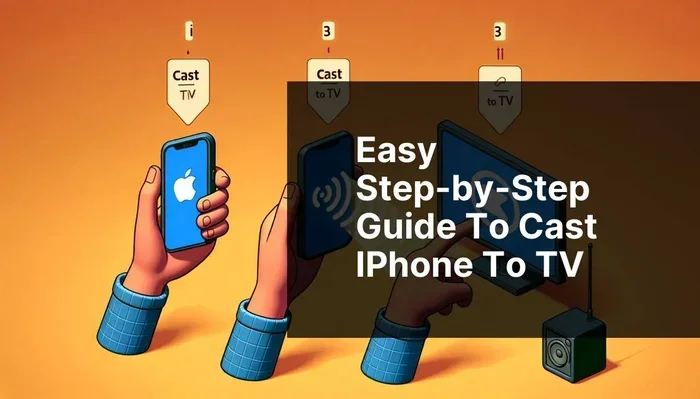
The good news is that Apple makes it pretty simple to mirror your iPhone screen. You can go the wired route with an adapter, or you can go wireless with AirPlay. Both methods work great, and we will break down the pros and cons of each below.
Key Takeaways
- Wired and wireless options both work: You can connect your iPhone to a projector using an HDMI adapter or through AirPlay and wireless streaming.
- Lightning to HDMI adapters are the easiest wired solution: They give you a reliable connection with minimal setup.
- Wireless mirroring is great for convenience: Tools like AirPlay and Apple TV let you go cable-free.
- Projector brightness matters: A brighter projector gives you a clearer picture, especially in well-lit rooms.
- Audio can be handled separately: You can use Bluetooth speakers or the projector’s built-in speakers for sound.
- Common mistakes can ruin your experience: Avoid using cheap adapters and always check resolution compatibility.
📑 Table of Contents
- Why Connect Your iPhone to a Projector?
- Method 1: Wired Connection with an HDMI Adapter
- Method 2: Wireless Connection with AirPlay
- Method 3: Using a Streaming Device with Your Projector
- Audio: How to Get Sound from Your iPhone to the Projector
- Choosing the Right Projector for iPhone Use
- Common Mistakes to Avoid
- Expert Insights for the Best Big Screen Experience
- Comparison: Wired vs. Wireless iPhone to Projector
- Final Thoughts
Why Connect Your iPhone to a Projector?
There are so many reasons to hook up your iPhone to a projector. It is not just about watching movies. Here are some of the most popular reasons people do this every day:
- Movie nights outdoors: Turn any wall or blank surface into a giant cinema screen.
- Photo sharing: Show off your vacation pics or family photos at gatherings.
- Gaming on a big screen: Play mobile games with a much larger display for a more immersive feel.
- Work presentations: Share slides, videos, and documents with a room full of people.
- Streaming content: Watch Netflix, YouTube, or Disney Plus on a screen that is way bigger than your phone.
No matter your reason, the process is straightforward. Let us dive into the different ways you can make it happen.
Method 1: Wired Connection with an HDMI Adapter
What You Need for a Wired Setup
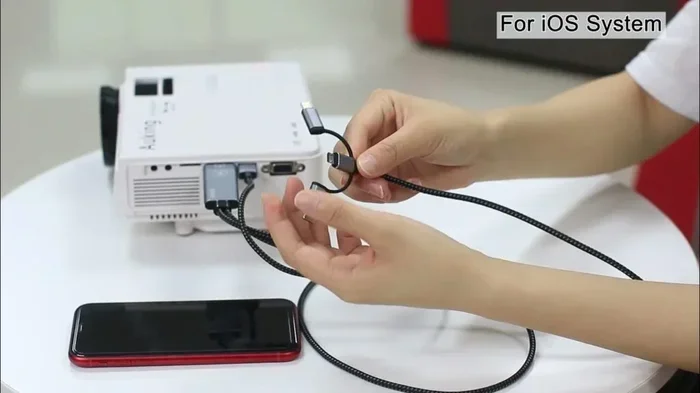
A wired connection is the most reliable way to use your iPhone with a projector. You need two things: a Lightning to HDMI adapter and an HDMI cable. Most iPhones made after 2012 use a Lightning port, so you will need an adapter that matches.
Here is a simple list of what you need:
- A Lightning to HDMI adapter (Apple makes a certified one, and there are affordable third-party options too).
- An HDMI cable (make sure it is a good quality cable).
- A projector with an HDMI input port.
Once you have these, the setup is super easy. Plug the adapter into your iPhone, connect the HDMI cable to the adapter, and plug the other end into your projector. Switch your projector to the correct HDMI input, and your iPhone screen should appear on the big screen right away.
If you have ever connected a phone to a projector with HDMI, you already know this process works smoothly. The same idea applies here with an iPhone.
Pros and Cons of Wired Connections
Every connection method has its strengths and weaknesses. Here is a quick look at what wired connections offer:
- Pros: Stable connection, no lag, no Wi-Fi needed, and great for presentations where reliability matters.
- Cons: You are tethered to the projector, limited cable length, and adapters can sometimes be finicky.
For most people, the wired method is the go-to choice. It just works. There is no buffering, no connection drops, and no weird delays. If you want a rock-solid setup, go wired.
Method 2: Wireless Connection with AirPlay
How AirPlay Works with Projectors
Wireless connections are where things get really fun. Apple’s AirPlay lets you mirror your iPhone screen without any cables. To use AirPlay, you need a projector that supports it. Some modern projectors have built-in AirPlay compatibility, which makes life super easy.
If your projector does not support AirPlay natively, you can use an Apple TV box. Plug the Apple TV into your projector’s HDMI port, and then you can AirPlay directly from your iPhone. It is a clean, cable-free setup that looks great.
If you already know how to connect your iPhone to your TV with HDMI, the wireless route is a nice step up. You get the same big screen experience without the clutter of cables everywhere.
Setting Up AirPlay for Your Projector
Here is how to get AirPlay working with your projector in just a few steps:
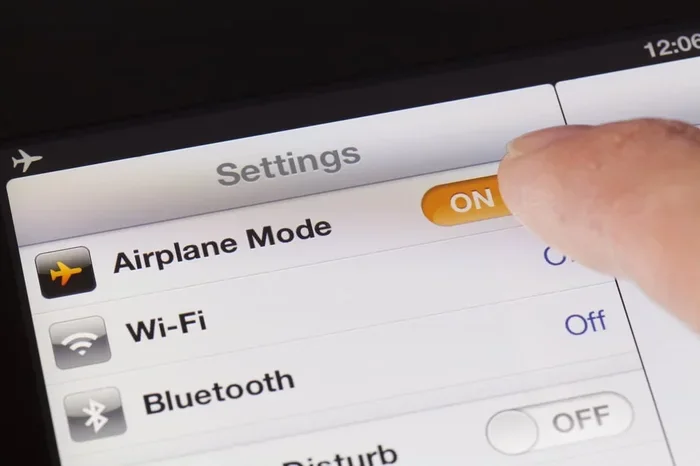
- Make sure your iPhone and the projector (or Apple TV) are on the same Wi-Fi network.
- Open the Control Center on your iPhone by swiping down from the top right corner.
- Tap the Screen Mirroring icon.
- Select your projector or Apple TV from the list.
- Your iPhone screen is now mirrored on the big screen!
That is it. No cables, no adapters, no hassle. Just pick a movie and enjoy it on a massive display.
Pros and Cons of Wireless Connections
- Pros: No cables, freedom to move around, easy setup, and great for casual use.
- Cons: Slight lag possible, depends on Wi-Fi quality, and may not be ideal for fast-paced gaming.
Wireless is perfect for movie nights and casual sharing. If you need pixel-perfect precision for gaming or fast-moving video, a wired connection might be better. But for most everyday uses, wireless works beautifully.
Method 3: Using a Streaming Device with Your Projector
Another great option is to use a streaming stick or device with your projector. Devices like a Fire Stick or Chromecast can plug right into your projector’s HDMI port. You then control everything from your iPhone.
You might be wondering, can you use a Fire Stick on a projector? The answer is yes! Many projectors have HDMI ports that work perfectly with streaming sticks. This gives you access to all your favorite apps without needing to mirror your screen.
This method is especially handy if you want to use apps like Netflix, Hulu, or YouTube directly on the projector without draining your iPhone battery. Your phone becomes a remote control, and the projector does all the heavy lifting.
Audio: How to Get Sound from Your iPhone to the Projector
Built-In Projector Speakers vs. External Options
Sound is just as important as the picture. Most projectors have small built-in speakers, and they are okay for casual viewing. But if you want better audio quality, you have several options.
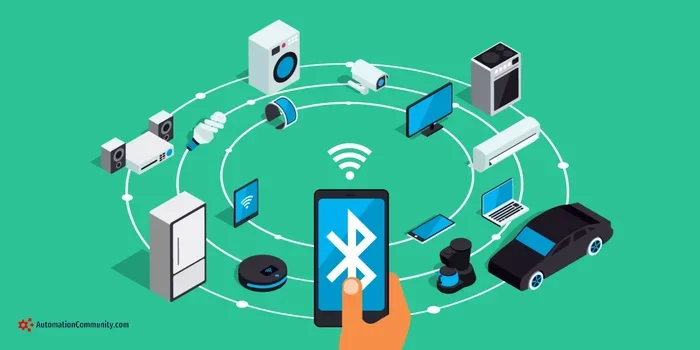
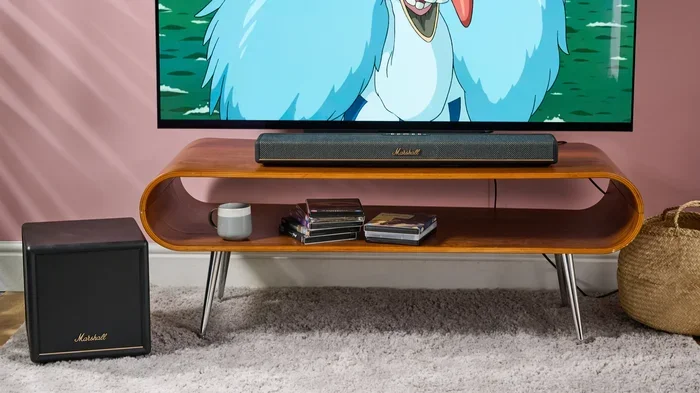
You can use Bluetooth speakers, a soundbar, or even your home theater system. If you are using a wired HDMI connection, audio usually travels through the HDMI cable automatically. With wireless connections, you might need to pair your speakers separately.
For a really immersive setup, consider using HDMI for video and Bluetooth for audio. This gives you great picture quality through the cable and flexible sound through a wireless speaker. It is the best of both worlds.
Quick Tips for Better Audio
- Place your Bluetooth speaker close to the projector for a stable connection.
- If using a soundbar, check that it has an HDMI input or an optical port.
- Adjust your iPhone volume separately from the projector volume for the best balance.
- For outdoor setups, a portable Bluetooth speaker works great and is easy to carry around.
Choosing the Right Projector for iPhone Use
Not all projectors are created equal. If you want the best experience when using your iPhone, here are some things to look for:
Brightness
Projector brightness is measured in lumens. For indoor use, 1,000 to 2,000 lumens is usually enough. If you plan to use your projector outdoors or in bright rooms, go for 3,000 lumens or higher. A brighter projector means a clearer, more visible image.
Resolution
Look for a projector with at least 1080p resolution. This gives you a sharp, clear picture that looks great on a big screen. Some projectors now offer 4K resolution, which is amazing but also more expensive.
Port Options
Make sure your projector has at least one HDMI port. This is the most important port for connecting your iPhone. Some projectors also offer USB ports, VGA inputs, or even wireless connectivity built in.
Portability
If you want to take your projector on trips or to outdoor gatherings, look for a compact, lightweight model. Many portable projectors today are small enough to fit in a backpack and still deliver great picture quality.
Common Mistakes to Avoid
Even though connecting an iPhone to a projector is simple, there are a few common mistakes that can ruin your experience. Here is what to watch out for:
- Using a cheap, uncertified adapter: This can cause flickering, no signal, or even damage your iPhone. Stick with certified adapters or reputable brands.
- Ignoring Wi-Fi quality for wireless connections: A weak Wi-Fi signal means lag and stuttering. Make sure you have a strong, stable connection.
- Not checking the projector input: Always switch your projector to the correct HDMI input before troubleshooting.
- Forgetting to charge your iPhone: Screen mirroring uses a lot of battery. Keep your phone plugged in during long viewing sessions.
- Using a dark room when the projector is low on lumens: Even a dim room can wash out the picture if your projector is not bright enough.
Expert Insights for the Best Big Screen Experience
Getting the most out of your iPhone and projector setup comes down to a few smart choices. Here is what the pros recommend:
Always test your setup before the big event. Do a trial run before movie night or a presentation. This gives you time to fix any issues and adjust the picture settings.
Invest in a good adapter. The Lightning to HDMI adapter is the bridge between your iPhone and the projector. A quality adapter ensures a stable, clear connection every time. Do not cheap out on this small but critical piece of gear.
Consider your room layout. The distance between your projector and the screen affects image size and sharpness. Most projectors work best at a specific throw distance. Check your projector manual for the ideal setup distance.
Use a tripod or stable surface for your projector. Even a slight shake can blur the image, especially in dark rooms. A stable setup makes a big difference in picture quality.
Keep your iPhone updated. Apple regularly improves screen mirroring and AirPlay performance through software updates. Make sure your iPhone is running the latest iOS version for the best experience.
Comparison: Wired vs. Wireless iPhone to Projector
Still not sure which method is right for you? Here is a quick comparison to help you decide:
| Feature | Wired (HDMI Adapter) | Wireless (AirPlay) |
|---|---|---|
| Reliability | Very high | Good (depends on Wi-Fi) |
| Setup ease | Easy | Very easy |
| Cable clutter | Yes | No |
| Lag or delay | None | Slight possible |
| Best for | Presentations, gaming | Movies, casual sharing |
| Cost | Low to moderate | Moderate (may need Apple TV) |
Both methods work great. Your choice depends on what matters most to you. If you want zero lag and total reliability, go wired. If you want convenience and freedom, go wireless.
Final Thoughts
Using your iPhone with a projector is one of the best ways to enjoy your favorite content on a big screen. Whether you choose a wired HDMI adapter or go wireless with AirPlay, the process is simple and the results are fantastic.
Start with the basics: get the right adapter or streaming device, set up your projector in the right spot, and test everything before your main event. With the right setup, you can turn any room into a home theater or any wall into a giant display.
The beauty of this setup is its flexibility. You can go wired for reliability or wireless for convenience. You can use your projector for movies, gaming, photos, or presentations. The possibilities are really endless once you know how to connect your iPhone.
So grab your iPhone, pick your favorite projector, and get ready for some big screen fun. You will wonder how you ever watched content on such a small phone screen.
Frequently Asked Questions
Can I use any HDMI adapter with my iPhone?
Not all adapters work equally well. Apple’s official Lightning to HDMI adapter is the most reliable. Third-party adapters can work too, but make sure they are certified for MFi (Made for iPhone). Cheap, uncertified adapters may cause flickering or no signal at all.
Do I need Wi-Fi to connect my iPhone to a projector wirelessly?
Yes, for AirPlay and wireless mirroring, both your iPhone and the projector (or Apple TV) need to be on the same Wi-Fi network. A strong, stable connection gives you the best experience with no lag or interruptions.
Can I charge my iPhone while using it with a projector?
Yes, you can. If you are using a wired HDMI adapter, look for one that passes through charging. This lets you plug in a Lightning cable while the adapter is connected to your iPhone, so your battery stays topped up during long viewing sessions.
What is the best projector for iPhone screen mirroring?
Any projector with an HDMI input works well for wired connections. For wireless mirroring, look for projectors with built-in AirPlay support or pair your projector with an Apple TV box. Brightness and resolution are the two most important specs to focus on.
Can I use my iPhone with a projector for gaming?
Absolutely. A wired HDMI connection is best for gaming because it has zero lag. Make sure your projector has a low input lag for the smoothest gaming experience. Wireless connections work too but may have slight delays that affect fast-paced games.
Will screen mirroring drain my iPhone battery quickly?
Yes, screen mirroring uses quite a bit of battery because your phone is constantly processing and sending video output. To avoid running out of power, keep your iPhone plugged into a charger during extended use, or invest in a portable power bank for longer sessions.