Can You Pair Airpods With Switch Heres the Full Guide
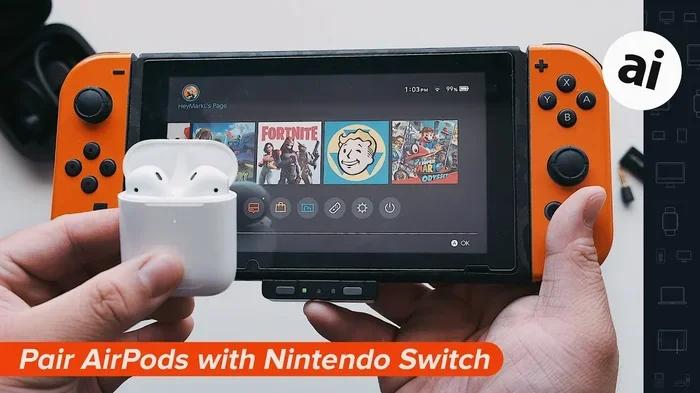
Yes, you can pair AirPods with a Nintendo Switch, but it requires a few extra steps since the Switch does not support direct Bluetooth audio. You will need a compatible Bluetooth adapter or use a workaround to get your AirPods connected. This guide covers every method, from using a USB Bluetooth transmitter to wired workarounds, so you can enjoy lag-free gaming audio on your Switch.
If you are a Nintendo Switch player who loves your AirPods, you have probably wondered whether you can use them with your console. The short answer is yes, but the full story is a bit more involved. The Nintendo Switch does not offer native Bluetooth audio support, which means you cannot simply open the Bluetooth menu and connect your AirPods like you would with a phone or computer.
That does not mean you are out of luck though. There are several reliable methods to get your AirPods working with the Switch. Whether you want to play Mario Kart late at night without disturbing anyone or dive into Zelda with immersive wireless sound, this guide has you covered. We will walk through every option, from the easiest wired workaround to the best Bluetooth adapters on the market.
By the end of this article, you will know exactly how to pair AirPods with Switch, what gear you need, and how to avoid common pitfalls like audio delay and connection drops. Let us get started.
Key Takeaways
- The Nintendo Switch does not have native Bluetooth audio support: You cannot pair AirPods directly without extra hardware.
- A USB Bluetooth transmitter is the best solution: It plugs into the Switch dock and sends audio wirelessly to your AirPods.
- Wired workarounds exist too: You can use a 3.5mm cable or the Switch headset adapter for a simple connection.
- Audio lag is a common concern: Choosing the right Bluetooth adapter minimizes delay during gameplay.
- AirPods work well for casual gaming: They are a solid wireless alternative to traditional Switch headsets.
- Troubleshooting is straightforward: Most connection issues can be fixed with simple resets or firmware updates.
📑 Table of Contents
- Why Does the Switch Not Support Direct Bluetooth Audio?
- Method 1: Using a USB Bluetooth Transmitter
- Method 2: The Wired Headset Adapter
- Method 3: Using the Switch Lite 3.5mm Headphone Jack
- Can You Use AirPods Max or AirPods Pro With the Switch?
- Dealing With Audio Lag and Connection Issues
- Best Practices for Using AirPods With Your Switch
- Is It Worth Using AirPods Instead of a Dedicated Switch Headset?
- Final Thoughts
Why Does the Switch Not Support Direct Bluetooth Audio?
The Nintendo Switch uses Bluetooth for its controllers, not for audio. The console relies on a proprietary wireless protocol to connect Joy-Cons and the Pro Controller. This design choice was made to keep the wireless bandwidth focused on input devices, which need a fast and stable connection for responsive gameplay.
Bluetooth audio would compete for the same wireless resources, and Nintendo likely wanted to avoid any interference that could cause input lag. While this makes sense from a technical standpoint, it is frustrating for players who want the freedom of wireless headphones.
The good news is that the Switch community and accessory manufacturers have found clever workarounds. You can absolutely enjoy wireless audio with your AirPods. You just need the right tool to bridge the gap between the console and your headphones.
Method 1: Using a USB Bluetooth Transmitter
This is the most popular and effective way to connect AirPods to a Nintendo Switch. A USB Bluetooth transmitter plugs into the USB port on the Switch dock and sends audio wirelessly to your headphones.
How It Works
The transmitter receives the audio signal from the Switch through the dock and broadcasts it via Bluetooth to your AirPods. Most modern transmitters support Bluetooth 5.0 or higher, which provides a strong and stable connection with minimal lag.
Here is what you need to do:
- Plug the Bluetooth transmitter into the USB port on the Switch dock.
- Put your AirPods in pairing mode by holding the button on the back of the case.
- Put the transmitter in pairing mode using its own button or switch.
- Select the transmitter from your AirPods Bluetooth menu on your iPhone or iPad.
- Once paired, audio from the Switch will stream directly to your AirPods.
What to Look For in a Bluetooth Transmitter
Not all transmitters are created equal. When shopping for one, look for these features:
- Bluetooth 5.0 or higher: This ensures a stable connection and lower latency.
- Low-latency codec support: Some transmitters support aptX LL (low latency), which reduces audio delay significantly.
- Dual pairing capability: This lets you connect two pairs of headphones at once, great for co-op gaming.
- USB-powered design: It should draw power from the dock and not require a separate charger.
If you are looking for alternatives, check out our guide on Can I Use Bluetooth Headphones With Switch for more adapter recommendations.
Method 2: The Wired Headset Adapter
If you do not want to deal with Bluetooth at all, Nintendo sells a wireless headset adapter that works with the Switch dock. This small dongle connects to the USB port and comes with a 3.5mm jack for wired headsets.
You can use this adapter with a simple 3.5mm audio cable to connect your AirPods wired. The AirPods have a built-in microphone and audio output through their charging case. You can plug a 3.5mm cable from the adapter into the case and get audio that way.
This method works, but it is not the most elegant solution. You will need to keep your AirPods in their case while playing, which means you cannot use them in-ear wirelessly. It is more of a backup option than a primary setup.
Pros and Cons of the Wired Approach
| Pros: | Cons: |
| No audio lag at all | AirPods must stay in the charging case |
| Uses official Nintendo accessories | Not truly wireless |
| Very affordable | Cable management can be annoying |
| Works with any 3.5mm headset | Less convenient than Bluetooth |
Method 3: Using the Switch Lite 3.5mm Headphone Jack
If you own a Nintendo Switch Lite, you have a built-in 3.5mm headphone jack on the console itself. This opens up another option for using your AirPods. You can connect them using a Lightning to 3.5mm adapter or a USB-C to 3.5mm adapter, depending on which AirPods model you have.
For AirPods with a Lightning connector (AirPods 2nd generation or earlier), you can plug a Lightning to 3.5mm adapter into the Switch Lite jack and then connect your AirPods to the adapter. This gives you wireless audio while the Switch Lite is handheld.
For newer AirPods with a USB-C charging case, a USB-C to 3.5mm adapter works similarly. The Switch Lite has a USB-C port, so this connection is straightforward.
Keep in mind that this only works when the Switch Lite is in handheld mode. When it is docked, you would need a different approach since the dock does not have a headphone jack.
Can You Use AirPods Max or AirPods Pro With the Switch?
Yes, all AirPods models can work with the Nintendo Switch, including AirPods Max, AirPods Pro, and the standard AirPods. The connection method remains the same across all models. You will still need a Bluetooth transmitter or a wired adapter to get them connected.
AirPods Pro and AirPods Max have active noise cancellation, which is a nice bonus when you are gaming. You can block out background noise and focus entirely on your game. The spatial audio feature on AirPods Max also adds a nice immersive touch to supported titles.
One thing to keep in mind is battery life. AirPods Max have excellent battery life, lasting up to 20 hours on a single charge. Standard AirPods and AirPods Pro typically last around 4 to 6 hours per charge. For longer gaming sessions, you might want to have a charging case nearby.
If you are curious about using AirPods with other gaming consoles, we have a detailed article on Can I Use Airpods With Ps5 that covers PlayStation as well.
Dealing With Audio Lag and Connection Issues
Audio lag is the number one complaint people have when using wireless headphones with the Switch. It is that annoying delay between when you see something happen on screen and when you hear the sound. In fast-paced games like Smash Bros or Rocket League, even a small delay can throw off your timing.
How to Minimize Audio Lag
Here are some proven tips to reduce or eliminate audio delay:
- Choose a low-latency Bluetooth transmitter: Look for models that support aptX LL or similar low-latency codecs.
- Keep your Switch close to the transmitter: Distance weakens the Bluetooth signal and increases lag.
- Avoid wireless interference: Keep your setup away from Wi-Fi routers, microwaves, and other Bluetooth devices.
- Update your transmitter firmware: Manufacturers often release updates that improve performance and reduce latency.
- Use a wired connection when possible: If lag is unbearable, a 3.5mm cable is still the most reliable option.
Most gamers find that a quality Bluetooth 5.0 transmitter reduces lag to the point where it is barely noticeable. For casual gaming and single-player adventures, the difference is hardly ever a problem.
Common Connection Problems and Fixes
If your AirPods keep disconnecting or will not pair, try these steps:
- Reset your AirPods by holding the button on the back of the case for 15 seconds until the LED flashes amber, then white.
- Reset the Bluetooth transmitter by turning it off and on again.
- Remove the transmitter from your AirPods Bluetooth list and re-pair from scratch.
- Make sure your AirPods are fully charged before attempting to pair.
- Move the transmitter closer to the AirPods during the initial pairing process.
For more Bluetooth troubleshooting tips, you can also check out our article on Can You Airdrop On Just Wi Fi which covers common wireless connectivity issues.
Best Practices for Using AirPods With Your Switch
To get the best experience when using your AirPods with the Nintendo Switch, follow these simple best practices:
- Keep your AirPods charged: Nothing ruins a gaming session faster than dying headphones. Get in the habit of charging them after each use.
- Use a dedicated Bluetooth transmitter: Do not try to pair AirPods directly through the Switch settings. It will not work without the extra hardware.
- Test your setup before a big gaming session: Spend a few minutes making sure everything connects properly and the audio sounds good.
- Consider a dual-pairing transmitter: If you play with a friend, you can both connect your wireless headphones to the same transmitter.
- Store your AirPods in their case when not in use: This protects them and keeps the battery healthy for the long term.
Many players also ask whether they can use AirPods while the Switch is connected to a TV. The answer is yes, as long as the Bluetooth transmitter is plugged into the dock. The audio will route through the dock and stream wirelessly to your AirPods while the game displays on your television.
For those who want to explore more wireless audio options, our piece on Can I Pair Bluetooth Headphones To Xbox One offers great insights that apply to gaming audio in general.
Is It Worth Using AirPods Instead of a Dedicated Switch Headset?
This is a question many Switch players ask themselves. Dedicated gaming headsets like the Nintendo Switch Online headset or third-party options from brands like SteelSeries and Turtle Beach offer features designed specifically for gaming. They often have better microphones, surround sound, and lower latency than standard Bluetooth headphones.
However, AirPods have their own advantages. They are comfortable for long sessions, they work across multiple devices, and most people already own them. If you already have a pair of AirPods, buying a dedicated Switch headset might not be worth the extra cost.
The main trade-off is audio quality and microphone performance. AirPods are designed for phone calls and music, not competitive gaming. The microphone on AirPods works fine for voice chat in casual games, but it may not sound as clear as a gaming headset microphone during intense online matches.
For most casual and mid-core players, AirPods are a perfectly fine alternative to a dedicated Switch headset. Competitive gamers who need the best possible audio and microphone quality might still want to invest in a proper gaming headset.
Final Thoughts
So, can you pair AirPods with the Nintendo Switch? Absolutely. While the Switch does not support direct Bluetooth audio, you have several reliable workarounds at your disposal. A USB Bluetooth transmitter is the most popular and effective method, giving you true wireless freedom while you game.
Whether you choose to go wireless with a transmitter, use a wired adapter, or take advantage of the Switch Lite headphone jack, getting your AirPods connected to the Switch is straightforward and well worth the effort. Just remember to pick a low-latency transmitter, keep your gear charged, and enjoy your gaming sessions with crisp wireless audio.
Now that you know exactly how to set it up, grab your AirPods, fire up your Switch, and dive into your favorite games with the freedom of wireless sound. Happy gaming!
Frequently Asked Questions
Can I connect AirPods directly to the Nintendo Switch without any extra equipment?
No, the Nintendo Switch does not support native Bluetooth audio. You will need a USB Bluetooth transmitter or a wired adapter to connect your AirPods to the console. The Switch uses Bluetooth only for its controllers, not for audio output.
Does using AirPods with the Switch cause audio lag?
Audio lag depends on the Bluetooth transmitter you use. A quality Bluetooth 5.0 transmitter with low-latency support keeps the delay minimal and barely noticeable for most games. Fast-paced competitive games may still show a slight delay, but casual gaming is not affected.
Can I use AirPods with the Switch while it is docked to the TV?
Yes, you can. Simply plug the Bluetooth transmitter into the USB port on the Switch dock, pair your AirPods with the transmitter, and audio will stream wirelessly to your headphones while the game displays on your TV.
Which AirPods models work with the Nintendo Switch?
All AirPods models work with the Switch, including standard AirPods, AirPods Pro, and AirPods Max. The connection method is the same for all models, requiring either a Bluetooth transmitter or a wired adapter.
Can two players use wireless headphones with one Switch using AirPods?
Yes, if you use a dual-pairing Bluetooth transmitter, two pairs of AirPods can connect to the same transmitter at the same time. This is great for co-op gaming sessions where both players want wireless audio.
Is a Bluetooth transmitter better than a wired connection for Switch audio?
A Bluetooth transmitter offers more freedom and convenience since there are no cables to manage. However, a wired connection provides zero audio lag and more reliable performance. For competitive gaming, a wired setup is usually the better choice.