Can I Update My Old Computer to Make It Run Faster
Can I Update My Old Computer to make it run faster? The answer is yes — and it is easier than you think. With the right hardware upgrades and software tweaks, your aging machine can feel brand new again. This guide covers everything from SSD upgrades and RAM boosts to free software fixes that deliver real results. Read on to discover the best ways to speed up your old computer without spending a fortune.
Your old computer sits on the desk, humming slowly. Every click feels like a wait. Every program takes forever to open. You wonder if it is time to throw it away and buy something new. But before you do, ask yourself this question: Can I Update My Old Computer to make it run faster?
The truth might surprise you. In many cases, a few smart upgrades can breathe new life into an aging machine. You do not need to be a tech expert. You do not need to spend a fortune. With the right approach, your old computer can feel surprisingly fast again.
This guide walks you through everything you need to know. We will cover hardware upgrades, software fixes, common mistakes, and costs. By the end, you will know exactly whether updating your old computer makes sense for you. Let us dive in.
Key Takeaways
- Yes, you can update an old computer: Most older machines benefit from simple hardware swaps like SSDs and extra RAM.
- Software updates matter too: Cleaning up your system and updating drivers can add noticeable speed for free.
- Know when to stop: Some upgrades cost more than a new budget computer, so weigh your options carefully.
- Back up first: Always save your data before making any hardware changes to avoid losing files.
- Check compatibility: Not every part works with every old machine, so verify specs before buying.
- Thermal care helps: Cleaning dust and replacing thermal paste can instantly improve performance and lifespan.
📑 Table of Contents
Why Old Computers Slow Down Over Time
Before we talk about fixes, let us understand the problem. Old computers do not slow down by accident. Several factors work together to drag performance down over months and years.
Hardware Aging and Wear
Every piece of hardware has a lifespan. Hard drives wear out. Batteries lose their charge. Fans collect dust and struggle to cool components. As parts age, they simply cannot keep up with modern demands. Even if you take perfect care of your machine, physical wear is inevitable.
One of the biggest culprits is the traditional hard disk drive, or HDD. These drives use spinning metal plates to read and write data. Over time, they become slower and more prone to failure. This is often the single biggest reason an old computer feels sluggish.
Software Bloat and Clutter
Hardware is only half the story. Software plays a huge role too. Over the years, your computer accumulates files, programs, and background processes. Some of these you installed. Many of them you did not even notice.
Every operating system update adds new features. These features require more processing power and memory. Meanwhile, old programs leave behind temporary files, registry entries, and startup entries. All of this adds up. Your computer works harder just to do the same tasks it handled easily years ago.
Quick Tips: Signs Your Computer Needs an Update
- Your computer takes more than two minutes to boot up.
- Programs freeze or crash more often than before.
- You hear the fan running loudly even during simple tasks.
- Your battery drains much faster than it used to.
- Simple actions like opening a web browser feel sluggish.
- Your computer speed has noticeably declined over the past year.
If you notice several of these signs, it is time to consider an old computer update. The good news is that many fixes are simple and affordable.
Can I Update My Old Computer? The Short Answer
The short answer is yes. In most cases, you can update an old computer and see meaningful improvements. But the longer answer depends on several factors. The age of your machine, its current specs, and your budget all play a role.
Let us break this down. A computer from five years ago is a great candidate for upgrades. A computer from ten years ago might have more limited options. Either way, there is almost always something you can do to improve performance.
Hardware Upgrades That Make a Real Difference
Not all upgrades deliver the same results. Some upgrades transform your computer. Others make only a small difference. Here are the upgrades that deliver the biggest impact on computer performance:
- SSD upgrade: Replacing an old hard drive with a solid state drive is the single most effective upgrade. It slashes boot times and makes programs launch instantly.
- RAM upgrade: Adding more memory helps your computer handle multiple tasks at once. It is especially helpful if you use your computer for work or school.
- Battery replacement: For laptops, a new battery can restore portability and freedom.
- Thermal paste replacement: This simple fix lowers temperatures and prevents throttling.
- Driver and firmware updates: These free updates keep your hardware communicating properly with your system.
Upgrades That Are Not Worth the Money
On the other hand, some upgrades give you very little return. Here is what to avoid:
- Upgrade processor: In most old computers, the processor is soldered to the motherboard. You cannot swap it out. Even if you can, the cost often exceeds the value.
- New graphics card: Unless your computer was designed for upgrades, a new GPU may not fit or work properly.
- New motherboard: Replacing the motherboard essentially means rebuilding the computer. At that point, a new machine makes more sense.
Understanding what to upgrade and what to skip saves you time and money. Focus on the high-impact changes and skip the rest.
Upgrade vs Replace: A Quick Comparison
| Factor | Update Old Computer | Buy New Computer |
|---|---|---|
| Cost | $50 to $200 for key upgrades | $400 to $1,200+ |
| Time Investment | 1 to 3 hours for most upgrades | Hours setting up and transferring data |
| Performance Gain | Noticeable but not revolutionary | Significant and long-lasting |
| Environmental Impact | Lower — reduces e-waste | Higher — old computer may be discarded |
| Data Transfer | Keep everything as-is | Requires manual migration |
| Best For | Computers 3-7 years old | Computers older than 7 years |
This comparison shows that updating your old computer often wins on cost and convenience. But it is not always the right choice. Let us look at the specific upgrades in more detail.
Top Hardware Upgrades to Speed Up Your Old Computer
If you decide to move forward, here are the upgrades that deliver the best results. Each one targets a different bottleneck that slows down aging machines.
Switch to a Solid State Drive
This is the upgrade that changes everything. A solid state drive, or SSD, has no moving parts. It reads and writes data electronically. The result is dramatically faster boot times, quicker file transfers, and snappier overall performance.
Replacing an old hard drive with an SSD is one of the easiest upgrades you can do. Most SSDs connect the same way as traditional drives. Many computers from the last decade accept standard 2.5-inch SSDs. Some even support M.2 NVMe drives, which are even faster.
Here is what you can expect after an SSD upgrade:
- Boot time drops from 2-3 minutes to 15-30 seconds.
- Programs open almost instantly.
- File searches become nearly instantaneous.
- Overall system responsiveness improves dramatically.
A 500GB SSD typically costs between $30 and $50. A 1TB SSD costs $50 to $80. For most people, this is the best upgrade they can make to their old computer.
Add More RAM for Better Multitasking
RAM, or random access memory, is your computer’s short-term workspace. When you run programs, they live in RAM. The more RAM you have, the more tasks your computer can handle at once.
Old computers often come with 4GB of RAM or less. That was enough years ago. Today, even basic tasks like browsing the web use more memory than that. Adding RAM can transform how your computer handles everyday work.
Most modern computers use DDR4 RAM. Some older machines use DDR3. Check your computer’s specifications before buying. RAM upgrades are usually simple — often just removing a panel and snapping in a new module.
For most users, 8GB of RAM is the sweet spot. Power users who run heavy applications may want 16GB. A RAM upgrade typically costs $20 to $40.
Replace Your Battery and Clean the Cooling System
If you have a laptop, battery health matters a lot. After a few years, batteries lose capacity. Your laptop might last only 30 minutes on a charge. A replacement battery costs $20 to $60 and can restore your mobility.
While you are at it, clean the cooling system. Dust buildup inside the computer restricts airflow. This causes components to heat up. When components get too hot, they slow down to protect themselves. This is called thermal throttling.
Use compressed air to blow dust out of the vents and fans. If your computer is several years old, consider applying fresh thermal paste to the processor. This inexpensive compound helps transfer heat away from the CPU. It costs about $5 to $10 and can lower temperatures by 10 to 15 degrees.
Key Takeaways: Hardware Upgrades
- SSD upgrade: The single biggest performance boost for any old computer.
- RAM upgrade: Essential for multitasking and smooth performance.
- Battery replacement: Restores laptop portability and freedom.
- Thermal maintenance: Keeps your computer cool and prevents slowdowns.
Software Updates That Can Transform Performance
Hardware upgrades are powerful, but do not overlook the software side. Sometimes a few free changes can make your old computer feel much faster. You do not need to buy anything.
Refresh Your Operating System
Over time, your operating system accumulates unnecessary files and settings. A fresh install can work wonders. This wipes the slate clean and removes years of digital clutter.
Before you do this, back up all your important files. Use an external hard drive or a cloud service. Once backed up, you can reinstall your operating system from scratch. The process takes a few hours, but the results are often dramatic.
If a full reinstall sounds too drastic, you can also try a system reset. Both Windows and macOS offer built-in options to refresh your system while keeping your personal files. This is a less aggressive approach that still cleans up a lot of junk.
Update Your Drivers and Firmware
Drivers are the software that tells your hardware how to communicate with your operating system. Outdated drivers can cause slow performance, crashes, and compatibility issues.
Check for driver updates regularly. Your computer manufacturer likely has a support page where you can download the latest drivers for your specific model. Focus on graphics drivers, network drivers, and chipset drivers. These have the biggest impact on daily performance.
Firmware updates work similarly. They update the software built into your hardware components. Check your computer manufacturer’s website for firmware updates. Applying these is usually free and takes just a few minutes.
Clean Up Your System for Free Speed
Even without a fresh install, you can clean up your system in several ways. These steps take minutes and cost nothing:
- Uninstall programs you no longer use. Go through your installed programs list and remove anything you do not need. Each program takes up space and may run background processes.
- Disable startup programs. Many programs launch automatically when you turn on your computer. They run in the background even when you are not using them. Disabling unnecessary startup items frees up memory and processing power.
- Run disk cleanup. Both Windows and macOS have built-in tools that remove temporary files, cache data, and other clutter.
- Clear your browser cache. Over time, your web browser stores gigabytes of temporary data. Clearing this can speed up browsing significantly.
- Check for malware. Malicious software runs secretly in the background, consuming resources. Run a full system scan with a trusted antivirus program.
These simple steps often surprise people with how much faster their computer feels. You do not need any special tools — just a little time and attention.
Expert Insights
Tech professionals often say the same thing: start with software before spending money on hardware. A clean system with updated drivers and minimal bloat runs noticeably faster than a cluttered one. Only after you have optimized the software should you invest in hardware upgrades.
Common Mistakes People Make When Upgrading Old Computers
Upgrading an old computer is straightforward, but mistakes happen. Avoiding these common errors saves you time, money, and frustration.
Buying Incompatible Parts
This is the most common mistake. Not every part fits every computer. Before you buy anything, check your computer’s specifications. Look for details about your motherboard, available slots, and supported hardware types.
For example, some older computers use SATA connections for storage. Others use IDE, which is much older. Buying a drive that does not match your computer’s connection type means it will not work. Always verify compatibility before making a purchase.
Skipping the Data Backup
Whenever you open up your computer or make major changes, you risk data loss. A loose cable, a static shock, or a simple mistake can erase important files. Always back up your data before starting any upgrade project.
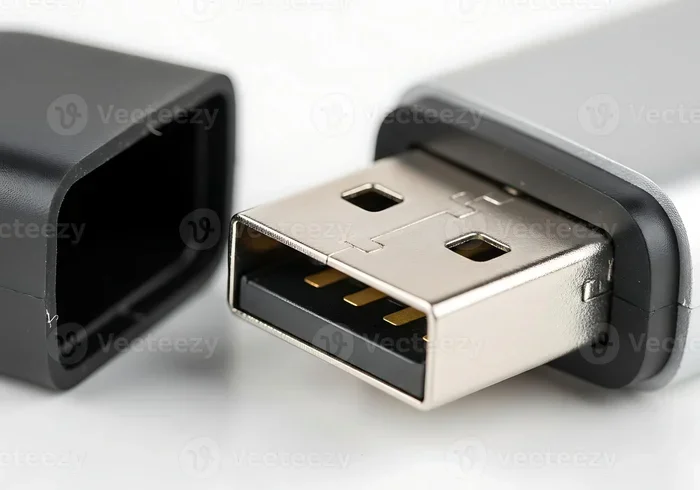
Use an external hard drive, a USB flash drive, or a cloud backup service. It takes a little time, but it protects your irreplaceable photos, documents, and memories. This is not optional — it is essential.
Overlooking Thermal and Dust Issues
Many people focus on performance upgrades but ignore the physical condition of their computer. Dust buildup causes overheating. Overheating causes slowdowns. It also shortens the lifespan of your components.
Open your computer and inspect the interior. If you see thick dust on the fans and heat sinks, clean it. Use compressed air and a soft brush. This simple maintenance task costs nothing and makes a real difference.
Underestimating the Cost
Individual upgrades are affordable. But multiple upgrades add up quickly. Before you start, set a budget and stick to it. Decide which upgrades matter most and prioritize those. If the total cost approaches half the price of a new computer, it may be time to reconsider.
Common Mistakes to Avoid
- Buying incompatible parts without checking specs first.
- Forgetting to back up data before making changes.
- Ignoring dust and thermal issues that cause slowdowns.
- Spending more on upgrades than a new budget computer would cost.
- Upgrading the wrong component for your specific bottleneck.
Is It Worth Updating Your Old Computer?
By now, you have seen the options. But the big question remains: is it worth it? The answer depends on your situation.
Cost-Benefit Analysis
Let us look at the numbers. A typical upgrade package for an old computer includes an SSD and extra RAM. Together, these cost about $60 to $120. The performance improvement is significant. Boot times drop by 70 to 80 percent. Everyday tasks feel much faster.
Compare that to buying a new computer. Even a budget new computer costs $400 or more. The performance gain from a new machine is certainly larger. But the cost is also much higher.
For most people with computers that are 3 to 7 years old, updating is the smarter choice. You get faster performance at a fraction of the cost. You also keep your existing files, settings, and programs in place.
When to Upgrade vs When to Replace
Here is a simple guide to help you decide:
- Upgrade if: Your computer is less than 7 years old, the hardware is upgradeable, and the total upgrade cost is under $200.
- Replace if: Your computer is older than 7 years, key components are not upgradeable, or the upgrade cost exceeds half the price of a new machine.
- Consider both: If your computer has a solid foundation but needs several upgrades, weigh the total cost against a new budget computer.
There is no single right answer. Every situation is different. But this framework helps you make a confident decision.
Expert Insights: When Professionals Choose to Update
Many IT professionals follow a simple rule. If the computer can be fixed or upgraded for less than 40 percent of the cost of a new one, they update. The rest of the money goes toward a new machine when the time is right. This approach maximizes value while keeping costs under control.
Environmental considerations also matter. E-waste is a growing global problem. Extending the life of your computer by even two years reduces your environmental footprint. It keeps usable electronics out of landfills. For many people, this is an important factor in their decision.
Conclusion
Can I Update My Old Computer to make it run faster? Absolutely. Whether you choose a simple SSD swap, a RAM boost, or a combination of hardware and software fixes, the results can be impressive. Your old computer has more life in it than you might think.
Start with the free software fixes. Clean up your system, update your drivers, and remove unnecessary programs. Then consider the hardware upgrades that matter most. An SSD and extra RAM deliver the biggest bang for your buck. These two upgrades alone can transform an old, sluggish computer into a machine that handles everyday tasks with ease.
Remember to avoid common mistakes. Check compatibility before buying parts. Back up your data before making changes. And be honest about when it is time to replace rather than update.
The bottom line is this: updating your old computer is almost always worth it. It saves money, reduces waste, and delivers real performance gains. You do not need to be a technician. You just need a little knowledge and the willingness to try. Your old computer is waiting for a second chance. Give it one.
Frequently Asked Questions
What is the cheapest way to speed up an old computer?
The cheapest way is to clean up your software. Uninstall unused programs, disable startup items, and run disk cleanup. These steps cost nothing and can noticeably improve performance. If you want to spend a little, a $30 SSD upgrade delivers the biggest speed boost for the lowest cost.
How much does it cost to update an old computer?
A basic upgrade with an SSD and RAM typically costs between $60 and $120. A battery replacement for a laptop adds $20 to $60. Thermal paste costs about $5 to $10. The total depends on which upgrades you choose and your computer model.
How long does it take to upgrade an old computer?
Most upgrades take 1 to 3 hours. An SSD swap is usually the quickest job. RAM installation is even faster. A full operating system reinstall takes longer, around 2 to 4 hours including setup and data transfer.
Can updating an old computer make it as fast as a new one?
It can get surprisingly close for everyday tasks like browsing, word processing, and video calls. However, a new computer will always have an edge in heavy workloads like video editing or gaming. An updated old computer is not the same as a new one, but it can be fast enough for most users.
Is it worth upgrading a computer that is more than 10 years old?
It depends on the hardware. If the motherboard supports modern RAM and storage, an SSD and RAM upgrade can still help. But if key components are outdated or incompatible, the cost of upgrades may exceed the value. In most cases, computers older than 10 years are better replaced.
What should I do first when my computer starts slowing down?
Start with software fixes. Clean up unused programs, disable startup items, and run a full antivirus scan. These steps are free and often resolve slowdowns. If your computer is still slow after that, consider an SSD upgrade as the next step.