Can I Plug Sd Card Into Usb Everything You Need To Know
Yes, you can plug an SD card into USB using a simple adapter or a built-in card reader. This guide covers SD card to USB connections, the different types of adapters available, and step-by-step instructions to help you transfer files quickly and safely. Whether you want to expand storage, back up photos, or move files between devices, connecting your SD card to USB is easy and affordable.
Have you ever found yourself sitting in front of your computer, holding an SD card in your hand, and wondering if you can just plug it into a USB port? You are not alone. This is one of the most common questions people ask when they need to move photos, videos, or documents from a camera, phone, or tablet to their desktop or laptop. The good news is that you can plug an SD card into USB — and it is much easier than you might think.
Whether you are a photographer trying to offload thousands of images, a student transferring a research paper, or someone who just wants to free up space on your phone, connecting an SD card to USB opens up a world of convenience. In this complete guide, we will walk you through everything you need to know. We will cover the different ways to make the connection, the types of adapters you can use, and practical tips to get the best results every time.
By the end of this article, you will feel confident about plugging your SD card into a USB port and managing your files like a pro. No more confusion, no more guessing. Just clear, simple steps that work.
Key Takeaways
- Simple Connection: You can plug an SD card into USB using an adapter, a USB card reader, or a device with a built-in slot.
- Multiple Adapter Types: Options include USB SD card readers, SD to USB adapters, and multi-card hubs for different card sizes.
- Fast File Transfers: Using the right adapter and USB version can significantly speed up your data transfer rates.
- Wide Compatibility: SD cards work with most computers, laptops, tablets, and even some smart TVs and gaming consoles.
- Common Issues Are Fixable: Problems like unrecognized cards or slow speeds usually have simple solutions.
- Safety Matters: Always eject your SD card properly and use quality adapters to protect your data.
📑 Table of Contents
- What Is an SD Card and Why Plug It Into USB?
- How to Plug an SD Card Into USB
- Types of SD Cards and Their USB Compatibility
- Benefits of Plugging an SD Card Into USB
- Common Problems When Plugging SD Cards Into USB and How to Fix Them
- Expert Tips for Getting the Best Performance
- Comparison Table: SD Card Reader Options
- Final Thoughts
What Is an SD Card and Why Plug It Into USB?
An SD card, short for Secure Digital card, is a small, flat memory storage device. You will find them inside cameras, smartphones, tablets, and even some laptops. They come in different sizes, including the standard full-size SD card, the mini SD card, and the micro SD card. These tiny cards can hold anywhere from a few gigabytes to 1 terabyte of data.
So why would you want to plug an SD card into USB? The most common reason is file transfer. Your computer likely does not have an SD card slot built in. A USB connection gives your computer a way to read the data stored on the card. This is especially useful when you need to move large files like 4K videos or high-resolution photos that would take forever to send over Bluetooth or Wi-Fi.
Another big reason is expanding your storage. Many laptops and desktops have limited built-in storage. By plugging in an SD card via USB, you can instantly add extra space for documents, media, and backups. It is a simple and cost-effective solution that does not require any technical skills.
How SD Cards Store Data
SD cards use flash memory to store data. This means there are no moving parts, making them durable and reliable. When you save a file to an SD card, it gets written to the memory chips inside the card. When you connect that card to your computer through USB, the computer reads those chips and displays the files on your screen.
The speed at which this happens depends on several factors. These include the type of SD card, the USB version you are using, and the quality of the adapter. We will talk more about speed and performance later in this guide.
How to Plug an SD Card Into USB
Now that you understand the basics, let us get into the practical side. Plugging an SD card into USB is a straightforward process, but there are a few methods you can use depending on what equipment you have.
Method 1: Use a USB SD Card Reader
This is the most popular and reliable method. A USB SD card reader is a small device that plugs directly into your computer’s USB port. You then insert the SD card into the slot on the reader. Your computer will recognize it just like a USB flash drive.
Here is how to do it step by step:
- Plug the USB SD card reader into an available USB port on your computer.
- Wait a few seconds for your computer to detect the device.
- Take your SD card and gently insert it into the card slot on the reader. Make sure the gold contacts face down.
- Wait for your computer to recognize the card. You should see a notification or find it in your file explorer.
- Open your file explorer and browse the files on the SD card.
- Copy or move the files you need to your computer’s hard drive.
These readers are inexpensive. You can find a good one for under $10 at most electronics stores or online. They are small enough to keep on your keychain, making them super portable.
Method 2: Use an SD to USB Adapter
An SD to USB adapter is even smaller than a full card reader. It is basically a tiny cable or dongle that has an SD card slot on one end and a USB plug on the other. You slide the SD card into the adapter, plug it into your computer, and you are ready to go.
This method works great for people who want a minimalist setup. The adapter fits right into your laptop bag or wallet. One thing to keep in mind is that these adapters are usually designed for standard-size SD cards. If you have a micro SD card, you will need an adapter that fits the smaller card or a micro SD to SD adapter first.
Method 3: Use a USB Hub with Card Reader Built In
If you need more USB ports and also want to read SD cards, a USB hub with a built-in card reader is a great option. These hubs plug into a single USB port on your computer and give you several additional ports, including an SD card slot.
This is especially useful if you work with multiple types of memory cards. Many of these hubs can read SD cards, micro SD cards, CompactFlash cards, and more. They are a one-stop solution for anyone who deals with different types of digital media.
Method 4: Use a Device With a Built-In SD Card Slot
Some devices already have an SD card slot and USB connectivity built in. Certain smart TVs, gaming consoles, and car stereos fall into this category. If your device has both a USB port and an SD card slot, you can sometimes use the USB port to power the device while accessing the SD card directly.
However, this method is less common and depends heavily on the specific device. Always check your device manual before trying this approach.
Types of SD Cards and Their USB Compatibility
Not all SD cards are the same, and understanding the differences helps you choose the right one for your needs. Here is a quick breakdown of the most common types.
Standard SD Cards
The standard SD card is the largest of the three main sizes. It measures about 32mm by 24mm. These cards are commonly used in older cameras, camcorders, and some laptops. They are fully compatible with all USB card readers and adapters.
SDHC Cards (Secure Digital High Capacity)
SDHC cards can store between 4GB and 32GB of data. They use a different file system than standard SD cards, which means they work with most modern devices and USB readers. If your device was made after 2008, it likely supports SDHC cards.
SDXC Cards (Secure Digital Extended Capacity)
SDXC cards offer the largest storage capacities, ranging from 64GB all the way up to 2TB. They are the go-to choice for professional photographers and videographers who shoot in high-resolution formats. These cards work with USB 3.0 and USB 3.1 ports for the fastest transfer speeds.
Micro SD Cards
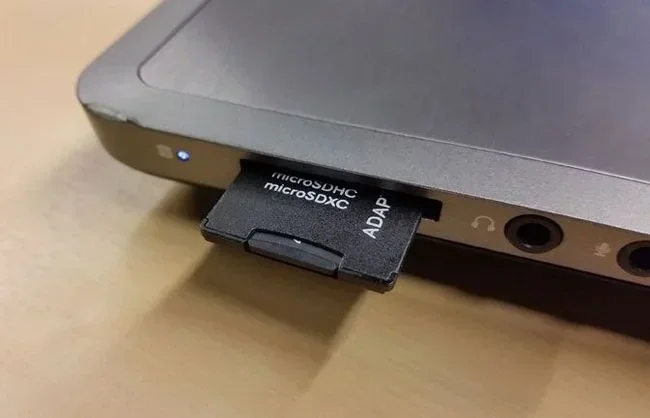
Micro SD cards are the smallest and most popular type today. You will find them in smartphones, action cameras, and drones. To plug a micro SD card into USB, you need either a micro SD to USB adapter or a card reader that supports micro SD cards. These adapters are tiny and very affordable.
Benefits of Plugging an SD Card Into USB
Using an SD card with a USB connection offers several advantages that make it a popular choice for everyday users and professionals alike.
Speed and Convenience
When you use a USB 3.0 or USB 3.1 adapter, file transfers from your SD card can be incredibly fast. A 64GB SD card full of photos can be transferred to your computer in just a few minutes. Compare that to sending files wirelessly, and the difference is huge.
Portability
SD cards are tiny and lightweight. You can carry hundreds of gigabytes of data in your pocket. Pairing an SD card with a small USB adapter means you always have a portable storage solution with you. This is perfect for photographers, students, and anyone who works on the go.
Cost-Effective Storage
SD cards are one of the most affordable ways to add storage to your setup. A 128GB SD card costs less than many external hard drives. When combined with a USB reader, you get a reliable and budget-friendly way to store and transfer your files.
Wide Device Compatibility
Almost every modern computer, laptop, and tablet has USB ports. This means your SD card will work with virtually any device you own. You do not need special software or drivers in most cases. Just plug it in and go.
Safe and Reliable
SD cards are designed to be durable. They resist shock, temperature changes, and water to a certain degree. When you use a quality USB adapter, your data stays safe during transfers. Always make sure to eject the SD card properly before removing it from the reader to avoid data corruption.
Common Problems When Plugging SD Cards Into USB and How to Fix Them
Even though plugging an SD card into USB is generally simple, you may run into issues from time to time. Here are the most common problems and how to solve them.
SD Card Not Recognized by Computer
This is the number one issue people face. If your computer does not detect the SD card, try these steps:
- Remove the SD card and reinsert it firmly into the adapter.
- Try a different USB port on your computer.
- Test the SD card in another device to make sure it is not damaged.
- Update your computer’s USB drivers through the device manager.
- Try a different USB card reader or adapter.
Slow Transfer Speeds
If your files are taking forever to transfer, the problem is usually the adapter or the USB port you are using. Make sure you are using a USB 3.0 or higher adapter and plugging it into a USB 3.0 port. A USB 2.0 connection will be much slower. Also, check the speed rating on your SD card. A Class 10 or UHS-I card will transfer data much faster than an older Class 4 card.
SD Card Keeps Disconnecting
If the card keeps popping out or disconnecting, the adapter may be loose or damaged. Try a different adapter or make sure the SD card is seated properly. Sometimes dust or debris in the USB port can also cause connection issues. Blow out the port gently or use compressed air to clean it.
Files Appear Corrupted
If some files look corrupted or will not open, the SD card may have been improperly removed during a previous transfer. Always use the safely eject option before pulling out your SD card. You can also run a disk check on the card to repair minor file system errors.
Adapter Does Not Fit the Card
Make sure you are using the right adapter for your card size. A full-size SD card will not fit into a micro SD adapter without an SD to micro SD adapter ring. Check the card dimensions and buy the correct adapter. Most adapters will clearly state which card sizes they support.
Expert Tips for Getting the Best Performance
Want to get the most out of your SD card to USB setup? Follow these expert tips to ensure fast, safe, and reliable performance every time.
Invest in a Quality Adapter
Cheap adapters may save you a few dollars upfront, but they often have poor build quality and slow transfer speeds. Look for adapters from reputable brands that support USB 3.0 or USB 3.1 speeds. A well-built adapter can make a noticeable difference in your workflow.
Keep Your SD Card Clean
Dust and dirt can accumulate on the gold contacts of your SD card. Wipe them gently with a soft, dry cloth before inserting the card into the adapter. This simple habit can prevent connection issues and keep your data safe.
Format Your SD Card Properly
If you are experiencing issues, try formatting the SD card. You can do this through your computer or through the device the card came from. Formatting clears any errors and prepares the card for fresh use. Always back up your files before formatting, as this process erases all data on the card.
Use the Right USB Port
Not all USB ports are created equal. If your computer has both USB 2.0 and USB 3.0 ports, always plug your card reader into the USB 3.0 port. USB 3.0 ports are usually blue inside, while USB 2.0 ports are black. Using the right port can speed up your transfers by five times or more.
Avoid Removing the Card During Transfers
Never pull out your SD card while files are still being transferred. This can corrupt your data and damage the card. Always wait for the transfer to complete and use the safely eject function first.
Store Your Cards Properly
When you are not using your SD cards, store them in a protective case. Exposure to extreme heat, moisture, or magnetic fields can damage the card and the data stored on it. A simple protective case costs a dollar and can save you hundreds in lost data.
Comparison Table: SD Card Reader Options
| Type | Best For | Speed | Price Range |
|---|---|---|---|
| USB SD Card Reader | Standard and SDHC SD cards | Fast with USB 3.0 | $5 – $15 |
| SD to USB Adapter | On-the-go convenience | Moderate | $3 – $10 |
| USB Hub with Card Reader | Multiple card types and extra ports | Fast with USB 3.0 | $15 – $40 |
| Multi-Card Reader | Photographers with multiple cameras | Very fast with USB 3.1 | $10 – $30 |
| Built-In Laptop Slot | Laptops with SD card slots | Varies by laptop | Included with device |
Final Thoughts
Plugging an SD card into USB is one of the simplest and most useful skills you can learn for managing your digital files. Whether you use a USB card reader, an SD to USB adapter, or a multi-card hub, the process is quick and easy. The key is to use the right equipment for your card type and your computer’s USB ports.
Remember to always eject your card safely, keep your adapter and card clean, and invest in quality hardware for the best results. With the tips and guidance in this article, you are fully equipped to handle any SD card to USB task with confidence.
So go ahead. Plug in that SD card, transfer your files, and enjoy the convenience of a fast and reliable connection. Your data is worth protecting, and now you have the knowledge to do it right.
Frequently Asked Questions
Can I plug any SD card into a USB port?
Yes, you can plug any SD card into a USB port as long as you use the right adapter or card reader. Standard SD cards, SDHC cards, SDXC cards, and micro SD cards all work with USB connections. You just need to make sure your adapter supports the card size and type you are using.
Do I need to install drivers to use an SD card with USB?
In most cases, no. Modern operating systems like Windows 10, Windows 11, and macOS recognize SD cards automatically when you plug in a USB card reader. However, older operating systems or some specialized readers may require a driver download. Check the manufacturer’s website if your card is not recognized.
Why is my SD card not showing up on my computer after plugging it into USB?
This can happen for several reasons. Try reinserting the card, using a different USB port, or testing the card in another device. Sometimes the SD card slot on the reader may be dirty. Cleaning the gold contacts gently with a soft cloth often fixes the issue. If the card still does not appear, the card itself may be damaged or corrupted.
What is the difference between a USB 2.0 and USB 3.0 card reader?
The main difference is speed. A USB 3.0 card reader can transfer data up to 10 times faster than a USB 2.0 reader. USB 3.0 ports are usually colored blue inside, while USB 2.0 ports are black. If you frequently transfer large files from your SD card, a USB 3.0 reader is well worth the investment.
Can I use an SD card with USB to expand my laptop storage?
Yes, you can use an SD card to expand your laptop storage. Simply plug the card in via USB, and it will appear as a removable drive. You can save files, photos, and videos directly to the card. Just keep in mind that SD cards are slower than internal hard drives or SSDs, so they work best for storing media and documents rather than running programs.
Is it safe to leave an SD card plugged into USB all the time?
It is generally safe to leave an SD card plugged in, but it is not recommended for long periods. Constant connection can lead to dust buildup in the card slot and may increase the risk of accidental damage. It is best to eject the card when you are not actively using it and store it in a protective case.
=== CONCLUSION ===
Can I plug SD card into USB? Absolutely yes. As you have learned throughout this guide, connecting your SD card to USB is simple, affordable, and incredibly useful. Whether you choose a basic USB card reader, a compact SD to USB adapter, or a full-featured multi-card hub, you have options that fit every need and budget.
Understanding your SD card type, choosing the right USB adapter, and following best practices for file transfer and data safety will ensure a smooth experience every time. Keep your equipment clean, always eject your cards properly, and invest in quality hardware for the best results.
Now that you have all the information you need, go ahead and connect that SD card to USB with confidence. Your files are waiting, and you are ready to move them quickly and safely. Happy transferring!