Can I Use Facetime While On Airplane Mode Yes You Can
Yes, you can use FaceTime while on Airplane Mode if you connect to a Wi-Fi network first. Airplane Mode turns off cellular and Bluetooth, but it does not block Wi-Fi. This means you can still make FaceTime video calls and FaceTime audio calls as long as you have a wireless connection. Many travelers and frequent flyers use this trick every day to stay connected during flights. Keep reading to learn exactly how it works and what you need to know.
Have you ever been on a plane and wondered if you could still make a FaceTime call? Maybe you need to check in with family or finish an important work call during a long flight. The short answer is yes, you can use FaceTime while on Airplane Mode. But the full story is a little more interesting than that.
Airplane Mode is a setting on your iPhone, iPad, or Mac that disables wireless signals. It turns off cellular data, Bluetooth, and Wi-Fi all at once. This is why most people think they cannot use any apps that need the internet. But here is the twist. You can turn Wi-Fi back on even when Airplane Mode is still active. And that changes everything for FaceTime users.
In this article, we will walk through exactly how this works. We will cover the steps to set it up, answer common questions, and share practical tips for travelers. Whether you are a frequent flyer or planning your next trip, this guide has you covered.
Key Takeaways
- Airplane Mode does not block Wi-Fi: You can turn Wi-Fi back on after enabling Airplane Mode and still use FaceTime.
- FaceTime works over Wi-Fi: As long as you have a wireless network, FaceTime calls go through just fine.
- Bluetooth stays off in Airplane Mode: This means wireless headphones may not connect unless you toggle them back on separately.
- Cellular data is disabled: You cannot use FaceTime over cellular networks when Airplane Mode is active.
- This trick works on all Apple devices: iPhones, iPads, and Macs all follow the same Airplane Mode rules.
- Download content first: While FaceTime works over Wi-Fi, other media should be downloaded before your flight.
- Always check airline rules: Some airlines restrict Wi-Fi use during takeoff and landing.
📑 Table of Contents
- What Happens When You Turn on Airplane Mode
- How to Use FaceTime on Airplane Mode
- Why FaceTime Works Over Wi-Fi but Not Cellular
- In-Flight Wi-Fi and What You Need to Know
- Common Mistakes People Make with Airplane Mode and FaceTime
- Other Apps That Work the Same Way in Airplane Mode
- Expert Tips for Staying Connected During Flights
- What the Future Holds for In-Flight Connectivity
- Final Thoughts
What Happens When You Turn on Airplane Mode
How Airplane Mode Affects Your Device
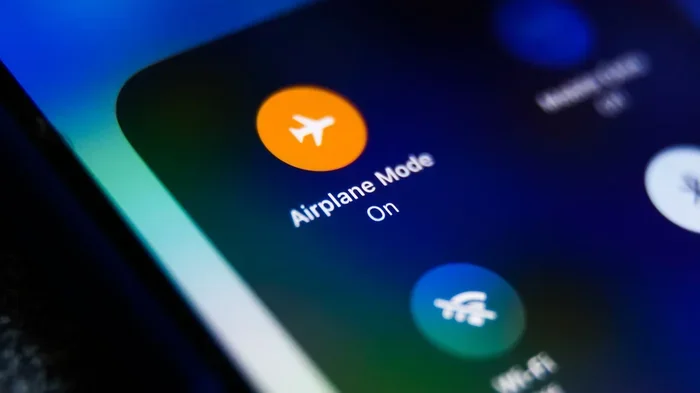
When you swipe up and tap the airplane icon, your device goes into a special state. It cuts off all wireless transmissions. This includes the cellular radio that connects you to mobile networks. It also disables Bluetooth and Wi-Fi signals. The purpose is simple. It prevents your phone from interfering with aircraft systems.
But Apple built in a clever workaround. You can manually turn Wi-Fi back on after enabling Airplane Mode. This is the key to using FaceTime on a plane. Your device still thinks it is in flight mode, but it can now connect to a wireless network.
Here is what gets turned off when you enable Airplane Mode:
- Cellular voice and data connections
- Wi-Fi network access (by default)
- Bluetooth connections
- GPS location services
- Mobile hotspot sharing
And here is what you can turn back on manually:
- Wi-Fi
- Bluetooth (on most devices)
- GPS (on some devices)
So the answer to the question can I use FaceTime while on airplane mode depends on one thing. Can you connect to Wi-Fi? If yes, you are good to go.
How to Use FaceTime on Airplane Mode
Step-by-Step Setup for iPhone and iPad
Using FaceTime while in Airplane Mode is actually very simple. You just need to follow a few quick steps. Here is exactly what to do on your iPhone or iPad:
- Swipe down from the top right corner of your screen to open Control Center.
- Tap the airplane icon to turn on Airplane Mode. You will see the airplane symbol appear at the top of your screen.
- Wait about five seconds for the mode to fully activate.
- Tap the Wi-Fi icon in Control Center to turn Wi-Fi back on.
- Select a Wi-Fi network and enter the password if needed.
- Open the FaceTime app and make your call as usual.
That is it. Your device is still in Airplane Mode, but it is now connected to Wi-Fi. FaceTime will work perfectly over that wireless connection. You can make both FaceTime video calls and FaceTime audio calls this way.
Using FaceTime on a Mac in Airplane Mode
The same trick works on MacBooks too. If you are working on a laptop during a flight, you can follow these steps:
- Click the Wi-Fi icon in the menu bar at the top of your screen.
- Turn off Wi-Fi first, then turn Airplane Mode on from the Control Center.
- Now go back and turn Wi-Fi back on manually.
- Connect to the in-flight Wi-Fi network if available.
- Open FaceTime on your Mac and place your call.
Some people prefer this method because it gives them a clean start. It makes sure all other wireless signals are fully disabled before you reconnect to Wi-Fi. This can help with call quality too.
Why FaceTime Works Over Wi-Fi but Not Cellular
Understanding the Technology Behind FaceTime
FaceTime is an internet-based calling app. It does not need a cellular network to work. Instead, it uses data packets sent over the internet. This is why it can run over Wi-Fi. When you are connected to a wireless network, your device sends and receives data through that router. FaceTime uses this data to transmit video and audio in real time.
Cellular networks work differently. They rely on cell towers and mobile data signals. When Airplane Mode is on, your phone cannot reach those cell towers. This is why FaceTime over cellular does not work in Airplane Mode. There is simply no cellular signal to use.
But Wi-Fi is completely separate. It operates on its own radio frequency. Turning on Airplane Mode does not permanently disable your Wi-Fi chip. It just turns it off by default. So you can flip it back on and use any app that needs the internet. This includes FaceTime, messaging apps, email, and web browsers.
FaceTime Audio vs FaceTime Video on Airplane Mode
Both FaceTime Audio and FaceTime Video work over Wi-Fi in Airplane Mode. But there are a few differences worth knowing about:
- FaceTime Audio: Uses less data and is easier on battery life. Great for long flights where you want to save power.
- FaceTime Video: Uses more data and drains your battery faster. But it lets you see the person you are talking to.
If you are worried about data usage, stick with audio calls. They work just as well and will not eat up your bandwidth. If the in-flight Wi-Fi charges by the megabyte, this can save you some money too.
In-Flight Wi-Fi and What You Need to Know
Do Airlines Offer Wi-Fi on Flights?
Many airlines now offer in-flight Wi-Fi. This lets passengers connect to the internet while they are up in the air. The quality and speed can vary a lot from one airline to another. Some carriers offer fast broadband that handles video calls smoothly. Others provide slow connections that are only good for text messaging and email.
Here are some things to keep in mind about in-flight Wi-Fi:
- Not all airlines offer Wi-Fi. Budget carriers are less likely to have it.
- Some airlines offer free Wi-Fi. Others charge a fee that can range from $7 to $30 or more.
- In-flight Wi-Fi often works best after the plane reaches cruising altitude.
- Bandwidth is shared among all passengers. So call quality may drop if many people are streaming at once.
Tips for Getting the Best FaceTime Call Quality on a Plane
If you plan to use FaceTime during your flight, a few tips can make a big difference:
- Download the FaceTime app and your contacts before you board. This ensures everything is ready even if the Wi-Fi is slow to connect.
- Use headphones with a built-in microphone. This reduces background noise and helps the other person hear you clearly.
- Turn off other apps that use data. Close any apps running in the background to free up bandwidth for your call.
- Sit near the front of the plane if possible. Some in-flight Wi-Fi routers work better closer to the cockpit.
- Ask the flight crew about Wi-Fi availability. They can tell you when the connection is ready and how to log in.
Common Mistakes People Make with Airplane Mode and FaceTime
Forgetting to Turn Wi-Fi Back On
The most common mistake is turning on Airplane Mode and then forgetting to re-enable Wi-Fi. Many people assume that Airplane Mode kills all connectivity forever. It does not. But if you do not manually turn Wi-Fi back on, you will not be able to use FaceTime or any other internet-based app.
Always double-check that your Wi-Fi icon is active in the status bar. If you see the airplane symbol but no Wi-Fi waves, you need to go back into Control Center and toggle Wi-Fi on.
Not Checking Airline Wi-Fi Policies
Some airlines do not allow wireless device use during takeoff and landing. Others restrict Wi-Fi access entirely. Before you try to make a FaceTime call at 30,000 feet, make sure your airline allows it. The flight attendants will usually announce when devices can be used in wireless mode.
Ignoring Data Limits on In-Flight Wi-Fi
In-flight Wi-Fi plans often come with strict data caps. A FaceTime video call can use a lot of data. A one-hour video call might use anywhere from 500 MB to 1.5 GB depending on the quality. If you are on a limited data plan, you could run out of bandwidth quickly. Consider using FaceTime audio instead to save data.
Assuming Bluetooth Headphones Will Work
Airplane Mode turns off Bluetooth by default. This means your wireless headphones will not connect unless you turn Bluetooth back on manually. If you want to use headphones for your FaceTime call, you will need to toggle Bluetooth back on after enabling Airplane Mode. Just keep in mind that some airlines ask you to keep Bluetooth off during certain phases of the flight.
Other Apps That Work the Same Way in Airplane Mode
FaceTime is not the only app that works over Wi-Fi in Airplane Mode. Many other apps follow the same rules. Here are some popular ones:
- WhatsApp: Works over Wi-Fi for messaging and voice calls.
- Zoom: Video conferencing works if you connect to Wi-Fi.
- Skype: Another great option for internet-based calls.
- Slack: Messaging and calls work over wireless networks.
- iMessage: Apple’s messaging app works over Wi-Fi too.
- Email apps: You can send and receive emails once Wi-Fi is back on.
The rule is simple. Any app that uses the internet can work in Airplane Mode as long as you turn Wi-Fi back on. Apps that rely on cellular data or GPS signals will not work unless you have a separate connection available.
Expert Tips for Staying Connected During Flights
Travel experts and frequent flyers know a few tricks that make staying connected much easier. Here are some insider tips:
- Download content before your flight. Movies, music, and documents should all be saved to your device before you board. This way you have entertainment even if Wi-Fi is not available.
- Carry a portable charger. Video calls drain your battery fast. A good portable power bank can keep your device alive throughout a long flight.
- Use a VPN if you need security. Public Wi-Fi networks, including in-flight ones, can be less secure. A VPN adds a layer of protection to your connection.
- Schedule calls for after takeoff. Most airlines allow Wi-Fi use once the plane reaches cruising altitude. This is usually about 10 to 15 minutes after departure.
- Test your connection first. Before starting an important FaceTime call, do a quick test. Send a message or browse a webpage to make sure the Wi-Fi is working properly.
What the Future Holds for In-Flight Connectivity
The world of in-flight Wi-Fi is changing fast. New technologies are making it faster and more reliable. Some airlines are now offering satellite-based internet that can rival ground-based broadband speeds. This means FaceTime calls on planes will only get better over time.
Apple continues to improve FaceTime with each iOS update. Features like better noise cancellation and improved video quality make it an even better choice for calls on the go. As more airlines upgrade their networks, using FaceTime during flights will become a completely normal part of travel.
Final Thoughts
So to answer the question once and for all, can you use FaceTime while on Airplane Mode? The answer is a clear yes. You just need to turn Wi-Fi back on after enabling Airplane Mode. From there, you can make video calls and audio calls just like you would on the ground.
The key is understanding how Airplane Mode works. It disables wireless signals by default, but it does not lock them out forever. You have full control over what you turn back on. Wi-Fi is the gateway to using FaceTime and many other apps while you are in the sky.
Next time you are on a flight and need to make a call, do not worry. You have options. Follow the steps in this guide, check your airline’s Wi-Fi policy, and you will be connected in no time. Safe travels and happy calling.
Frequently Asked Questions
Can I use FaceTime on a plane if there is no Wi-Fi?
No, you cannot use FaceTime without a Wi-Fi connection. Airplane Mode disables cellular data, so FaceTime needs Wi-Fi to work. If the airline does not offer in-flight Wi-Fi, you will not be able to make FaceTime calls during the flight.
Does Airplane Mode completely block all internet access?
No, Airplane Mode does not permanently block internet access. It disables Wi-Fi, Bluetooth, and cellular by default, but you can turn Wi-Fi back on manually. This allows you to connect to in-flight Wi-Fi and use apps like FaceTime.
Is it legal to use FaceTime on a plane?
Yes, it is legal as long as the airline allows wireless device use. Most airlines now permit Wi-Fi connectivity during flights. However, you must follow crew instructions and wait until they announce that electronic devices can be used in wireless mode.
How much data does a FaceTime call use?
A FaceTime video call uses about 500 MB to 1.5 GB per hour depending on video quality. A FaceTime audio call uses much less, around 50 to 100 MB per hour. If you are on a limited in-flight Wi-Fi plan, audio calls are the more data-friendly option.
Can I use Bluetooth headphones with FaceTime in Airplane Mode?
Yes, but you need to turn Bluetooth back on manually after enabling Airplane Mode. Airplane Mode disables Bluetooth by default, so you will need to toggle it back on in your settings or Control Center before connecting your headphones.
Will FaceTime work on a iPad in Airplane Mode?
Yes, FaceTime works on iPads in Airplane Mode too. The same steps apply. Turn on Airplane Mode, then enable Wi-Fi manually and connect to a network. You can then make FaceTime calls on your iPad just like you would on an iPhone.
=== CONCLUSION ===
Using FaceTime while on Airplane Mode is not only possible, it is simple. The trick is to turn Wi-Fi back on after enabling Airplane Mode. This lets you connect to in-flight wireless networks and make both video and audio calls. Whether you are on a short domestic flight or a long international journey, staying connected is easier than ever.
Remember the key points from this guide. Airplane Mode disables cellular and Bluetooth by default, but it does not touch your ability to use Wi-Fi. FaceTime works entirely over the internet, so as long as you have a wireless connection, you are good to go. Avoid common mistakes like forgetting to turn Wi-Fi back on or not checking your airline’s policies.
Now that you know the answer to the question can I use FaceTime while on airplane mode, you can travel with confidence. Keep these tips in mind on your next trip and enjoy staying connected even at 35,000 feet.