Can An Iphone Play On Hdmi Here Is Everything You Need
Yes, your iPhone can play on HDMI, and it is easier than you think. You can use a Lightning to HDMI adapter or a USB-C to HDMI cable for a wired connection. You can also go wireless with AirPlay or Apple TV for a clutter-free setup. This guide covers every method, tip, and trick you need to know.
Have you ever wanted to watch your iPhone content on a bigger screen? Maybe you want to share photos with family on the living room TV. Or perhaps you need to present a slide deck at work. Whatever your reason, can an iPhone play on HDMI is a question many people ask. The short answer is yes. Your iPhone can connect to an HDMI display in more ways than one.
In this guide, we walk you through every method, every adapter, and every tip you need. We cover wired connections, wireless streaming, setup steps, and common fixes. By the end, you will know exactly how to get your iPhone playing on any HDMI screen. Let us dive in.
Key Takeaways
- Wired HDMI connection works with the right adapter: A Lightning to HDMI or USB-C to HDMI adapter lets you mirror your iPhone screen directly to any TV.
- Wireless options are simple and cable-free: AirPlay and Apple TV let you stream content without any extra cords.
- Setup takes only a few minutes: You do not need technical skills to connect your iPhone to an HDMI display.
- Troubleshooting is straightforward: Most HDMI issues can be fixed with a quick reset or cable swap.
- Both older and newer iPhones are supported: Different models use different ports, but all can connect to HDMI.
- Apps and settings matter: Using the right apps and enabling the correct settings improves your HDMI experience.
📑 Table of Contents
How iPhone Connects to HDMI
Connecting your iPhone to an HDMI display is simpler than most people think. Apple has made it easy over the years with built-in support and affordable accessories. There are two main ways to do it. You can use a cable and adapter for a direct connection. Or you can go wireless with AirPlay or other streaming tools.
The method you choose depends on your iPhone model, your TV, and what you want to do. Watching a movie? A cable works great. Casting a photo slideshow? Wireless might be better. Let us look at both options in detail.
Understanding the Lightning to HDMI Adapter
If you have an iPhone with a Lightning port, you need a Lightning to HDMI adapter. This small device plugs into your iPhone’s charging port on one end and has an HDMI output on the other. You then connect an HDMI cable from the adapter to your TV.
Apple sells its own version called the Apple Lightning to Digital AV Adapter. It works reliably and supports most iPhone models. Third-party options are also available and often cost less. They do the same job in most cases.
Here is what you need for a wired iPhone HDMI adapter setup:
- Lightning to HDMI adapter
- Standard HDMI cable
- A TV or monitor with an HDMI input
- Your iPhone with a charged battery
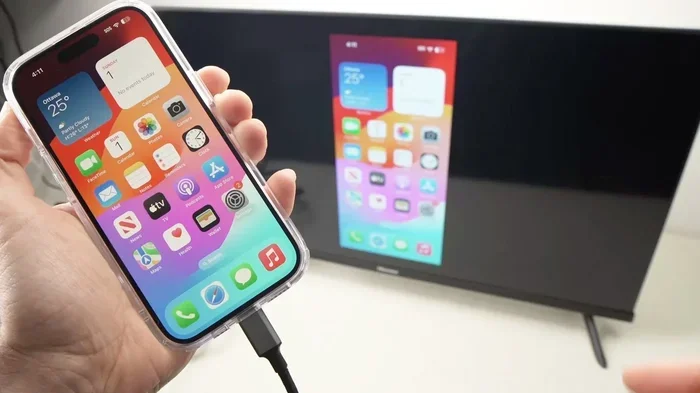
Once you have these items, the setup takes less than two minutes. Plug the adapter into your iPhone. Connect the HDMI cable. Plug the other end into your TV. Switch your TV to the correct HDMI source. Your iPhone screen should appear on the TV right away.
USB-C to HDMI for iPhone 15 and Newer
Apple switched to USB-C starting with the iPhone 15 lineup. This change made iPhone display output even easier. You can now use a simple USB-C to HDMI cable or a USB-C to HDMI adapter. No extra dongle is needed in most cases.
The process is almost identical to the Lightning method:
- Plug the USB-C end into your iPhone
- Connect the HDMI end to your TV
- Switch your TV to the right HDMI source
- Your iPhone screen mirrors to the TV
USB-C to HDMI cables are widely available and affordable. You can find them online or at any electronics store. Make sure you buy a quality cable to avoid signal issues.
Can An Iphone Play On Hdmi Wirelessly
Not everyone wants to deal with cables. Good news: you can connect your iPhone to an HDMI display wirelessly. Wireless streaming has improved a lot over the years. It is now smooth, reliable, and easy to set up.
Using AirPlay for Wireless Streaming
AirPlay is Apple’s built-in wireless streaming technology. It lets you mirror your iPhone screen or stream content directly to compatible devices. Most modern smart TVs support AirPlay. Apple TV is the most popular AirPlay receiver.
To use AirPlay for screen mirroring:
- Make sure your iPhone and TV are on the same Wi-Fi network
- Open Control Center on your iPhone
- Tap the Screen Mirroring button
- Select your TV or Apple TV from the list
- Your iPhone screen now appears on the TV
AirPlay works great for sharing photos, playing videos, and showing apps on a bigger screen. The quality is good, and there is no lag in most cases. You do not need any extra hardware if your TV supports AirPlay natively.
Apple TV and Compatible Smart TVs
Apple TV is the gold standard for iPhone casting. It connects directly to your TV’s HDMI port and supports AirPlay seamlessly. You can stream anything from your iPhone to Apple TV without any cables.
Many other smart TVs also support AirPlay now. Samsung, LG, Sony, and Vizio models from the last few years usually have it built in. Check your TV’s settings or manual to confirm. If your TV does not support AirPlay, you can buy an AirPlay-compatible streaming stick.
Other Wireless HDMI Options
Beyond AirPlay, there are other wireless options. Some companies make HDMI transmitters that connect to your iPhone and send a signal to your TV. These work well but can be pricier. They are a good choice if you need a dedicated wireless video output solution.
Devices like the Roku Streaming Stick or Google Chromecast also let you cast content from your iPhone. They connect to your TV’s HDMI port and use Wi-Fi to receive content. These are great alternatives if you are not in the Apple ecosystem.
Step-by-Step Setup Guide
Now that you know the options, let us walk through the actual setup. Whether you are using a cable or going wireless, we have you covered.
What You Need Before You Start
Before you begin, gather these items:
- Your iPhone, fully charged or plugged in
- The right adapter or cable for your model
- An HDMI cable
- A TV or monitor with an available HDMI port
- A stable Wi-Fi connection (for wireless methods)
Having everything ready before you start makes the process smooth. You do not want to be halfway through setup and realize you are missing a cable.
Connecting Your iPhone to a TV with a Cable
Follow these steps for a wired cable connection:
- Plug the adapter into your iPhone
- Connect the HDMI cable to the adapter
- Plug the other end of the HDMI cable into your TV
- Turn on your TV and switch to the correct HDMI input
- Unlock your iPhone and wait for the screen to appear
If your iPhone asks to trust the device, tap Trust. This is normal and only happens the first time you connect. After that, the connection should be automatic every time.
Quick Tip: If the screen does not appear right away, try unplugging and replugging the adapter. Sometimes the connection needs a fresh start.
Setting Up Wireless HDMI Streaming
For wireless iOS screen mirror setups, follow these steps:
- Connect both your iPhone and your TV to the same Wi-Fi network
- On your iPhone, swipe down from the top right to open Control Center
- Tap the Screen Mirroring icon (two overlapping rectangles)
- Choose your TV or Apple TV from the list
- Enter the code if your TV asks for one
Once connected, everything you do on your iPhone appears on the TV. You can play videos, show photos, or navigate apps. The experience is smooth and responsive for most uses.
Quick Tip: For the best wireless streaming quality, make sure your Wi-Fi signal is strong. A weak connection can cause lag or lower picture quality.
Troubleshooting Common HDMI Issues
Even with the right setup, you might run into problems now and then. Do not worry. Most issues are easy to fix. Here are the most common problems and how to solve them.
No Picture on Your TV Screen
If you see no image on your TV, try these steps:
- Check that the HDMI cable is firmly plugged in on both ends
- Make sure your TV is set to the correct HDMI input
- Restart your iPhone by holding the power button and sliding to power off
- Try a different HDMI port on your TV
- Test with a different HDMI cable or adapter
Often, the issue is simply a loose connection or the wrong TV input. A quick restart of your iPhone can also resolve the problem.
Audio Problems When Connected
Sometimes the video shows up but there is no sound. This is a common issue and easy to fix:
- Check that your TV volume is not muted
- Go to Settings > Sounds on your iPhone and make sure the volume is up
- Make sure your TV is set to use the HDMI audio output
- Restart both your iPhone and your TV
If audio still does not work, try a different adapter or cable. Some cheap adapters do not support audio properly.
iPhone Not Recognizing the Adapter
If your iPhone does not recognize the digital AV adapter, here is what to do:
- Remove the adapter and plug it back in firmly
- Clean the Lightning or USB-C port on your iPhone
- Restart your iPhone
- Try a different adapter if you have one available
- Make sure your iPhone software is up to date
Dust or debris in the charging port can prevent a good connection. A quick clean with a soft brush or compressed air often solves the problem.
Wired vs Wireless HDMI: Which Is Better for You
Both wired and wireless methods have their strengths. The best choice depends on your needs and situation. Let us compare them side by side.
| Feature | Wired Connection | Wireless Connection |
|---|---|---|
| Setup Speed | Very fast (under 2 minutes) | Fast (under 3 minutes) |
| Video Quality | Excellent, no compression | Very good, slight compression possible |
| Audio Quality | Full quality, no loss | Good, minor compression possible |
| Cables Needed | Adapter + HDMI cable | None (uses Wi-Fi) |
| Latency | Near zero | Small delay possible |
| Mobility | Limited by cable length | Full freedom to move |
| Cost | Low ($10-$30 for adapter) | Free if you have Apple TV or compatible TV |
| Reliability | Very reliable | Depends on Wi-Fi strength |
For the best media playback quality, a wired connection is hard to beat. There is no compression, no lag, and no interference. If you are watching movies or playing games, wired is the way to go.
For casual use like sharing photos or showing presentations, wireless is more convenient. You do not have to deal with cables, and you can move around freely.
Best Apps for HDMI Output from iPhone
While you can mirror your entire iPhone screen, some apps work better than others for HDMI output. Here are some of the best options:
- YouTube: Streams beautifully to any HDMI display. The app supports full screen playback.
- Netflix: Works great with both wired and wireless connections. High-quality video output is supported.
- Photos: Your photo library looks stunning on a big screen. Perfect for slideshows and sharing.
- Keynote: Apple’s presentation app is ideal for HDMI output. It is smooth and professional.
- Netflix and streaming apps: Most built-in apps handle HDMI output without any issues.
Some third-party apps may have restrictions on screen mirroring due to digital rights management. This is normal and not something you can fix. Stick to well-known apps for the best experience.
Expert Tips for the Best HDMI Experience
Want to get the most out of your iPhone HDMI setup? Here are some expert tips that make a big difference:
- Use high-quality cables: Cheap HDMI cables can cause signal drops. Invest in a good one from a reputable brand.
- Keep your iPhone cool: Extended HDMI output can cause your phone to heat up. Take breaks if needed.
- Update your software: Make sure your iPhone is running the latest iOS version. Updates often fix connectivity issues.
- Use a powered adapter: For long viewing sessions, a powered iPhone HDMI adapter keeps your phone charged while outputting video.
- Adjust your TV settings: Set your TV to the correct resolution for the best picture quality.
- Close background apps: This frees up resources and gives you a smoother mirroring experience.
These small tips add up to a much better experience. You will notice the difference right away, especially during longer viewing sessions.
Common Mistakes to Avoid: One mistake many people make is using a low-quality adapter. It might seem like a good deal, but cheap adapters often cause flickering, no sound, or disconnections. Another mistake is forgetting to switch the TV to the right input source. Always double-check this before you assume something is broken.
Conclusion
Can an iPhone play on HDMI? Absolutely yes. Whether you use a wired adapter or go wireless with AirPlay, connecting your iPhone to an HDMI display is simple and effective. You have multiple options to choose from, and they all work well.
For the most reliable experience, a wired connection with a quality iPhone HDMI adapter is hard to beat. For convenience and flexibility, wireless streaming through AirPlay is excellent. Both methods let you enjoy your iPhone content on a big screen with ease.
Now that you know how it all works, go ahead and try it. Set up your iPhone HDMI connection tonight and enjoy your favorite content on the big screen. Once you see your photos and videos on a large display, you will wonder how you ever lived without it.
Frequently Asked Questions
Do I need a special adapter to connect my iPhone to HDMI?
Yes, you need either a Lightning to HDMI adapter or a USB-C to HDMI cable depending on your iPhone model. Older iPhones with a Lightning port require a Lightning to HDMI adapter. Newer iPhones from the iPhone 15 lineup use USB-C and need a USB-C to HDMI cable or adapter. Apple makes official adapters, but many reliable third-party options are available too.
Can I use any HDMI cable with my iPhone adapter?
Most standard HDMI cables work fine with iPhone adapters. You do not need an expensive premium cable for basic use. However, for the best video output quality and durability, choose a well-made HDMI cable from a reputable brand. Avoid ultra-cheap cables as they can cause signal issues.
Why is there no sound when I connect my iPhone to HDMI?
No sound is usually caused by a loose connection, the wrong TV input setting, or a muted volume. Check that the HDMI cable is firmly plugged in on both ends. Make sure your TV is set to use HDMI audio. Also check that your iPhone volume is turned up and not muted. Restarting both devices often fixes the problem.
Can I charge my iPhone while using HDMI output?
Yes, but it depends on the adapter you use. Some iPhone HDMI adapters have a pass-through charging port so you can plug in a charger while outputting video. Others do not support charging during use. If you plan to use HDMI output for long periods, get a powered adapter to keep your phone charged.
Is AirPlay as good as a wired HDMI connection?
AirPlay is very good for most uses but is not quite the same as a wired connection. Wired HDMI gives you zero latency and the highest quality video and audio. AirPlay is convenient and cable-free, but it depends on your Wi-Fi quality. For casual viewing and photo sharing, AirPlay is excellent. For gaming or presentations where timing matters, a wired connection is better.
Can I connect my iPhone to any TV with HDMI?
Yes, you can connect your iPhone to any TV that has an HDMI input. Most TVs made in the last 15 years have at least one HDMI port. You just need the right adapter for your iPhone model. Once connected, your iPhone screen will appear on the TV just like any other HDMI device.