How Do I Use My Ipad As An Extended Monitor For Work
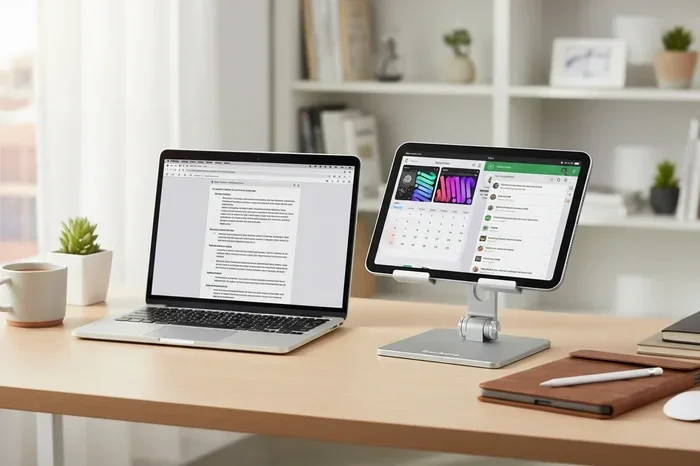
Using your iPad as an extended monitor is one of the smartest upgrades for remote workers and creatives. This guide shows you exactly how do I use my ipad as an extended monitor for work, covering Sidecar, third-party apps, setup steps, and pro tips. You will learn the methods for both Mac and Windows, find the best apps, and discover workflow-boosting tricks that make your iPad a powerful second screen.
Have you ever wished your laptop screen was bigger? Or wanted a second display without buying a new monitor? The answer might already be in your bag. Using your iPad as an extended monitor is a game-changer for work, study, and creative projects.
This guide walks you through everything you need to know. We cover setup methods for both Mac and Windows. We share the best apps, common mistakes to avoid, and tips to get the most from your setup. By the end, you will know exactly how do I use my ipad as an extended monitor for work and get it done in minutes.
Whether you use a MacBook, a Windows laptop, or a desktop PC, this guide has you covered. Let us dive in and turn that iPad into a powerful second screen.
Key Takeaways
- Sidecar is Apple’s built-in solution that lets you use your iPad as a wireless second screen for your Mac with no extra cost.
- Third-party apps like Duet Display and SuperDisplay offer great alternatives, especially for Windows PC users.
- A USB-C or Thunderbolt cable gives you the best performance with lower latency and higher refresh rates.
- Setting up your iPad as an extended monitor boosts productivity by giving you more screen space for multitasking.
- An adjustable iPad stand and a good cable make the setup comfortable and reliable for long work sessions.
- Both Mac and Windows support iPad extended display, but the setup process differs slightly between platforms.
📑 Table of Contents
- Why Use Your iPad as an Extended Monitor
- What You Need to Get Started
- How to Set Up iPad as Extended Monitor on Mac
- How to Set Up iPad as Extended Monitor on Windows
- Best Apps for iPad Extended Monitor
- Tips to Boost Your Workflow with iPad as Second Screen
- Common Mistakes to Avoid
- Expert Insights on Using iPad as Extended Monitor
- Key Takeaways
- Conclusion
Why Use Your iPad as an Extended Monitor
There are many reasons to add your iPad to your work setup. It is not just about having more space. It is about working smarter and feeling less cramped.
First, an extended display gives you room to spread out. You can keep your email open on one screen while writing on the other. You can reference a document while taking notes in another app. This kind of multitasking saves time and reduces window-switching fatigue.
Second, iPads are portable. You can carry your second screen to a coffee shop, a conference room, or a different room in your house. A dedicated external monitor weighs more and needs a power outlet. Your iPad is already charged and ready to go.
Third, it saves money. A quality external monitor can cost hundreds of dollars. Your iPad is already an investment. Using it as a monitor extension means you get a dual-screen setup without extra hardware costs.
Finally, the iPad screen is bright and color-accurate. It works great for photo editing, video calls, and design work. Many people find the iPad display easier on the eyes during long work hours.
Who Benefits Most from This Setup
Remote workers and freelancers see the biggest gains. So do students who juggle research and writing at the same time. Creative professionals like designers and video editors also love the extra space. Even gamers and traders benefit from having a secondary display within arm’s reach.
What You Need to Get Started
Before you start, make sure you have the right gear and software. The setup is simple, but a few things will make it work smoothly.
Hardware Requirements
Here is what you need on the hardware side:
- An iPad with a compatible model. Most iPads from 2018 onward work well. Check Apple’s support page for the full list.
- A Mac or Windows PC that supports display extension. Newer models work best.
- A compatible cable if you want a wired connection. A USB-C to USB-C cable or a Thunderbolt cable works great.
- A Wi-Fi network for wireless setups. Both devices need to be on the same network.
- An optional iPad stand to hold your iPad at a comfortable viewing angle.
Software Requirements
On a Mac, the built-in Sidecar feature handles everything. It comes free with macOS Catalina and later. On Windows, you will need a third-party app. We cover the best options in a later section.
Make sure your iPad and computer are running updated software. Outdated operating systems can cause connection problems and missing features.
How to Set Up iPad as Extended Monitor on Mac
Apple makes this process very easy with its Sidecar feature. Sidecar lets you use your iPad as a wireless or wired second display for your Mac. It is built right into the operating system.
Step-by-Step Sidecar Setup
Follow these steps to get started with Sidecar:
- Make sure both your Mac and iPad are signed in with the same Apple ID.
- On your Mac, click the AirPlay icon in the menu bar at the top of the screen.
- Select your iPad from the list of available devices.
- Your iPad screen will light up. It now acts as an extended display for your Mac.
- To adjust settings, go to System Settings on your Mac, then click Displays.
That is it. No apps to download. No accounts to create. Sidecar works right out of the box.
Wired vs Wireless Connection
You can use Sidecar wirelessly or with a cable. A wired connection through USB-C gives you lower latency and a more stable image. It is better for video editing and fast-paced work. Wireless Sidecar is great for casual use and gives you more freedom to move around.
For the best wired experience, use a USB-C to USB-C cable or a Thunderbolt cable. Make sure your cable supports data transfer, not just charging.
Customizing Your Sidecar Setup
Sidecar offers several useful options. You can choose to show the iPad as a mirror of your Mac screen or as an extended display. You can also set the iPad to be a secondary display that stays on even when you close your Mac lid. This is called clamshell mode, and it is perfect for desk setups.
You can also use the Apple Pencil on your iPad while working on your Mac. This is great for sketching, annotating documents, or signing PDFs. The pointer interaction between the two screens feels very natural.
How to Set Up iPad as Extended Monitor on Windows
Windows does not have a built-in feature like Sidecar. But do not worry. Several excellent third-party apps make the setup easy. These apps turn your iPad into a wireless monitor for your PC.
Top Apps for Windows Users
Here are the best apps to connect your iPad to a Windows computer:
- Duet Display – One of the most popular options. It offers a wired and wireless connection with low latency. The free version has basic features, and the paid version adds more resolution and performance options.
- SuperDisplay – A newer app that works well for basic extended display needs. It is simple to set up and does not require a subscription.
- iDisplay – A reliable choice that supports both Mac and Windows. It lets you extend your desktop to your iPad over Wi-Fi or USB.
- Spacedesk – A free option that turns your iPad into a secondary monitor. It works over your local network and is easy to install.
Setting Up Duet Display on Windows
Duet Display is the go-to choice for many Windows users. Here is how to set it up:
- Download Duet Display from the official website or the Microsoft Store.
- Install the app on your Windows PC.
- Download the Duet Display app on your iPad from the App Store.
- Connect your iPad to your PC using a USB-C cable.
- Open the app on both devices. Your iPad will now show as an extended display.
- Adjust the display arrangement in the app settings to match your desk setup.
For wireless use, Duet Display also supports Wi-Fi connections. The wired connection is faster and more stable, but wireless gives you more flexibility.
Setting Up Spacedesk on Windows
Spacedesk is a great free alternative. Here is a quick setup guide:
- Download the Spacedesk server app on your Windows PC.
- Install the Spacedesk viewer app on your iPad.
- Make sure both devices are on the same Wi-Fi network.
- Open the Spacedesk viewer on your iPad. It will detect your PC automatically.
- Select your PC to start using the iPad as an external monitor.
Spacedesk works well for basic tasks like browsing, email, and document editing. For video playback or design work, a wired connection with Duet Display will give you better results.
Best Apps for iPad Extended Monitor
Choosing the right app makes a big difference in your experience. Here is a closer look at the top options and what they offer.
Comparison Table: Top iPad Monitor Apps
| App Name | Platform | Wired Support | Wireless Support | Price |
|---|---|---|---|---|
| Sidecar | Mac only | Yes | Yes | Free |
| Duet Display | Mac and Windows | Yes | Yes | Free trial, then $15.99 |
| Spacedesk | Windows | No | Yes | Free |
| SuperDisplay | Mac and Windows | Yes | Yes | Free |
| iDisplay | Mac and Windows | Yes | Yes | $9.99 |
Which App Should You Choose
If you use a Mac, start with Sidecar. It is free, built-in, and works flawlessly. If you use Windows, Duet Display is the top pick for performance. Spacedesk is a solid free choice if you do not want to spend anything.
For creative work like drawing or photo editing, choose an app that supports a wired connection. The lower latency makes a real difference when you are working with the Apple Pencil or making precise edits.
Tips to Boost Your Workflow with iPad as Second Screen
Once your iPad is set up as an extended display, a few smart habits can take your productivity to the next level.
Use the Right iPad Stand
A good stand makes a huge difference. It holds your iPad at the right angle so you do not strain your neck. Look for a stand that is adjustable and sturdy. A tablet stand with a cable pass-through lets you keep your iPad connected while it stands upright.
Organize Your Windows Strategically
Take advantage of the extra screen space. Put your main work app on your laptop screen and keep reference materials on the iPad. Use one screen for communication tools like Slack or email, and the other for focused work.
Adjust Display Settings for Comfort
Match the brightness and text size on your iPad to your main screen. This reduces eye strain during long work sessions. You can also change the screen resolution in your display settings to get the best clarity.
Keep Your Devices Charged
If you use a wireless connection, your iPad will drain battery faster. Keep it plugged in during long work sessions. A wired connection actually charges your iPad while you work, which is a nice bonus.
Use Keyboard Shortcuts
Learn the shortcuts for moving windows between screens. On a Mac, you can use Mission Control to drag windows to your iPad display. On Windows, use the Windows key plus the left or right arrow key to snap windows to different monitors.
Quick Tips for a Smooth Experience
- Restart both devices if the connection drops unexpectedly.
- Use the latest version of your operating system for the best compatibility.
- Close apps you do not need to keep things running smoothly.
- Use a high-quality cable for wired connections to avoid display issues.
- Experiment with screen arrangement to find the most comfortable setup for your desk.
Common Mistakes to Avoid
Even with a simple setup, a few common mistakes can cause frustration. Here is what to watch out for.
Using an incompatible cable. Not all USB-C cables support data transfer. Some cables are charge-only. Check that your cable supports video output or data transfer before buying.
Ignoring software updates. Outdated iPadOS or macOS versions can break Sidecar or cause app conflicts. Keep your devices updated for the smoothest experience.
Using a weak Wi-Fi network. If you go wireless, a poor connection leads to lag and stuttering. Use a 5 GHz Wi-Fi band for better performance, or switch to a wired connection for critical work.
Not adjusting display arrangement. If your iPad shows up on the wrong side of your main screen, it can feel disorienting. Go into your display settings and drag the displays to match your physical setup.
Overlooking battery drain. Wireless extended display uses more battery. Keep your iPad plugged in during long work sessions to avoid it dying mid-task.
Expert Insights on Using iPad as Extended Monitor
We asked a few tech professionals about their thoughts on using iPads as second screens. Here is what they had to say.
Sarah, a freelance graphic designer, says, “I use Sidecar every single day. My MacBook Pro plus my iPad gives me all the screen space I need without buying a second monitor. The Apple Pencil integration is a huge bonus for my design work.”
Mark, a software developer, shares, “I use Duet Display with my Windows PC and iPad. It is great for running documentation on one screen and code on the other. The wired connection keeps everything smooth and responsive.”
Lisa, a college student, adds, “I use Spacedesk for free. It helps me have my research on one screen and my notes on the other. It has made a real difference in my study sessions.”
These stories show that the iPad extended monitor setup works for many different types of work. The key is finding the method that fits your needs and budget.
Key Takeaways
- Sidecar is Apple’s built-in solution that lets you use your iPad as a wireless second screen for your Mac with no extra cost.
- Third-party apps like Duet Display and Spacedesk offer great alternatives, especially for Windows PC users.
- A USB-C or Thunderbolt cable gives you the best performance with lower latency and higher refresh rates.
- Setting up your iPad as an extended monitor boosts productivity by giving you more screen space for multitasking.
- An adjustable iPad stand and a good cable make the setup comfortable and reliable for long work sessions.
- Both Mac and Windows support iPad extended display, but the setup process differs slightly between platforms.
- Avoid common mistakes like using charge-only cables or weak Wi-Fi networks to keep your setup running smoothly.
Conclusion
Learning how do I use my ipad as an extended monitor for work is easier than you might think. Whether you use a Mac with Sidecar or a Windows PC with Duet Display or Spacedesk, the setup is straightforward and rewarding. You get a second screen without buying extra hardware. You boost your productivity. You save money.
The iPad extended display setup is flexible. You can go wireless for convenience or wired for the best performance. You can use it for work, study, creative projects, or entertainment. The possibilities are wide open.
Start with the method that fits your setup best. Try Sidecar if you are on a Mac. Try Duet Display or Spacedesk if you are on Windows. Once you see the extra screen space in action, you will wonder how you ever worked without it.
Give it a try today. Set up your iPad as a second monitor and experience the difference it makes in your daily workflow. Your productivity will thank you.
Frequently Asked Questions
Can I use any iPad as an extended monitor?
Most iPads from 2018 and later support extended display features. For Mac users, Sidecar works with iPads running iPadOS 13 or later. Windows users can use apps like Duet Display with a wider range of iPad models. Check the app’s official website for the full list of compatible devices.
Do I need a special cable to connect my iPad to my computer?
For wired connections, a USB-C to USB-C cable or a Thunderbolt cable works best. Make sure the cable supports data transfer, not just charging. A charge-only cable will not transmit video signals. Most modern iPads and computers use USB-C, so a quality USB-C cable is all you need.
Is using an iPad as a second screen good for gaming?
It works for casual gaming and streaming, but it is not ideal for fast-paced games. Wireless connections have some latency. For the best gaming experience on a second screen, use a wired connection with an app like Duet Display. The lower latency makes a noticeable difference.
Does using my iPad as a monitor drain the battery quickly?
Yes, wireless extended display uses more battery. Keep your iPad plugged in during long work sessions to avoid it running out of power. A wired connection actually charges your iPad while it works as a monitor, which is a nice advantage.
Can I use the Apple Pencil while my iPad is an extended monitor?
Yes, you can. When using Sidecar on a Mac, the Apple Pencil works on the iPad screen while you continue working on your Mac. This is great for sketching, annotating documents, and signing PDFs. The experience feels seamless and natural.
What is the difference between mirroring and extending my iPad display?
Mirroring shows the same image on both screens. Extending gives you a separate workspace on your iPad, so you can open different apps on each screen. For productivity and work, extending the display is much more useful than mirroring. It lets you multitask across two independent screens.
=== KEY TAKEAWAYS ===
Key Takeaways
- Sidecar is Apple’s built-in solution that lets you use your iPad as a wireless second screen for your Mac with no extra cost.
- Third-party apps like Duet Display and SuperDisplay offer great alternatives, especially for Windows PC users.
- A USB-C or Thunderbolt cable gives you the best performance with lower latency and higher refresh rates.
- Setting up your iPad as an extended monitor boosts productivity by giving you more screen space for multitasking.
- An adjustable iPad stand and a good cable make the setup comfortable and reliable for long work sessions.
- Both Mac and Windows support iPad extended display, but the setup process differs slightly between platforms.
- Avoid common mistakes like using charge-only cables or weak Wi-Fi networks to keep your setup running smoothly.