Copy Files From Sd Card The Complete Step By Step Guide
Copying files from an SD card is a simple process that anyone can learn. This complete guide walks you through every method, from Windows and Mac to Android devices. You will discover the right tools, avoid common mistakes, and keep your data safe during every transfer.
Key Takeaways
- Multiple Methods Available: You can copy files from SD card using a card reader, USB adapter, or direct device connection.
- Works Across All Platforms: The process is similar on Windows, Mac, and Android, with small differences you need to know.
- Speed Matters: Using a high speed SD card reader can cut transfer time significantly.
- Safety First: Always eject your SD card properly to avoid data corruption.
- Backup Is Key: Copying files from SD card regularly protects your precious photos and documents.
- Troubleshooting Is Easy: Most common issues have simple fixes you can do at home.
📑 Table of Contents
- What You Need to Copy Files From an SD Card
- How to Copy Files From SD Card on Windows
- How to Copy Files From SD Card on Mac
- How to Copy Files From SD Card on Android Devices
- Common Problems When Copying Files From SD Card (and How to Fix Them)
- Tips for Safe File Transfer and Protecting Your SD Card
- Conclusion
What You Need to Copy Files From an SD Card
Before you start, let us make sure you have everything ready. Copying files from SD card does not require expensive gear. A few basic tools will get the job done quickly and safely.
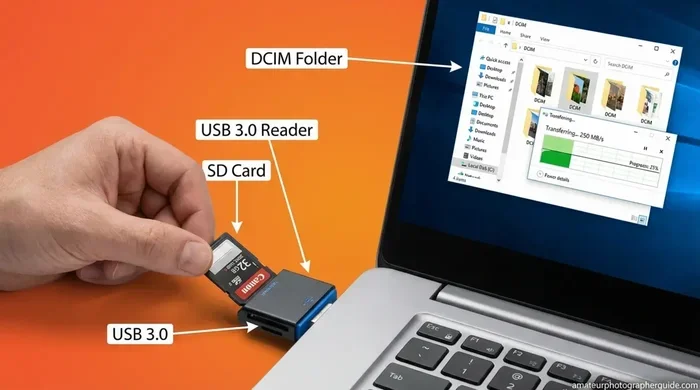
First, you need an SD card reader or a micro SD card adapter. Most laptops come with a built-in slot. If yours does not, a USB card reader costs just a few dollars and works perfectly. You can find them at any electronics store or online.
Next, make sure your SD card is not damaged. A scratched or warped card may not read properly. If the card looks physically worn, consider replacing it before you start the transfer.
You also need a computer or device with enough free space. Check your hard drive or internal storage before you begin. There is nothing worse than starting a transfer only to run out of room halfway through.
Here is a quick list of what you need:
- SD card with files you want to transfer
- SD card reader or built-in slot
- USB adapter (if using a micro SD card)
- A computer, laptop, or Android device
- Enough free storage space on the destination device
Choosing the Right SD Card Reader
Not all card readers are the same. A cheap reader may slow down your transfer speed. Look for a reader that supports USB 3.0 or higher. This ensures fast data transfer and works with most SD card sizes.
If you use a micro SD card, get a reader that includes a built-in adapter. This saves you from carrying extra accessories. Many modern readers support SDXC and SDHC cards, so check the label on your card before buying.
How to Copy Files From SD Card on Windows
Windows makes it easy to transfer files from SD card to your computer. The built-in File Explorer handles everything you need. Follow these steps and you will be done in minutes.
Step one: Insert your SD card into the card reader or adapter. Plug the reader into a USB port on your computer. Windows should recognize the card within a few seconds.
Step two: Open File Explorer. You can do this by pressing the Windows key and E at the same time. Look for your SD card in the left sidebar under This PC or My Computer.
Step three: Click on the SD card to open it. You will see all your folders and files. Browse through them and find what you want to copy.
Step four: Select the files you want to copy. You can click one file, or hold the Ctrl key and click multiple files. Right-click on your selection and choose Copy.
Step five: Navigate to the folder on your computer where you want to save the files. Right-click inside the folder and choose Paste. Wait for the transfer to finish. The time depends on file size and card speed.
Using Drag and Drop Instead
You can also drag and drop files instead of using Copy and Paste. Open both the SD card window and your destination folder side by side. Click a file, hold the mouse button, and drag it to the other window. Release the button and the file copies over.
This method works great for a few files. For large batches, the Copy and Paste method is faster and more reliable.
Quick Tips for Windows Users
- Always safely eject the SD card before removing it. Click the eject icon next to the drive name in File Explorer.
- If the SD card does not show up, try a different USB port or restart your computer.
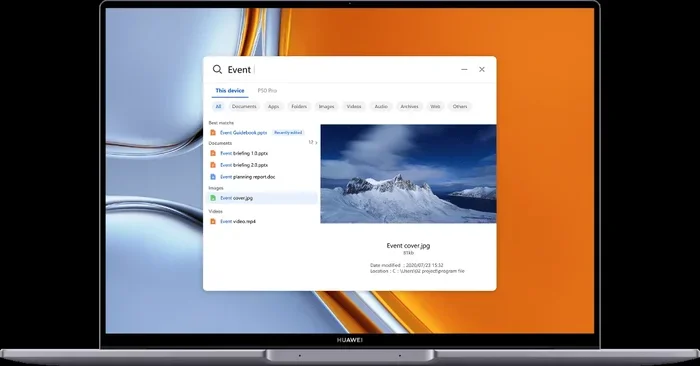
- Use the search bar in File Explorer to find specific files quickly.
- Turn on file extensions in View settings so you can see the full file type.
How to Copy Files From SD Card on Mac
Mac users follow a similar process, but with a few differences. Apple computers use a built-in tool called Finder to manage files. Here is how to copy files from SD card on a Mac.
Step one: Insert your SD card into the Mac’s card slot or connect a USB card reader. Macs with SD card slots are on the side of the laptop. Wait a moment for the card to mount.
Step two: Open Finder. It is the blue smiley face icon in your Dock. In the left sidebar, you should see your SD card under Locations or Devices.
Step three: Click on the SD card to open it. Browse through your folders and find the files you want to copy.
Step four: Select the files you want to transfer. You can drag them directly to a folder on your Mac, such as Documents or Pictures. Or right-click and choose Copy, then navigate to your destination folder and choose Paste Item.
Step five: Wait for the transfer to complete. You will see a progress bar if you used the Copy method. Once done, right-click the SD card icon and choose Eject before pulling it out.
Using Image Capture for Photos and Videos
If you are mainly copying photos and videos, consider using Image Capture on Mac. This built-in app gives you more control over imports. Open Image Capture from your Applications folder. Your SD card will appear in the sidebar. Select the photos you want, choose a destination folder, and click Import.
This method is especially useful if you want to import photos without adding them to the Photos app. It gives you more flexibility and keeps your files organized.
Quick Tips for Mac Users
- Use the Finder sidebar to quickly access your SD card every time.
- If your Mac does not have a built-in card slot, a USB-C adapter works well.
- Enable Show External Disks in Finder Preferences for easier access.
- Use Spotlight Search (Command + Space) to quickly find the SD card if it does not appear.
How to Copy Files From SD Card on Android Devices
Many Android phones and tablets use micro SD cards for extra storage. Copying files from SD card on Android is straightforward. Here is how to do it without needing a computer.
Step one: Insert your micro SD card into your Android device. Most phones have a tray on the side. Use the SIM ejector tool or a paperclip to pop it open. Place the card in the tray and slide it back in.
Step two: Open the Files app on your Android device. This app may be called Files, My Files, or File Manager depending on your phone brand. It is usually a pre-installed app.
Step three: Navigate to the SD card section. In the Files app, look for a tab or folder labeled SD card or Internal Storage. Tap on the SD card to see its contents.
Step four: Select the files you want to copy. Long press on a file to select it. You can then tap additional files to add them to your selection.
Step five: Tap the Copy or Move button, usually shown as two overlapping rectangles. Navigate to where you want the files to go, such as Internal Storage or a specific folder. Tap Paste to complete the transfer.
Using a Computer to Transfer Files to Android
You can also connect your Android device to a computer using a USB cable. Once connected, your phone will appear as a storage device. Open File Explorer on Windows or Finder on Mac and navigate to your phone’s storage. From there, you can copy files to and from the SD card just like any other drive.
This method is helpful when you want to move large files or back up everything at once. It gives you more screen space and makes organizing files easier.
Quick Tips for Android Users
- Format your SD card in your phone settings for best compatibility.
- Do not remove the SD card while files are being copied. Wait for the transfer to fully complete.
- Use the Storage Manager in your phone settings to see how much space is left.
- Consider moving apps to the SD card if your phone supports it.
Common Problems When Copying Files From SD Card (and How to Fix Them)
Sometimes things do not go as planned. SD cards can be finicky, and file transfers can fail for various reasons. Here are the most common problems and simple fixes.
SD Card Not Showing Up on Your Computer
This is the most common issue. If your computer does not recognize the SD card, try these steps. First, remove the card and reinsert it firmly. Sometimes the connection is loose. Try a different USB port or a different card reader. Restart your computer and try again.
If the card still does not appear, check Disk Management on Windows (right-click the Start button and select Disk Management). Your SD card may show up there even if File Explorer does not. You can assign a drive letter from there.
Files Won’t Copy or Keep Stopping
If your files fail to copy, the SD card may have errors. On Windows, right-click the SD card in File Explorer and select Properties. Go to the Tools tab and click Check under Error checking. On Mac, use Disk Utility to run First Aid on the card.
Another common cause is insufficient storage space on the destination device. Double-check that you have enough free space before starting the transfer.
SD Card Is Write Protected
Some SD cards have a small physical switch on the side. When the switch is in the locked position, you cannot write or copy files to the card. Slide the switch up to unlock it. If there is no switch, the card may be corrupted and need formatting.
Slow Transfer Speeds
If your files are copying very slowly, the card reader or SD card class may be the issue. Cheap card readers limit your speed. Upgrade to a USB 3.0 reader for much faster transfers. Also, check the class rating on your SD card. Class 10 and UHS-I cards offer much better speeds than older models.
Corrupted Files After Transfer
If copied files won’t open or appear corrupted, the transfer may have been interrupted. Try copying the files again. Make sure your SD card is not damaged. Run a virus scan on your computer, as malware can sometimes affect file integrity.
Common Mistakes to Avoid
- Never pull out the SD card while a transfer is in progress.
- Do not format the SD card on a different operating system without checking compatibility.
- Avoid using the same SD card in multiple devices without scanning for viruses first.
- Do not ignore warning messages about disk errors. Address them immediately.
Tips for Safe File Transfer and Protecting Your SD Card
Once you know how to copy files from SD card, you want to keep your data safe. These tips will help you protect your SD card and your files for years to come.
Always eject your SD card properly. On Windows, click the eject icon. On Mac, drag the card icon to the trash (which changes to an eject button). On Android, go to Settings and select Safely Remove or Eject. This prevents data corruption.
Keep your SD card clean and dry. Dirt and moisture can damage the contacts. Store your card in a protective case when not in use. Avoid leaving it in extreme heat or cold.
Make backups regularly. An SD card is a storage tool, not a backup solution. Copy important files to your computer or cloud storage. If the card fails, you will not lose anything.
Format your SD card periodically. Formatting clears old data and keeps the card running smoothly. Do this in your device settings, not on your computer, for best compatibility.
Buy quality SD cards from reputable brands. Cheap, unknown brands may fail unexpectedly. Stick with trusted names like SanDisk, Samsung, or Kingston for reliability.
Monitor your card’s health. Over time, SD cards can degrade. If you notice errors or slow performance, consider replacing the card. Most SD cards last several years with proper care.
Expert Insight on SD Card Longevity
According to storage experts, the average SD card lasts about 10 years under normal use. However, heavy write and erase cycles can shorten that lifespan. If you use your SD card daily for recording photos or videos, expect to replace it every 3 to 5 years for best performance.
Storing your files in more than one place is the golden rule of data management. Treat your SD card as a working tool, not a permanent storage solution. This mindset will save you from heartbreak when a card fails unexpectedly.
Comparison of SD Card Transfer Methods
| Method | Speed | Convenience | Best For |
|---|---|---|---|
| USB Card Reader | Fast (USB 3.0) | High | Windows and Mac users |
| Built-in Card Slot | Fast | Very High | Laptops with slots |
| USB Adapter | Moderate | Medium | Micro SD card users |
| Direct Device Transfer | Moderate | High | Android to Android |
| USB Cable to Computer | Fast | Medium | Large file transfers |
| Cloud Upload | Depends on Wi-Fi | High | Remote access and backup |
Key Takeaways
- Multiple Methods Available: You can copy files from SD card using a card reader, USB adapter, or direct device connection.
- Works Across All Platforms: The process is similar on Windows, Mac, and Android, with small differences you need to know.
- Speed Matters: Using a high speed SD card reader can cut transfer time significantly.
- Safety First: Always eject your SD card properly to avoid data corruption.
- Backup Is Key: Copying files from SD card regularly protects your precious photos and documents.
- Troubleshooting Is Easy: Most common issues have simple fixes you can do at home.
Conclusion
Copying files from SD card is a skill everyone should have. Whether you use Windows, Mac, or Android, the process is straightforward once you know the steps. You just need the right tools, a little patience, and attention to safety.
Start by gathering your equipment, then follow the steps for your specific device. If you run into problems, the troubleshooting tips in this guide will help you solve them quickly. And remember, always back up your files and handle your SD card with care.
With this complete guide, you are now ready to transfer files from SD card confidently. Try it today and see how easy it really is. Your photos, documents, and videos are just a few clicks away from being safely stored on your computer or device.
Frequently Asked Questions
Can I copy files from SD card without a card reader?
Yes, if your device has a built-in SD card slot, you can insert the card directly. Many laptops, cameras, and some desktops include this feature. If your device lacks a slot, you will need a USB card reader or adapter to access the files.
Why is my SD card so slow when copying files?
Slow speeds usually come from an old or cheap card reader, a low class SD card, or a nearly full card. Upgrade to a USB 3.0 reader and a Class 10 or UHS-I card for much better performance. Also, avoid copying files when the card is almost full.
Is it safe to format an SD card on my computer?
Yes, but make sure you format it using the correct file system. For SD cards used in cameras and Android devices, use FAT32 or exFAT. Formatting erases all data, so back up your files first. Always format the card in the device it will be used in for best compatibility.
What is the difference between SDHC and SDXC cards?
SDHC cards hold up to 32 GB of data, while SDXC cards can store up to 2 TB. SDXC cards also support faster transfer speeds. Most modern devices support both types, but older devices may only work with SDHC cards. Check your device manual for compatibility.
Can I recover files from a corrupted SD card?
Yes, in many cases you can recover files from a corrupted SD card. Use free data recovery software like Recuva or PhotoRec. Connect the card to your computer, run the software, and scan for recoverable files. Stop using the card immediately to prevent overwriting any data you want to recover.
How often should I back up files from my SD card?
You should back up files from your SD card every time you finish using them. Make it a habit to transfer files to your computer or cloud storage after each use. This ensures you never lose important photos, documents, or videos if the card fails or gets lost.