How Do I Program A Dollar Tree Universal Remote Step By Step
Programming a Dollar Tree universal remote is simple and saves you money. This guide walks you through every method, from code entry to auto search, so you can control your TV, cable box, and streaming devices with one remote. You will learn the exact steps, find brand codes, and solve common problems quickly.
Have you ever opened a new Dollar Tree universal remote and stared at it, wondering how to get it working? You are not alone. Many people buy these affordable remotes hoping to ditch the clutter of multiple controllers. The good news is that programming a Dollar Tree universal remote is easier than you think. With the right steps, you can set up your remote in just a few minutes.
This guide gives you everything you need. We cover every method, every code, and every trick. Whether you want to program remote to TV, set up a cable box, or link a streaming device, we have you covered. You will learn how to find universal remote codes, use the setup wizard, and fix problems when they come up. Let us get started.
Key Takeaways
- Three programming methods work: code entry, auto search, and code search button.
- Brand-specific universal remote codes make setup fast and accurate.
- Battery installation and device compatibility matter before you start.
- Troubleshooting tips help fix most remote issues in minutes.
- Programming for TV, cable, and streaming devices follows the same basic steps.
- The LED indicator light is your best friend during the setup process.
- Keep your codes saved for future resets or remote replacements.
📑 Table of Contents
- Understanding Your Dollar Tree Universal Remote
- Before You Start Programming
- Programming Methods for Dollar Tree Universal Remotes
- Common TV Brand Codes for Dollar Tree Remotes
- Programming the Remote for Other Devices
- Troubleshooting Common Issues
- Expert Tips for Better Remote Performance
- Frequently Asked Questions
- Conclusion
Understanding Your Dollar Tree Universal Remote
What Is a Dollar Tree Universal Remote?
A Dollar Tree universal remote is a simple, affordable controller that works with many brands. Instead of keeping five different remotes on your coffee table, you use one. These remotes are sold at Dollar Tree stores and online. They cost just a dollar, which makes them very popular for budget shoppers.
The remote uses infrared signals, also called IR codes, to communicate with your devices. It does not need Wi-Fi or Bluetooth. You just point it at your device and press a button. This makes it very easy to set up and use.
What Devices Can It Control?
Most Dollar Tree universal remotes work with these common devices:
- TVs from Samsung, LG, Sony, TCL, Vizio, and more
- Cable boxes from Comcast, Spectrum, and other providers
- Streaming devices like Roku, Amazon Fire Stick, and Chromecast
- Soundbars and home theater systems
- DVD players and Blu-ray players
The device compatibility depends on the remote model. Always check the package or manual before buying. Most remotes list the supported brands right on the back or inside the box.
Before You Start Programming
Gather What You Need
Before you begin, grab a few things. You do not want to stop halfway through and realize you are missing something. Here is your checklist:
- Your Dollar Tree universal remote
- Fresh batteries (usually AAA)
- The brand name of your device (TV, cable box, etc.)
- The model number of your device, if you have it
- A quiet space where you can focus on the setup
Having these items ready makes the whole process smoother. You will not need to pause and search for anything.
Install the Batteries
Open the battery compartment on the back of the remote. Put in the batteries according to the plus and minus signs. Close the cover. The LED indicator light on the top of the remote should light up briefly when you press any button. If it does not, the batteries may be inserted wrong or they may be dead. Try again or use new batteries.
Programming Methods for Dollar Tree Universal Remotes
There are three main ways to program a Dollar Tree universal remote. Each method works, but some are better for certain situations. Let us look at all three.
Method 1: Code Entry Method
The code entry method is the fastest way. You need the correct universal remote codes for your device brand. Here is how it works:
- Turn on the device you want to control (your TV, for example).
- Press and hold the Setup button on the remote until the LED light stays on.
- Type in the brand code using the number buttons.
- The LED light will turn off if the code is correct.
- Press the power button to test if the remote works.
If the device does not respond, try a different code from the same brand. Many brands have multiple codes listed. You can find these in the code list that comes with the remote or online.
Method 2: Auto Search Method
The auto search method is great if you do not have the codes. The remote searches through all possible codes until it finds the right one. Here is the process:
- Turn on the device you want to control.
- Press and hold the Setup button until the LED light stays on.
- Press the device button (TV, Cable, DVD, etc.).
- Press and release the Power button repeatedly. The remote will try each code one by one.
- When the device turns off, press the Setup button to save the code.
This method takes a little longer, but it almost always works. It is like a code search tool built into the remote. Just be patient and do not rush through the button presses.
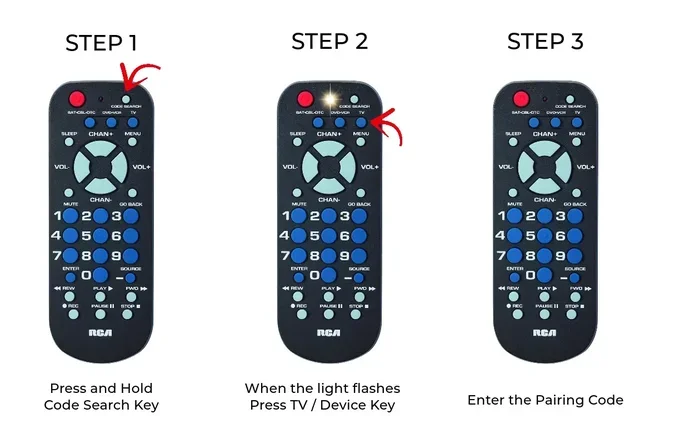
Method 3: Code Search Button Method
Some Dollar Tree remotes have a dedicated Code Search button. This method is similar to the auto search but slightly different:
- Turn on the device you want to control.
- Press and hold the Code Search button until the LED blinks.
- Press the device button (TV, Cable, etc.).
- The remote will automatically cycle through codes.
- When the device responds, press the Setup button to lock in the code.
This method is very straightforward. It does not require you to know any codes ahead of time. Just let the remote do the work.
Common TV Brand Codes for Dollar Tree Remotes
Having the right TV brand codes saves a lot of time. Below are some of the most common codes used with Dollar Tree universal remotes. Always double-check your specific remote model, as codes can vary.
| Brand | Code 1 | Code 2 | Code 3 |
|---|---|---|---|
| Samsung | 101 | 102 | 115 |
| LG | 115 | 119 | 125 |
| Sony | 001 | 002 | 007 |
| TCL | 049 | 178 | 210 |
| Vizio | 056 | 180 | 220 |
| Roku TV | 063 | 127 | 176 |
These codes work for the code entry method. If one code does not work, try the next one. Some devices respond to the first code, while others need a different one.
Samsung TV Codes
Samsung is one of the most popular TV brands. The codes 101, 102, and 115 are the most reliable for Samsung TVs. Enter each code using the number pad and test the power button after each one. If the TV turns off, you have found the right code.
LG TV Codes
LG TVs respond well to codes 115, 119, and 125. LG is known for being easy to program with universal remotes. Most users find success on the first or second code they try.
Sony TV Codes
Sony uses codes 001, 002, and 007. Sony devices can sometimes be a bit picky, so try each code in order. If none of these work, the auto search method is your best bet for Sony TVs.
TCL and Other Brands
TCL, Vizio, and Roku TVs are very common in budget setups. The codes listed above work well for these brands. If you own a less common brand, check the code list inside your remote packaging or visit the Dollar Tree support page online.
Programming the Remote for Other Devices
Programming for Cable Boxes
Setting up your Dollar Tree universal remote for a cable box follows the same steps. Here is what to do:
- Turn on your cable box.
- Press and hold the Setup button until the LED stays on.
- Enter the cable brand code from the code list.
- Press the power button to test.
If you do not know your cable provider’s code, use the auto search method. It will find the right code for your cable box automatically. This works for Comcast, Spectrum, Cox, and most other providers.
Programming for Streaming Devices
Streaming devices like Amazon Fire Stick and Roku are easy to program. Use the same code entry or auto search method. The key is to select the right device button on the remote. Most Dollar Tree remotes have a dedicated button for streaming devices or you can use the TV or Cable button.
One quick tip: make sure your streaming device is powered on before you start the programming process. The remote needs to send signals to a powered device to find the right code.
Programming for Soundbars
Soundbars and home theater systems also work with Dollar Tree universal remotes. Look for the soundbar brand in the code list. If your soundbar is from a less common brand, the auto search method works great for audio devices too.
Troubleshooting Common Issues
Remote Not Responding
If your remote does not work after programming, do not panic. Try these steps first:
- Check that the batteries are installed correctly and are fresh.
- Make sure you are pointing the remote directly at the device.
- Verify that you entered the correct universal remote codes.
- Try reprogramming the remote using a different method.
Sometimes the LED indicator light does not blink during setup, which means the remote is not entering programming mode. Remove the batteries, wait 30 seconds, and try again.
Codes Not Working
If a code does not work, try the next code for that brand. Some brands have many codes listed, and the first one may not match your specific model. The auto search method is very helpful when codes fail. It goes through every possibility until it finds the match.
LED Light Not Blinking
The LED indicator light is your remote’s way of communicating during setup. If it does not blink or stay on when you press the Setup button, here is what to do:
- Replace the batteries with fresh ones.
- Make sure you are holding the Setup button long enough.
- Clean the battery contacts with a dry cloth.
- Check that the remote is not damaged or wet.
A working LED light means the remote is ready to receive commands. Without it, programming will not work.
Expert Tips for Better Remote Performance
Here are some quick tips from experienced users who have programmed many Dollar Tree universal remotes:
- Write down your codes in a notebook or on your phone. You will thank yourself the next time you need to reprogram the remote.
- Use the auto search method as a backup if the code entry method fails. It takes a bit longer but works almost every time.
- Keep the remote close to your device during programming. The infrared signal needs a clear path to work.
- Do not press too many buttons at once during setup. Follow each step carefully and in order.
- Test the remote after every code you enter. Do not wait until you finish all codes to test. This saves time and frustration.
- Replace batteries every 6 months for the best performance. Weak batteries cause signal problems.
- Store the remote in a cool, dry place to extend its life and keep the buttons working smoothly.
Quick Tips for Faster Setup
Want to get your remote programmed in under five minutes? Follow these quick tips:
- Have your brand code list ready before you start.
- Turn on the device you are programming for.
- Use the code entry method first. It is the fastest.
- If the first code does not work, try the next one right away.
- Do not switch between methods until you have tried all codes for that brand.
Common Mistakes to Avoid
Here are mistakes that trip up many people when they program a Dollar Tree universal remote:
- Not holding the Setup button long enough. The LED light must stay on before you enter codes.
- Using the wrong device button. Make sure you press TV, Cable, or DVD before entering codes.
- Giving up after the first code fails. Many brands have multiple codes. Try them all.
- Pointing the remote at the wrong angle. The infrared sensor must have a clear line of sight.
- Forgetting to test after programming. Always test every button, not just the power button.
Avoiding these simple mistakes will save you a lot of time and headaches. Most problems come from rushing through the steps or not following the instructions carefully.
Frequently Asked Questions
How do I find the code for my specific TV brand?
You can find the code in the instruction manual that comes with your Dollar Tree remote. You can also search online for “Dollar Tree universal remote codes” followed by your TV brand name. The code list is usually printed on a sticker inside the battery compartment or on a separate card in the package.
Can I program the remote to control more than one device?
Yes, you can. Most Dollar Tree universal remotes have multiple device buttons like TV, Cable, DVD, and Aux. You program each button with the correct code for that device. This way, one remote controls everything in your entertainment setup.
What should I do if the LED light does not stay on when I press Setup?
This usually means the batteries are low or not installed correctly. Replace the batteries with fresh ones and make sure the plus and minus signs match the compartment markings. If the light still does not stay on, the remote may be defective and you should try a replacement.
Does the auto search method damage my device?
No, the auto search method is completely safe. The remote simply sends signals to your device while searching for the right code. Your device will not be changed or damaged in any way. It is a normal and built-in feature of all universal remotes.
Can I use a Dollar Tree universal remote with a smart TV?
Yes, Dollar Tree universal remotes work with smart TVs from brands like Samsung, LG, Sony, and TCL. You just need the correct universal remote codes for your TV model. The smart features of your TV, like apps and menus, will still work the same way.
How do I reset my Dollar Tree universal remote?
To reset the remote, remove the batteries and press and hold the power button for 5 seconds. Wait 30 seconds, then reinsert the batteries. The remote will return to its factory settings and you can start the programming process again from scratch.
Conclusion
Programming a Dollar Tree universal remote is a simple process that anyone can do. You now know three different methods, have access to common brand codes, and understand how to troubleshoot problems. The key is to be patient and follow each step carefully. Start with the code entry method for the fastest results, and use the auto search method as your backup plan.
Remember to keep your codes saved and your batteries fresh. A well-programmed Dollar Tree universal remote gives you the convenience of controlling all your devices with one simple controller. You will never have to dig through a pile of remotes again. Apply the tips and codes from this guide, and you will have your entertainment setup running smoothly in no time.