How Do I Copy All Files In A Folder Quickly And Easily
Copying all files in a folder quickly is easier than you think. Whether you use Windows or Mac, there are simple tricks like keyboard shortcuts, command-line tools, and third-party apps that make bulk file copying fast and painless. This guide walks you through every method step by step so you can duplicate files in seconds without any tech headaches.
Have you ever stared at a folder full of files and thought, “There has to be a faster way to do this”? You are not alone. Copying all files in a folder quickly is a task almost everyone deals with at some point. Whether you are backing up photos, moving work documents, or organizing your digital life, the process should not eat up your whole afternoon.
The good news is that there are many simple methods to copy files fast without needing expensive software or a computer science degree. From basic keyboard shortcuts to powerful built-in tools, you have plenty of options. In this guide, we will walk you through every method so you can duplicate files in a folder in the fastest way possible.
We will cover Windows and Mac methods, command-line tricks, third-party tools, and plenty of practical tips along the way. By the end, you will know exactly which approach works best for your situation. Let us dive in and make file copying a breeze.
Key Takeaways
- Keyboard shortcuts save massive time: Ctrl+C and Ctrl+V (or Cmd+C and Cmd+V) let you copy all files instantly without dragging and dropping.
- Command-line tools are powerful: Using Command Prompt or Terminal gives you advanced control over how you batch copy files across folders.
- Third-party software adds features: Tools like TeraCopy and FastCopy handle large file transfers with error recovery and speed boosting.
- Robocopy and Xcopy are built-in Windows heroes: These free utilities let you copy entire folder structures without extra downloads.
- Mac users have great options too: Finder and Terminal both offer simple ways to duplicate files on macOS.
- Avoid common mistakes: Skipping file verification and ignoring disk space can cause failed transfers and data loss.
📑 Table of Contents
- Why Copying Files Quickly Matters
- Method 1: Use Keyboard Shortcuts for Instant Results
- Method 2: Built-in Windows Tools for Bulk File Transfer
- Method 3: Use the Mac Terminal for Fast File Duplication
- Method 4: Third-Party Tools That Supercharge File Copying
- Common Mistakes to Avoid When Copying Files
- Quick Tips for Faster File Copying
- Expert Insights on Efficient File Management
- Conclusion
Why Copying Files Quickly Matters
You might wonder why speed matters when copying files. The answer is simple: time is precious. When you have hundreds or thousands of files, slow methods can turn a quick task into a frustrating wait. Learning how to copy all files in a folder quickly frees up your time for more important work.
Beyond speed, efficient file copying also reduces the risk of errors. When you rush through a manual process, mistakes happen. Files get skipped, names get changed, and folders get mixed up. Using the right batch file copying methods ensures everything gets transferred correctly the first time.
Think about how often you deal with files. Maybe you back up your documents every week. Perhaps you share project folders with teammates. Or maybe you just want to keep your personal files organized. Whatever the reason, mastering file transfer techniques makes your digital life smoother and less stressful.
The Cost of Slow File Copying
Slow file copying costs you more than just minutes. It costs focus, energy, and patience. Imagine waiting 30 minutes for a folder to copy when it should have taken 3 minutes. That is 27 wasted minutes you could have spent on something productive.
Over time, these small inefficiencies add up. If you copy files daily or weekly, slow methods can waste hours every month. Investing a little time to learn fast file duplication techniques pays off big in the long run.
Method 1: Use Keyboard Shortcuts for Instant Results
The simplest way to copy all files in a folder quickly is by using keyboard shortcuts. This method works on almost every computer and requires no extra software. It is perfect for everyday file management tasks.
How to Copy Files on Windows Using Shortcuts
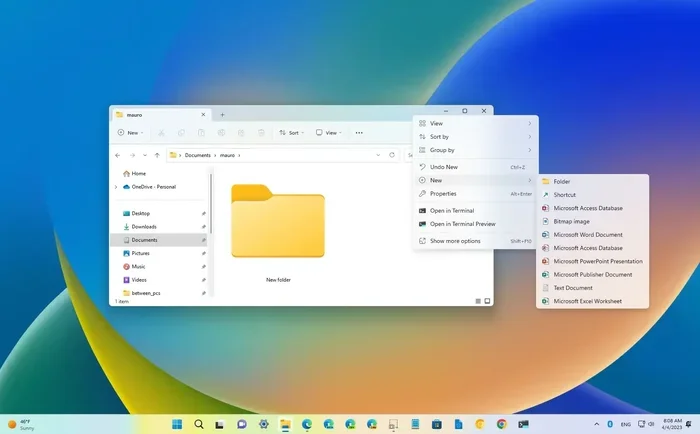
On Windows, open File Explorer and navigate to the folder containing your files. Click on any file to select it. Then press Ctrl + A to select all files in the folder. This is the fastest way to highlight everything at once.
Next, press Ctrl + C to copy the selected files. Go to your destination folder and press Ctrl + V to paste them. That is it. Your files are now duplicated in seconds.
Here is a quick breakdown of the steps:
- Open File Explorer and go to your source folder.
- Press Ctrl + A to select all files.
- Press Ctrl + C to copy the files.
- Navigate to your destination folder.
- Press Ctrl + V to paste the files.
How to Copy Files on Mac Using Shortcuts
Mac users follow a very similar process. Open Finder and go to your folder. Press Cmd + A to select all files. Then press Cmd + C to copy them. Navigate to your destination folder and press Cmd + V to paste.
Mac also offers a handy trick. You can hold the Option key and drag a file to duplicate it instantly. This works great when you want to create a quick backup without using menus or shortcuts.
Pro Tips for Keyboard Shortcuts
Want to get even faster? Try these tips. Use the Shift key to select a range of files. Click the first file, hold Shift, and click the last file to select everything in between. Use Ctrl (or Cmd on Mac) and click individual files to select only specific ones.
Another great tip: keep your source and destination folders on the same drive when possible. Copying files within the same drive is usually faster than copying across different drives or network locations.
Method 2: Built-in Windows Tools for Bulk File Transfer
Windows comes with powerful built-in tools that make bulk file transfer a breeze. Many people do not even know these tools exist, but they can save you a ton of time.
Using Robocopy for Advanced File Copying
Robocopy stands for Robust File Copy. It is a built-in Windows command-line tool designed for copying large numbers of files quickly. It handles errors gracefully and can resume interrupted transfers.
To use Robocopy, open Command Prompt and type a command like this:
robocopy "C:\SourceFolder" "D:\DestinationFolder" /E /COPYALL /R:3 /W:5
Do not worry if that looks complicated. Let us break it down:
- /E copies all subdirectories, including empty ones.
- /COPYALL copies all file information, including permissions.
- /R:3 retries failed copies up to 3 times.
- /W:5 waits 5 seconds between retries.
Robocopy is ideal when you need to copy an entire folder structure with all its contents intact. It is especially useful for backups and migrations.
Using Xcopy for Simpler Batch Copying
Xcopy is another built-in Windows tool that is simpler than Robocopy. It works great for basic copying multiple files at once. Open Command Prompt and type:
xcopy "C:\SourceFolder" "D:\DestinationFolder" /E /I /Y
The /E flag copies all subdirectories. The /I flag assumes the destination is a folder. The /Y flag suppresses overwrite confirmation prompts. Xcopy is perfect for quick file backup tips and simple duplication tasks.
Using Windows File Explorer’s Built-in Features
Do not overlook File Explorer itself. You can use the Search bar to find specific file types and then copy them all at once. For example, type .jpg in the search bar to find all JPEG images in a folder and its subfolders.
Select the search results, right-click, and choose Copy. Then paste them into your destination folder. This trick is great when you only need to copy certain types of files from a large folder.
Method 3: Use the Mac Terminal for Fast File Duplication
Mac users can leverage the Terminal app to copy files quickly. The Terminal gives you powerful control over file operations and is perfect for copying files on Mac in bulk.
Basic Terminal Commands for Copying Files
Open Terminal from your Applications folder. Use the cp command to copy files. Here is a simple example:
cp -R ~/Documents/Files/ ~/Desktop/Backup/
The -R flag tells the command to copy folders recursively, meaning it includes everything inside the folder. This is the fastest way to duplicate entire folder contents on a Mac.
You can also use the ditto command, which is Mac-specific and preserves file metadata:
ditto ~/Documents/Files/ ~/Desktop/Backup/
Copying Specific File Types on Mac
Need to copy only certain file types? Use a wildcard in your command. For example, to copy all PDF files:
cp ~/Documents/.pdf ~/Desktop/Backup/
This is a quick and efficient way to batch copy files without selecting them manually in Finder.
Method 4: Third-Party Tools That Supercharge File Copying
Sometimes built-in tools are not enough. Third-party software can add speed, reliability, and extra features to your file copying workflow. These tools are especially helpful when dealing with large file transfers or moving files across network drives.
TeraCopy: The Speed Boost You Need
TeraCopy is a popular free tool that integrates with Windows Explorer. It copies files faster by using dynamic buffering and error recovery. If a file fails to copy, TeraCopy will retry automatically instead of stopping the entire process.
Key features of TeraCopy include:
- Pause and resume file transfers at any time.
- Error recovery that skips problematic files and continues.
- Interactive file list that lets you choose which files to skip.
- Shell integration so you can use it directly from File Explorer.
TeraCopy is perfect for anyone who copies files regularly and wants a reliable file management tool that just works.
FastCopy: Simple and Extremely Fast
FastCopy is another excellent free tool for Windows. It is known for being incredibly fast and lightweight. Unlike TeraCopy, FastCopy does not integrate into the right-click menu by default, but it makes up for it with raw speed.
FastCopy lets you set up custom copy profiles for different tasks. You can save a profile for backing up photos, another for moving work documents, and so on. This makes copying files quickly a repeatable, one-click process.
SyncBack: For Automated File Backups
SyncBack is a more advanced tool that focuses on automated file synchronization and backup. It is ideal if you need to copy files on a schedule without manual intervention. You can set it to back up your important folders every night or every week.
SyncBack Free (the free version) offers plenty of features for most users. It supports incremental backups, which means it only copies files that have changed since the last backup. This saves a significant amount of time and disk space.
Common Mistakes to Avoid When Copying Files
Even with the right tools, mistakes can happen. Knowing what to avoid helps you copy all files in a folder quickly without headaches.
Skipping File Verification
Always verify your copied files. After a transfer, check that the number of files and total file size match between the source and destination. A quick check can save you from discovering missing files later.
Ignoring Disk Space
Before copying large amounts of data, make sure your destination has enough free space. Nothing is worse than starting a big transfer only to have it fail halfway through because of insufficient disk space.
Using Slow USB Drives
The quality of your storage device matters. Cheap USB drives with slow write speeds can bottleneck your entire transfer. If you copy files often, invest in a fast external drive with USB 3.0 or higher.
Forgetting to Close Open Files
Files that are currently open or in use may fail to copy. Close all applications that are using the files you want to duplicate before starting the transfer. This simple step prevents many common errors.
Quick Tips for Faster File Copying
Here are some quick tips to make your file copying even faster:
- Compress files first: Zip large folders before copying. Smaller files transfer faster, especially over networks.
- Close unnecessary programs: Free up system resources so your computer can focus on the copy task.
- Use an SSD: Solid-state drives are significantly faster than traditional hard drives for file operations.
- Copy during off-peak hours: If your computer handles other tasks, schedule large copies for times when it is idle.
- Organize files before copying: A well-organized folder structure makes file management tips more effective and reduces errors.
Expert Insights on Efficient File Management
Efficient file management is about more than just copying files. It is about building habits that save you time every day. Professionals who work with large volumes of files rely on consistent workflows and the right tools.
One expert tip: always maintain a folder organization system. Use clear, descriptive folder names and a logical hierarchy. When your files are well-organized, copying and moving them becomes faster and less error-prone.
Another insight: do not underestimate the power of keyboard shortcuts. Every time you reach for your mouse to navigate menus, you lose seconds. Over hundreds of file operations per week, those seconds add up to minutes or even hours. Mastering shortcuts is one of the simplest ways to boost your productivity.
Finally, keep your tools updated. Whether you use built-in Windows features or third-party software, updates often include performance improvements and bug fixes that make file operations smoother and faster.
Conclusion
Copying all files in a folder quickly does not have to be complicated. You have many powerful options at your fingertips, from simple keyboard shortcuts to advanced command-line tools and third-party software. The key is finding the method that fits your needs and workflow.
Start with the basics: use Ctrl+A, Ctrl+C, and Ctrl+V on Windows or Cmd+A, Cmd+C, and Cmd+V on Mac. These shortcuts alone will dramatically speed up your file copying. Then explore built-in tools like Robocopy and Xcopy for more advanced needs.
If you regularly handle large volumes of files, consider investing time in a tool like TeraCopy or FastCopy. The speed and reliability gains are well worth it. And always remember the common mistakes to avoid, like skipping verification and ignoring disk space.
Now that you know how to copy files fast and efficiently, put these methods into practice today. Your future self will thank you every time you complete a file transfer in seconds instead of minutes. Happy copying!
Frequently Asked Questions
What is the fastest way to copy all files in a folder?
The fastest way is to use keyboard shortcuts like Ctrl+A to select all files, then Ctrl+C and Ctrl+V to copy and paste them. For even faster results with large folders, use built-in tools like Robocopy on Windows or ditto on Mac, which are designed for bulk file transfer at maximum speed.
Can I copy files from one folder to another on Windows 11?
Absolutely. Windows 11 supports all the standard file copying methods including File Explorer shortcuts, command-line tools, and third-party apps. Simply open File Explorer, select your files with Ctrl+A, and use Ctrl+C and Ctrl+V to duplicate them in your target folder.
Is it safe to use third-party file copying tools?
Yes, most reputable third-party tools like TeraCopy and FastCopy are safe and widely used. They often include error recovery features and speed optimization that built-in tools lack. Always download software from the official website to ensure you get a safe, legitimate version.
How do I copy only specific file types from a folder?
Use the search bar in File Explorer or Finder. Type a wildcard like .jpg or .pdf to find all files of that type. Select the results, right-click, and choose Copy. This is a great file management tip for quickly batch copying files without selecting them one by one.
Why do some files fail to copy and how do I fix it?
Files may fail to copy if they are currently open, if the destination lacks sufficient space, or if there are permission issues. To fix this, close all applications using the files, check your disk space, and run your copy tool as an administrator. Tools like TeraCopy handle these errors gracefully by retrying or skipping problem files.
Does copying files take up more storage space?
Yes, copying creates duplicate files, so it does use additional storage space. If you want to save space, consider using symbolic links or shortcuts instead of full copies. This lets you access files from multiple locations without duplicating the actual data. It is a smart file organization strategy for managing large collections.