How Do I Connect My Bluetooth Camera To My Laptop Guide
Connecting a bluetooth camera to your laptop is easier than you think, and this guide walks you through every step. You will learn how to pair your device, set up the connection, and troubleshoot common issues. We also share expert tips to make your wireless photography and image transfer experience smooth and hassle-free.
So you just got a bluetooth camera and you want to hook it up to your laptop. Maybe you are tired of fumbling with cables, or perhaps you want to stream your camera feed wirelessly during a video call. Whatever the reason, connecting a bluetooth camera to your laptop is a skill that opens up a world of convenience.
Here is the good news. The process is much simpler than most people think. Whether you are using a Windows laptop or a Mac, the steps are pretty similar. In this guide, we will walk you through everything from initial pairing to advanced setup tips. By the time you finish reading, you will know exactly how do I connect my bluetooth camera to my laptop and get it working like a pro.
We have covered this topic extensively for readers who also want to know about connecting other devices. If you are curious about how to connect your PC to a laptop screen, we have covered that too. But for now, let us focus on getting your bluetooth camera paired and ready to go.
Key Takeaways
- Bluetooth cameras offer wireless freedom: You can connect your camera to your laptop without cables, making file transfers and live streaming simple.
- Pairing is straightforward: Most modern laptops and bluetooth cameras follow a simple discovery and pairing process that takes just a few minutes.
- Driver and compatibility checks matter: Ensuring your laptop has the right bluetooth driver and your camera is compatible prevents most connection problems.
- Troubleshooting is quick: Common issues like pairing failures or slow transfers have easy fixes you can do at home.
- Wireless image transfer opens new possibilities: From photography workflows to video calls, a connected bluetooth camera unlocks creative potential.
- Security matters: Keeping your bluetooth connection secure protects your data and prevents unauthorized access.
📑 Table of Contents
- Understanding Bluetooth Camera Connectivity
- Preparing Your Laptop for Bluetooth
- Step-by-Step Guide to Connecting Your Bluetooth Camera
- Troubleshooting Common Connection Issues
- Maximizing Your Bluetooth Camera Setup
- Comparing Bluetooth Cameras for Laptop Use
- Expert Tips for a Seamless Bluetooth Camera Experience
- Frequently Asked Questions
- Conclusion
Understanding Bluetooth Camera Connectivity
Before you dive into the steps, it helps to understand what is actually happening when you connect a wireless camera to your laptop. Bluetooth is a short-range wireless technology that lets devices talk to each other without cables. It operates on the 2.4 GHz frequency and typically works within a range of about 30 feet.
Not all cameras support bluetooth. Some use Wi-Fi instead, and others rely on USB cables. When you buy a bluetooth enabled camera, make sure it explicitly lists bluetooth as a connectivity option. Check the product box or the manufacturer’s website to confirm. This small step saves a lot of frustration later.
How Bluetooth Pairing Works
The device pairing process is essentially a handshake between two devices. Your laptop scans for nearby bluetooth devices. Your camera broadcasts its presence. Once they find each other, you authenticate the connection. After that, they remember each other and reconnect automatically in the future.
Think of it like introducing two friends at a party. They need to know each other exists, exchange some basic information, and then they can communicate freely. That is exactly what happens between your bluetooth camera and your laptop.
Bluetooth vs. Wi-Fi for Camera Connections
You might wonder why you would choose bluetooth over Wi-Fi for your camera to computer connection. Here is the short answer. Bluetooth uses less power and is simpler to set up. Wi-Fi offers faster speeds and longer range but can be more complex to configure. For most casual users and photographers, bluetooth is the go-to choice.
If you want a deeper comparison of connectivity options across devices, check out our guide on connecting HDMI to a Mac for a broader look at how different ports and wireless technologies work together.
Preparing Your Laptop for Bluetooth
Before you even think about turning on your camera, you need to make sure your laptop is ready. Skipping this step is the most common mistake people make. A little preparation goes a long way toward a smooth bluetooth connectivity experience.
Check Your Laptop’s Bluetooth Capability
Most modern laptops come with built-in bluetooth. But some older models or budget laptops might not have it. Here is how to check on Windows:
- Click the Start menu and go to Settings.
- Select Devices and then click Bluetooth & other devices.
- If you see a toggle for Bluetooth, your laptop supports it.
On a Mac, click the Apple menu, then System Preferences, and look for Bluetooth. If you do not see it, you might need a bluetooth adapter. These small USB dongles plug into your laptop and add bluetooth capability for under $20.
Update Your Bluetooth Drivers
Outdated drivers are a leading cause of connection problems. Your bluetooth driver is the software that lets your laptop communicate with bluetooth devices. Keeping it updated ensures smooth bluetooth pairing and stable performance.
On Windows, go to Device Manager, expand the Bluetooth section, right-click your bluetooth adapter, and select Update Driver. On a Mac, system updates usually handle driver updates automatically. Keeping your operating system current is one of the best ways to maintain strong bluetooth connectivity.
Enable Bluetooth and Make Your Laptop Discoverable
Once your bluetooth is working, turn it on and make your laptop discoverable. This means your laptop is actively looking for new devices to pair with. On most systems, you can do this by clicking the bluetooth icon in your taskbar or menu bar and selecting the option to make your device visible.
Here is a quick tip. Keep your laptop close to your camera during the initial pairing process. The closer they are, the stronger the signal and the faster the device pairing process will go.
Step-by-Step Guide to Connecting Your Bluetooth Camera
Now for the part you have been waiting for. Let us get your wireless camera connected to your laptop. Follow these steps carefully and you will be up and running in no time.
Step 1: Turn On Your Camera and Enable Bluetooth
Start by powering on your bluetooth camera. Navigate to the settings menu and find the bluetooth option. Turn it on and set your camera to pairing mode. Most cameras will display a message or flash an indicator light when they are ready to pair.
Some cameras call this “discoverable mode” or “pairing mode.” Check your camera’s manual if you are unsure. The exact wording varies by brand, but the process is essentially the same across all bluetooth enabled cameras.
Step 2: Search for Devices on Your Laptop
On your laptop, open the bluetooth settings and click the option to scan or add a new device. Your laptop will start searching for nearby bluetooth devices. After a few seconds, your camera should appear in the list.
Make sure your camera is in pairing mode before you start the search. If it is not, your laptop will not find it. This is a small but critical step that many people overlook when trying to connect camera wirelessly.
Step 3: Pair the Devices
Click on your camera when it appears in the list. Your laptop may ask you to confirm a pairing code. This code should match the one displayed on your camera screen. If it does, confirm the connection.
Once paired, your laptop and camera are now linked. You should see a confirmation message on both devices. From this point on, they will automatically reconnect whenever both devices have bluetooth turned on and are within range.
Step 4: Test the Connection
Do not skip this step. Take a test photo with your camera and try to transfer it to your laptop. This confirms that the wireless image transfer is working properly. If the file transfers successfully, you are all set.
If the transfer fails, do not panic. Move on to the troubleshooting section below. Most issues have simple solutions that you can fix in just a few minutes.
Step 5: Configure Camera Settings for Laptop Use
Once connected, you may want to adjust some settings on your camera. Many bluetooth cameras let you choose what type of data gets transferred. You can set it to auto-transfer all photos, or you can manually select which files to send.
Some cameras also let you use your laptop as a remote control. This is incredibly useful for wireless photography sessions where you want to take shots from a distance. Check your camera’s app or software for these features.
Troubleshooting Common Connection Issues
Even with the best preparation, things sometimes go wrong. Your bluetooth camera might not show up, or the connection might drop unexpectedly. Here is how to handle the most common problems.
Camera Not Showing Up in the Device List
This is the number one issue people face. If your laptop cannot find your camera, try these fixes:
- Make sure your camera is in pairing mode and within 10 feet of your laptop.
- Turn bluetooth off and back on on both devices.
- Restart both your camera and your laptop.
- Remove any previously paired devices that might be interfering.
Sometimes old pairings create conflicts. Deleting old connections and starting fresh often solves the problem. This is especially true if you have paired your camera with multiple devices before.
Connection Keeps Dropping
A bluetooth connection that drops frequently can be frustrating. The most common cause is distance. Keep your camera and laptop within the recommended range, usually about 30 feet with no obstacles in between.
Other devices can also interfere with the signal. Wi-Fi routers, microwaves, and even USB 3.0 ports can disrupt bluetooth connectivity. Try moving away from these sources and see if the connection stabilizes.
Slow Transfer Speeds
Bluetooth is not the fastest wireless technology, and that is okay for most uses. But if your wireless image transfer feels painfully slow, there are a few things you can try.
- Make sure you are using Bluetooth 4.0 or higher. Older versions are significantly slower.
- Close other applications on your laptop that might be using bandwidth.
- Transfer smaller batches of photos instead of large folders.
For users who need faster speeds, consider using Wi-Fi direct or a USB connection instead. Bluetooth is best for convenience and simplicity, not raw speed.
Maximizing Your Bluetooth Camera Setup
Once your bluetooth camera is connected, you can do more than just transfer photos. Let us explore some of the best ways to use this setup in your daily life.
Using Your Camera for Video Calls
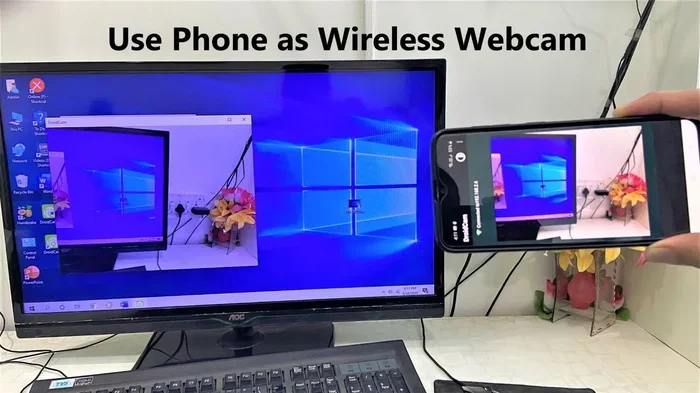
Did you know you can use a bluetooth camera as a webcam for your laptop? This is a great option if your laptop’s built-in camera is low quality. Many bluetooth cameras produce sharper images than standard webcams, giving your video calls a professional look.
You will need compatible software to route the camera feed through your laptop. Some camera manufacturers provide their own apps for this purpose. Once set up, you can use your camera for Zoom calls, online meetings, or live streaming sessions.
Wireless Photography and Remote Shooting
One of the biggest advantages of a wireless camera setup is the ability to shoot remotely. Use your laptop as a viewfinder and shutter control. This is perfect for group photos, self-portraits, or time-lapse sessions where you want to be in the frame.
Set up your camera on a tripod, connect it to your laptop, and use the software interface to control every shot. It feels like magic, and it is incredibly useful for solo photographers and content creators.
Automating Photo Transfers
Many bluetooth enabled cameras let you set up automatic transfers. Every time you take a photo, it gets sent to your laptop without you lifting a finger. This is incredibly convenient for photographers who want a seamless workflow.
You can also set filters so only certain types of photos get transferred. For example, you might auto-transfer only photos rated four stars or higher. This keeps your laptop organized and saves storage space.
Security Tips for Your Bluetooth Connection
Any wireless connection comes with security considerations. Here are a few tips to keep your bluetooth camera setup safe:
- Turn off bluetooth when you are not using it. This prevents unauthorized devices from connecting.
- Use a strong pairing PIN if your camera allows you to set one.
- Only pair with devices you trust. Do not accept random pairing requests from unknown devices.
- Keep your camera and laptop firmware updated. Manufacturers often release security patches through updates.
Following these simple practices keeps your wireless camera feed private and your data safe. Security should never be an afterthought, even with convenient wireless setups.
Comparing Bluetooth Cameras for Laptop Use
Not all bluetooth cameras are created equal. If you are shopping for one, here are a few things to consider before you buy.
| Feature | What to Look For |
|---|---|
| Bluetooth Version | Bluetooth 4.0 or higher for faster transfers |
| Range | At least 30 feet for comfortable use |
| Battery Life | Long battery life for extended wireless sessions |
| Compatibility | Works with Windows, Mac, or both |
| Auto-Transfer | Supports automatic photo and video transfer |
| Remote Control | Laptop can act as a remote shutter |
| App Support | Manufacturer provides a dedicated app |
When choosing a bluetooth camera, think about how you plan to use it. If you mainly want to transfer photos, almost any bluetooth-enabled model will work. If you want live streaming or remote control, look for cameras with dedicated apps and robust software support.
For users exploring other connectivity options, you might also want to check out how to connect a USB-C to your iPad for a different take on device connectivity.
Expert Tips for a Seamless Bluetooth Camera Experience
After helping countless readers set up their wireless devices, here are the tips that consistently make the biggest difference.
Keep your devices close during setup. The first pairing works best when both devices are within a few feet of each other. Once paired, you can increase the distance.
Name your camera something recognizable. Some cameras show up with generic names like “CAM-001” in the device list. Change the name in your camera settings so you can identify it easily among all your other bluetooth devices.
Restart before troubleshooting. This sounds obvious, but restarting both devices solves more problems than any other single step. It clears temporary glitches and refreshes the bluetooth pairing process.
Use the manufacturer’s software. Most camera brands offer free software for managing wireless transfers. This software often provides better control and faster speeds than relying on your laptop’s built-in bluetooth tools alone.
Be patient with the first connection. Your first bluetooth camera to laptop setup might take a little longer than subsequent ones. Once the initial pairing is complete, future connections are almost instant.
Frequently Asked Questions
Can I connect any camera to my laptop via Bluetooth?
Not all cameras support bluetooth. You need a bluetooth enabled camera for this to work. Check your camera’s specifications or manual to confirm it has bluetooth capability. If it does not, you can use a USB cable or a Wi-Fi connection instead.
How do I know if my laptop has Bluetooth?
On Windows, go to Settings > Devices > Bluetooth & other devices. On a Mac, open System Preferences and look for the Bluetooth icon. If you do not see either option, you may need a bluetooth adapter to add wireless capability to your laptop.
Why can’t my laptop find my Bluetooth camera?
The most common reason is that your camera is not in pairing mode. Make sure your camera is turned on, bluetooth is enabled, and it is set to discoverable mode. Also check that both devices are within close range of each other and that your laptop’s bluetooth is turned on.
Is Bluetooth safe for transferring photos?
Yes, bluetooth connectivity is safe for transferring photos. Bluetooth uses encrypted connections, and the short range means it is difficult for unauthorized devices to intercept your data. Just make sure you only pair with trusted devices and keep your software updated.
Can I use my Bluetooth camera as a webcam for video calls?
Yes, many bluetooth cameras can function as webcams with the right software. Check if your camera manufacturer offers an app that supports live video feed to your laptop. Some third-party apps also support this functionality for a wide range of camera models.
What is the range of a Bluetooth camera connection?
Most wireless cameras with bluetooth have a range of about 30 feet in open space. Walls, furniture, and other obstacles can reduce this range. For the best bluetooth pairing experience, keep your camera and laptop within 10 to 15 feet of each other during transfers.
Conclusion
Connecting your bluetooth camera to your laptop is a simple process that anyone can master with the right guidance. From checking your laptop’s bluetooth capability to completing the first successful wireless image transfer, every step in this guide is designed to make the process as smooth as possible.
Remember to keep your drivers updated, your devices close during pairing, and your connection secure. With a little practice, you will be transferring photos, shooting remotely, and using your camera for video calls without ever touching a cable. The freedom of wireless photography is genuinely transformative, and your bluetooth camera is the key to unlocking it.
Now that you know how do I connect my bluetooth camera to my laptop, go ahead and give it a try. Once you experience the convenience of a wireless setup, you will wonder how you ever managed with cables. Happy connecting!