How Do I Connect My Android Phone To Hdmi In Seconds
Connecting your Android phone to HDMI is simpler than you think. Whether you want to mirror your screen on a TV or share photos with friends, this guide walks you through every method. You will learn about cables, adapters, and wireless options that make your Android phone to HDMI connection fast and reliable.
Have you ever wanted to show something on your phone screen to a group of people on a bigger display? Or maybe you want to watch videos and play games on your TV while using your phone as a remote. Whatever your reason, knowing how do I connect my Android phone to HDMI opens up a world of possibilities.
The good news is that you do not need to be a tech expert. In just a few minutes, you can get your phone connected to your TV or monitor. This guide covers every method available. You will learn about wired connections, wireless options, and how to fix common problems. Let us get started.
## Why Connecting Your Android Phone to HDMI Matters
We use our phones for almost everything today. We watch movies, share photos, play games, and even work on presentations. But the small screen can feel limiting sometimes. Connecting your phone to a bigger display makes everything better.
HDMI output from your Android phone lets you share content with friends and family. You can stream videos on a 55-inch TV. You can present slideshows at work. You can even play mobile games on a large screen with better visuals. The experience feels completely different when you go from a 6-inch screen to a 40-inch one.
There are also practical uses. Teachers can display lesson materials. Professionals can share reports during meetings. Parents can show kids their favorite cartoons on the living room TV. The uses are endless once you know how to connect Android phone to HDMI.
## What You Need Before You Start
Before you try any method, you need the right equipment. Not all phones connect to HDMI the same way. Your phone model and its port type determine which method works best for you.
Here is what you should check first.
### Check Your Phone’s Port Type
Most modern Android phones use USB-C ports. Some older models still use micro-USB. A few premium phones support wireless casting without any cables at all.
Look at the bottom of your phone. What kind of port do you see? If it is a USB-C port, you have more options available. If it is micro-USB, you will need a specific adapter for that connection type.
### Gather the Right Equipment
Depending on the method you choose, you will need different accessories. Here is a quick list of common items you might need.
- USB-C to HDMI cable: A single cable that plugs directly into your phone and TV.
- MHL adapter: A small adapter that converts your phone’s output to HDMI signal.
- SlimPort adapter: Similar to MHL but works with more phone models.
- Chromecast device: A small dongle that plugs into your TV’s HDMI port for wireless streaming.
- Miracast-compatible TV: A smart TV that supports wireless display mirroring.
- High-speed HDMI cable: A quality cable that supports HD and 4K video output.
### Verify TV Compatibility
Your TV needs an available HDMI port. Most modern TVs have at least three HDMI inputs. Check the back or side of your TV for a spare port. You will also want to make sure your TV supports the resolution your phone can output. Most phones can push 1080p or even 4K video through HDMI.
## How to Connect Android Phone to HDMI with a Cable
The wired method is the most reliable way to get your phone on a big screen. It gives you a direct connection with no lag. No buffering. No signal drops. Just a clean, stable video output every time.
This section covers the two main wired options available today.
### Method 1: USB-C to HDMI Cable
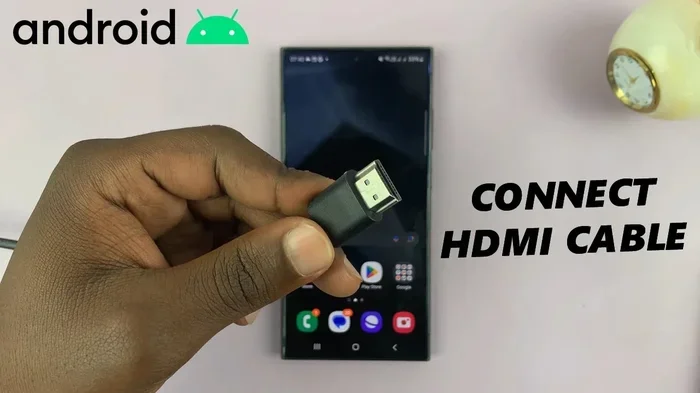
This is the simplest and fastest method. A USB-C to HDMI cable has a USB-C connector on one end and an HDMI connector on the other. You plug one end into your phone and the other into your TV.
Here are the steps to follow.
- Plug the USB-C end into your Android phone.
- Plug the HDMI end into an available HDMI port on your TV.
- Switch your TV to the correct HDMI input using your remote.
- Your phone screen should immediately appear on the TV.
That is it. No apps needed. No setup required. The connection happens automatically on most phones.
Quick Tip: Use a cable that supports high-speed data transfer. Cheap cables may only support standard definition. A good high-speed HDMI cable ensures you get sharp, clear video output.
### Method 2: MHL or SlimPort Adapter
If your phone does not have a direct USB-C to HDMI output, you can use an adapter. MHL (Mobile High-Definition Link) and SlimPort are two popular technologies that enable HDMI output from mobile devices.
Here is how to use an MHL adapter.
- Plug the MHL adapter into your phone’s charging port.
- Connect an HDMI cable from the adapter to your TV.
- Plug the adapter’s USB cable into a power source or your phone’s charger.
- Switch your TV to the HDMI input you selected.
- Your phone screen will mirror on the TV.
MHL adapters work with a wide range of Android phones. However, not all phones support MHL. Check your phone manufacturer’s website to confirm compatibility before buying one.
SlimPort adapters work similarly but use a different technology. They offer more flexibility and support higher resolutions on some devices. Both options are affordable and widely available online.
### Which Wired Method Is Best for You?
The USB-C to HDMI cable is the best choice for most people. It is simple, fast, and requires no extra power source. MHL and SlimPort adapters are great backup options for older phones that do not support direct HDMI output.
If you want the easiest setup possible, go with the USB-C to HDMI cable. It takes less than 10 seconds to connect and works instantly.
## Wireless Options to Connect Android Phone to HDMI
Not everyone wants to deal with cables. Wireless methods let you cast your phone screen to a TV without any physical connection. These options use Wi-Fi or built-in wireless display technology.
### Option 1: Chromecast
Google Chromecast is one of the most popular wireless casting devices. It is a small dongle that plugs directly into your TV’s HDMI port. You control it from your Android phone using the Google Home app.
Here is how to set up Chromecast.
- Plug the Chromecast device into your TV’s HDMI port.
- Connect the Chromecast to power using the USB cable.
- Download the Google Home app on your Android phone.
- Follow the on-screen setup instructions to connect Chromecast to your Wi-Fi.
- Open the app or content you want to cast and tap the Cast icon.
Chromecast supports streaming from many popular apps. YouTube, Netflix, Spotify, and Google Photos all work with Chromecast. You can also mirror your entire phone screen if needed.
Quick Tip: For the best performance, use a strong Wi-Fi connection. A weak signal causes lag and buffering during casting.
### Option 2: Miracast Wireless Display
Many smart TVs and streaming devices support Miracast. This is a wireless standard that lets you mirror your phone screen to a TV without any extra hardware.
To use Miracast, follow these steps.
- Go to your TV’s settings and enable Miracast or Screen Mirroring.
- On your Android phone, go to Settings and look for Cast or Screen Mirroring.
- Select your TV from the list of available devices.
- Your phone screen will appear on the TV instantly.
Miracast works well for basic screen mirroring. It does not require any additional devices or adapters. However, the quality depends on your Wi-Fi signal strength.
### Option 3: Third-Party Screen Mirroring Apps
Several apps on the Google Play Store allow wireless screen mirroring. Apps like AirScreen, LetsView, and ApowerMirror work with most Android phones and smart TVs.
These apps are useful when your TV does not support Chromecast or Miracast natively. You install the app on your phone and on your TV or streaming device. Then you connect them over the same Wi-Fi network.
Quick Tip: Always download screen mirroring apps from trusted sources. Check reviews and ratings before installing any app on your phone.
### Wired vs Wireless: Which Should You Choose?
Wired connections offer better stability and zero lag. They are ideal for gaming and presentations where timing matters. Wireless options offer convenience and freedom from cables. They work best for casual streaming and sharing photos.
Here is a quick comparison to help you decide.
| Feature | USB-C to HDMI Cable | MHL Adapter | Chromecast | Miracast |
|—|—|—|—|—|
| Connection Type | Wired | Wired | Wireless | Wireless |
| Setup Time | Under 10 seconds | Under 30 seconds | 5 minutes initial setup | Under 1 minute |
| Lag | None | None | Minimal | Moderate |
| Video Quality | Up to 4K | Up to 1080p | Up to 4K | Up to 1080p |
| Extra Hardware Needed | Cable only | Adapter + cable | Chromecast device | None (if TV supports it) |
| Best For | Gaming, presentations | Older phones | Streaming apps | Quick mirroring |
## Troubleshooting Common Connection Issues
Sometimes things do not work the first time. That is completely normal. Most connection problems have simple fixes. Here are the most common issues and how to solve them.
### No Signal on Your TV
If your TV shows no signal, try these steps.
- Check that the HDMI cable is firmly plugged into both your phone and TV.
- Make sure you switched your TV to the correct HDMI input.
- Try a different HDMI port on your TV.
- Restart your phone and try again.
### Screen Mirroring Is Lagging
Lag during wireless mirroring usually comes from a weak Wi-Fi signal. Move closer to your router. Reduce the number of devices using your network. If you are using a wireless display, try switching to a wired connection for better performance.
### Phone Does Not Support HDMI Output
Some budget Android phones do not support MHL or USB-C video output. Check your phone’s specifications online. If your phone does not support wired HDMI output, use a Chromecast or Miracast instead.
### Adapter Not Recognized
If your adapter is not working, try these fixes.
- Remove the adapter and reinsert it firmly.
- Try a different USB-C port on your phone if available.
- Make sure the adapter is compatible with your phone model.
- Update your phone’s software to the latest version.
### Audio Issues
Sometimes video plays on the TV but there is no sound. This usually happens when the audio output is still set to your phone. Go to your phone’s sound settings and change the audio output to HDMI or the connected display.
## Tips for the Best Viewing Experience
Once your phone is connected to HDMI, you can enhance your experience with a few simple tips.
### Use High-Quality Cables and Adapters
Cheap accessories can limit your video quality. Invest in a certified high-speed HDMI cable and a reliable adapter. Look for products that support 4K resolution and high-definition audio.
### Adjust Your Phone’s Display Settings
Before connecting, go to your phone’s display settings. Increase the brightness and resolution for the best picture quality on your TV. Some phones also have a screen resolution setting that you can boost before connecting.
### Keep Your Phone Charged
Screen mirroring and video output drain your phone battery quickly. Plug your phone into a charger while using the HDMI connection. This prevents your phone from dying mid-movie or mid-presentation.
### Use a Phone Mount or Stand
Holding your phone while it is connected to HDMI is inconvenient. A phone mount or stand keeps your device stable and at the right angle. You can find affordable mounts that work perfectly for this purpose.
### Close Unnecessary Apps
Running too many apps in the background can slow down your phone’s video output. Close apps you are not using. This frees up memory and processing power for a smoother experience.
Expert Insight: Many people do not realize that updating their phone’s software can improve HDMI connectivity. Manufacturers regularly fix bugs related to display output in system updates. Always keep your Android phone updated for the best performance.
## Common Mistakes to Avoid
Even with a good guide, people make mistakes. Here are the most common ones to watch out for.
- Buying the wrong adapter: Not all adapters work with all phones. Always check compatibility before purchasing.
- Using a low-quality cable: Cheap HDMI cables often fail to support HD or 4K resolution.
- Forgetting to switch TV input: This is the most common mistake. Always select the correct HDMI input on your TV.
- Ignoring power requirements: Some adapters need external power. Do not skip the power cable if required.
- Assuming all phones support all methods: Check your specific phone model before buying any accessory.
## Key Takeaways
Key Takeaways
- Wired Connection: Use an MHL adapter or USB-C to HDMI cable for a direct, stable link between your phone and TV.
- Wireless Options: Chromecast, Miracast, and screen mirroring apps let you go cable-free with ease.
- Compatibility Matters: Check if your phone supports MHL, SlimPort, or DisplayPort Alt Mode before buying gear.
- Quick Setup: Most wired connections take under 30 seconds once you have the right adapter.
- Troubleshooting Tips: Simple fixes like restarting devices and checking cable orientation solve most problems.
- Best Experience: Use a high-speed HDMI cable and a quality adapter for lag-free streaming and gaming.
Key Takeaways
- Wired Connection: USB-C to HDMI cable is the fastest and most reliable method for connecting your Android phone to HDMI.
- Adapter Options: MHL and SlimPort adapters work with older phones that lack direct HDMI output support.
- Wireless Freedom: Chromecast and Miracast let you cast your phone screen to a TV without any cables.
- Check Compatibility: Always verify that your phone and TV support the connection method you choose.
- Quality Gear Matters: Use certified cables and adapters for the best video and audio quality.
- Simple Fixes Work: Most connection issues can be solved by restarting devices and checking cable connections.
## Frequently Asked Questions
Can I connect any Android phone to HDMI?
Most Android phones can connect to HDMI, but the method depends on your phone model. Newer phones with USB-C ports usually support direct HDMI output. Older phones may need an MHL or SlimPort adapter. Check your phone’s specifications to confirm which method works for your device.
Do I need special cables to connect my phone to a TV?
Yes, you need either a USB-C to HDMI cable or an adapter with an HDMI cable. Standard charging cables will not work for video output. Look for cables labeled as high-speed HDMI or MHL-compatible to ensure they support video and audio transmission.
Can I connect my Android phone to HDMI wirelessly?
Absolutely. You can use Google Chromecast, Miracast, or third-party screen mirroring apps for wireless connections. These methods do not require any cables. You do need a Wi-Fi connection and a TV or streaming device that supports wireless display technology.
Why is there no sound when I connect my phone to HDMI?
This usually happens when your phone’s audio output is still set to the phone speaker. Go to your phone’s sound settings and change the audio output to HDMI or the connected display. On some phones, you may need to pull down the notification shade and select the HDMI audio output manually.
Does connecting to HDMI drain my phone battery?
Yes, screen mirroring and video output use extra processing power and drain your battery faster. To prevent this, keep your phone plugged into a charger while using the HDMI connection. You can also reduce your phone’s screen brightness to save some battery life.
Can I use HDMI to play mobile games on a bigger screen?
Yes, connecting your Android phone to HDMI lets you play mobile games on a TV or monitor. The wired USB-C to HDMI method offers the lowest lag, making it ideal for gaming. Wireless methods work too but may have slight delays that affect fast-paced games.
## Conclusion
Learning how do I connect my Android phone to HDMI is a skill that makes your phone so much more useful. You can share content with a room full of people. You can watch your favorite shows on a big screen. You can even use your phone as a powerful media center.
The wired method using a USB-C to HDMI cable is the fastest and most reliable option. It takes seconds to set up and delivers lag-free video output every time. If you prefer going cable-free, Chromecast and Miracast offer excellent wireless alternatives.
Remember to check your phone’s compatibility before buying any accessories. Use quality cables and adapters for the best experience. And do not panic when something goes wrong. Most issues have simple solutions.
Now that you have all the information you need, go ahead and try it yourself. Connect your Android phone to HDMI today and enjoy your content on the big screen. You will wonder why you did not do it sooner.
Frequently Asked Questions
What is How Do I Connect My Android Phone To Hdmi?
How Do I Connect My Android Phone To Hdmi is an important topic with many practical applications.