Can You Watch Netflix Off A Projector For Big Screen
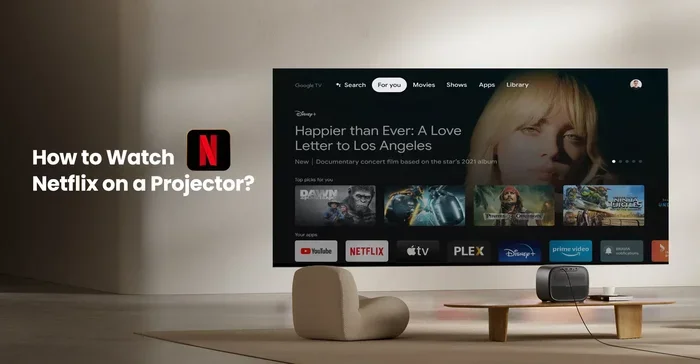
Yes, you can absolutely watch Netflix off a projector and turn any room into a home theater. Whether you use a smart projector, a streaming stick, or cast from your phone, streaming Netflix on a big screen is easier than you think. This guide walks you through every method, device, and tip you need for the best experience.
There is something magical about watching Netflix on a big screen. A projector turns your living room, bedroom, or even your backyard into a personal cinema. If you have been wondering can you watch Netflix off a projector, the short answer is yes. You can do it, and it is simpler than most people think.
Whether you own a smart projector or a basic one, there are several ways to get Netflix running on the big screen. You can use a streaming stick, connect a laptop, cast from your phone, or even use a tablet. Each method has its own benefits, and we will walk you through all of them. By the end of this guide, you will know exactly how to set up Netflix on your projector and enjoy movies and shows in a whole new way.
Watching Netflix on a projector is not just about the size of the image. It is about the experience. A 100-inch screen makes everything feel more immersive. You feel like you are inside the movie. That is the power of a big screen setup, and it is why so many people are choosing to stream Netflix on a projector instead of a traditional TV.
Key Takeaways
- Multiple ways to stream: You can watch Netflix on a projector using built-in smart features, a streaming stick, HDMI from a laptop, or screen mirroring from your phone.
- You need the right connections: HDMI is the most reliable, but wireless options like Chromecast or AirPlay work well too.
- Resolution matters: A projector with at least 1080p delivers a great Netflix experience, and 4K projectors take it to the next level.
- Sound makes a difference: Pairing your projector with a good speaker or soundbar dramatically improves the Netflix watching experience.
- Setup is simple: Most methods take less than 10 minutes and require no technical expertise.
- Avoid common mistakes: Using the wrong cable, ignoring room lighting, or skipping audio upgrades can ruin your experience.
📑 Table of Contents
- Can You Watch Netflix Off a Projector?
- What You Need to Watch Netflix on a Projector
- Step-by-Step Setup Guide
- Tips for the Best Netflix Experience on a Projector
- Projector vs TV for Netflix: Which Is Better?
- Common Mistakes to Avoid When Streaming Netflix on a Projector
- Expert Insights: Getting the Most from Your Projector Netflix Setup
- Final Thoughts: Watch Netflix on Your Projector Tonight
Can You Watch Netflix Off a Projector?
The short answer is a definite yes. You can watch Netflix on a projector using several different methods. The approach you choose depends on the type of projector you own and what devices you have available. Let us break down the most popular ways people stream Netflix on a projector and what you need to know about each one.
Method 1: Use a Smart Projector with Built-in Netflix
Many modern projectors come with smart features built right in. These smart projectors have apps pre-installed, including the Netflix app. All you need to do is connect your projector to WiFi, open the Netflix app, sign in, and start watching. It works just like a smart TV.
Brands like Epson, BenQ, and Optoma now offer projectors with smart operating systems. Some run Android TV, which gives you full access to the Google Play Store. This means you can download Netflix directly onto the projector. No extra devices are needed. If you are looking for the simplest setup, a smart projector is the way to go.
One thing to keep in mind is that not all smart projectors have the Netflix app. Some run basic smart systems that do not support streaming apps. Before you buy, check the specs to make sure Netflix is supported. You can also visit the can you browse the internet on a tablet guide for more tips on streaming apps.
Method 2: Use a Streaming Stick Like Fire Stick or Chromecast
If your projector does not have smart features, a streaming stick is your best friend. These small devices plug directly into an HDMI port on your projector. They give your projector smart capabilities instantly. You get access to Netflix, Hulu, Disney Plus, and hundreds of other apps.
The Amazon Fire Stick is one of the most popular options. It is affordable, easy to set up, and works great with projectors. You plug it into the HDMI port, connect to WiFi, and you are ready to go. The Google Chromecast is another excellent choice, especially if you want to cast content from your phone or laptop.
Using a streaming stick is one of the easiest ways to watch Netflix on a projector. It also keeps your projector affordable since you do not need to buy an expensive smart model. You can learn more about using a Fire Stick with a projector in our guide on can I use a fire stick on a projector.
Method 3: Connect a Laptop or Computer via HDMI
Another great way to stream Netflix on a projector is by connecting a laptop or computer. Most projectors have an HDMI input port. You just need an HDMI cable to connect your laptop to the projector. Once connected, your projector displays your laptop screen, and you can open Netflix in your web browser or app.
This method gives you a lot of flexibility. You can use any laptop, desktop, or even a Chromebook. You are not limited by what apps the projector supports. You also get the benefit of a larger keyboard and mouse if you need to navigate Netflix more easily.
If you are using a laptop, make sure to adjust the display settings. You want the projector to show your screen in mirror mode or extend mode, depending on your preference. This is a simple process in Windows or macOS settings. For those wondering about other connection options, check out our article on can I convert a VGA to HDMI for help with older connections.
Method 4: Cast from Your Phone or Tablet
If you have a smartphone or tablet, you can cast Netflix directly to your projector. This works if your projector supports screen mirroring or if you use a device like Chromecast or a smart projector with casting built in. The process is simple and wireless.
For Android users, you can use the built-in Cast feature. Open Netflix on your phone, tap the Cast icon, and select your projector. The content streams from your phone to the projector. iPhone users can use AirPlay if their projector supports it, or they can use a device like an Apple TV connected via HDMI.
Casting from your phone is convenient, but there are a few things to watch out for. Your phone needs to stay awake and on the same WiFi network as the projector. Also, incoming calls or notifications can interrupt your movie. If you want to learn more about connecting your phone to a projector, read our guide on can I connect my phone to projector with HDMI.
What You Need to Watch Netflix on a Projector
Before you start streaming, you need a few things in place. The good news is that you probably already have most of them. Here is a simple checklist of what you need to get Netflix running on your projector.
A Projector with HDMI Input
Almost all projectors made in the last decade have an HDMI port. This is the most important connection for streaming Netflix. HDMI carries both video and audio through a single cable, making it the go-to choice for projector setups. If your projector only has older ports like VGA or AV, you may need an adapter to convert to HDMI.
A Stable WiFi Connection
Netflix streams video over the internet, so a stable WiFi connection is essential. For HD streaming, you need at least 5 Mbps of bandwidth. For 4K streaming, you need 15 Mbps or more. If your WiFi signal is weak in the room where your projector is set up, consider moving your router closer or using a WiFi extender.
A Netflix Subscription
This one might seem obvious, but you do need an active Netflix subscription to watch content. Netflix offers several plans, ranging from standard definition to 4K Ultra HD. If you want the best picture quality on your projector, choose a plan that supports HD or 4K streaming.
A Quality Cable or Streaming Device
Depending on your method, you will need either an HDMI cable, a streaming stick, or a casting device. A good quality HDMI cable ensures you get the best picture without signal loss. If you are using a streaming stick, make sure it is compatible with your projector’s HDMI port and your WiFi network.
Step-by-Step Setup Guide
Setting up Netflix on your projector does not have to be complicated. Follow these simple steps, and you will be watching your favorite shows on the big screen in no time.
Step 1: Place Your Projector
Set up your projector in a location that gives you the best screen size and image quality. You can place it on a table, mount it on the ceiling, or set it on a shelf. Make sure it is pointed directly at the screen or wall for the sharpest image. If you are wondering about shelf placement, check out our guide on can I put a projector on a shelf.
Step 2: Connect to Your Source
Plug your streaming device, laptop, or phone into the projector using HDMI, or connect wirelessly if your projector supports it. Make sure the connection is secure and the projector recognizes the input source.
Step 3: Connect to WiFi
Go to your projector’s settings (or your streaming device’s settings) and connect to your WiFi network. Make sure the connection is strong and stable for uninterrupted streaming.
Step 4: Open Netflix
If you are using a smart projector or streaming stick, find the Netflix app and open it. Sign in with your Netflix account credentials. If you are using a laptop, open your web browser and go to Netflix.com. If you are casting from your phone, open the Netflix app and tap the Cast icon.
Step 5: Adjust Settings for the Best Experience
Once Netflix is open, adjust the picture settings on your projector. Increase the brightness if the image looks too dark. Adjust the contrast for deeper blacks. You can also adjust the sharpness and color settings to match your room and screen. For more tips on improving your projector setup, see our article on can I use a projector as a TV.
Tips for the Best Netflix Experience on a Projector
Getting Netflix on your projector is only half the battle. Making it look and sound amazing is the other half. Here are some proven tips to help you get the most out of your projector Netflix setup.
Control Room Lighting
Projectors work best in dim or dark rooms. Ambient light washes out the image and reduces contrast. Close your curtains or blinds before starting a movie. If you watch during the day, consider using blackout curtains. A darker room means richer colors and deeper blacks, which makes your Netflix content look much better.
Use a Quality Screen or White Wall
While you can project onto any flat surface, a dedicated projector screen gives you the best results. A white wall works in a pinch, but a proper screen has a special coating that enhances brightness and color accuracy. If you do not have a screen, a matte white wall is your next best option. Avoid projecting onto colored walls, as this can tint the image.
Upgrade Your Audio
Most projectors have small built-in speakers that sound okay but do not deliver a cinematic experience. To truly enjoy Netflix on a big screen, pair your projector with an external speaker, soundbar, or even a simple Bluetooth speaker. Good audio makes a huge difference in how immersive your viewing experience feels.
Match Your Projector Settings to the Content
Netflix content comes in different formats and resolutions. Use the Netflix app’s audio and subtitle settings to optimize your experience. If you are watching a dark thriller, increase the brightness slightly. If you are watching a bright animated movie, you can lower the brightness a bit. Experiment until you find the sweet spot for your room.
Keep Your Projector Clean and Cool
Projectors generate heat during extended use. Make sure yours has enough ventilation and is free of dust. A clean projector lasts longer and maintains better image quality over time. If your projector has a filter, clean or replace it regularly according to the manufacturer’s instructions.
Projector vs TV for Netflix: Which Is Better?
This is a question many people ask when deciding between a projector and a TV for streaming Netflix. Both options have pros and cons. Here is a quick comparison to help you decide.
| Feature | Projector | TV |
|---|---|---|
| Screen Size | 80 to 150 inches | 40 to 85 inches |
| Portability | Easy to move and set up | Fixed in one place |
| Image Quality in Dark Rooms | Excellent | Very Good |
| Image Quality in Bright Rooms | Poor without special screens | Excellent |
| Cost for Big Screen | More affordable for large sizes | Expensive for large sizes |
| Built-in Apps | Only on smart models | Most models include apps |
| Lifespan | Lamp needs replacement | Long-lasting LED panels |
| Setup Complexity | Moderate | Simple plug and play |
As you can see, a projector wins for screen size and cinematic feel. A TV wins for brightness and convenience. If you love the idea of a big screen movie night, a projector is hard to beat. If you watch Netflix every day in a bright room, a TV might be the better choice. For more information on using a projector like a TV, check out our guide on can I use a projector as a TV.
Common Mistakes to Avoid When Streaming Netflix on a Projector
Even with the best setup, mistakes can ruin your Netflix experience. Here are some common errors to watch out for.
- Using a low-quality HDMI cable: A cheap or damaged cable can cause signal drops, poor picture quality, or no signal at all. Invest in a good quality HDMI cable that supports HD or 4K resolution.
- Ignoring audio quality: Projector speakers are small and often sound tinny. Do not settle for built-in sound. Add a speaker or soundbar for a dramatically better experience.
- Forgetting to update apps: An outdated Netflix app may not work properly or may lack features. Keep your apps updated on smart projectors and streaming sticks.
- Not matching the projector’s resolution to Netflix’s stream quality: If your projector only supports 720p but you are paying for 4K Netflix, you will not see the full benefit. Know your projector’s capabilities.
- Streaming in a bright room without adjusting settings: Bright rooms wash out projector images. Either dim the room or adjust the projector’s brightness and contrast settings to compensate.
Expert Insights: Getting the Most from Your Projector Netflix Setup
We asked a few experts who specialize in home theater setups for their top tips on watching Netflix on a projector. Here is what they had to say.
Start with the right projector for your room size. A small projector in a large room will look washed out. Measure your viewing distance and choose a projector that delivers enough brightness and resolution for that space.
Use the Netflix app on a dedicated device whenever possible. Running Netflix through a laptop or streaming stick gives you more control over settings and updates than using a projector’s built-in system.
Consider a short-throw projector if space is limited. These projectors can produce a large image from a short distance, making them perfect for smaller rooms or apartments. They also reduce shadow interference since you are less likely to walk between the projector and the screen.
Do not overlook the importance of a good WiFi connection. Buffering ruins the movie experience. If your WiFi is weak in the projector room, a mesh WiFi system or a wired Ethernet connection through an adapter can solve the problem.
Final Thoughts: Watch Netflix on Your Projector Tonight
Watching Netflix off a projector is one of the best ways to enjoy your favorite shows and movies. The big screen experience is unmatched. Whether you use a smart projector, a streaming stick, a laptop, or screen mirroring from your phone, the setup is straightforward and the results are incredible.
You do not need expensive equipment to get started. A basic projector, a streaming stick, and a stable WiFi connection are all you need. From there, you can upgrade over time with better cables, speakers, and screens to create the ultimate home theater.
So go ahead. Set up your projector, open Netflix, and enjoy your next movie night on the big screen. Once you experience Netflix on a projector, you may never go back to watching on a small TV again. The immersive experience of a large projected image is something everyone should try at least once.
Remember, the key to a great experience is getting the basics right. A stable connection, good audio, proper room lighting, and the right cable make all the difference. Start simple, enjoy the process, and upgrade as you go. Happy streaming!
Frequently Asked Questions
Can I watch Netflix on any projector?
Most projectors can display Netflix, but the method depends on the type of projector you own. Smart projectors with built-in apps let you open Netflix directly. Basic projectors require a streaming stick, laptop, or phone connection to display Netflix content. As long as your projector has an HDMI input or supports wireless casting, you can watch Netflix on it.
Do I need a smart projector to stream Netflix?
No, you do not need a smart projector. A basic projector with an HDMI port works perfectly fine. You can plug in a streaming stick like an Amazon Fire Stick or Chromecast, or connect a laptop with an HDMI cable. These methods turn any projector into a Netflix-capable device in minutes.
What is the best way to watch Netflix on a projector?
The best way depends on your setup and preferences. For simplicity, a smart projector with built-in Netflix is the easiest option. For flexibility, a streaming stick like a Fire Stick offers access to many apps. For the best picture quality, connecting a laptop via HDMI gives you the most control over settings and resolution.
Can I use a wireless connection to stream Netflix on a projector?
Yes, you can stream Netflix wirelessly if your projector supports WiFi or screen mirroring. Many smart projectors connect directly to WiFi and run the Netflix app. You can also use wireless casting from your phone or tablet, or use a streaming stick that connects to WiFi. For the most stable connection, an Ethernet adapter or a strong WiFi signal is recommended.
Why is my Netflix picture blurry on the projector?
A blurry Netflix picture on a projector is usually caused by one of a few common issues. Check that your HDMI cable is working properly and is not damaged. Make sure the projector is focused correctly. Verify that your Netflix streaming quality is set to HD or 4K in your account settings. Also, ensure your WiFi connection is strong enough to support high-quality streaming.
Can I watch Netflix in 4K on a projector?
Yes, you can watch Netflix in 4K on a projector, but you need a few things in place. Your projector must support 4K resolution. You need a Netflix subscription that includes 4K streaming. Your internet connection must be fast enough, ideally 15 Mbps or more. And you need a 4K-compatible HDMI cable to carry the signal from your streaming device to the projector.
=== CONCLUSION ===
Can you watch Netflix off a projector for big screen viewing? Absolutely yes. You have multiple options, from smart projectors to streaming sticks to simple HDMI connections from your laptop. The process is straightforward, affordable, and delivers an incredible cinematic experience right in your own home.
Start with the basics, follow the setup steps in this guide, and you will be enjoying Netflix on a big screen in no time. Remember to focus on the key areas: a stable connection, good audio, proper lighting, and the right cable. With these elements in place, your projector Netflix setup will rival any movie theater experience.
So grab some popcorn, dim the lights, and press play. Your next movie night is going to be amazing.