Can Nintendo Switch Connect To 5ghz Wi Fi Right Now
The Nintendo Switch does support 5GHz WiFi, giving you faster speeds and less interference than 2.4GHz. You can connect your Switch to a 5GHz network by adjusting a few simple settings on your console and router. This guide walks you through every step, from checking compatibility to fixing common connection problems.
If you are a Nintendo Switch player, you know how frustrating slow WiFi can be. Lag spikes during a heated match in Splatoon or a sudden disconnect in Zelda Online can ruin the fun. One question gamers ask all the time is whether the Nintendo Switch can connect to 5GHz WiFi. The short answer is yes. But there is more to it than just saying yes or no.
In this guide, we will walk you through everything you need to know about Nintendo Switch WiFi on the 5GHz band. You will learn what 5GHz WiFi is, how to connect your Switch to it, why it matters for gaming, and how to fix common problems. Whether you are a casual player or a competitive gamer, this guide has you covered.
Let us dive right in and get your Nintendo Switch running on the best possible WiFi connection.
Key Takeaways
- The Nintendo Switch fully supports 5GHz WiFi networks for faster and more stable online gaming.
- You must use a dual-band router to access 5GHz frequencies, as older single-band routers only broadcast on 2.4GHz.
- 5GHz WiFi offers lower latency and less interference compared to the 2.4GHz band, which is ideal for competitive gaming.
- Setting up 5GHz on your Switch is simple and only requires a few taps in the console’s network settings.
- Common connection issues can often be fixed by updating your router firmware or adjusting DNS settings on your Switch.
- Placing your router closer to your Switch improves signal strength and reduces dropouts during gameplay.
📑 Table of Contents
- What Is 5GHz WiFi And Why Does It Matter?
- Can The Nintendo Switch Connect To 5GHz WiFi?
- How To Connect Your Nintendo Switch To 5GHz WiFi
- 5GHz vs 2.4GHz WiFi For Nintendo Switch Gaming
- Troubleshooting Nintendo Switch WiFi Connection Issues
- Tips For The Best Nintendo Switch WiFi Performance
- Conclusion
What Is 5GHz WiFi And Why Does It Matter?
Before we get into the Nintendo Switch specifics, let us quickly understand what 5GHz WiFi actually is. Most modern routers broadcast on two frequency bands: 2.4GHz and 5GHz. These are just different wireless frequencies your router uses to send data to your devices.
The 2.4GHz band has been around for a long time. It travels farther and goes through walls better. But it is also crowded. Microwaves, Bluetooth devices, and neighbors’ routers all share the same frequency. This creates wireless interference that can slow down your connection.
The 5GHz band is newer and less crowded. It offers faster data speeds and more stable connections. However, it does not travel as far and struggles more with thick walls. For gaming, though, speed and stability matter more than range.
Why 5GHz Is Better For Online Gaming
When you play games online, your Nintendo Switch constantly sends and receives small packets of data. These packets need to move quickly and reliably. Here is why 5GHz WiFi is better for this:
- Lower latency: Data travels faster on 5GHz, meaning less delay between your button press and the action on screen.
- Less interference: Fewer devices compete for space on the 5GHz band, so your connection stays steady.
- Higher bandwidth: 5GHz supports faster data transfer rates, which helps with game downloads and updates too.
- Smoother online play: You experience fewer lag spikes and disconnections during multiplayer matches.
All of these benefits make 5GHz WiFi the preferred choice for anyone who takes online gaming seriously. If you want to know more about setting up your home network for gaming, check out our article on 10 Gadgets To Make Moms Life Easier for some great tech recommendations that can improve your whole household setup.
Can The Nintendo Switch Connect To 5GHz WiFi?
Now for the big question. Can Nintendo Switch connect to 5GHz WiFi? Yes, it absolutely can. The Nintendo Switch supports both 2.4GHz and 5GHz WiFi frequencies. This means your Switch is ready to take advantage of the faster 5GHz band right out of the box.
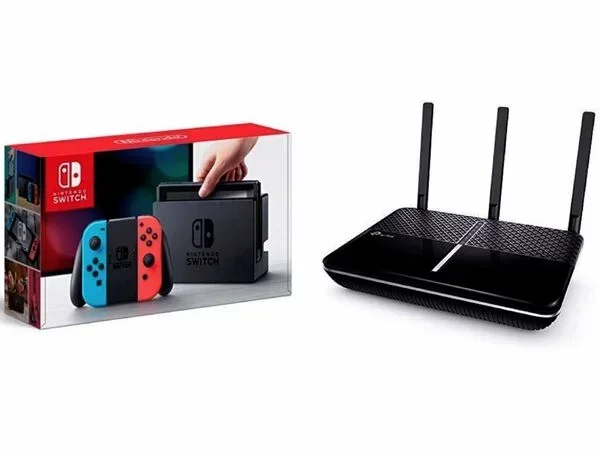
However, there is one important requirement. Your router must be a dual-band router. A dual-band router broadcasts both 2.4GHz and 5GHz signals. If your router is older and only supports 2.4GHz, you will not be able to connect to 5GHz no matter what you do on the Switch.
Here are the key requirements for connecting your Nintendo Switch to 5GHz WiFi:
- A dual-band router that broadcasts a 5GHz signal
- The router and Switch must be within reasonable range of each other
- The 5GHz network must not be hidden or disabled
- Your Switch should be running the latest system software
Most routers sold in the last 10 years are dual-band. If you are not sure, check your router’s manual or look at the model number online. You can also check your router’s admin page to see what bands it supports.
Nintendo Switch WiFi Hardware Details
The Nintendo Switch uses a built-in WiFi 5 (802.11ac) wireless module. This is the same standard used by most modern smartphones and laptops. WiFi 5 fully supports 5GHz frequencies and can handle speeds up to 1.3Gbps in theory. In real-world use, you can expect much lower speeds depending on your router and distance.
It is worth noting that the Nintendo Switch does not support WiFi 6 (802.11ax). WiFi 6 is the newest standard and offers even better performance. But for most gamers, WiFi 5 on 5GHz is more than enough to enjoy smooth online play.
How To Connect Your Nintendo Switch To 5GHz WiFi
Connecting your Nintendo Switch to a 5GHz network is straightforward. Follow these steps and you will be online in no time.
Step 1: Make Sure Your Router Is Broadcasting 5GHz
First, check that your router is actually sending out a 5GHz signal. Many modern routers combine both bands into one network name (SSID). This is called “band steering.” While convenient, it can sometimes cause issues with the Nintendo Switch.
For the best results, we recommend separating your 2.4GHz and 5GHz networks. Give them different names. For example, call your 5GHz network “HomeNetwork_5G” and your 2.4GHz network “HomeNetwork_2G.” This way, you can choose exactly which band your Switch connects to.
Step 2: Go To Your Switch Network Settings
On your Nintendo Switch, go to System Settings > Internet > Internet Settings. You will see a list of available WiFi networks. Look for the network name you gave your 5GHz band.
If you do not see your 5GHz network listed, try these things:
- Move your Switch closer to the router
- Restart your router and wait 30 seconds
- Make sure the 5GHz band is not disabled in your router settings
- Check that your Switch is running the latest system update
Step 3: Select And Connect To The 5GHz Network
Tap on your 5GHz network name and enter the password. Your Switch will connect and show a WiFi icon in the top right corner of the screen. To confirm you are on 5GHz, go back to Internet Settings and look at the network details. It should show the connection type and signal strength.
Once connected, try loading a game that requires online play. If it loads quickly and you experience no lag, you are good to go!
Quick Tips For A Smooth Connection
Here are some extra tips to make sure your 5GHz connection works perfectly:
- Keep your Switch close to the router during initial setup to ensure a strong signal.
- Avoid placing the router near thick walls or metal objects that can block the 5GHz signal.
- Restart your router weekly to keep the connection fresh and stable.
- Use a WiFi analyzer app on your phone to check for channel congestion on the 5GHz band.
5GHz vs 2.4GHz WiFi For Nintendo Switch Gaming
Now that you know how to connect to 5GHz, you might wonder which band is actually better for your Nintendo Switch. Let us compare them side by side.
| Feature | 2.4GHz WiFi | 5GHz WiFi |
|---|---|---|
| Speed | Slower (up to 600Mbps) | Faster (up to 1.3Gbps) |
| Range | Longer range | Shorter range |
| Wall Penetration | Better | Worse |
| Interference | More crowded | Less crowded |
| Latency | Higher | Lower |
| Best For | Casual browsing, distant rooms | Online gaming, downloads |
For Nintendo Switch gaming, 5GHz is clearly the winner. The lower latency and reduced interference make a real difference during online matches. You will notice smoother gameplay and fewer disconnections.
However, if your Switch is in a different room far from the router, 2.4GHz might actually give you a more stable connection because it passes through walls better. In that case, consider moving your router closer or using a WiFi extender.
If you are using your phone as a mobile hotspot for your Nintendo Switch, you might run into some network configuration issues. For instance, if you need to manage how your phone connects to networks, you might need to add prefixes to numbers on iPhone to ensure your hotspot settings work properly with your carrier.
When 2.4GHz Might Still Be The Right Choice
There are situations where 2.4GHz WiFi makes sense for the Nintendo Switch. If you are playing in a room far from the router and the 5GHz signal is weak, switching to 2.4GHz can give you a more consistent connection. Also, if your internet plan is slow, the difference between 2.4GHz and 5GHz might not be noticeable.
The key is to test both bands and see which one works best in your specific setup. Your home layout, router placement, and number of connected devices all play a role.
Troubleshooting Nintendo Switch WiFi Connection Issues
Even with a 5GHz connection, you might run into problems sometimes. Here are the most common issues and how to fix them.
Switch Cannot Find The 5GHz Network
If your Switch does not see your 5GHz network, the most common cause is that the bands are combined on your router. Go into your router settings and disable “band steering” or “Smart Connect.” This will split your network into two separate names, and the 5GHz one should appear on your Switch.
Connection Keeps Dropping
An unstable 5GHz connection can be caused by several things:
- Distance from the router: Move the Switch closer to see if the problem goes away.
- Interference from other devices: Cordless phones and baby monitors can interfere with 5GHz signals.
- Router firmware is outdated: Check for updates in your router admin panel.
- Too many devices on the network: Disconnect devices you are not using to free up bandwidth.
Slow Download Speeds On 5GHz
If your Switch is connected to 5GHz but downloads are slow, the problem might be your internet plan rather than the WiFi. Run a speed test on your Switch by going to Internet Settings > Test Connection. If the results are lower than what your plan promises, contact your internet service provider.
DNS Settings Can Help
Changing your DNS settings on the Nintendo Switch can improve connection speed and stability. Many gamers use Google DNS (8.8.8.8 and 8.8.4.4) or Cloudflare DNS (1.1.1.1). To change DNS settings, go to Internet Settings > select your network > Change Settings > DNS Settings > Manual.
Tips For The Best Nintendo Switch WiFi Performance
Getting your Switch connected to 5GHz is only half the battle. Here are some expert tips to keep your connection running at its best.
Optimize Your Router Placement
Where you place your router matters a lot. For the best 5GHz signal, put your router in a central location in your home. Keep it elevated and away from walls, metal objects, and electronics that might cause interference.
Keep Your Switch And Router Updated
Always keep your Nintendo Switch system software up to date. Nintendo regularly releases updates that improve WiFi performance and fix connection bugs. The same goes for your router firmware. Check for updates every few months.
Limit Background Activity
Other devices on your network can eat up bandwidth. If someone in your house is streaming 4K video while you are playing online, your connection will suffer. Ask family members to pause heavy downloads or streaming during your gaming sessions.
Consider A WiFi Extender Or Mesh System
If your home is large and the 5GHz signal does not reach your gaming area, a WiFi extender or mesh system can help. These devices boost your signal and extend coverage throughout your home. Look for one that supports 5GHz WiFi for the best results.
Use An Ethernet Adapter For The Ultimate Setup
For the most stable and fastest connection possible, consider using a USB Ethernet adapter for the Nintendo Switch. This connects your Switch directly to your router via a cable, bypassing WiFi entirely. It eliminates lag, interference, and signal drops completely.
While WiFi 5GHz is great, a wired connection is always better for competitive gaming. If you want the absolute best performance, an Ethernet adapter is worth every penny.
Conclusion
So, can Nintendo Switch connect to 5GHz WiFi? Absolutely yes. The Nintendo Switch fully supports 5GHz WiFi and can take advantage of its faster speeds and lower latency for a much better online gaming experience. All you need is a dual-band router and a few simple steps to get connected.
By following the setup guide in this article, you can enjoy smoother online play, faster downloads, and fewer connection problems. Remember to place your router wisely, keep your software updated, and troubleshoot any issues using the tips we shared.
5GHz WiFi is the way to go for Nintendo Switch gaming. It gives you the speed and stability you need to stay competitive and enjoy your favorite games without frustration. Try it today and feel the difference in your online gameplay.
Whether you are battling in Splatoon, exploring Hyrule, or racing in Mario Kart, a strong 5GHz connection makes everything more enjoyable. Take control of your network and get the most out of your Nintendo Switch.
Frequently Asked Questions
Does the Nintendo Switch support 5GHz WiFi?
Yes, the Nintendo Switch supports both 2.4GHz and 5GHz WiFi frequencies. It uses WiFi 5 (802.11ac) which fully supports the 5GHz band for faster speeds and lower latency during online gaming.
Why can’t my Nintendo Switch find my 5GHz network?
The most common reason is that your router combines both bands into one network name. Disable band steering or Smart Connect in your router settings and give each band a separate name. Your 5GHz network should then appear on your Switch.
Is 5GHz WiFi better than 2.4GHz for Nintendo Switch gaming?
Yes, 5GHz WiFi is better for Nintendo Switch gaming. It offers lower latency, less interference, and faster speeds, all of which contribute to a smoother and more stable online gaming experience.
Can I use a mobile hotspot with my Nintendo Switch on 5GHz?
Some mobile hotspots support 5GHz, but most carrier hotspots only broadcast on 2.4GHz. Check your hotspot settings to see which bands are available. If only 2.4GHz is available, your Switch will connect to that instead.
How do I change DNS settings on my Nintendo Switch?
Go to System Settings > Internet > Internet Settings > select your network > Change Settings > DNS Settings > Manual. Enter Google DNS (8.8.8.8 and 8.8.4.4) or Cloudflare DNS (1.1.1.1) for potentially faster and more stable connections.
Do I need a special router for Nintendo Switch 5GHz WiFi?
You need a dual-band router that broadcasts a 5GHz signal. Most routers sold in recent years are dual-band. Check your router’s specifications or admin panel to confirm it supports 5GHz WiFi before trying to connect your Switch.