How Do I Connect Bluetooth Headset To Xbox One Controller
Connecting a Bluetooth headset to your Xbox One controller is simpler than most gamers think. Whether you want wireless freedom or better audio quality during multiplayer sessions, this guide walks you through every step. You will learn the exact pairing process, common issues, and expert tips to get the best gaming audio experience.
Gaming audio can make or break your experience. Whether you are playing a fast-paced shooter or exploring an open-world adventure, clear sound gives you a real edge. Many Xbox One players want the freedom of wireless audio, and a Bluetooth headset seems like the obvious choice.
But here is the catch. Xbox One does not support direct Bluetooth audio the way your phone does. You cannot simply flip a switch and connect any Bluetooth headset to your controller. This confuses a lot of gamers at first. The good news is that there are simple workarounds that make it all work.
This guide shows you exactly how to connect a Bluetooth headset to your Xbox One controller. We cover every method, troubleshoot common problems, and share tips to improve your audio setup. By the end, you will know the best path for your specific headset and gaming style.
If you have ever wondered whether Bluetooth headphones can work with Xbox One, you are in the right place. Let us dive into the details and get you listening in no time.
Key Takeaways
- Xbox One does not support direct Bluetooth audio: You need a wireless adapter or a 3.5mm connection to link most headsets.
- The Xbox Wireless Adapter is the best option: It delivers low-latency audio and seamless connectivity with your controller.
- Pairing takes only a few minutes: Once you know the steps, connecting your headset becomes quick and repeatable.
- Common issues are easy to fix: Most connection problems stem from distance, interference, or outdated firmware.
- You can also use a wired connection: A simple 3.5mm cable works as a reliable backup for your headset setup.
- Check compatibility first: Not all Bluetooth headsets work perfectly with Xbox One controllers without extra hardware.
📑 Table of Contents
Why Connect a Bluetooth Headset to Your Xbox One Controller
Wired headsets have been the standard for console gaming for years. But wireless options are growing fast. Gamers want more freedom to move around without getting tangled in cables. A wireless headset lets you stretch, grab a snack, or just enjoy a cleaner setup.
Here are some key reasons players look for Bluetooth audio on Xbox One:
- Freedom of movement: No cable pulling you back while you play.
- Better comfort: Wireless headsets often feel lighter and less restrictive during long sessions.
- Multi-device use: Many Bluetooth headsets let you switch between your Xbox, phone, and laptop easily.
- Cleaner setup: Fewer cables means a tidier gaming space.
- Private audio: You can hear game audio clearly without bothering others nearby.
It is worth noting that Xbox One uses a proprietary wireless protocol for its official accessories. This is different from standard Bluetooth. So you cannot treat your Xbox controller like a phone or laptop when it comes to wireless audio. But do not worry. There are reliable ways around this limitation.
What You Need Before Getting Started
Before you try to pair anything, make sure you have the right gear. Skipping this step can save you a lot of frustration later. Not every headset and controller combination works the same way.
Check Your Controller Version
Xbox One controllers come in different versions. The newer models have a 3.5mm jack built into the controller, right below the bumpers. Older versions may not have this port at all. Check your controller first because this affects which connection methods you can use.
Know Your Headset Type
Not all Bluetooth headsets are created equal. Some are designed specifically for gaming. Others are general-purpose headsets made for phone calls or music. Here is a quick breakdown:
- Gaming headsets with Xbox Wireless: These connect directly to the controller using a USB dongle. They offer the best latency and audio quality.
- Standard Bluetooth headsets: These need a wireless adapter to work with Xbox One. Direct Bluetooth pairing is not supported natively.
- Headsets with a 3.5mm cable: These can plug directly into the controller for a simple wired connection.
If you are unsure about your headset, check the product manual or the manufacturer’s website. Understanding your gear helps you choose the right connection method.
What You Will Need
- Your Xbox One controller (updated to the latest firmware)
- A Bluetooth headset with full charge
- An Xbox Wireless Adapter for Windows (if using Bluetooth audio)
- A 3.5mm audio cable (optional, as a backup method)
Having everything ready before you start makes the process much smoother. Trust me on this one.
Step-by-Step Guide to Pairing Your Bluetooth Headset
Now for the part you have been waiting for. Here is how to actually connect your Bluetooth headset to your Xbox One controller. We will walk through each method so you can pick the one that fits your setup.
Method 1: Using the Xbox Wireless Adapter
This is the most reliable method for Bluetooth audio on Xbox One. The Xbox Wireless Adapter plugs into a USB port on your console or PC and creates a bridge between your headset and the controller.
Here is how to do it:
- Plug the Xbox Wireless Adapter into a USB port on your Xbox One console.
- Wait for the adapter to install. The Xbox will recognize it automatically.
- Put your Bluetooth headset into pairing mode. Check your headset manual for the exact steps.
- On your Xbox One, go to Settings > Devices & connections > Accessories.
- Select the adapter from the device list and follow the on-screen prompts.
- Your headset should now appear as a connected audio device.
This method gives you the best audio quality and the lowest latency. It is the closest you can get to a true wireless experience on Xbox One.
Method 2: Using a 3.5mm Audio Cable
If your controller has a 3.5mm jack, this is the simplest option. You do not need any extra hardware. Just plug in and play.
Here is what to do:
- Take a 3.5mm audio cable (the same one you use with your phone).
- Plug one end into the headset jack on your Xbox One controller.
- Plug the other end into your headset’s audio input.
- Go to Settings > Preferences > Volume on your Xbox.
- Adjust the headset volume to your liking.
This method works with almost any headset that has a cable. The trade-off is that you are still tethered by a wire. But for many gamers, this does not matter at all.
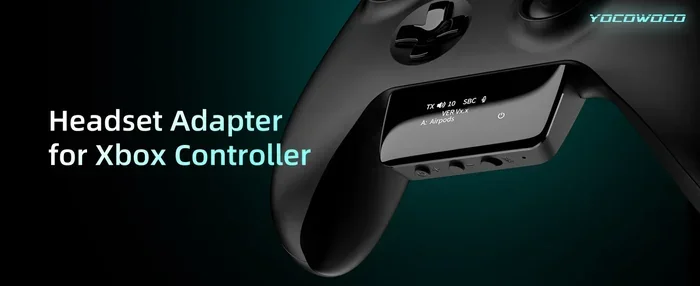
Method 3: Using a Third-Party Bluetooth Adapter
Some third-party adapters claim to add Bluetooth support to Xbox One. These small devices plug into your controller or console and create a Bluetooth connection. Results vary, and not all adapters work well with Xbox. If you go this route, look for adapters with good reviews and Xbox-specific support.
Keep in mind that third-party solutions may introduce audio latency. This means there could be a slight delay between what you see on screen and what you hear. For competitive gaming, this can be a real problem.
Troubleshooting Common Bluetooth Connection Issues
Even with the right setup, things do not always work perfectly the first time. Bluetooth connections can be finicky. Here are the most common problems and how to fix them.
Headset Not Showing Up in Device List
If your headset does not appear when you search for devices, try these steps:
- Make sure your headset is in pairing mode. Most headsets have a blinking light when ready.
- Move closer to your Xbox console or adapter. Bluetooth has a limited range, usually about 30 feet.
- Restart your Xbox One and try again.
- Check if other Bluetooth devices are nearby and causing interference.
Audio Cutting Out or Crackling
Intermittent audio is a common frustration. This usually happens because of signal interference or low battery. Try moving closer to the console. Also, make sure your headset is fully charged. Weak battery power can cause audio dropouts.
No Sound Through the Headset
If you can hear game audio through your TV but not the headset, check your Xbox audio settings. Go to Settings > Display & sound > Audio output. Make sure your headset is set as the default output device. Also check the volume levels on both the Xbox and the headset.
Latency or Audio Delay
A slight delay between game sounds and what you hear can throw off your timing. This is more common with Bluetooth connections than with wired ones. Using the Xbox Wireless Adapter helps reduce this significantly. If you are playing competitive games, a wired connection may still be your best bet.
For more details on pairing Bluetooth devices with Xbox, you can check our guide on can I pair Bluetooth headphones to Xbox One. It covers additional scenarios and device-specific tips.
Tips for the Best Gaming Audio on Xbox One
Once your headset is connected, you can take steps to improve the audio experience. These small adjustments make a big difference during gameplay.
Adjust Your Xbox Audio Settings
Xbox One has built-in audio settings that let you fine-tune your sound. Go to Settings > Display & sound > Volume and explore the options. You can adjust headset volume, chat mix, and master volume independently. Finding the right balance helps you hear footsteps and dialogue clearly.
Keep Your Firmware Updated
Both your Xbox One controller and your headset benefit from firmware updates. These updates often fix bugs and improve connectivity. Check the manufacturer’s app or your Xbox settings regularly to stay up to date.
Minimize Bluetooth Interference
Bluetooth uses the 2.4 GHz frequency band. Other devices in your home, like Wi-Fi routers and microwaves, can cause interference. Keep your console and headset away from these sources for a cleaner connection.
Use a Dedicated Gaming Server When Possible
For online multiplayer games, a stable connection matters. Use a wired internet connection for your Xbox when possible. This reduces lag and keeps your audio synced with what is happening in-game.
If you also use wireless controllers and want to know more about wireless connectivity options, check out our article on can I use a wireless controller on my phone for useful tips on Bluetooth device management.
Consider a Headset with Low-Latency Support
Some gaming headsets are specifically designed to minimize audio delay. Look for headsets that advertise low-latency or near-zero latency audio. These are especially helpful for competitive shooters where every millisecond counts.
Final Thoughts
Connecting a Bluetooth headset to your Xbox One controller opens up a world of wireless gaming audio. While Xbox One does not support direct Bluetooth audio out of the box, the methods in this guide give you solid alternatives. The Xbox Wireless Adapter offers the best experience, while a 3.5mm cable provides a simple backup option.
Remember to check your controller version and headset compatibility before you start. Troubleshooting connection issues is usually straightforward once you know what to look for. And with the right audio settings, you can enjoy immersive sound that gives you a real advantage in your favorite games.
Take your time with the setup process. Once your headset is connected, you will wonder how you ever played without wireless audio. Happy gaming!
For readers interested in exploring other audio options, you might also enjoy our piece on can I turn my phone into a Bluetooth speaker for creative ways to use Bluetooth audio in different setups.
Frequently Asked Questions
Can I connect any Bluetooth headset directly to Xbox One?
No, Xbox One does not support direct Bluetooth audio connections. You will need either an Xbox Wireless Adapter, a 3.5mm cable, or a compatible third-party adapter to get Bluetooth audio working with your controller.
Why does my Bluetooth headset keep disconnecting from Xbox One?
Disconnections usually happen due to distance, interference, or low battery. Move closer to your console, reduce the number of active Bluetooth devices nearby, and make sure your headset is fully charged. Updating your controller firmware can also help stabilize the connection.
Is there any latency when using a Bluetooth headset with Xbox One?
Yes, Bluetooth connections typically have slightly more latency than wired connections. The Xbox Wireless Adapter helps reduce this delay significantly. For competitive gaming where timing is critical, a wired headset or the official adapter is recommended.
Can I use my Bluetooth headset for both chat and game audio?
Most Bluetooth headsets support both chat and game audio when connected properly. You can adjust the balance between the two in your Xbox audio settings under Volume and chat mix options.
Do I need any extra equipment to connect a Bluetooth headset to Xbox One?
It depends on the method you choose. The Xbox Wireless Adapter is the most reliable option for Bluetooth audio. A 3.5mm cable works as a simple wired alternative that requires no extra equipment. Third-party Bluetooth adapters are available but may vary in quality and compatibility.
What is the best Bluetooth headset for Xbox One gaming?
The best headset depends on your budget and preferences. Look for headsets with low-latency support, comfortable fit, and good battery life. Gaming-specific headsets with Xbox Wireless support generally offer the best overall experience on Xbox One.