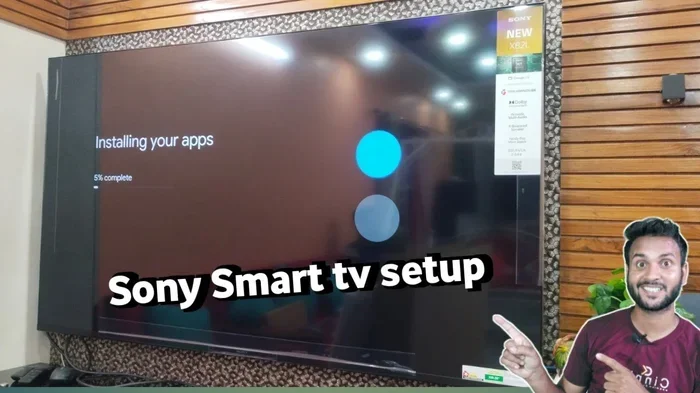
Does Sony TV Have Built In WiFi And How To Set It Up
Yes, most modern Sony TVs come with built-in WiFi, making it easy to connect to your home network and start streaming right away. Setting up the wireless connection on your Sony TV built-in WiFi is simple, but knowing the right steps saves time and frustration. This guide walks you through everything from initial setup to troubleshooting common issues.
So you just got a shiny new Sony TV, and the first thing you want to do is cut the cord and start streaming. But wait. Does your Sony TV have built-in WiFi? The short answer is yes, most do. But the full answer depends on your model, its age, and the features it includes. Let’s dive into everything you need to know about connecting your Sony TV to your wireless network and getting it up and running smoothly.
Built-in WiFi has become a standard feature on nearly all smart TVs sold today. Sony is no exception. Whether you own a mid-range Sony Bravia or a top-of-the-line model, there is a very good chance it comes with wireless connectivity already built right in. This means no extra dongles, no messy cables, and no hassle. You just enter your WiFi password and start watching.
But what if your TV is older? Or what if the WiFi connection keeps dropping? What if you want to know the difference between WiFi 5 and WiFi 6 on your Sony set? This guide covers all of that and more. By the end, you will know exactly how your Sony TV handles wireless connections and how to get the best performance out of it.
Key Takeaways
- Built-in WiFi is standard: Most Sony TVs from the last several years include wireless connectivity right out of the box.
- Setup takes minutes: You can connect your Sony TV to WiFi in just a few simple steps through the Settings menu.
- Troubleshooting is straightforward: Common WiFi issues on Sony TVs often have quick fixes like restarting the router or updating software.
- WiFi 6 support matters: Newer Sony TV models support the latest WiFi standards for faster, more stable connections.
- External options exist: If your Sony TV lacks built-in WiFi, you can use a WiFi adapter or connect via Ethernet cable.
- Network placement counts: The location of your router affects your Sony TV’s WiFi signal strength and streaming quality.
📑 Table of Contents
- Does Sony TV Have Built In WiFi?
- How To Set Up WiFi On Your Sony TV
- Understanding WiFi Standards On Sony TVs
- Troubleshooting Sony TV WiFi Connection Issues
- Optimizing Your Sony TV’s WiFi Performance
- Sony TV Built-In WiFi vs. External Streaming Devices
- Common Mistakes To Avoid When Setting Up Sony TV WiFi
- Final Thoughts
Does Sony TV Have Built In WiFi?
The answer is almost always yes. Sony has been equipping its TVs with built-in WiFi for many years now. If you bought your Sony TV in the last five to seven years, it almost certainly has wireless connectivity. The feature goes by different names depending on the model line, but the core functionality is the same. Your TV can detect available WiFi networks and connect to them without any extra hardware.
Here is how you can quickly confirm whether your specific Sony TV has built-in WiFi:
- Check the Settings menu: Navigate to Settings > Network & Internet on your Sony TV. If you see a WiFi or Wireless option, your TV supports it.
- Look at the back of the TV: Some models list connectivity features on a sticker or in the manual. Look for “Wi-Fi” or “802.11” specifications.
- Check the model number online: Sony’s website lists full specs for every TV model. Search your model number and look for wireless LAN support.
- Check for an Ethernet port: If your TV has both an Ethernet port and WiFi settings, it definitely has built-in WiFi.
Sony TVs that are part of the X80, X85, X90, X95, and A80/A90 series all include built-in WiFi. Even many of their budget-friendly models from the W700 and W800 series come with wireless connectivity. It is rare to find a Sony smart TV from the last several years that does not include this feature.
What If Your Sony TV Does Not Have Built In WiFi?
Some older Sony TVs and certain basic models do not include wireless capability. If your TV lacks built-in WiFi, you are not out of luck. You have a couple of options:
- Use a WiFi adapter: Some Sony TVs support USB WiFi adapters. Check your TV’s manual to see if this is an option.
- Use a streaming device: A device like a Roku, Amazon Fire Stick, or Apple TV can add WiFi connectivity to any TV with an HDMI port.
- Use a wired Ethernet connection: If your router is close enough, a simple Ethernet cable gives you a stable, fast connection.
Keep in mind that if you go the streaming device route, you can still access all the same apps and features. The streaming device handles the WiFi connection, and your TV just displays the content. This works great as an alternative to Sony TV built-in WiFi.
How To Set Up WiFi On Your Sony TV
Once you confirm your Sony TV has built-in WiFi, the setup process is straightforward. Sony makes it easy to connect to your home network. Here is the step-by-step process for most Sony TV models.
Step 1: Prepare Your WiFi Network
Before you touch your TV, make sure you know your WiFi network name (SSID) and password. You can usually find this on a sticker on your router. If you changed the default name or password and forgot it, check your router’s admin page or your internet provider’s app.
Also, make sure your router is turned on and broadcasting. If you have a dual-band router, know whether you want to connect to the 2.4 GHz band or the 5 GHz band. The 5 GHz band is faster but has a shorter range. The 2.4 GHz band is slower but reaches further. For most living rooms, 5 GHz works great if your router is nearby.
Step 2: Navigate to the Network Settings
Turn on your Sony TV and press the Home button on your remote. This opens the main menu. Use the arrow keys to navigate to Settings, which looks like a gear icon. From there, select Network & Internet. You should see options for both wired and wireless connections.
Choose the Wireless or WiFi option. Your TV will start scanning for available networks. This takes a few seconds. Once the scan is complete, a list of nearby networks will appear on screen.
Step 3: Connect to Your Network
Find your home WiFi network in the list and select it. A prompt will appear asking you to enter your WiFi password. Use the on-screen keyboard to type it in carefully. WiFi passwords are case-sensitive, so double-check for uppercase and lowercase letters.
After entering the password, select Connect. Your Sony TV will take a few seconds to establish the connection. You should see a confirmation message and a WiFi icon appear in the top-right corner of the screen. That means you are connected and ready to stream.
Step 4: Test Your Connection
Once connected, it is smart to test your network. Go back to Settings > Network & Internet and look for a Network Status or Test Connection option. This will show your signal strength and confirm that the internet is working properly.
If the test shows a strong signal and successful internet access, you are all set. Open an app like Netflix or YouTube and start watching. If the signal is weak, you may want to adjust your router’s position or consider a WiFi extender.
Understanding WiFi Standards On Sony TVs
Not all WiFi connections are the same. Sony TVs support different WiFi standards, and the standard your TV uses affects speed, range, and stability. Understanding these standards helps you troubleshoot issues and get the most out of your setup.
WiFi 5 (802.11ac)
Most Sony TVs from 2016 onward support WiFi 5, also known as 802.11ac. This standard offers fast speeds and reliable performance for streaming 4K content. WiFi 5 works on both the 2.4 GHz and 5 GHz frequency bands. For most households, WiFi 5 provides more than enough speed for HD and 4K streaming.
WiFi 6 (802.11ax)
The newest Sony TV models support WiFi 6, which is the latest wireless standard. WiFi 6 offers faster speeds, better performance in crowded networks, and lower latency. If you have a lot of devices connected to your home network, WiFi 6 helps keep your TV streaming smooth. It also handles 4K and even 8K content with ease. Like Can Xbox automatically connect to WiFi, Sony TVs with WiFi 6 can automatically detect and connect to known networks for a seamless experience.
Which Standard Does Your Sony TV Use?
You can find your TV’s WiFi standard in the Settings menu under Network & Internet > About. The model number and wireless specifications are listed there. If you are unsure, check Sony’s website with your model number for the full details.
Troubleshooting Sony TV WiFi Connection Issues
Even with built-in WiFi, you may run into connection problems from time to time. A weak signal, dropped connection, or inability to find your network can be frustrating. Here are the most common issues and how to fix them.
Sony TV Won’t Connect to WiFi
If your Sony TV refuses to connect, start with the basics. First, make sure your router is working. Try connecting another device, like your phone, to the same network. If other devices also fail, the problem is with your router or internet service, not your TV.
If other devices work fine, try these steps:
- Restart your TV: Turn it off, unplug it for 30 seconds, and plug it back in.
- Restart your router: Unplug the router, wait 30 seconds, and plug it back in.
- Forget the network: In your TV’s WiFi settings, select your network and choose “Forget.” Then reconnect from scratch.
- Check for TV updates: Go to Settings > System > Software Update and install any pending updates.
Weak WiFi Signal on Your Sony TV
A weak signal causes buffering, low resolution, and connection drops. The distance between your router and your TV matters a lot. Walls, furniture, and other electronics can weaken the signal.
Here are some ways to improve your signal:
- Move your router closer to the TV: Even a few feet can make a big difference.
- Remove obstacles: Keep the area between your router and TV clear of large objects.
- Switch to the 5 GHz band: If your router supports it, the 5 GHz band often provides a stronger signal for nearby devices.
- Use a WiFi extender: A range extender boosts your signal to reach the TV. You can also look into mesh systems like Can Orbi extend existing WiFi network to cover your entire home with strong, reliable signal.
WiFi Keeps Disconnecting
If your Sony TV’s WiFi connection keeps dropping, the issue could be your router’s power-saving settings or interference from other devices. Try these fixes:
- Disable power-saving mode on your router: Some routers reduce signal strength to save energy, which can cause drops.
- Change the WiFi channel: Go to your router settings and switch to a less crowded channel.
- Update your TV’s firmware: Sony regularly releases updates that fix connectivity bugs.
- Check for interference: Microwaves, baby monitors, and Bluetooth devices can interfere with WiFi signals.
Sometimes, simply Can you block Wi-Fi in a room or adjusting your router’s placement can resolve interference issues. Walls and metal objects block WiFi signals, so keeping your router in an open area helps.
Optimizing Your Sony TV’s WiFi Performance
Once your Sony TV is connected, you can take a few extra steps to ensure the best possible streaming experience. These tips help you get faster speeds, fewer interruptions, and better picture quality.
Use the 5 GHz Band When Possible
The 5 GHz band offers faster speeds than 2.4 GHz. If your router and Sony TV both support it, connect to the 5 GHz network for the best streaming performance. This is especially important for 4K and HDR content, which requires a strong, stable connection.
Keep Your TV’s Software Updated
Sony regularly releases firmware updates that improve WiFi performance and fix bugs. Set your TV to check for updates automatically, or check manually once a month. Updates also add new features and improve app compatibility.
Limit Bandwidth-Hungry Devices
If multiple devices are streaming at the same time, your network can get congested. This affects your Sony TV’s streaming quality. Try to schedule heavy downloads or uploads when you are not streaming. If you have a lot of smart home devices, consider giving your TV a dedicated connection.
Consider a Wired Connection for Stability
While built-in WiFi is convenient, a wired Ethernet connection is always more stable. If you experience frequent buffering or drops, try connecting your Sony TV directly to your router with an Ethernet cable. This eliminates WiFi interference and gives you the most reliable connection possible.
Sony TV Built-In WiFi vs. External Streaming Devices
Some people wonder whether they should rely on their Sony TV’s built-in WiFi or use an external streaming device. Both options have pros and cons. Here is a quick comparison.
| Feature | Sony TV Built-In WiFi | External Streaming Device |
|---|---|---|
| Convenience | No extra hardware needed | Requires plugging in an additional device |
| App Selection | Sony’s built-in app store | Often more apps and regular updates |
| Performance | Good for most users | Often faster processors and smoother performance |
| Cost | Included with the TV | Requires purchasing a separate device |
| Updates | Depends on Sony’s update schedule | Devices like Roku and Fire Stick update frequently |
For most people, Sony’s built-in WiFi and smart TV platform work perfectly fine. You get access to all the major apps, and the setup is simple. However, if you want more app options or better performance, an external device is a great addition. Many users pair their Sony TV with a streaming stick for the best of both worlds.
Common Mistakes To Avoid When Setting Up Sony TV WiFi
Setting up WiFi on a Sony TV is easy, but people still make mistakes that cause problems. Here are some common pitfalls to avoid.
- Entering the wrong password: WiFi passwords are case-sensitive. Double-check before hitting connect.
- Connecting to the wrong band: If your router has both 2.4 GHz and 5 GHz networks, make sure you pick the right one for your needs.
- Ignoring router placement: A router tucked behind a cabinet or in a closet weakens the signal. Keep it in an open, central location.
- Skipping firmware updates: Outdated software can cause WiFi issues. Always keep your TV updated.
- Not restarting the router: A simple router restart fixes more connection problems than people realize.
Avoiding these mistakes saves you time and keeps your streaming experience smooth. A little preparation goes a long way when setting up Sony TV built-in WiFi.
Final Thoughts
So, does Sony TV have built-in WiFi? The answer is a resounding yes for the vast majority of models. Sony has made wireless connectivity a standard feature, and setting it up is quick and easy. Whether you are streaming movies, playing games, or browsing the web, your Sony TV’s built-in WiFi gives you the freedom to go wireless.
If you run into issues, the troubleshooting steps in this guide should help you resolve most problems. Keep your software updated, place your router wisely, and use the 5 GHz band for the best performance. With the right setup, your Sony TV delivers a seamless streaming experience every time.
Take a few minutes today to check your TV’s WiFi settings and make sure everything is optimized. A strong, stable connection makes all the difference when you are settling in for a movie night or binge-watching your favorite series. Enjoy your Sony TV to the fullest.
Frequently Asked Questions
Do all Sony TVs have built-in WiFi?
Most Sony TVs sold in the last seven years include built-in WiFi. However, some older or very basic models may not have it. Check your TV’s Settings menu or look up your model number on Sony’s website to confirm.
Can I connect my Sony TV to 5 GHz WiFi?
Yes, most modern Sony TVs support both 2.4 GHz and 5 GHz WiFi bands. You can choose which network to connect to in your TV’s Network & Internet settings. The 5 GHz band offers faster speeds for streaming.
Why does my Sony TV keep disconnecting from WiFi?
Frequent disconnections are often caused by a weak signal, router issues, or outdated firmware. Try restarting your router, moving it closer to the TV, and updating your TV’s software. Switching to the 5 GHz band can also help.
Can I use my Sony TV without WiFi?
Yes, you can use your Sony TV without WiFi for watching cable, antenna, or connected devices like a Blu-ray player. However, you will not be able to access streaming apps or use smart features without an internet connection.
Does Sony TV WiFi support guest networks?
Yes, Sony TVs can connect to guest WiFi networks. Simply select the guest network from the list of available networks in your TV’s WiFi settings and enter the guest password. This works the same way as connecting to your main network.
Is it better to use WiFi or Ethernet with a Sony TV?
Ethernet provides a more stable and faster connection than WiFi. However, WiFi is more convenient and works well for most users. If you experience buffering or drops, switching to an Ethernet cable can improve your streaming experience significantly.