How Do I Clear All Bluetooth Devices From My Iphone
Clearing all Bluetooth devices from your iPhone is easier than you think. This guide walks you through every step to remove paired devices, reset your Bluetooth settings, and fix common connection problems. You will learn how to clear your Bluetooth list, troubleshoot issues, and keep your iPhone’s wireless connections running smoothly.
Have you ever looked at your iPhone Bluetooth settings and seen a long list of devices you no longer use? Maybe your old wireless earbuds are still showing up. Perhaps a speaker from a party last month is lingering in the list. Whatever the reason, clearing all Bluetooth devices from your iPhone is a simple process that can help your phone run better. In this guide, we will walk you through every step. You will learn how to remove devices one by one, how to clear everything at once, and how to fix common Bluetooth problems that come up along the way.
Bluetooth technology makes our lives so much easier. We connect headphones, speakers, keyboards, and car systems without wires. But over time, your iPhone stores memory of every device it has ever paired with. This Bluetooth memory can cause slow connections, pairing errors, and even drain your battery. That is why it is smart to clear out old devices regularly. Think of it like cleaning out your closet. When you remove what you do not need, everything else works better. Let us get into the details of how to do this on your iPhone.
Key Takeaways
- You can remove individual Bluetooth devices directly from your iPhone settings in just a few taps.
- Resetting network settings clears all Bluetooth connections at once and fixes most stubborn issues.
- Keeping your Bluetooth list clean improves connection speed and reduces interference on your iPhone.
- Common Bluetooth problems like pairing failures and dropped connections are often solved by clearing old device data.
- You do not need a computer to clear Bluetooth from your iPhone. Everything can be done right on the device.
📑 Table of Contents
- Understanding Bluetooth on Your iPhone
- How to Clear All Bluetooth Devices From Your iPhone
- Why You Might Need to Clear Your Bluetooth List
- Troubleshooting Common Bluetooth Issues After Clearing
- Tips to Keep Your Bluetooth List Clean
- What to Do If Bluetooth Still Will Not Work
- Common Mistakes People Make With iPhone Bluetooth
- Final Thoughts
Understanding Bluetooth on Your iPhone
Before you start clearing devices, it helps to understand how Bluetooth works on your iPhone. Your iPhone uses Bluetooth settings iOS to manage all wireless connections. When you pair a device, your phone saves its information. This includes the device name, MAC address, and connection preferences. This saved data is called the Bluetooth memory or paired devices list.
Your iPhone can remember many devices at once. But a crowded list can cause problems. Sometimes two devices conflict with each other. Other times, old devices slow down the scanning process. This is why knowing how to clear Bluetooth and manage your list is so important. A clean Bluetooth list means faster connections and fewer headaches.
What Happens When You Forget a Bluetooth Device
When you choose to forget a device, your iPhone removes all saved data for that gadget. It deletes the pairing information from its memory. The device will no longer auto-connect when it is nearby. You will need to pair it again from scratch if you want to use it later. This is different from just turning Bluetooth off. Turning Bluetooth off only pauses connections. Forgetting a device removes it from your list entirely.
Why Your Bluetooth List Gets Crowded
There are many reasons your Bluetooth list grows over time. You might connect to a friend speaker at a gathering. You could pair with a rental car stereo. Maybe you used a Bluetooth headset as a mic for a quick call and never removed it. Every device you pair gets stored. Over months and years, this list can grow to dozens of entries. A crowded list makes it harder to find the devices you actually use every day.
How to Clear All Bluetooth Devices From Your iPhone
Now let us get to the main part. There are two ways to clear Bluetooth devices from your iPhone. You can remove them one by one, or you can reset all settings at once. Both methods work well. Let us look at each one in detail.
Method 1: Remove Devices One by One
This method gives you more control. You pick which devices to remove and which to keep. Here is how to do it step by step.
- Open Settings on your iPhone. Find the gear icon on your home screen and tap it.
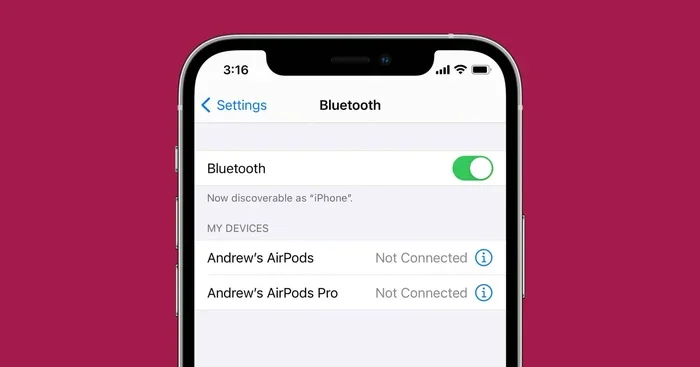
- Tap Bluetooth. This opens your Bluetooth settings. You will see a list of nearby and paired devices.
- Find the device you want to remove. Look for the device name under My Devices or Other Devices.
- Tap the info icon. This is the small “i” in a circle next to the device name.
- Tap Forget This Device. A confirmation pop-up will appear. Tap Forget Device to confirm.
- Repeat for each device. Go through your list and remove every device you no longer need.
This method works well if you only have a few devices to remove. But if your list is very long, it can take a while. That is where Method 2 comes in handy.
Method 2: Reset All Settings
If you want to clear everything at once, resetting your network settings is the way to go. This removes all Bluetooth pairings, Wi-Fi passwords, and cellular settings. Here is what to do.
- Open Settings. Go to the main Settings app on your iPhone.
- Tap General. Scroll down and find the General option.
- Tap Transfer or Reset iPhone. This option is near the bottom of the General menu.
- Tap Reset. You will see a list of reset options.
- Tap Reset Network Settings. This clears all Wi-Fi, Bluetooth, and cellular connections.
- Enter your passcode. Your iPhone will ask for your lock screen password to confirm.
- Tap Reset Network Settings again. This completes the process.
After the reset, your iPhone will restart. All Bluetooth pairings will be gone. You will need to reconnect your devices one by one. Make sure you have your device passwords handy if needed. This method is the fastest way to clear Bluetooth list entries when you have many devices to remove.
Why You Might Need to Clear Your Bluetooth List
You might be wondering why you should bother clearing old Bluetooth devices. There are actually several good reasons. Let us look at the most common ones.
Fix Connection Problems
One of the top reasons to clear Bluetooth is to fix connection issues. If your iPhone keeps dropping connections or refuses to pair with a device, old data might be the cause. Stored pairing information from previous connections can conflict with new ones. Clearing the list gives your iPhone a fresh start. Many users report that Bluetooth troubleshooting steps like this solve their problems instantly.
Improve Connection Speed
Your iPhone scans for Bluetooth devices every time you open the Bluetooth menu. If your list has 30 or more devices stored, this scan takes longer. A clean list means faster scanning and quicker connections. This is especially helpful when you are in a hurry and need to connect to your Bluetooth headphones for gaming or a wireless speaker right away.
Free Up Storage Space
While Bluetooth data does not take up much space, a very large paired devices list can use small amounts of memory over time. More importantly, a clean list makes your Bluetooth settings easier to navigate. You can find the device you want faster and with less frustration.
Remove Old or Broken Devices
Maybe you sold a Bluetooth speaker or gave away wireless earbuds. If you did not remove them from your iPhone before passing them along, they still show up in your list. Clearing these old devices keeps your settings tidy and prevents accidental connections to devices you no longer own.
Troubleshooting Common Bluetooth Issues After Clearing
Sometimes after you clear your Bluetooth list, you might run into new issues. Do not worry. Most of these are easy to fix. Here are the most common problems and how to solve them.
Bluetooth Will Not Turn On
If Bluetooth stays grayed out after a reset, try turning Airplane Mode on and off first. Go to Settings, tap Airplane Mode, wait 10 seconds, then turn it off again. This often refreshes your wireless connections and gets Bluetooth working again.
Devices Will Not Pair
If a device will not pair after you cleared the list, make sure the other device is in pairing mode. Many devices only stay in pairing mode for a short time. Turn the device off and on again to reactivate pairing mode. Also, make sure the device is close to your iPhone. Bluetooth interference from walls or other electronics can weaken the signal.
iPhone Keeps Forgetting Devices
If your iPhone keeps disconnecting from a device even after you re-paired it, try updating your iPhone software. Go to Settings, tap General, then tap Software Update. New updates often fix Bluetooth problems and improve connection stability.
Bluetooth Audio Sounds Scratchy
Scratchy or distorted audio is a common complaint. First, check the volume on both your iPhone and the Bluetooth device. Lower both volumes to 50%, then slowly raise them. If the problem continues, try disconnecting and reconnecting the device. You can also restart your iPhone to refresh the wireless connection.
Tips to Keep Your Bluetooth List Clean
Now that you know how to clear your Bluetooth devices, let us talk about keeping things tidy going forward. A few simple habits can save you a lot of time and frustration.
Remove Devices Right After Use
If you connect to a temporary device like a rental car or a friend speaker, forget it before you part ways. This prevents old devices from piling up in your list. It only takes a few seconds and keeps your Bluetooth settings organized.
Review Your List Monthly
Set a reminder to check your Bluetooth list once a month. Open Settings, tap Bluetooth, and look through your paired devices. Remove anything you have not used in the past few weeks. This habit keeps your list short and your connections fast.
Name Your Devices Clearly
When you pair a new device, give it a clear name on your iPhone. Instead of “Device-AB12,” call it “Living Room Speaker” or “Alex AirPods.” Clear names make it easier to identify which devices to keep and which to remove.
Keep Your iPhone Updated
Apple regularly releases iOS updates that improve Bluetooth performance. These updates fix bugs, improve connection stability, and add new features. Keeping your iPhone on the latest software version helps prevent many Bluetooth connectivity issues before they start.
Be Careful in Crowded Spaces
In places like airports, malls, or busy offices, your iPhone might try to connect to nearby Bluetooth devices automatically. Turn off Bluetooth in these crowded spaces if you do not need it. This prevents accidental pairings with devices you do not want to connect to.
What to Do If Bluetooth Still Will Not Work
Sometimes clearing your Bluetooth list and resetting settings is not enough. If you still have Bluetooth problems, here are a few more steps you can try.
First, restart your iPhone. A simple reboot can clear temporary software glitches that affect Bluetooth. Hold down the power button, slide to power off, wait 30 seconds, then turn it back on.
Second, check if your device is compatible. Not all Bluetooth devices work with every iPhone. Make sure the device you are trying to connect to supports the Bluetooth version your iPhone uses. Most modern devices work with all recent iPhone models.
Third, try connecting the device to another phone or tablet. This helps you figure out if the problem is with your iPhone or the device itself. If the device works with another phone, the issue is likely with your iPhone settings. If it does not work anywhere, the device might be broken.
Finally, consider visiting an Apple Store or authorized service provider. They have specialized tools to diagnose hardware issues. Sometimes a Bluetooth chip problem requires professional repair. But this is rare. Most Bluetooth issues are solved by clearing your list, resetting settings, or updating your software.
Remember, your iPhone Bluetooth is designed to be simple and reliable. When issues come up, they are usually easy to fix. Start with the basics: clear your list, reset your settings, and update your software. Nine times out of ten, these steps solve the problem completely.
Common Mistakes People Make With iPhone Bluetooth
Let us quickly cover some mistakes that cause Bluetooth headaches. Avoiding these habits will keep your connections smooth and trouble-free.
- Leaving old devices in the list. Old devices take up space and can cause confusion. Remove them regularly.
- Not updating iOS. Software updates fix Bluetooth bugs. Always keep your iPhone current.
- Pairing in crowded areas. Busy spaces have many Bluetooth signals. This causes interference and failed pairings.
- Ignoring low battery warnings. Bluetooth devices with low batteries often disconnect randomly. Keep them charged.
- Forgetting to turn off Bluetooth on old devices. If you gave away a speaker or headphones, make sure Bluetooth is off on them. This prevents them from trying to reconnect to your iPhone.
By avoiding these common mistakes, you will spend less time troubleshooting and more time enjoying your wireless connections. A little maintenance goes a long way toward keeping everything working perfectly.
Final Thoughts
Clearing all Bluetooth devices from your iPhone does not have to be complicated. Whether you remove devices one by one or reset all settings at once, the process is quick and straightforward. A clean Bluetooth list improves your connection speed, fixes pairing problems, and keeps your iPhone running smoothly. Make it a habit to review and clear your Bluetooth list every few weeks. Your future self will thank you when you need to connect a device and it just works.
Remember, Bluetooth troubleshooting starts with a clean list. Keep your paired devices current, update your iPhone software, and do not let old gadgets clutter your settings. With these simple practices, you will always have a strong and reliable wireless connection right at your fingertips.
Frequently Asked Questions
Will clearing Bluetooth delete anything on my iPhone?
No, clearing Bluetooth will not delete any of your photos, apps, messages, or personal data. It only removes the pairing information for connected devices. Your files and settings stay safe. You will just need to reconnect your Bluetooth devices after clearing them.
How many Bluetooth devices can my iPhone remember?
Your iPhone can store information for many Bluetooth devices, but the exact number varies by model and iOS version. Most iPhones can handle around 20 or more paired devices. However, having too many devices stored can slow down your Bluetooth scanning and cause connection issues.
Can I clear Bluetooth without resetting all settings?
Yes, you can remove individual Bluetooth devices one by one from your Bluetooth settings. This method lets you keep your Wi-Fi and other network settings intact. Simply go to Settings, tap Bluetooth, tap the info icon next to each device, and tap Forget This Device.
Why does my iPhone forget Bluetooth devices on its own?
Your iPhone may forget a Bluetooth device if it has not been used for a long time. iOS sometimes removes inactive devices to save memory. Low battery on the Bluetooth device can also cause disconnections. Software bugs in older iOS versions can contribute to this problem as well.
Is it safe to reset network settings on my iPhone?
Yes, it is completely safe. Resetting network settings will not erase your personal data, photos, or apps. It only clears your Wi-Fi passwords, Bluetooth pairings, and cellular settings. You will just need to reconnect to your Wi-Fi network and pair your Bluetooth devices again after the reset.
Can I use Bluetooth headphones while clearing my Bluetooth list?
You should disconnect your Bluetooth headphones before clearing the list or resetting network settings. If you try to use them during the process, they may disconnect unexpectedly. It is best to remove them from the list first, then reconnect them after you are done clearing other devices.
=== CONCLUSION ===
How do I clear all Bluetooth on my iPhone? Now you know the answer. Whether you choose to remove devices one by one or reset your network settings, both methods work effectively. A clean Bluetooth list means better connections, faster pairing, and fewer frustrating errors. Make it a simple habit to review your paired devices every few weeks. Your iPhone will thank you with smoother, more reliable wireless performance every single day.