How Do I Change My WiFi Settings for Better Performance
Changing your WiFi settings is easier than most people think, and it can seriously boost your internet speed and reliability. Whether you want to update your network name, adjust your frequency band, or improve security, this guide covers everything you need to know about changing WiFi settings for better performance. You will learn practical steps to access your router, tweak key configurations, and avoid common mistakes that slow down your wireless network.
This is a comprehensive guide about How Do I Change My Wi Fi Settings.
Key Takeaways
- Accessing your router settings is the first step to improving WiFi performance and customizing your network.
- Changing your WiFi channel and frequency band can dramatically reduce interference and boost speed.
- Updating security settings protects your network from unauthorized users who drain bandwidth.
- Common mistakes like outdated firmware and poor router placement can undo all your optimization efforts.
- Regular maintenance of WiFi settings keeps your network running smoothly over time.
- Guest networks and QoS settings help you manage bandwidth for all connected devices.
[FEATURED_IMAGE_PLACEHOLDER]
Understanding Your WiFi Settings and Why They Matter
Your WiFi settings control everything about how your wireless network operates. From the name of your network to the speed devices can reach, these settings shape your entire internet experience. Many people never touch their WiFi settings after the initial setup, and that is a big mistake.
When your network slows down or drops connections frequently, the problem often lies in the default settings that came with your router. Manufacturers set these defaults to work for the widest range of environments, but your home or office is unique. Changing your WiFi settings lets you tailor the network to your specific needs, devices, and usage habits.
Think of your WiFi settings like the control panel of a car. The default factory settings get you moving, but adjusting things like the seat position, mirrors, and suspension makes the ride better. Similarly, tweaking your wireless network configuration can improve speed, range, stability, and security. You do not need to be a tech expert to make these changes.
The good news is that most routers today come with user-friendly interfaces. Whether you use a modem-router combo from your internet provider or a standalone router, the process to access and modify network settings follows a similar pattern. In this guide, we walk you through every step in plain language.
How to Access Your Router Settings
Before you can change anything, you need to get into your router’s settings panel. This is the control center for your entire wireless network. The process is straightforward, but the exact steps can vary slightly depending on your router brand.
Finding Your Router’s IP Address
Every router has a default IP address that you type into your web browser to access the settings page. The most common ones are 192.168.0.1 or 192.168.1.1. You can also find this information printed on a sticker on the back or bottom of your router.
To access the settings, open any web browser on a device connected to your network. Type the IP address into the address bar and press Enter. You will then see a login screen asking for a username and password. The default credentials are also usually printed on that same sticker.
If you have changed your password and forgotten it, most routers have a small reset button on the back. Pressing it for about 10 seconds restores the factory defaults, including the original login info. Just be aware that this will erase any custom settings you have already applied.
Logging In and Navigating the Dashboard
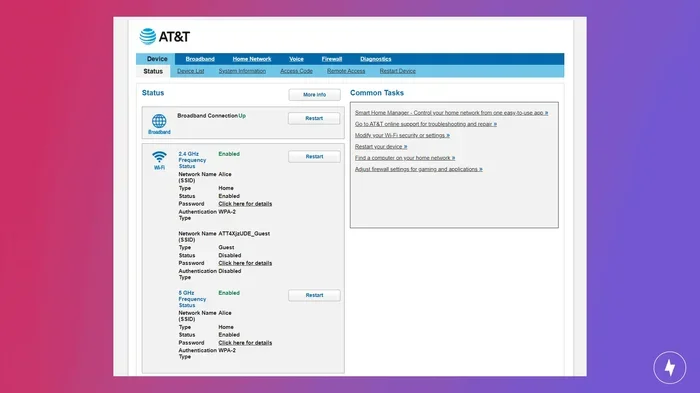
Once you log in, you will see the router’s dashboard. The layout differs by brand, but the key sections are usually labeled something like Wireless Settings, Network Settings, or Advanced Settings. Look for the section that controls your wireless network name, password, and frequency band.
Changing your WiFi settings from this dashboard is where the real magic happens. You can adjust the network name (SSID), set a new password, choose your WiFi channel, and switch between frequency bands. Each of these changes can have a big impact on how your network performs.
Key WiFi Settings to Change for Better Performance
Now that you know how to get into your router, let us talk about the specific settings you should change to get better performance from your wireless network. These adjustments are simple but surprisingly effective.
Change Your WiFi Network Name (SSID)
Your network name, also called the SSID, is what devices see when they scan for available networks. The default name usually includes the router brand, like “NETGEAR_5G” or “Linksys0042.” Changing this to something unique helps you identify your network easily, especially in areas with many nearby networks.
You can also use this opportunity to remove any personal information from the name. Avoid using your address, last name, or other identifying details. A simple, clean name works best. If you want to learn more about renaming your network on specific devices, check out our guide on Can I Change My iPhone Wi-Fi Name for Apple-specific tips.
Select the Right WiFi Channel
Your WiFi channel is like a lane on a highway. If too many networks use the same lane, traffic slows down for everyone. Most routers default to an automatic channel selection, but this does not always pick the best option for your environment.
To find the least crowded channel, you can use a free WiFi analyzer app on your phone. These apps show you which channels are being used by nearby networks. Once you know which channels are clear, go into your router settings and manually set your WiFi channel to that number.
For the 2.4 GHz band, channels 1, 6, and 11 are the best choices because they do not overlap with each other. For the 5 GHz band, there are many more channels available, so interference is less of a problem. Switching to a less crowded channel often results in an immediate speed boost.
Switch Between 2.4 GHz and 5 GHz Bands
Most modern routers broadcast two WiFi bands: 2.4 GHz and 5 GHz. Each has its strengths and weaknesses. The 2.4 GHz band covers a wider area and penetrates walls better, but it is slower and more prone to interference from devices like microwaves and Bluetooth speakers.
The 5 GHz band is faster and less congested, but it has a shorter range. If you are close to your router, the 5 GHz band will give you much better performance for activities like streaming and gaming. If you are far away or have walls between you and the router, the 2.4 GHz band may work better.
Some routers allow you to combine both bands into one network name, while others let you keep them separate. Keeping them separate gives you more control. You can also decide whether to change your WiFi settings to prioritize one band over the other based on your usage needs.
Update Your WiFi Password and Security Type
An outdated or weak password is one of the biggest risks to your network security. If neighbors or strangers connect to your network without permission, they consume your bandwidth and slow down your connection. Changing your password regularly keeps unauthorized users out.
When setting your password, choose WPA3 security if your router supports it. WPA3 is the latest and most secure encryption standard. If WPA3 is not available, WPA2 is still a solid choice. Never use WEP, as it is outdated and easy to crack. You can also check our article on Can I Get Wi-Fi Without a Password to understand the risks of open networks.
Adjust Quality of Service (QoS) Settings
QoS settings let you prioritize certain types of traffic on your network. For example, you can tell your router to give more bandwidth to video calls or gaming while limiting bandwidth for background downloads. This is especially helpful in households with multiple users and devices.
To set up QoS, look for the QoS or Traffic Management section in your router dashboard. You can usually prioritize by device or by application type. For instance, you might prioritize your work laptop during the day and your gaming console in the evening.
WiFi Security Settings You Should Update
Security is a critical part of your WiFi settings that many people overlook. A poorly secured network is not just a speed problem, it is a privacy and safety risk. Hackers can access an unprotected network and potentially view your browsing activity, steal personal data, or use your connection for illegal activities.
Enable Network Encryption
Encryption scrambles the data sent over your wireless network so that only authorized devices can read it. As mentioned earlier, WPA3 is the gold standard, followed by WPA2. Go into your router settings and make sure encryption is turned on and set to the strongest available option.
Disable WPS (Wi-Fi Protected Setup)
WPS was designed to make connecting devices easier, but it has known security vulnerabilities. Hackers can exploit WPS to gain access to your network even without knowing your password. Disabling WPS in your router settings is a simple step that significantly improves your network security.
Set Up a Guest Network
A guest network gives visitors internet access without letting them see your main network and connected devices. This is a great way to keep your personal devices and data separate and secure. Most routers have a guest network option in the wireless settings section.
Give your guest network a different name and password from your main network. Set it to limited access so guests cannot access shared files or printers on your main network. For more on managing who uses your WiFi, read our guide on Can I Block a Device From Using My WiFi Xfinity for tips on controlling network access.
Common Mistakes When Changing WiFi Settings
Even with the best intentions, people make mistakes when adjusting their WiFi settings that can actually make things worse. Here are the most common errors to avoid.
Skipping the Router Reboot
After changing any settings, you need to reboot your router for the changes to take effect. Many people forget this step and wonder why nothing has changed. Simply unplug your router, wait 30 seconds, and plug it back in. This refreshes the connection and applies your new settings.
Choosing the Wrong WiFi Channel
Manually selecting a WiFi channel sounds simple, but picking a crowded channel can make performance worse than the automatic setting. Always use a WiFi analyzer tool to find the clearest channel before making the switch. This is one of the easiest ways to get better results from your WiFi settings adjustments.
Forgetting to Update Router Firmware
Router manufacturers release firmware updates that fix bugs, patch security vulnerabilities, and sometimes even improve performance. Check your router dashboard for a firmware update section and install any available updates. Keeping your firmware current is one of the simplest yet most overlooked ways to maintain a healthy wireless network.
Overcomplicating Your Settings
Not every advanced setting will improve your network. In fact, changing settings you do not understand can cause problems. Stick to the key adjustments discussed in this guide, and leave advanced configurations like port forwarding or DNS changes for when you have a specific need for them.
Quick Tips for Optimizing Your WiFi Settings
Here are some extra tips that can help you get the most out of your wireless network after you change your WiFi settings.
- Place your router in a central location in your home for the best coverage. Walls, floors, and large furniture can block the signal.
- Keep your router elevated on a shelf or table rather than on the floor. Signals travel downward better than upward.
- Restart your router regularly, at least once a month, to clear cached data and refresh connections.
- Use an Ethernet cable for stationary devices like desktops and smart TVs when possible. This frees up wireless bandwidth for mobile devices.
- Check for interference from other electronics like baby monitors, cordless phones, and microwave ovens, especially on the 2.4 GHz band.
- Consider upgrading your router if it is more than a few years old. Newer models support the latest WiFi standards and offer much better performance.
Comparison: 2.4 GHz vs 5 GHz WiFi Bands
| Feature | 2.4 GHz Band | 5 GHz Band |
|---|---|---|
| Speed | Slower (up to 600 Mbps) | Faster (up to 4.8 Gbps) |
| Range | Longer range | Shorter range |
| Wall Penetration | Better | Worse |
| Interference | Higher (many devices use it) | Lower (fewer devices) |
| Best For | Browsing, IoT devices, large homes | Streaming, gaming, close-range use |
Choosing between the two bands depends on your situation. If you need speed and your device is close to the router, the 5 GHz band is the clear winner. If you need coverage across a large area with many walls, the 2.4 GHz band serves you better. Some devices, like smart home gadgets, only support 2.4 GHz, so you may need both bands active on your network.
When to Consider Upgrading Your Router
Sometimes changing your WiFi settings is not enough to solve performance problems. If your router is several years old, it may not support the latest WiFi standards like WiFi 6 or WiFi 6E. These newer standards offer significantly faster speeds, better range, and improved handling of multiple connected devices.
Before buying a new router, check whether your internet plan and modem support the speeds you want. A WiFi 6 router will not help if your internet plan only delivers 50 Mbps. Also, consider whether your internet provider offers a modem-router combo or if you need to purchase your own equipment separately.
If you are thinking about getting your own equipment, you might want to read about Can I Buy My Own WiFi Box to understand your options and what to look for when shopping.
Final Thoughts on Changing WiFi Settings for Better Performance
Adjusting your WiFi settings is one of the most effective ways to improve your wireless network without spending any money. From selecting the right channel to updating your security type, each change contributes to a faster, more reliable, and safer network. The steps are simple enough for anyone to follow, and the results are immediately noticeable.
Start with the basic changes like updating your network name, password, and frequency band. Then move on to more advanced tweaks like QoS settings and channel selection. Make it a habit to check your WiFi settings every few months to make sure everything is still optimized for your needs.
A well-configured wireless network makes a real difference in your daily life. Whether you are streaming movies, working from home, or gaming online, the right WiFi settings ensure a smooth and frustration-free experience. Take the time today to review and adjust your settings, and your network will thank you for it.
Frequently Asked Questions
How do I find my router’s IP address if the default ones do not work?
You can find your router’s IP address by opening the Command Prompt on Windows and typing “ipconfig” then looking for the Default Gateway number. On Mac, go to System Preferences, click Network, select your WiFi connection, and click Advanced. The router address will be listed there. This address is what you type into your browser to access the settings panel.
Will changing my WiFi settings slow down my internet if I do it wrong?
It is unlikely that changing WiFi settings will permanently slow down your internet. If something goes wrong, simply reboot your router and log back in to revert the changes. Always write down your original settings before making any adjustments so you can easily restore them if needed.
How often should I change my WiFi password?
Experts recommend changing your WiFi password every three to six months. You should also change it immediately if you suspect an unauthorized device has connected to your network. Regular password changes are one of the simplest and most effective ways to maintain strong network security.
Can I change my WiFi settings from my phone?
Yes, most modern router apps allow you to change WiFi settings directly from your phone. You can also access the router settings page through your phone’s web browser just like you would on a computer. For specific guidance on managing WiFi from mobile devices, check out our article on Can I Add Wi-Fi to My PC for related connectivity tips.
What is the difference between changing WiFi settings and changing internet settings?
WiFi settings control your local wireless network, including the network name, password, channel, and security type. Internet settings refer to your connection to your Internet Service Provider, including your IP address and DNS servers. Changing WiFi settings does not affect your internet plan or overall connection speed from your provider.
Do WiFi settings changes apply to all devices immediately?
No, changes to WiFi settings like a new password or network name require you to reconnect each device to the network using the updated credentials. Devices that are already connected may stay connected briefly but will eventually drop and need to be reconnected with the new settings.
=== CONCLUSION ===
Changing your WiFi settings for better performance is a straightforward process that anyone can do. You have learned how to access your router, adjust key settings like channel and frequency band, update security, and avoid common mistakes. Each of these changes contributes to a faster, more reliable, and more secure wireless network.
Start with the basics and work your way up to more advanced adjustments. Your WiFi settings are not set in stone, and regular tweaks can keep your network performing at its best. Take action today, apply the tips from this guide, and enjoy a noticeably better internet experience at home or in your office.