How Do I Allow My Iphone To Access Wi Fi On Any Network
Learning how to allow your iPhone to access Wi-Fi on any network is easier than you think. This guide walks you through iPhone Wi-Fi settings, troubleshooting steps, security tips, and personal router setup. You will be able to connect to Wi-Fi networks at home, work, or on the go with confidence.
Have you ever walked into a coffee shop, hotel lobby, or friend’s house and wanted to get your iPhone online, but something just would not let you connect? You are not alone. Millions of people run into the same issue every single day. The good news is that allowing your iPhone to access Wi-Fi on any network is not as hard as it sounds.
This guide will show you exactly how to do it. We will walk through every step in plain language. You will learn about your iPhone’s Wi-Fi settings, how to fix common problems, how to stay safe on public networks, and how to set up your own personal Wi-Fi router at home. By the end, you will feel confident connecting to any Wi-Fi network out there.
Let us get started. No jargon, no confusing steps, just simple and practical advice you can use right now.
Key Takeaways
- iPhone Wi-Fi Settings Are Simple: Toggling Wi-Fi on and selecting a network takes just a few taps.
- You Can Connect to Any Network: Adjusting network settings removes restrictions that block your iPhone.
- Security Matters: Always use a VPN and avoid sensitive tasks on public Wi-Fi networks.
- Troubleshooting Fixes Most Issues: Forgetting the network, resetting settings, and updating iOS solve common problems.
- Your Own Router Gives Full Control: Setting up a personal Wi-Fi router lets you manage who connects.
- Captive Portals Need Extra Steps: Public networks often require a browser login before you can connect.
📑 Table of Contents
Understanding Your iPhone Wi-Fi Settings
Before you can allow your iPhone to connect to any network, you need to understand how the iPhone Wi-Fi settings work. Apple designed iOS to keep things simple, but sometimes that simplicity hides important controls.
The Wi-Fi Toggle Switch
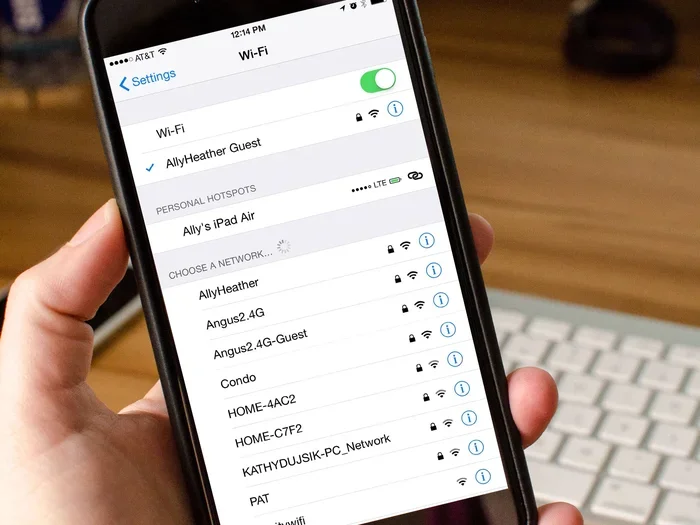
The most basic way to turn on Wi-Fi is through the Control Center. Swipe down from the top right corner of your screen. You will see the Wi-Fi icon. Tap it, and your iPhone starts looking for available networks. You can also go to Settings and then tap Wi-Fi to access the full menu.
When Wi-Fi is on, your iPhone scans for nearby networks. It shows you a list of Wi-Fi SSIDs (that is just the technical name for a network name). You tap the one you want, enter the password, and you are connected.
Network Preferences and Auto-Join
Your iPhone remembers networks you have connected to before. It will auto-join them when they are in range. You can control this behavior by going to Settings, Wi-Fi, and tapping the blue “i” icon next to a saved network. From there, you can toggle Auto-Join on or off. You can also choose to forget a Wi-Fi network if you no longer want your iPhone to connect to it automatically.
Private Wi-Fi Address
Apple introduced a feature called Private Wi-Fi Address in recent iOS updates. This feature hides your iPhone’s real MAC address from the network you are connecting to. It is great for privacy, but sometimes it can cause connection issues on certain networks. If you are having trouble connecting, try turning Private Wi-Fi Address off temporarily.
How To Allow Your iPhone To Access Wi-Fi On Any Network
Now let us get into the main topic. How do you actually allow your iPhone to connect to any Wi-Fi network? There are a few different scenarios, and each one has its own solution.
Connecting to a Home or Work Network
This is the easiest scenario. You simply go to Settings, tap Wi-Fi, find your network in the list, and enter the password. If you have the correct password and the router is working, your iPhone connects in seconds.
Sometimes, however, you may need to adjust your router settings to allow your iPhone to connect. For example, some routers have MAC address filtering turned on. This means only certain devices are allowed to join. You can find your iPhone’s MAC address by going to Settings, General, About, and looking for Wi-Fi Address. Add that address to your router’s allowed list, and your iPhone will connect without any problems.
If you do not have a router yet and want to set one up, you can learn more about getting your own personal Wi-Fi router to take full control of your home network.
Connecting to a Public Wi-Fi Network
Public networks at airports, hotels, and cafes can be a bit trickier. Many of them use something called a captive portal. This is a web page that pops up asking you to agree to terms, enter a room number, or pay for access before you can go online.
When you connect to one of these networks, your iPhone usually detects the portal automatically and opens Safari to show you the login page. If it does not, open Safari manually and try visiting any website. The portal should appear. Once you log in or accept the terms, your iPhone will have full access.
Some public networks block certain types of traffic or require specific settings. In those cases, you may need to adjust your iPhone network settings. For example, you might need to set your DNS to a public server like Google DNS (8.8.8.8) or Cloudflare DNS (1.1.1.1). This can help bypass network restrictions.
Connecting to a Network Without a Password
Some networks do not require a password. These are called open networks. You can connect to them just by tapping the network name. However, be very careful with open networks. They are less secure because anyone can join and potentially see your data.
If you want to connect to a Wi-Fi network without a password at your own home, make sure you set a password on your router. Open networks feel convenient, but they leave you vulnerable to security threats.
Allowing Your iPhone Through Network Restrictions
Some networks use restrictions that block certain devices or types of traffic. If your iPhone keeps failing to connect, the network might be blocking it on purpose. Here are a few things you can try:
- Restart your iPhone: A simple restart clears temporary glitches and refreshes your network connections.
- Forget the network and reconnect: Go to Settings, Wi-Fi, tap the “i” icon, choose Forget This Network, and then reconnect from scratch.
- Reset network settings: Go to Settings, General, Transfer or Reset iPhone, Reset, and then Reset Network Settings. This clears all saved Wi-Fi passwords and Bluetooth pairings, so make sure you know your passwords before doing this.
- Update your iOS: Apple regularly releases updates that fix Wi-Fi bugs. Make sure your iPhone is running the latest version of iOS.
Troubleshooting Common Wi-Fi Connection Issues
Even when you follow all the steps, sometimes your iPhone just will not connect. This section covers the most common issues and how to fix them.
iPhone Wi-Fi Not Working
If your iPhone Wi-Fi is not working, start by checking the basics. Is Wi-Fi turned on? Is Airplane Mode off? Are other devices able to connect to the same network? If yes, then the problem is likely with your iPhone specifically.
Try toggling Wi-Fi off and on again. If that does not work, restart your iPhone. Still not working? Reset your network settings. These steps solve the problem for most people.
Weak Wi-Fi Signal
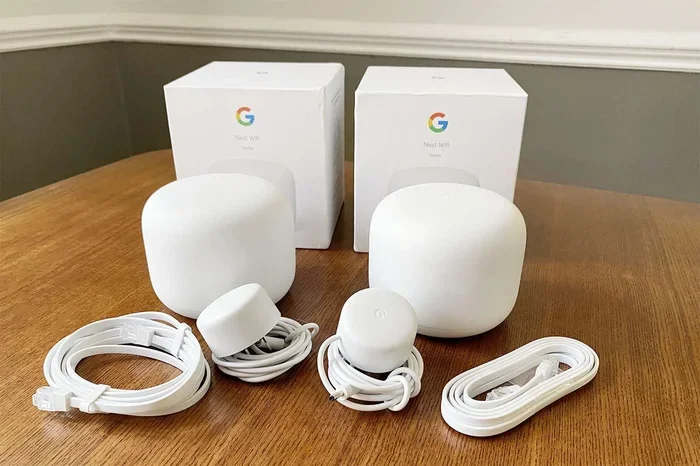
A weak signal can prevent your iPhone from connecting or cause slow speeds. Move closer to the router and see if that helps. Walls, floors, and electronic devices can all weaken your Wi-Fi signal strength. If you are in a large home, consider using a mesh system or a Wi-Fi extender to boost coverage.
Wi-Fi Keeps Disconnecting
If your iPhone keeps dropping off the network, it could be a router issue or an iPhone issue. Try connecting another device to the same network. If that device also drops, the problem is with the router. If only your iPhone has the issue, try updating iOS or resetting network settings.
Securing Your iPhone on Public Wi-Fi Networks
Public networks are convenient, but they come with risks. When you connect to a network in a coffee shop or airport, you are sharing that network with strangers. Some of those strangers might have bad intentions.
Use a VPN
A VPN (Virtual Private Network) encrypts your internet traffic. This means no one on the same network can see what you are doing. It is one of the best ways to protect your iPhone Wi-Fi security on public networks. There are many good VPN apps available, and some even offer free versions.
Avoid Sensitive Tasks
Try not to do online banking or enter credit card numbers when you are on a public network. Wait until you are on a trusted, private network for those kinds of activities.
Turn Off Auto-Join for Public Networks
Your iPhone might automatically connect to networks it has joined before. This can be a security risk if you connect to a public network and then your iPhone tries to reconnect to it later without you knowing. Go to Settings, Wi-Fi, tap the “i” icon for any public network, and turn off Auto-Join.
Setting Up Your Own Personal Wi-Fi Network
Having your own personal Wi-Fi router gives you full control over who can connect and how your network operates. You no longer have to worry about network restrictions or captive portals when you are at home.
Choosing the Right Router
When you buy a router, look for one that supports the latest Wi-Fi standards (Wi-Fi 6 or Wi-Fi 6E). These offer faster speeds and better performance with multiple devices. Make sure the router is compatible with your internet service provider.
Configuring Your Router
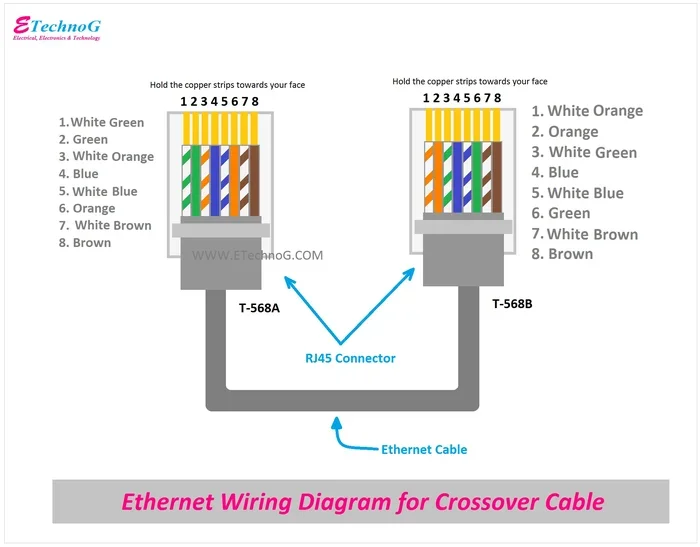
Once you have your router, connect it to your modem using an Ethernet cable. Open a web browser and go to the router’s admin page (usually something like 192.168.1.1). From there, you can set your network name (SSID), choose a strong password, and configure security settings. Use WPA3 encryption if your router supports it, as it is the most secure option available.
If you want to allow specific devices to connect while blocking others, you can set up MAC address filtering. Add your iPhone’s Wi-Fi address to the allowed list, and only your devices will be able to join.
Getting Wi-Fi Without an Ethernet Connection
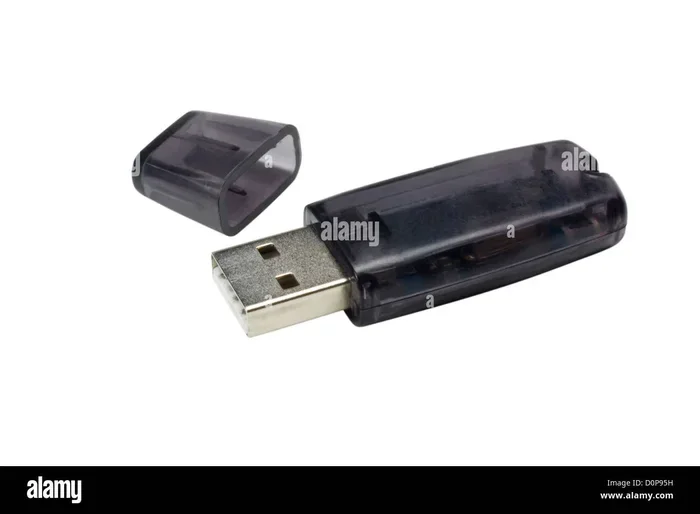
Some people wonder if they can get Wi-Fi without running an Ethernet cable to their router. The answer is yes, in most cases. Many routers support wireless setup, and some internet providers offer modem-router combos that connect directly to your home’s existing infrastructure. You can also use a Wi-Fi stick or adapter if you are trying to add wireless capability to a device that does not have it built in.
For more information on getting Wi-Fi set up in your home, check out our guide on getting Wi-Fi on your own.
Advanced Tips for Power Users
If you are comfortable with more technical settings, there are a few advanced moves that can improve your iPhone’s Wi-Fi experience.
Changing DNS Settings
By default, your iPhone uses your internet provider’s DNS servers. You can change these to faster or more private options. Go to Settings, Wi-Fi, tap the “i” icon next to your network, scroll down to Configure DNS, and switch it to Manual. Then enter Google DNS (8.8.8.8 and 8.8.4.4) or Cloudflare DNS (1.1.1.1 and 1.0.0.1). This can speed up your browsing and add a layer of privacy.
Using Your Phone as a Hotspot
If you cannot find a Wi-Fi network you trust, you can use your phone’s mobile data as a Wi-Fi hotspot. This turns your phone into a mini router. Other devices can connect to it and share your data. This is a great backup option when you are traveling or when public networks are not available.
To set up a hotspot, go to Settings, Personal Hotspot, and turn it on. Choose a password and share it with the devices you want to connect.
Sharing Mobile Data with Another Phone
You can also share your mobile data with a friend’s phone if they need internet access. This works through Bluetooth or Wi-Fi Direct in some cases, but the hotspot method is the most reliable. Just be mindful of your data usage, especially if you have a limited plan.
Conclusion
Allowing your iPhone to access Wi-Fi on any network is a skill that everyone should have. Whether you are at home, at work, or traveling, the steps in this guide will help you get connected and stay connected. You now know how to navigate your iPhone Wi-Fi settings, troubleshoot common problems, stay safe on public networks, and even set up your own personal Wi-Fi router.
The key is to start simple. Turn on Wi-Fi, pick a network, enter the password, and go. If something goes wrong, work through the troubleshooting steps one by one. Most issues are easy to fix once you know what to look for.
Remember, your security matters. Always use strong passwords, consider a VPN on public networks, and keep your iPhone updated. With these habits in place, you can confidently connect to any Wi-Fi network in the world.
Now go ahead and try it out. Your next Wi-Fi connection should be smooth, fast, and secure. Happy browsing!
Frequently Asked Questions
Why won’t my iPhone connect to Wi-Fi even though I entered the correct password?
There are several reasons this can happen. Your router might be too far away, or there could be a temporary glitch. Try restarting your iPhone and your router. If that does not work, forget the network and reconnect. You can also try resetting your network settings if the problem persists.
Is it safe to connect to public Wi-Fi networks with my iPhone?
Public networks can be risky because other users on the same network might be able to see your data. Use a VPN to encrypt your traffic, avoid logging into sensitive accounts, and turn off Auto-Join for networks you do not trust. Following these steps makes public Wi-Fi much safer.
Can I connect to Wi-Fi without a password on my iPhone?
Yes, you can connect to open networks that do not require a password. Simply tap the network name in your Wi-Fi settings and connect. However, open networks are less secure, so avoid doing anything sensitive like banking while connected to them.
How do I find my iPhone’s Wi-Fi address?
Go to Settings, General, About, and scroll down to Wi-Fi Address. This is your iPhone’s MAC address, which some networks use to identify and authorize devices. You can share this address with your router administrator to allow your iPhone through MAC filtering.
What should I do if my iPhone keeps forgetting Wi-Fi networks?
This is usually caused by a software glitch or a problem with your router. Update your iPhone to the latest iOS version. If the problem continues, reset your network settings. Also check if your router firmware is up to date, as outdated firmware can cause connection drops.
Can I use my phone to get Wi-Fi for another device?
Yes, you can turn your phone into a hotspot and share your mobile data with other devices. Go to Settings, Personal Hotspot, and turn it on. Other devices can then connect to your phone’s Wi-Fi network just like they would connect to any router.