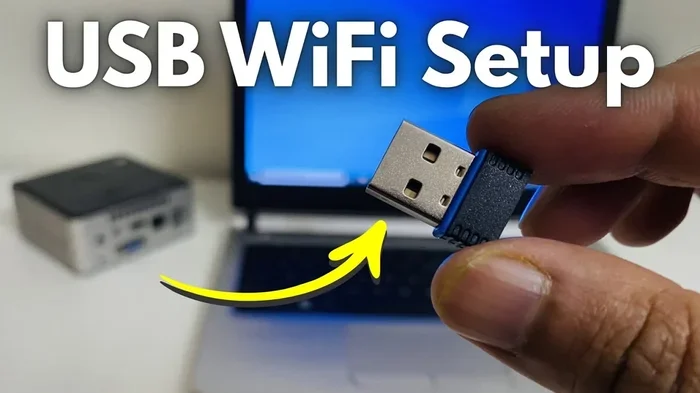
How Can I Connect My PC to Wi Fi Without Built In Wi Fi
You can easily connect your PC to Wi-Fi even if it lacks built-in wireless capability. A USB Wi-Fi adapter, PCIe wireless card, or compact dongle can get your desktop or laptop online in just a few minutes. This guide covers every solution, setup step, and mistake to avoid so you can enjoy a strong wireless connection right away.
Not every PC comes with built-in Wi-Fi. Whether you have an older desktop, a budget tower, or a custom-built machine, the lack of wireless capability can feel like a major roadblock. The good news is that getting your PC online without a wireless connection already baked in is easier than you might think.
You have several practical options, from tiny USB dongles to full-size PCIe Wi-Fi cards. Each solution fits different budgets, skill levels, and PC types. In this guide, we will walk you through every method so you can connect my PC to Wi-Fi without built-in Wi-Fi and start browsing, streaming, and gaming without wires.
By the end of this article, you will know exactly which option works best for your setup, how to install it, and how to avoid the mistakes that trip up most beginners. Let us get your PC wirelessly connected.
Key Takeaways
- USB Wi-Fi adapters are the easiest and most affordable way to add wireless capability to any PC.
- PCIe Wi-Fi cards offer faster speeds and more reliable performance for desktop users who need heavy-duty connectivity.
- Wi-Fi dongles provide a compact, plug-and-play option for users who want a simple solution without opening their PC case.
- Updating your wireless drivers is critical after installing any adapter to ensure stable performance.
- Placing your adapter in the right spot can dramatically improve your Wi-Fi signal strength and speed.
- You don’t need Ethernet cables or a built-in wireless card to enjoy fast, reliable internet on your PC.
📑 Table of Contents
Understanding Why Your PC Lacks Built-In Wi-Fi
Many people are surprised to find that their PC does not have wireless capability out of the box. This is more common than you might think, especially with certain types of computers. Let us look at why this happens and what it means for your internet connection.
The Difference Between Desktop and Laptop Connectivity
Laptops almost always come with built-in wireless technology. Manufacturers include a small Wi-Fi card and antenna inside the chassis because portability demands it. Desktops, on the other hand, often skip this feature entirely. Why? Because desktops are designed to stay in one place, and many users rely on Ethernet cables for a stable wired connection.
Budget desktops and older towers are the most likely to lack any wireless technology at all. Even some mid-range PCs today ship with only a wired network adapter on the motherboard. If your PC has an Ethernet port but no Wi-Fi icon in your system tray, you fall into this category.
When PCs Come Without Wireless Hardware
There are a few clear situations where your PC will not have Wi-Fi capability built in:
- Older desktop towers from before Wi-Fi became standard on motherboards.
- Budget or office PCs that manufacturers stripped down to cut costs.
- Custom-built PCs where the builder chose a motherboard without wireless features.
- Mini PCs that prioritize size and cost over wireless convenience.
- Gaming towers that rely on a wired Ethernet connection for the lowest latency.
None of these situations mean you are stuck. Adding wireless connectivity to any of these PCs is straightforward and affordable. You just need the right Wi-Fi adapter.
How to Connect My PC to Wi-Fi Without Built-In Wi-Fi
Now that you understand why your PC lacks wireless hardware, let us explore the actual solutions. There are three main ways to add Wi-Fi to your PC, and each has its own strengths. Whether you want a quick fix or a long-term upgrade, there is an option that fits.
If you are curious about other ways to get online without built-in hardware, you can also check out Can I Add Wi-Fi to My PC for a broader look at all the methods available.
USB Wi-Fi Adapters — The Simplest Fix
A USB Wi-Fi adapter is the most popular and beginner-friendly way to add wireless capability. It is a small device that plugs directly into a USB port on your PC. Inside the adapter is a Wi-Fi antenna and a tiny wireless card that handles all the Wi-Fi setup for you.
These adapters come in different shapes and speeds. Basic models handle everyday browsing and email. More expensive ones support Wi-Fi 6 speeds for streaming and gaming. The best part? No opening your PC case is required. Just plug it in, install the driver, and you are online.
If you are looking for a stick-style solution specifically, this approach is very similar to what is covered in Can I Get a Wi-Fi Stick for My PC That Doesn’t Have Wi-Fi in the Motherboard, which dives deeper into compact stick options.
Here is what makes USB adapters so appealing:
- Plug and play on most modern Windows systems.
- Portable — you can move them between PCs easily.
- Affordable — basic models cost as little as $10 to $15.
- No technical skill required to install.
- Available in multiple speeds — from N300 to AX3000 and beyond.
PCIe Wi-Fi Cards for Desktop PCs
If you have a desktop tower and want the best possible wireless performance, a PCIe Wi-Fi card is the way to go. This card slides into an empty slot on your motherboard, just like a graphics card or sound card. It connects to an external Wi-Fi antenna through a cable, giving you a strong and stable wireless signal.
PCIe cards outperform USB adapters in several ways:
- Faster speeds thanks to a direct connection to the motherboard.
- Better signal reception because the antenna can be positioned outside the PC case.
- More consistent performance under heavy network loads.
- Lower latency for gaming and video calls.
The downside is that you need to open your PC case and install the card physically. You also need a free PCIe slot on your motherboard. But if you are comfortable with basic PC hardware, this is a fantastic long-term solution.
Wi-Fi Dongles as a Compact Alternative
A Wi-Fi dongle is similar to a USB adapter but even smaller. It is a tiny stick that stays plugged into a USB port and provides basic wireless connectivity. Dongles are perfect for users who want the simplest possible setup.
Most Wi-Fi dongles support speeds up to AC1200, which is more than enough for browsing, video calls, and standard streaming. They are also very affordable, often priced between $8 and $20. The trade-off is that they usually do not match the speed or range of larger USB adapters or PCIe cards.
For users who want a no-fuss option, a dongle is hard to beat. Just plug it in, let Windows find the driver, and connect to your wireless network.
Step-by-Step Guide to Getting Your PC Online
Now that you know your options, let us walk through the actual process of setting up wireless internet on your PC. Whether you choose a USB adapter or a PCIe card, the basic steps are the same.
Many people also wonder whether they need any adapter at all. If you are curious about that, you can explore Can I Connect to Wi-Fi Without Wi-Fi Adapter for a deeper look at alternative methods.
Step 1: Choose the Right Adapter
Before you buy anything, consider what you actually need:
- For basic browsing: A simple N300 or AC600 USB adapter will do the job.
- For streaming and gaming: Look for an AC1200 or AX3000 adapter.
- For desktop towers: A PCIe card will give you the best performance.
- For portability: A small USB dongle or adapter is ideal.
Make sure the adapter you choose is compatible with your PC’s operating system. Most modern adapters support Windows 10 and Windows 11 out of the box. Always check the product specifications before purchasing.
Step 2: Install the Hardware
For a USB adapter, the process is simple:
- Plug the adapter into an available USB port.
- Wait for Windows to detect the new hardware.
- If a driver does not install automatically, insert the included CD or download the driver from the manufacturer’s website.
For a PCIe card, the steps are a bit more involved:
- Turn off your PC and unplug it from the power outlet.
- Open the PC case side panel.
- Find an empty PCIe slot on your motherboard.
- Gently insert the Wi-Fi card into the slot and press down firmly.
- Secure the card bracket with a screw.
- Connect the included antenna cable to the card.
- Close the case and plug your PC back in.
Step 3: Install Drivers and Connect
Once the hardware is installed, you need to make sure the wireless drivers are up to date. Here is how:
- Open Device Manager on your PC.
- Look for the new network adapter under “Network adapters.”
- Right-click and select “Update driver” if needed.
- Alternatively, visit the manufacturer’s website and download the latest driver manually.
After the drivers are installed, click the Wi-Fi icon in your system tray. You should see a list of available wireless networks. Select your network, enter the password, and click Connect. That is it — your PC is now online without a built-in Wi-Fi card.
Comparing Wi-Fi Solutions for Your PC
Not all Wi-Fi adapters are created equal. Different solutions offer different speeds, ranges, and ease of use. Here is a comparison of the three main options to help you decide.
| Feature | USB Wi-Fi Adapter | PCIe Wi-Fi Card | Wi-Fi Dongle |
|---|---|---|---|
| Ease of Installation | Very Easy | Moderate | Very Easy |
| Speed Range | Up to AX3000 | Up to AX3000 | Up to AC1200 |
| Signal Strength | Good | Excellent | Fair |
| Price Range | $10 – $50 | $25 – $60 | $8 – $20 |
| Portability | High | Low | Very High |
| Best For | Most Users | Desktop Gamers | Basic Browsing |
If you are also dealing with wired alternatives and want to explore those, many users find Can I Connect My PC to Wi-Fi Without Ethernet helpful for understanding all the ways to go wireless.
The right choice depends on your budget, your PC type, and what you plan to do online. For most users, a mid-range USB adapter strikes the perfect balance between price and performance.
Common Mistakes to Avoid When Setting Up Wi-Fi
Even with the right adapter, mistakes during setup can cause frustrating problems. Here are the most common errors and how to avoid them.
Buying an Incompatible Adapter
This is the number one mistake people make. Not every Wi-Fi adapter works with every PC. Before you buy, check that the adapter supports your operating system. Also make sure your PC has a USB port or PCIe slot that is compatible with the adapter you choose.
Some older PCs only have USB 2.0 ports, which can bottleneck the speed of a modern Wi-Fi adapter. If your PC has USB 3.0 ports, use them for the best wireless performance.
Forgetting to Update Drivers
Installing the adapter is only half the battle. Outdated or missing wireless drivers can cause slow speeds, disconnections, and even prevent the adapter from working at all. Always install the latest drivers from the manufacturer’s website rather than relying on Windows Update alone.
Set a reminder to check for driver updates every few months. Wireless technology evolves quickly, and driver updates often include important performance improvements and bug fixes.
Placing the Adapter in a Poor Location
Where you place your Wi-Fi adapter matters more than most people realize. If you plug a USB adapter into the back of your PC, hidden behind the tower, the signal may be weak. The metal case can block the Wi-Fi antenna signal.
For the best Wi-Fi signal strength, try these tips:
- Plug the adapter into a front USB port for better proximity to the room.
- Use a USB extension cable to position the adapter near a window.
- Keep the adapter away from other electronic devices that cause interference.
- Avoid placing it on the floor, where obstructions block the signal.
Expert Tips for Stronger and Faster Wi-Fi
Once your wireless connection is working, you can take steps to make it even better. These expert tips will help you get the most out of your new Wi-Fi adapter.
Optimize Your Adapter Placement
The position of your Wi-Fi antenna has a big impact on signal quality. If your adapter has adjustable antennas, point them vertically for horizontal coverage or at an angle for multi-floor setups. Experiment with different positions to find the sweet spot for your wireless network.
Distance from your wireless router also matters. The further your adapter is from the router, the weaker the signal. If possible, place your PC closer to the router or consider adding a Wi-Fi range extender to boost coverage.
Keep Your Software Up to Date
Beyond drivers, keep your operating system and network settings current. Windows updates often include improvements to how your PC handles wireless connections. A simple restart after an update can sometimes resolve mysterious connection issues.
Also, make sure your wireless router firmware is up to date. Router manufacturers release updates that improve compatibility, security, and performance. A quick check in your router settings can make a noticeable difference.
Troubleshoot Common Connection Issues
If your PC internet access is acting up, try these quick fixes:
- Restart your adapter: Unplug it, wait 10 seconds, and plug it back in.
- Restart your router: A simple reboot often fixes connectivity issues.
- Forget and reconnect: Remove the network from your saved list and reconnect from scratch.
- Check for interference: Microwaves, baby monitors, and Bluetooth devices can all weaken your Wi-Fi signal.
- Change the Wi-Fi channel: Log into your router and switch to a less congested channel for better Wi-Fi bandwidth.
Most connection problems are simple to fix and do not require any technical expertise. A little patience goes a long way toward a stable wireless connection.
Conclusion
Connecting your PC to Wi-Fi without built-in Wi-Fi is simple, affordable, and well within anyone’s reach. Whether you choose a USB adapter, a PCIe card, or a compact dongle, you can have a strong wireless connection up and running in under 30 minutes.
Start by choosing the right solution for your needs and budget. Install the hardware carefully, update your wireless drivers, and position your adapter for the best Wi-Fi signal. Avoid the common setup mistakes, and follow the expert tips to keep your connection fast and stable.
You do not need a built-in wireless card or an Ethernet cable to enjoy the internet on your PC. With the right Wi-Fi adapter and a little know-how, your desktop or tower can connect to any wireless network in your home or office. Take action today and get your PC online the easy way.
Frequently Asked Questions
Can I connect my PC to Wi-Fi without any adapter at all?
In most cases, you need some form of adapter to add Wi-Fi to a PC without built-in wireless. However, you can share a connection from your phone using a USB tethering method, which effectively gives your PC internet access without a dedicated Wi-Fi adapter. Check out Can I Get Wi-Fi From My Phone for more details on this approach.
What is the best USB Wi-Fi adapter for a desktop PC?
The best adapter depends on your needs. For general browsing, an AC1200 model is plenty fast. For streaming and gaming, look for an AX3000 or higher. Popular reliable brands include TP-Link, ASUS, and Netgear. Always check that the adapter supports your operating system before buying.
Do I need to open my PC case to install a Wi-Fi adapter?
Only if you choose a PCIe Wi-Fi card. USB adapters and dongles plug directly into a USB port on the outside of your PC. PCIe cards require opening the case and installing the card into a motherboard slot, which is straightforward if you are comfortable with basic PC hardware.
Why is my Wi-Fi adapter not showing up in Device Manager?
This usually means the driver did not install correctly. Try unplugging the adapter, restarting your PC, and plugging it back in. If that does not work, download the latest driver from the manufacturer’s website and install it manually. Also make sure you are using a USB port that is compatible with the adapter.
Can I use a Wi-Fi adapter on both a desktop and a laptop?
Yes, most USB Wi-Fi adapters are fully compatible with both desktops and laptops. They are portable and work across different machines. Just install the drivers on each PC, and the adapter should work right away. PCIe cards, however, are designed for desktop towers only.
Will adding a Wi-Fi adapter slow down my PC?
No, adding a Wi-Fi adapter will not slow down your PC. In fact, it can improve your overall experience by giving you a direct wireless connection instead of relying on a shared wired connection. Modern adapters use minimal system resources and do not impact PC performance in any noticeable way.