How Can I Boost My Netgear Wi Fi Signal for Better Coverage
Boosting your Netgear Wi-Fi signal is easier than you think. With the right placement, settings adjustments, and a few affordable tools, you can dramatically improve your wireless coverage and say goodbye to slow speeds and dead zones. This guide walks you through every proven method to get the most out of your Netgear router.
If you have been struggling with slow internet or dead zones in your home, you are not alone. A weak Netgear Wi-Fi signal can be frustrating, especially when you are trying to stream a movie, join a video call, or browse the web. The good news is that there are many simple and effective ways to boost your signal and get better coverage throughout your home.
Whether you live in a small apartment or a large house with thick walls, this guide will help you understand why your Wi-Fi signal might be weak and what you can do about it. We will cover everything from basic router placement tips to advanced settings that can make a real difference. By the end of this article, you will have a clear plan to improve your wireless network performance and enjoy faster, more reliable internet everywhere.
Before we dive into the solutions, it helps to understand a few basics about how Wi-Fi signals work. Your router sends out a radio signal that your devices pick up to connect to the internet. The strength of that signal depends on distance, obstacles, interference, and your router’s capabilities. A Netgear router is designed to deliver strong wireless coverage, but sometimes it needs a little help to reach every corner of your home.
Key Takeaways
- Router Placement Matters: The location of your Netgear router has a huge impact on signal strength and coverage throughout your home.
- Update Firmware Regularly: Keeping your router’s software up to date can fix bugs and improve performance significantly.
- Use a Wi-Fi Extender or Mesh System: These devices are game-changers for large homes or areas with weak signals.
- Change Your Wi-Fi Channel: Switching to a less congested channel can reduce interference and boost speeds.
- Adjust Antennas Correctly: Proper antenna positioning can make a noticeable difference in signal direction and strength.
- Reduce Interference: Keeping your router away from other electronics prevents signal disruption.
- Consider a Wired Backhaul: For the best performance, connecting your extender or mesh node with an Ethernet cable delivers the fastest speeds.
📑 Table of Contents
- Why Is My Netgear Wi-Fi Signal Weak?
- Best Placement Tips for Your Netgear Router
- How to Optimize Your Netgear Router Settings
- Use a Wi-Fi Range Extender or Mesh System
- Reduce Interference and Improve Signal Quality
- When Should You Consider Upgrading Your Equipment?
- Common Mistakes That Weaken Your Netgear Wi-Fi Signal
- Final Thoughts on Boosting Your Netgear Wi-Fi Signal
Why Is My Netgear Wi-Fi Signal Weak?
Understanding the root cause of a weak signal is the first step toward fixing it. Several common factors can reduce the strength and range of your wireless signal. Let us look at the main culprits.
Physical Obstacles
Walls, floors, furniture, and even large appliances can block or weaken your Wi-Fi signal. Brick and concrete walls are especially tough on wireless signals. If your router is tucked away in a closet or basement, the signal has to travel through multiple barriers before reaching your devices.
Distance from the Router
The farther you are from your router, the weaker the signal becomes. This is basic physics. If your bedroom is on the opposite side of the house from your router, you may experience slow speeds or dropped connections. Wi-Fi range is a real limitation for most home routers.
Interference from Other Devices
Many household electronics can interfere with your Wi-Fi signal. Microwaves, baby monitors, cordless phones, and even Bluetooth devices operate on similar frequencies. This signal interference can cause slowdowns and disconnections, especially on the 2.4 GHz band.
Network Congestion
If many devices are connected to your network at the same time, your router may struggle to keep up. Each device uses a portion of your available bandwidth. Smart TVs, gaming consoles, phones, laptops, and smart home devices all compete for that shared connection.
Best Placement Tips for Your Netgear Router
Where you place your router has a huge impact on your wireless coverage. A small change in location can sometimes solve all your signal problems. Here are some proven tips to get the best placement for your Netgear router.
Find a Central Location
Place your router in the center of your home if possible. This gives the signal the best chance to reach every room equally. Avoid putting it in a corner or against an exterior wall, because much of the signal will be wasted outside your home.
Keep It Elevated
Routers send signals in all directions, but the signal is strongest when it travels outward and slightly downward. Placing your router on a high shelf or mounting it on a wall can improve coverage. Do not hide it under a desk or inside a cabinet.
Keep It Away from Other Electronics
Stay at least a few feet away from microwaves, cordless phone bases, baby monitors, and other electronics that might cause signal interference. A clear space around your router helps it perform at its best.
Avoid Obstacles
Try to keep the area around your router open and clear. Large metal objects, fish tanks, and thick books can all absorb or reflect Wi-Fi signals. The fewer obstacles between your router and your devices, the better your Wi-Fi signal strength will be.
How to Optimize Your Netgear Router Settings
Your Netgear router comes with several built-in settings that can help you get better performance. Tweaking these settings is free and can make a noticeable difference in your wireless network performance.
Update Your Router Firmware
Netgear regularly releases firmware updates that fix bugs, improve stability, and enhance performance. To check for updates, log into your router’s admin panel by typing its IP address into your web browser. Look for a section labeled “Firmware Update” or “Advanced” and follow the prompts. Keeping your router updated is one of the simplest ways to maintain strong Wi-Fi signal strength.
Change Your Wi-Fi Channel
Your router broadcasts on a specific channel, and if your neighbors are using the same channel, you may experience congestion. This is especially common in apartment buildings or dense neighborhoods. You can use a free Wi-Fi analyzer app to see which channels are least crowded and then switch your router to a better one. This simple change can reduce interference and boost your wireless coverage.
Switch Between 2.4 GHz and 5 GHz Bands
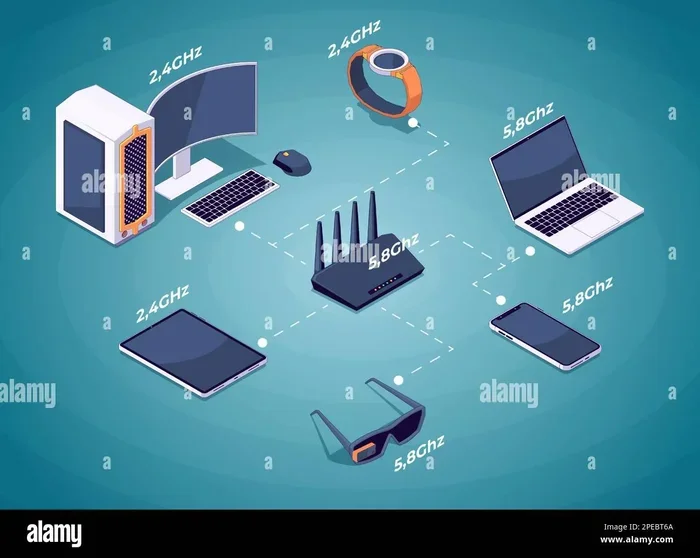
Most modern Netgear routers are dual-band, meaning they broadcast on both 2.4 GHz and 5 GHz frequencies. The 2.4 GHz band travels farther but is slower and more prone to interference. The 5 GHz band is faster but has a shorter range. For the best results, connect devices that need speed to the 5 GHz band and devices that need range to the 2.4 GHz band.
Adjust the Transmit Power
Some Netgear routers allow you to adjust the transmit power setting. Increasing the power can boost your signal range, but it may also increase interference with neighboring networks. Try different settings and use a Wi-Fi analyzer to measure the results before settling on a configuration.
Use a Wi-Fi Range Extender or Mesh System
If adjusting your router’s settings and placement does not solve your coverage issues, it may be time to add a Wi-Fi booster to your network. These devices extend your signal to areas that your router cannot reach on its own.
Wi-Fi Range Extenders
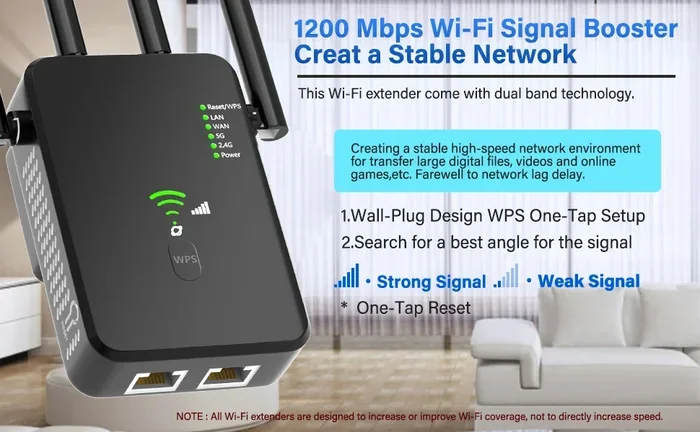
A range extender picks up your existing Wi-Fi signal and rebroadcasts it to areas with weak coverage. These devices are affordable and easy to set up. Place the extender halfway between your router and the area with the weak signal for the best results. Keep in mind that extenders can reduce your speed slightly because they receive and retransmit the signal.
Mesh Wi-Fi Systems
A mesh system uses multiple nodes placed around your home to create a seamless wireless network. Unlike a range extender, a mesh system uses a single network name and password, so your devices switch smoothly between nodes as you move around your home. Mesh systems are ideal for larger homes or homes with many walls and obstacles. They deliver excellent wireless signal coverage and consistent speeds throughout the house.
Wired Backhaul for Best Performance
If you use a range extender or mesh node, consider connecting it to your router with an Ethernet cable. This is called wired backhaul, and it provides the fastest and most reliable connection between your devices and the internet. If running a cable is not possible, you can also use powerline adapters to create a wired-like connection through your home’s electrical wiring.
Reduce Interference and Improve Signal Quality
Beyond placement and settings, there are several practical steps you can take to reduce interference and improve your Wi-Fi signal strength. These tips are quick, easy, and cost nothing.
Limit Connected Devices
Every device connected to your network uses a portion of your bandwidth. If you have many smart home devices, streaming boxes, and gaming consoles all connected at once, your router may slow down. Disconnect devices you are not actively using to free up bandwidth for the devices that matter most.
Restart Your Router Regularly
Just like any electronic device, your router benefits from a fresh start. Restarting it once a week can clear its memory, resolve minor glitches, and improve overall network performance. Many Netgear routers also have a scheduled restart feature that you can set up in the admin panel.
Use Quality of Service (QoS) Settings
QoS is a feature that lets you prioritize certain types of traffic on your network. For example, you can set your router to prioritize video calls or gaming over background downloads. This ensures that important activities get the bandwidth they need, even when your network is busy.
Upgrade Your Router Antennas
Some Netgear routers have detachable antennas. If yours does, you can upgrade to higher-gain antennas that send the signal farther and in a more focused direction. This is a simple and inexpensive way to improve your wireless coverage without buying a whole new router.
When Should You Consider Upgrading Your Equipment?
Sometimes, no amount of tweaking will fix a weak signal because the router itself is outdated or underpowered. Here are some signs that it might be time for an upgrade.
Your Router Is More Than Five Years Old
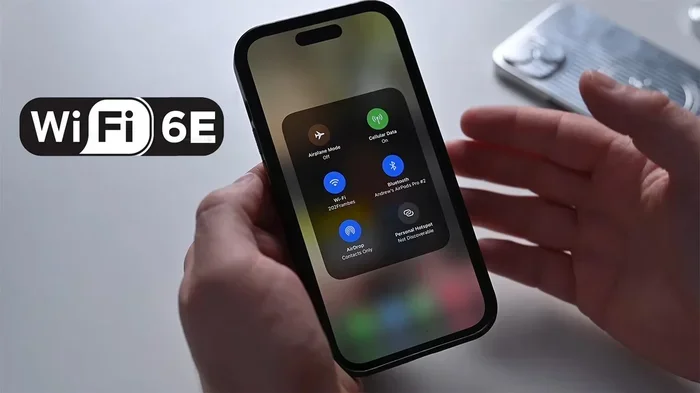
Wi-Fi technology has improved significantly in recent years. Older routers may not support the latest standards like Wi-Fi 6, which offers faster speeds, better range, and improved handling of multiple devices. If your current Netgear router is several years old, upgrading to a newer model can make a big difference.
You Have Added Many New Devices
If your household has grown and you now have many more connected devices than when you first set up your router, your existing equipment may no longer be sufficient. Modern routers handle multiple devices much better than older models.
You Still Have Persistent Dead Zones
If you have tried everything and still have areas of your home with no signal, a mesh Wi-Fi system or a professional-grade extender may be the solution. These systems are designed specifically to eliminate Wi-Fi dead zones and provide full wireless coverage in every room.
Common Mistakes That Weaken Your Netgear Wi-Fi Signal
Avoiding these common mistakes can save you a lot of frustration and help you get the most out of your router.
- Hiding your router in a closet or cabinet: This blocks the signal and weakens your wireless network coverage.
- Placing the router on the floor: Signals spread outward and downward, so floor placement wastes a lot of signal strength.
- Ignoring firmware updates: Outdated firmware can cause performance issues and security vulnerabilities.
- Using the wrong Wi-Fi channel: A congested channel leads to slow speeds and dropped connections.
- Overloading your network: Too many connected devices can overwhelm your router and reduce speeds for everyone.
- Not using the 5 GHz band: Relying only on 2.4 GHz means you are missing out on faster speeds for compatible devices.
Final Thoughts on Boosting Your Netgear Wi-Fi Signal
Improving your Netgear Wi-Fi signal does not have to be complicated or expensive. Start with the basics: find a central and elevated placement for your router, keep it away from interference sources, and update your firmware. Then move on to adjusting your settings, changing channels, and making the most of your dual-band capabilities. If those steps are not enough, a range extender or mesh system can fill in the gaps and give you full coverage throughout your home.
Every home and network is different, so you may need to try a few of these tips before you find the perfect setup. The key is to be patient and make changes one at a time so you can measure the results. With a little effort, you can enjoy faster speeds, stronger connections, and a more reliable wireless network in every room of your home.
Remember that maintaining good network performance is an ongoing process. Periodically check your settings, restart your router, and stay on top of firmware updates. And if you ever need to add Wi-Fi to a PC or connect a new device, a strong signal from your optimized Netgear router will make the process smooth and hassle-free. Taking the time to boost your signal today means better internet for years to come.
Frequently Asked Questions
Why is my Netgear Wi-Fi signal weak in certain rooms?
Weak signals in specific rooms are usually caused by physical obstacles like walls, distance from the router, or interference from other electronics. Moving your router to a more central location or using a range extender can often solve this problem and improve your wireless coverage throughout the home.
Can I boost my Netgear Wi-Fi signal for free?
Yes, many signal-boosting methods are completely free. Adjusting your router placement, changing your Wi-Fi channel, updating firmware, and switching between the 2.4 GHz and 5 GHz bands are all free ways to improve your Wi-Fi signal strength without spending a dime.
What is the difference between a Wi-Fi extender and a mesh system?
A Wi-Fi extender rebroadcasts your existing signal to extend range, while a mesh system uses multiple nodes to create a seamless network with a single name and password. Mesh systems generally provide better performance and smoother handoffs between nodes, making them ideal for larger homes that need strong wireless signal coverage everywhere.
How often should I restart my Netgear router?
Restarting your router once a week is a good practice to keep it running smoothly. A restart clears the router’s memory and resolves minor glitches that can slow down your network performance. Many Netgear models also support scheduled restarts for convenience.
Will a Wi-Fi extender slow down my internet speed?
A Wi-Fi extender can cause a slight reduction in speed because it receives and retransmits the signal. However, the speed loss is usually minimal and much better than having no signal at all. Using a wired backhaul connection with your extender can minimize any speed loss and help maintain strong network performance.
Should I upgrade my Netgear router if the signal is still weak after trying these tips?
If you have tried all the optimization tips and still experience weak signals, it may be time to upgrade. Older routers may not support modern Wi-Fi standards, and newer models offer significantly better range and performance. Consider a mesh system if you have a large home or persistent Wi-Fi dead zones. You can also add Wi-Fi to your PC with a USB adapter if your computer struggles to connect to a weak signal.
=== CONCLUSION ===
Boosting your Netgear Wi-Fi signal is one of the most rewarding things you can do for your home network. From simple placement tweaks to investing in a mesh system, every step you take brings you closer to reliable, fast internet in every corner of your home. Start with the free and easy tips, measure your results, and then explore more advanced solutions if needed. With the right approach, you can eliminate dead zones, enjoy faster speeds, and get the most out of your Netgear router for years to come.