Can You Make A Usb Port A Com Port And Why You Should
Yes, you can make a USB port act like a COM port using adapters, software, or built-in Windows features. This guide walks you through every method so you can connect older devices that still need serial communication. Turning a USB port into a COM port is easier than most people think, and it opens up a world of possibilities for retro tech and modern workflows.
You have a device that only speaks serial. Maybe it is an old barcode scanner, a piece of industrial equipment, or a scale from the 1990s. And your shiny new computer has no COM port in sight. So what do you do? Can you make a USB port a COM port? The short answer is yes. The longer answer is even better, because it is simpler and cheaper than you might expect.
In this guide, we will walk you through every method to turn a standard USB port into a functioning COM port. Whether you are a hobbyist tinkering with retro gear, an IT professional managing legacy systems, or just someone trying to get an old printer working again, this article has you covered. We will explain what COM ports are, why they still matter, and exactly how to set one up using USB.
Making a USB port act like a COM port is not magic. It is a well-supported process that Windows and many devices handle natively. You do not need to be a tech genius. You just need the right adapter, the right software, or the right settings. Let us dive in and show you how.
Key Takeaways
- USB to COM port conversion is possible through hardware adapters, virtual software, or native OS support.
- USB to serial adapters are the most common and affordable way to create a COM port from USB.
- Virtual COM port software lets you emulate serial communication without any extra hardware.
- Windows Device Manager makes it easy to assign and manage COM port numbers for USB devices.
- Legacy devices like barcode scanners, scales, and industrial machines often still require COM port connections.
- Driver installation is critical for proper USB-to-COM functionality and stable performance.
- Knowing how to make a USB port a COM port saves money and extends the life of older equipment.
📑 Table of Contents
- What Is A COM Port And Why Does It Still Matter
- How To Make A USB Port Act Like A COM Port
- Step By Step Guide To Setting Up A Virtual COM Port
- When You Need A COM Port Instead Of USB
- Common Problems And How To Fix Them
- Choosing The Right USB To Serial Adapter
- Expert Tips For Reliable Serial Communication
- Key Takeaways
- Conclusion
What Is A COM Port And Why Does It Still Matter
A COM port, short for communication port, is a standard connection interface used for serial communication. For decades, COM ports were the default way to connect peripherals to computers. Think modems, printers, mice, and all sorts of industrial equipment. The COM port standard has been around since the early days of personal computing, and it is not going away anytime soon.
The History Of COM Ports
Back in the 1980s and 1990s, every desktop computer had at least one or two COM ports built right into the motherboard. These ports used the RS-232 standard for serial data transfer. They were slow by today’s standards, but they worked reliably for decades. You could plug in a mouse, a modem, or a serial printer and it just worked.
As technology evolved, USB replaced many of these legacy connections. USB offered faster speeds, hot-swapping, and universal compatibility. Manufacturers started dropping COM ports from new computers around the early 2000s. Today, most laptops and desktops have zero physical COM ports. But the need for serial communication has not disappeared.
Why COM Ports Arent Gone Yet
Many industries still rely heavily on serial communication. Factories use COM ports to connect to PLCs, sensors, and machinery. Medical devices often communicate through serial connections. Even some point-of-sale systems and laboratory equipment use COM ports because they are simple, stable, and proven. Can you make a USB port a COM port to keep these devices running? Absolutely, and that is exactly what millions of people do every day.
Another reason COM ports survive is compatibility. Some devices simply do not have USB support. Their firmware was designed around serial communication, and rewriting it would cost more than buying a new device. So the bridge between old serial devices and modern USB-only computers becomes essential. That bridge is the USB-to-COM conversion.
How To Make A USB Port Act Like A COM Port
There are three main methods to convert a USB port into a COM port. Each method has its own strengths, and the best choice depends on your specific situation. Let us look at each one in detail.
Method 1: Using A USB To Serial Adapter
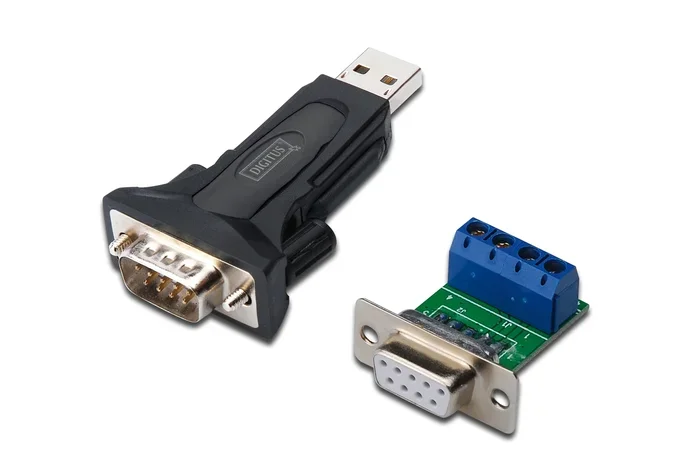
This is the most popular and straightforward approach. A USB to serial adapter is a small dongle or cable that plugs into your USB port and provides a serial output. On the other end, you get a DB9 connector (the classic COM port plug) or sometimes a bare TX/RX pair for direct wiring.
These adapters typically use chips made by companies like FTDI, Prolific, or Cypress. The FTDI chip is especially well-known and widely supported. When you plug in the adapter, Windows recognizes it as a new COM port automatically in most cases.
Here is what you need to know about USB to serial adapters:
- Cost: They range from $5 to $30 depending on quality and features.
- Compatibility: Most work with Windows, macOS, and Linux out of the box.
- Baud rate support: Good adapters support baud rates from 300 to 115200 or higher.
- Driver support: FTDI and Prolific drivers are freely available and regularly updated.
- Build quality: Cheap adapters may have poor signal integrity, so choose reputable brands.
If you have ever wondered can you make a USB port a COM port without installing complex software, this is the answer. Just plug in the adapter, install the driver, and your computer treats it like a real COM port. It really is that simple.
Method 2: Virtual COM Port Software
Sometimes you do not need a physical adapter. Virtual COM port software creates a software-based serial port that routes data through USB. This is useful when you want to connect two applications over USB as if they were communicating through a serial link.
Popular virtual COM port solutions include EasiModem, HW VSP (Virtual Serial Port), and com0com (a free open-source option). These tools create paired virtual COM ports that can communicate with each other or with USB devices that use serial protocols.
Virtual COM port software is great for:
- Testing serial applications without physical hardware.
- Routing serial data over USB between programs.
- Emulating COM ports for software that demands a physical port number.
- Developers who need to simulate serial communication during software testing.
The main advantage of virtual COM ports is that they cost nothing (or very little) and require no extra hardware. The downside is that they depend on software stability and may not work with every device. But for many use cases, they are a perfect solution.
Method 3: Built-In USB CDC Support
USB CDC stands for USB Communications Device Class. It is a standard that allows USB devices to present themselves as serial (COM) ports natively. Many microcontrollers, development boards, and custom USB devices use CDC to create a virtual COM port without needing special drivers.
If you are working with an Arduino, a Raspberry Pi Pico, or similar boards, you have likely used USB CDC already. The device shows up as a COM port in your operating system the moment you plug it in. This is the cleanest solution because it requires zero extra software or adapters.
For custom hardware projects, implementing USB CDC is straightforward. Most development frameworks and SDKs include built-in CDC support. This makes USB serial communication seamless for both the device and the host computer.
Step By Step Guide To Setting Up A Virtual COM Port
Now that you understand the methods, let us walk through the actual setup process. We will focus on the most common scenario: using a USB to serial adapter with Windows.
Step 1: Plug In Your Adapter – Connect the USB to serial adapter to an available USB port on your computer. Wait a few seconds for Windows to detect the new hardware.
Step 2: Install The Driver – If Windows does not automatically install the driver, you may need to download it from the manufacturer’s website. FTDI and Prolific drivers are free and easy to find. Visit the manufacturer’s support page, download the correct driver for your version of Windows, and run the installer.
Step 3: Check Device Manager – Right-click the Start button and select Device Manager. Look under “Ports (COM & LPT)” for your new device. It will show up with a COM port number, such as COM3 or COM4.
Step 4: Configure Your Serial Settings – Open your serial terminal software (like PuTTY, Tera Term, or the built-in Windows HyperTerminal alternative). Select the correct COM port, set the baud rate, data bits, parity, and stop bits to match your device’s requirements.
Step 5: Test The Connection – Send a test command or open a connection to verify data is flowing correctly. If you see garbled text, double-check your baud rate and other settings.
That is it. You have successfully converted a USB port into a working COM port. The entire process usually takes less than five minutes.
When You Need A COM Port Instead Of USB
You might be wondering why anyone would go through the trouble of creating a COM port when USB is so much faster and more convenient. The answer lies in compatibility and reliability for specific use cases.
Legacy industrial equipment is the number one reason people need COM ports. Many factory machines, medical devices, and laboratory instruments were designed decades ago and only support serial communication. Replacing this equipment is expensive and often impractical. Making a USB port function as a COM port lets you keep using perfectly good equipment without upgrading everything.
Embedded systems development also relies heavily on serial communication. Developers use COM ports to flash firmware, debug microcontrollers, and read sensor data. Even with modern tools like Bluetooth and Wi-Fi, the serial debug console remains the most reliable way to interact with low-level hardware.
Point-of-sale and retail systems sometimes use serial barcode scanners and receipt printers. These devices connect through COM ports because they are simple, deterministic, and do not need the overhead of USB networking protocols. Can you make a USB port a COM port to keep these systems running? Yes, and it is a common practice in retail environments worldwide.
Even in everyday tech, you might encounter devices that use serial protocols over USB. Some GPS receivers, weather stations, and home automation controllers communicate through serial connections. A USB-to-COM conversion gives you access to all of these devices with your modern computer.
For those interested in useful tech accessories that simplify connectivity, check out our guide on 10 Gadgets To Make Moms Life Easier for creative solutions that bridge the gap between old and new technology.
Common Problems And How To Fix Them
While making a USB port act as a COM port is generally straightforward, you might run into some issues along the way. Here are the most common problems and their solutions.
Problem 1: Device Not Showing Up In Device Manager – This usually means the driver is not installed correctly. Try a different USB port (preferably a USB 2.0 port), reinstall the driver, or try the adapter on another computer. Some cheap adapters use counterfeit chips that do not work properly with standard drivers.
Problem 2: Garbled Or Missing Data – Mismatched baud rates are the most common cause. Make sure the baud rate on your software matches the baud rate on your device. Also check that data bits, parity, and stop bits are set correctly. A loose cable or poor-quality adapter can also cause signal issues.
Problem 3: COM Port Number Keeps Changing – Windows sometimes assigns different COM port numbers when you plug the same adapter into different USB ports. To fix this, go to Device Manager, right-click the port, select Properties, go to the Port Settings tab, click Advanced, and assign a specific COM port number.
Problem 4: Adapter Works Intermittently – This is often a power issue. USB ports on the front of a desktop case may not provide enough power. Try plugging the adapter into a rear USB port directly connected to the motherboard. A powered USB hub can also help.
Problem 5: Software Cannot Find The COM Port – Make sure the correct COM port is selected in your software. Also check that no other program is using the port. Some applications lock the COM port while they are running, preventing other software from accessing it.
For users dealing with spreadsheet-related serial data imports, you might also find our article on A Line Wont Delete In Microsoft Excel helpful when troubleshooting data formatting issues.
Choosing The Right USB To Serial Adapter
Not all USB to serial adapters are created equal. Here are some factors to consider when picking one for your needs.
- Chipset: FTDI chips offer the best compatibility and driver support. Prolific chips are also common but sometimes have driver issues on newer Windows versions.
- Voltage: Make sure the adapter supports the voltage your device needs. Most adapters work at 3.3V or 5V logic levels.
- Connector type: DB9 is standard for RS-232. Some adapters offer screw terminals or direct pin headers for custom wiring.
- Isolation: Industrial environments benefit from optically isolated adapters that protect against electrical noise and voltage spikes.
- Cable length: Longer cables can degrade signal quality. Keep serial cable runs under 15 meters for best results.
If you are connecting a peripheral like a mouse through a serial-to-USB setup, you may also want to review the advantages and disadvantages of a computer mouse to understand how legacy input devices communicate through serial and USB interfaces.
Here is a quick comparison of the three methods we discussed:
| Feature | USB To Serial Adapter | Virtual COM Port Software | USB CDC (Native) |
|---|---|---|---|
| Cost | $5 to $30 | Free to $50 | Free (built-in) |
| Hardware Needed | Yes | No | No |
| Driver Required | Usually yes | Yes | No (native OS support) |
| Best For | Legacy devices, industrial use | Software testing, development | Custom hardware, microcontrollers |
| Setup Time | 5 minutes | 10 minutes | Plug and play |
| Reliability | High | Medium | High |
As you can see, each method has its place. For most users, a USB to serial adapter is the go-to solution. It is affordable, reliable, and works with almost any device that needs a COM port.
Expert Tips For Reliable Serial Communication
Getting a stable serial connection over USB requires a few best practices. Here are some expert tips that will save you headaches.
Always use the shortest cable possible. Longer cables introduce more resistance and signal degradation. Keep your serial cables as short as your setup allows. If you must use a long cable, consider a signal booster or a higher-quality shielded cable.
Match all serial parameters exactly. Baud rate, data bits, parity, and stop bits must be identical on both ends of the connection. Even a one-bit difference will cause communication failures. Write down the correct settings for each device you connect.
Use a powered USB hub for multiple devices. If you are connecting several USB-to-serial adapters, your computer’s USB controller may not provide enough power. A powered hub ensures stable operation for all connected devices.
Update your drivers regularly. FTDI and Prolific frequently release driver updates that fix compatibility issues with newer versions of Windows. Check the manufacturer’s website every few months for updates.
Test with a terminal program first. Before integrating a COM port connection into your main software, test it with a simple terminal program like PuTTY or Tera Term. This helps you isolate whether the problem is with the hardware, the driver, or your application code.
Key Takeaways
- Converting USB to COM port is straightforward and requires minimal technical knowledge.
- USB to serial adapters are the most practical solution for most users.
- Virtual COM port software works well for testing and development without extra hardware.
- Windows Device Manager makes it easy to manage and assign COM port numbers.
- Legacy devices across many industries still depend on serial communication, and USB-to-COM conversion keeps them functional.
- Driver quality and correct serial settings are the keys to reliable, stable communication.
- Can you make a USB port a COM port? Yes, and now you know exactly how to do it.
Conclusion
Can you make a USB port a COM port? The answer is a definitive yes. You have several reliable methods available, from simple USB adapters to software-based virtual ports and native USB CDC support. Each method is well-supported, affordable, and easy to set up.
Whether you are keeping old industrial equipment running, developing embedded systems, or just trying to connect a legacy peripheral, USB-to-COM conversion is an essential skill. It saves money, reduces e-waste, and keeps your older devices useful for years to come.
The process is not complicated. With the right adapter, the correct drivers, and a few minutes of your time, you can bridge the gap between old serial devices and modern USB-only computers. Start with a quality USB to serial adapter, follow the setup steps in this guide, and you will have a working COM port in no time.
Technology moves fast, but some fundamentals endure. Serial communication is one of those fundamentals. And now you know how to keep it alive on your modern computer. Go ahead, plug in that adapter, and bring your old devices back to life.
Frequently Asked Questions
Is It Safe To Use A USB To Serial Adapter?
Yes, USB to serial adapters are safe when you use a reputable brand and install the correct drivers. Cheap adapters with counterfeit chips may cause instability or deliver incorrect data. Stick with well-known manufacturers like FTDI for the safest and most reliable experience.
Can I Use A USB To Serial Adapter On A Mac Or Linux?
Absolutely. Most USB to serial adapters work on macOS and Linux without any special configuration. FTDI-based adapters have excellent cross-platform support. You may need to install drivers on some Linux distributions, but many include them by default.
What Baud Rate Should I Use For My Serial Connection?
The correct baud rate depends on your device. Common baud rates include 9600, 19200, 38400, 57600, and 115200. Check your device’s manual or specifications to find the correct setting. Mismatched baud rates are the number one cause of serial communication problems.
Do I Need Special Software To Use A Virtual COM Port?
You need virtual COM port software to create the ports, but once set up, any serial communication software can use them. Programs like PuTTY, Tera Term, and even custom applications can read from and write to virtual COM ports just like physical ones.
Why Does My COM Port Number Keep Changing?
Windows assigns COM port numbers dynamically by default. When you plug the same adapter into a different USB port, it may get a new number. To fix this, go to Device Manager, open the port properties, and manually assign a fixed COM port number under the Port Settings tab.
Can I Connect Multiple Serial Devices Through One USB Port?
Yes, but you need a USB hub and a separate USB to serial adapter for each device. Each adapter will create its own COM port. Make sure your USB hub and computer can handle the power requirements, especially if the devices draw power through the USB connection.