Can You Connect Hdmi To Ipad And What You Need To Know
Yes, you can connect HDMI to iPad using the right adapter or cable. Whether you own an older Lightning iPad or a newer USB-C model, you can mirror your screen or output video to an external display. This guide walks you through everything you need to know about HDMI to iPad connections, from choosing the correct adapter to fixing common issues.
Have you ever wanted to show something on your iPad but felt the screen was just too small? Maybe you are giving a presentation at work, sharing photos with family, or trying to watch a movie on a bigger display. The good news is that you can connect HDMI to iPad and enjoy your content on a much larger screen. It is simpler than most people think, and once you know what you need, the whole process takes just a few minutes.
Connecting HDMI to iPad opens up a world of possibilities. You can turn your iPad into a laptop replacement, use it as a media player connected to your TV, or even game on a bigger screen. But not every iPad uses the same connection type, and not every adapter works with every model. That is exactly why this guide exists. We will walk you through everything step by step so you can get your iPad hooked up to any HDMI display without the frustration.
Whether you are a student presenting a project, a professional pitching an idea, or someone who just wants to watch YouTube on the living room TV, this article has you covered. We will talk about which iPads support HDMI output, what adapters you need, how to set everything up, and what to do when things do not work as expected. Let us dive in.
Key Takeaways
- HDMI connection is possible: You can connect your iPad to a TV or monitor using the right adapter and HDMI cable.
- Adapter type matters: Lightning iPads need a different adapter than USB-C iPads, so check your model first.
- Apple and third-party options exist: Both official Apple adapters and reliable third-party alternatives work well for HDMI to iPad setups.
- Screen mirroring is the main use: Most users connect HDMI to iPad for presentations, streaming, or sharing content on a bigger screen.
- Common issues are fixable: Problems like no signal or poor quality often have simple solutions you can try at home.
- Not all iPads support video output: Some older models may have limitations, so always check compatibility before buying an adapter.
📑 Table of Contents
Understanding HDMI and iPad Compatibility
Before you rush out and buy an adapter, it helps to understand how HDMI and iPad work together. Not all iPads are created equal, and the connection method depends entirely on your specific model. Let us break this down so you know exactly what to expect.
Which iPad Models Support HDMI Output?
Most iPads made in the last decade support some form of video output through HDMI. However, the way you connect them varies. Here is a quick look at the major iPad lines and their HDMI compatibility:
- iPad Pro (all models): These support HDMI through USB-C adapters. You get excellent resolution and smooth performance.
- iPad Air (3rd generation and later): USB-C models can use HDMI adapters easily. Older iPad Air models with Lightning need a different adapter.
- iPad (6th generation and later): Most of these work with HDMI adapters, depending on the port type.
- iPad Mini (5th generation and later): USB-C iPad Mini models support HDMI output with the right adapter.
- Older Lightning iPads: These require the Apple Lightning to Digital AV Adapter for HDMI connections.
If you are unsure which iPad model you have, you can check by going to Settings and tapping on General, then About. The model name and number will be listed there. Once you know your model, you can choose the correct HDMI to iPad adapter with confidence.
Lightning vs USB-C: What Is the Difference?
This is one of the most important things to understand when connecting HDMI to iPad. Older iPads use a Lightning connector, which is the smaller, flat charging port. Newer iPads, especially iPad Pro, iPad Air (from 2020 onward), and iPad Mini (from 2021 onward), use USB-C. The port looks similar to what you find on most Android phones and modern laptops.
The difference matters because the adapter you need is completely different for each port type. A Lightning adapter will not work with a USB-C iPad, and vice versa. Apple made this transition to USB-C to follow industry standards, and it actually makes things easier in many ways. USB-C adapters tend to support higher resolutions and refresh rates compared to the older Lightning adapters.
One thing worth noting is that some iPad models released in 2022 and beyond also support Thunderbolt through USB-C. This means you can use Thunderbolt-compatible HDMI adapters for even better performance. If you are still using a Lightning iPad, do not worry. You can absolutely connect to an HDMI display. You just need the right adapter, which we will cover in detail soon.
What You Need to Connect HDMI to iPad
Now that you understand your iPad model and its port type, let us talk about the actual equipment you need. Setting up a HDMI to iPad connection requires just a few components, and you probably already own some of them.
Apple Digital AV Adapter
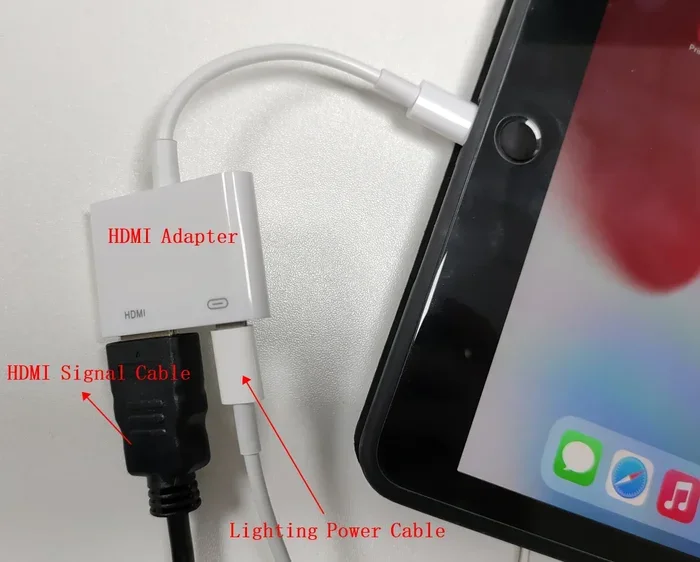
For iPad models with a Lightning port, the official Apple Lightning to Digital AV Adapter is the go-to option. This small white adapter plugs into your iPad’s charging port and has a standard HDMI female port on the other end. You then connect an HDMI cable from the adapter to your TV or monitor.
The Apple adapter is reliable and works consistently across all Lightning iPad models. It supports up to 1080p video output, which is more than enough for most uses. The downside is that it costs a bit more than third-party options, and Apple has not updated the design in many years. But if you want peace of mind and plug-and-play simplicity, this is the safest choice.
USB-C HDMI Adapters and Hubs
If you own a USB-C iPad, your options open up significantly. You can use a simple USB-C to HDMI adapter, which is a small dongle that connects directly from your iPad to an HDMI cable. These adapters are affordable and widely available from brands like Anker, Belkin, and Satechi.
Another popular option is a USB-C hub that includes an HDMI port along with other connections like USB-A, SD card slots, and charging ports. These hubs are great if you want to connect multiple devices at once. For example, you might plug in a flash drive, connect to a display, and charge your iPad all at the same time.
When shopping for a USB-C HDMI adapter, look for ones that support at least 4K resolution if your iPad can output that high. Most modern USB-C adapters handle 4K at 30Hz or 60Hz, which is perfect for streaming and presentations. Just make sure the adapter is compatible with iPadOS and supports video output, because some USB-C hubs are designed only for data transfer and charging.
HDMI Cables
You will also need a standard HDMI cable to complete the connection. Most people already have one or two lying around the house from their TV setup. If you need to buy a new one, look for a high-speed HDMI cable that supports at least 1080p. For 4K output, make sure the cable is rated for 4K bandwidth.
HDMI cables are pretty universal, so you do not need to spend a fortune on the most expensive option. A well-made standard cable from a reputable brand will work perfectly for HDMI to iPad connections. Avoid extremely cheap, unbranded cables, as they sometimes cause signal issues or do not support the full resolution your iPad can output.
Step-by-Step Guide to Connecting HDMI to iPad
Setting up your HDMI to iPad connection is straightforward once you have the right gear. Here is how to do it for both Lightning and USB-C iPads.
For Lightning iPads
- Plug the Apple Lightning to Digital AV Adapter into your iPad’s charging port.
- Connect one end of an HDMI cable to the adapter.
- Plug the other end of the HDMI cable into your TV or monitor.
- Switch your TV or monitor to the correct HDMI input channel.
- Your iPad screen should now mirror on the external display.
If nothing appears on the TV, try unplugging the adapter and plugging it back in. Sometimes the iPad needs a moment to recognize the external display. You can also go to Settings, then Display and Brightness, and look for the external display option to adjust the output.
For USB-C iPads
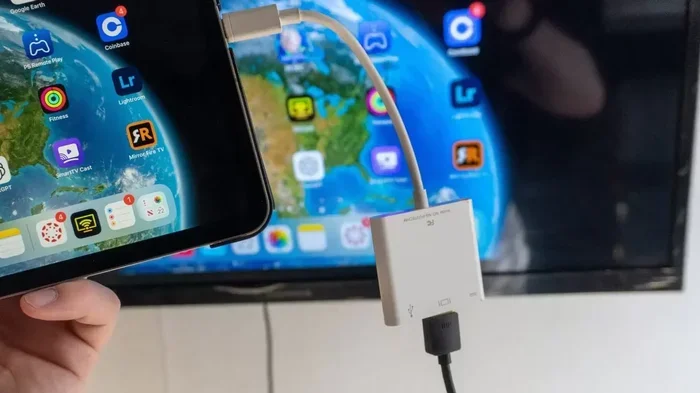
- Connect a USB-C to HDMI adapter to your iPad.
- Attach an HDMI cable to the adapter.
- Plug the other end of the HDMI cable into your TV or monitor.
- Switch your display to the correct HDMI input.
- The iPad screen will mirror automatically on the external display.
USB-C iPads tend to be even more plug-and-play than Lightning models. In most cases, you do not need to change any settings. The iPad detects the external display instantly and mirrors your screen. If you want to extend your display instead of mirroring it, you can go to Settings, then Display and Brightness, and select the external display to choose between mirroring and extending.
One tip that many people miss is to check your iPad’s display settings before connecting. Go to Settings, then Display and Brightness, and look for the Screen Mirroring or External Display option. This gives you more control over the resolution and layout of your external output. It is a small step that can make a big difference in how your HDMI to iPad setup performs.
Common Issues and How to Fix Them
Even with the right equipment, you might run into some hiccups when setting up your HDMI to iPad connection. Here are the most common problems and how to solve them.
No Signal on the TV or Monitor
This is the most common issue, and it is usually easy to fix. First, check that all cables are firmly connected. A loose HDMI cable is the number one cause of no signal. Next, make sure your TV is set to the correct HDMI input. Most TVs have multiple HDMI ports, and you need to select the right one using your remote.
If the cables are secure and the input is correct, try restarting your iPad. Sometimes the iPad needs a fresh start to recognize the external display. You can also try a different HDMI cable or a different port on your TV. These simple steps solve the problem in most cases.
Poor Video Quality or Flickering
If your picture looks blurry, pixelated, or flickers, the issue is often the HDMI cable or adapter quality. Cheap, unbranded cables are notorious for causing these problems. Switch to a high-quality, well-reviewed HDMI cable and see if the picture improves.
Another cause is resolution mismatch. Some adapters only support up to 1080p, and if your iPad is trying to output a higher resolution, the picture may not display correctly. You can adjust the output resolution in your iPad’s display settings to match what your adapter supports.
No Sound Through HDMI
Sometimes the video works perfectly but there is no audio. This usually happens when the iPad is still sending audio to its own speakers instead of the external display. To fix this, go to Settings, then Sounds and Haptics, and check your output device. You may need to select the HDMI display as the audio output source.
Another quick fix is to lock your iPad’s screen and use the volume controls on the external display remote. This sometimes forces the audio to route through HDMI. If neither of these works, try disconnecting and reconnecting the adapter while the iPad is playing audio.
Best Uses for HDMI on Your iPad
Now that you know how to connect HDMI to iPad, let us talk about what you can actually do with this capability. The uses go far beyond just watching movies.
- Presentations at work or school: Connect your iPad to a projector or TV for clean, professional presentations. You can share slides, documents, and even videos with a room full of people.
- Streaming on a bigger screen: Use your iPad as a streaming device by connecting it to your TV. Netflix, YouTube, Disney+, and other apps look great on a large display.
- Gaming on a bigger screen: Some games look and play much better on a TV. Connect your iPad via HDMI and enjoy a more immersive gaming experience.
- Digital signage: Small businesses can use an iPad connected to a TV as a simple and affordable digital signage solution to display menus, promotions, or announcements.
- Photo and video sharing: Show your latest vacation photos or family videos on a big screen during gatherings and celebrations.
- Home theater setup: Use your iPad as a secondary display or media controller for your home entertainment system.
Each of these uses takes advantage of the fact that iPads have great screens and powerful processors. By connecting to an external display, you unlock that power on a much bigger canvas. It is one of the simplest and most rewarding upgrades you can make to your iPad setup.
Expert Tips for the Best HDMI to iPad Experience
Here are some insider tips that will help you get the most out of your HDMI to iPad connection.
- Use an adapter with built-in charging: Some HDMI adapters also pass through charging. This means you can charge your iPad while using the external display, which prevents battery drain during long sessions.
- Keep your iPad cool: Running video output through HDMI can cause your iPad to warm up slightly. If you are using it for a long presentation or movie, consider removing the case to help with heat dissipation.
- Update iPadOS regularly: Apple frequently improves display output performance through software updates. Keeping your iPad on the latest version of iPadOS ensures the best compatibility with HDMI adapters.
- Test your setup before the big moment: If you are using HDMI for a presentation or event, always test the connection beforehand. Nothing is worse than discovering a problem when everyone is already seated.
- Consider a wireless option as a backup: If you are in a situation where running a cable is impractical, screen mirroring through AirPlay to an Apple TV can be a great alternative. It is not as reliable as a wired HDMI connection, but it works well for casual use.
These tips come from years of real-world experience with iPad displays and accessories. They might seem small, but they can save you a lot of headaches and help you get the most out of every HDMI to iPad session.
Final Thoughts
Connecting HDMI to iPad is one of the most useful things you can do to expand how you use your tablet. Whether you need it for work, school, or entertainment, the right adapter and cable make it easy to share your iPad screen on any display. The process is straightforward, the equipment is affordable, and the results are impressive.
Start by identifying your iPad model and port type. Then choose the correct adapter, grab a good HDMI cable, and follow the simple steps we outlined in this guide. If you run into any issues, the troubleshooting tips should help you get back on track quickly. With your iPad connected to an external display, you will wonder how you ever managed without it.
The world of iPad accessories is vast, but connecting to an HDMI display is one of the most practical and rewarding upgrades you can make. It transforms your iPad from a personal device into a powerful presentation tool, media player, and entertainment hub. So go ahead, grab the right adapter, and start enjoying your iPad content on the big screen today.
If you are interested in learning more about getting the most out of your Apple devices, check out our guide on adding prefixes to numbers on iPhone for useful tips on managing your contacts and settings. Also, if you are looking for great gadgets that complement your iPad setup, our article on 10 gadgets to make mom’s life easier features some fantastic accessories that work beautifully with iPads and other devices.
Frequently Asked Questions
Can I connect HDMI to any iPad model?
Most iPad models support HDMI output, but the adapter you need depends on your port type. Lightning iPads require the Apple Lightning to Digital AV Adapter, while USB-C iPads use a USB-C to HDMI adapter. Check your iPad model before purchasing an adapter to ensure compatibility.
Do I need a special HDMI cable for iPad?
No, you do not need a special HDMI cable. A standard high-speed HDMI cable works perfectly with all iPad HDMI adapters. Just make sure the cable is in good condition and supports the resolution you need, such as 1080p or 4K.
Can I extend my iPad screen instead of mirroring it through HDMI?
Yes, on newer iPad models running iPadOS, you can extend your display instead of mirroring it. Go to Settings, then Display and Brightness, and select the external display. From there, you can choose between mirroring and extending your screen.
Why is there no sound when I connect HDMI to iPad?
This usually happens when the iPad is still sending audio to its own speakers. Go to Settings, then Sounds and Haptics, and check your output device. You may need to select the HDMI display as the audio output. Restarting the iPad after connecting can also fix this issue.
Are third-party HDMI adapters safe to use with iPad?
Yes, many third-party HDMI adapters work great with iPads. Look for adapters from reputable brands like Anker, Belkin, or Satechi. Avoid very cheap, unbranded adapters, as they may cause signal issues or lack proper compatibility with iPadOS.
Can I use HDMI to iPad for gaming?
Absolutely. Connecting your iPad to a TV via HDMI is a great way to play games on a bigger screen. The wired connection provides low latency and stable performance, making it ideal for gaming sessions. Just make sure your adapter supports the resolution and refresh rate your iPad can output.
=== CONCLUSION ===
Connecting HDMI to iPad is easier than you might think, and the benefits are immediately noticeable. Whether you want to present at work, stream movies on the big screen, or simply share photos with family, the right adapter and cable make it all possible. You now know which iPad models support HDMI output, what equipment you need for each type, and how to set everything up in just a few minutes.
Remember to check your iPad model first, choose the correct adapter for your port type, and use a quality HDMI cable. If you run into any issues, the troubleshooting tips in this guide should help you resolve them quickly. With your HDMI to iPad setup complete, you will open up a whole new way to use your tablet every single day.
Start with the steps outlined here, experiment with different setups, and enjoy the flexibility that HDMI connectivity brings to your iPad experience. You have everything you need to get started right now.
=== URL SLUG ===
can-you-connect-hdmi-to-ipad-and-what-you-need-to-know
=== SEO TITLE ===
Can You Connect HDMI To iPad And What You Need To Know
=== META TITLE ===
Can You Connect HDMI To iPad? Here Is What You Need
=== META DESCRIPTION ===
Learn how to connect HDMI to iPad with the right adapter and cables. This guide covers compatible models, step-by-step setup, and common troubleshooting tips for a smooth connection.