Does Metropcs Have Personal Hotspot on Your Phone Now
Does Metropcs have personal hotspot? Yes, MetroPCS (now part of T-Mobile) offers personal hotspot features on most plans. You can turn your phone into a wireless hotspot and share mobile data with laptops, tablets, and other devices. This guide covers how to enable it, data limits, troubleshooting tips, and everything you need to know about using your MetroPCS personal hotspot effectively.
Let’s talk about something that matters to a lot of mobile users today. Does Metropcs have personal hotspot? If you have been asking yourself this question, you are in the right place. Mobile hotspots have become essential tools for staying connected. Whether you are working from home, traveling, or just need internet on your laptop, your phone can act as a portable Wi-Fi router.
MetroPCS, which is now part of T-Mobile, offers personal hotspot features on many of its plans. But the details matter. Not every plan works the same way. Some plans give you plenty of hotspot data, while others limit it. In this article, we will walk through everything you need to know. We will cover how to turn on your hotspot, what data limits look like, common problems, and tips to get the best performance.
By the end of this guide, you will have a clear answer to does Metropcs have personal hotspot and how to use it like a pro. Let us dive right in.
Key Takeaways
- MetroPCS does offer personal hotspot: Most MetroPCS plans include mobile hotspot or tethering capabilities, especially since the merger with T-Mobile.
- Enabling is simple: You can turn on your personal hotspot through the phone’s settings in just a few taps.
- Data limits vary by plan: Some unlimited plans include hotspot data, while others may throttle speeds after a certain amount.
- Troubleshooting is straightforward: Common hotspot issues often have easy fixes like restarting your phone or toggling settings.
- You can buy additional hotspot data: If you run out, options exist to add more data, similar to how you can buy hotspot data on AT&T for other carriers.
- Not all plans are equal: Check your specific plan details, as older or basic plans may have different hotspot features.
📑 Table of Contents
- What Is a Personal Hotspot?
- Does MetroPCS Support Personal Hotspot?
- How to Enable Personal Hotspot on MetroPCS
- MetroPCS Hotspot Data Limits and Plans
- Troubleshooting Common MetroPCS Hotspot Issues
- Tips to Get the Most From Your MetroPCS Hotspot
- MetroPCS Hotspot vs. Other Carrier Hotspots
- Final Thoughts
What Is a Personal Hotspot?
A personal hotspot is a feature on your smartphone that shares your mobile data connection with other devices. Think of it as turning your phone into a mini Wi-Fi router. When you enable it, other devices can connect to the internet through your phone’s data plan.
This is also called mobile tethering or phone hotspot. You have probably seen the term before. It works by creating a small wireless network around your phone. Other devices like laptops, tablets, and even other phones can join that network.
Here are some common ways people use personal hotspots:
- Working on a laptop when no Wi-Fi is available.
- Surfing the web on a tablet during travel.
- Staying connected during emergencies when home internet is down.
- Setting up a temporary network for guests.
- Sharing internet with a friend who needs a quick connection.
The beauty of a personal hotspot is its simplicity. You do not need any extra equipment. Your phone does all the work. But not all phones and plans support this feature equally. That is where we need to look at what MetroPCS specifically offers.
Does MetroPCS Support Personal Hotspot?
The short answer is yes. MetroPCS does support personal hotspot on most of its plans. Since MetroPCS merged with T-Mobile, the network infrastructure has improved a lot. This means better coverage and more reliable hotspot performance for MetroPCS users.
However, the details depend on your specific plan. MetroPCS offers several different plans, and they are not all the same when it comes to hotspot features. Some plans come with generous hotspot data allowances. Others may limit the amount of data you can share or slow down speeds after a certain threshold.
How MetroPCS Hotspot Works
When you have a MetroPCS plan that supports hotspot, your phone uses its cellular data connection to create a Wi-Fi network. Other devices connect to this network just like they would connect to a home router. Your phone then routes the internet traffic through your cellular data.
Here is what happens behind the scenes:
- Your phone connects to the MetroPCS cellular network.
- The hotspot feature creates a local Wi-Fi network.
- Other devices connect to that Wi-Fi network.
- Your phone shares its data connection with those devices.
- All internet traffic flows through your phone and the MetroPCS network.
This process is seamless for most users. You set it up once, and it works every time. The key thing to remember is that your hotspot uses data from your monthly plan. So if you have a limited data plan, your hotspot usage counts against that limit.
Checking if Your Plan Includes Hotspot
Not sure if your MetroPCS plan includes personal hotspot? There are a few easy ways to check. First, you can log into your MetroPCS account online or through the app. Your plan details should list hotspot or tethering features. Second, you can call MetroPCS customer service. They can confirm whether your plan supports hotspot and how much data you get.
You can also check your phone’s settings directly. If you see a personal hotspot or mobile hotspot option in your settings, your phone supports the feature. But having the feature on your phone does not always mean your plan includes unlimited hotspot data. Always double-check your plan details.
How to Enable Personal Hotspot on MetroPCS
Turning on your personal hotspot is straightforward. The steps are similar across most Android and iPhone devices. Let me walk you through the process for both types of phones.
On Android Phones
Android phones make it easy to set up a hotspot. Here is what to do:
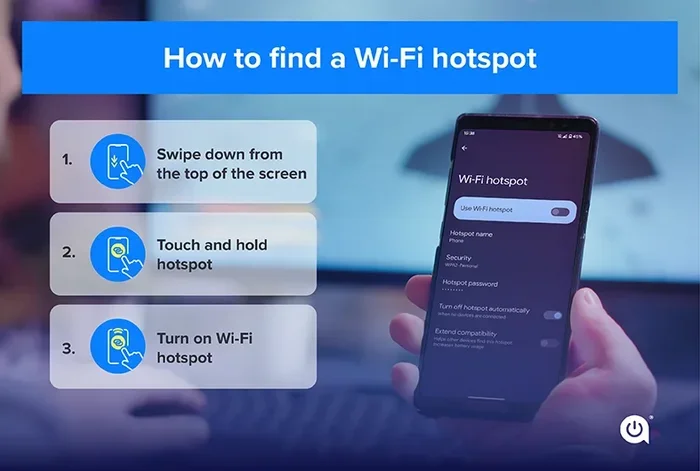
- Open the Settings app on your phone.
- Look for Network & Internet or Connections (the name varies by phone).
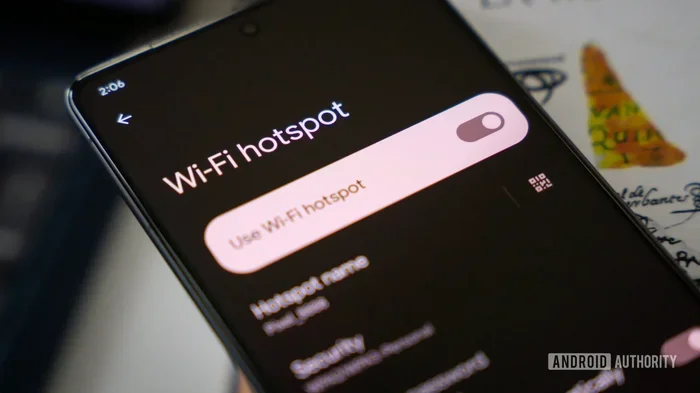
- Tap on Hotspot & Tethering or Mobile Hotspot.
- Toggle the Mobile Hotspot switch to turn it on.
- Set a hotspot name and password for security.
- Save your settings, and your hotspot is ready.
That is it. Other devices can now find your hotspot by its name and connect using the password you set. It is a good idea to use a strong password. This keeps your connection safe and prevents unauthorized users from using your data.
On iPhone
iPhone users can also enable personal hotspot easily. Here are the steps:
- Open the Settings app.
- Tap on Personal Hotspot.
- Toggle Allow Others to Join to on.
- Set a Wi-Fi password for your hotspot.
- Your hotspot is now active and visible to other devices.
If you do not see the Personal Hotspot option in your settings, check with MetroPCS. Your plan may not include hotspot, or your phone settings might need a software update. Sometimes a simple restart fixes the issue.
Quick Tips for Hotspot Setup
- Always set a password. An open hotspot is a security risk.
- Change the default hotspot name. This makes it easier to identify your network.
- Keep your phone plugged in. Using hotspot drains battery fast.
- Place your phone in a central location. This gives the best signal to connected devices.
MetroPCS Hotspot Data Limits and Plans
Data limits are one of the most important things to understand about using a personal hotspot. MetroPCS offers different plans with different data allowances. Some plans include unlimited data, but the hotspot portion may be limited.
Unlimited Plans and Hotspot Data
MetroPCS has several unlimited plans. On these plans, you get a certain amount of hotspot data each month. After you use up that amount, your hotspot speeds may slow down. This is important to know because slow hotspot speeds can be frustrating.
For example, some MetroPCS unlimited plans include 15 GB to 50 GB of hotspot data. Once you exceed that limit, speeds drop significantly. You can still use data, but streaming videos or video calls may become choppy.
If you find yourself running out of hotspot data often, you might want to explore options for adding more data. Similar to how you can add a hotspot to an AT&T unlimited plan, MetroPCS may offer data add-on options through your account.
Basic Plans and Hotspot Restrictions
Not all MetroPCS plans are unlimited. Some basic or prepaid plans have limited data. On these plans, hotspot usage may not be included at all, or it may count double against your data limit. This means every gigabyte you use for hotspot counts as two gigabytes from your monthly allowance.
If you are on a basic plan, here is what to watch for:
- No hotspot feature: Some plans do not include tethering at all.
- Limited hotspot data: You may get only a few gigabytes for hotspot use.
- Double data counting: Hotspot data may count twice against your limit.
- Speed throttling: After a certain usage threshold, speeds drop.
The best way to avoid surprises is to review your plan details before relying on hotspot. You can check your plan online or contact MetroPCS support for clarification.
Troubleshooting Common MetroPCS Hotspot Issues
Even when everything is set up correctly, hotspot issues can happen. Let us look at the most common problems and how to fix them.
Hotspot Not Showing Up on Other Devices
This is one of the most common complaints. You turn on your hotspot, but other devices cannot find it. Here are some things to try:
- Restart your phone. A quick reboot often fixes temporary glitches.
- Turn hotspot off and on again. Sometimes the setting needs a refresh.
- Check your Wi-Fi band. Make sure your hotspot is set to the 2.4 GHz band for wider compatibility.
- Move closer to your phone. The hotspot signal weakens with distance.
- Update your phone’s software. Outdated software can cause connectivity issues.
Slow Hotspot Speeds
Slow speeds are another frequent issue. Hotspot speeds depend on several factors:
- Your cellular signal strength. Weak signal means slow speeds.
- The number of connected devices. More devices mean slower speeds for each.
- Your data plan limits. Throttled plans slow down after a threshold.
- Network congestion. Busy towers can reduce speeds.
If your speeds are slow, try moving to an area with better coverage. You can also reduce the number of connected devices. And if your plan throttles speeds, you may need to consider upgrading your plan or looking into using a Wi-Fi stick for your PC as an alternative way to connect.
Devices Cannot Connect to Hotspot
If a specific device cannot connect, the problem might be on that device’s end. Try these steps:
- Forget the hotspot network on the connecting device and reconnect.
- Restart the connecting device.
- Check the password. Make sure you are entering it correctly.
- Remove the connecting device from the hotspot’s allowed list and add it again.
When to Contact MetroPCS Support
Most hotspot issues can be fixed with the steps above. But if you have tried everything and still cannot get your hotspot working, it is time to contact MetroPCS support. They can check your account, verify your plan features, and troubleshoot network-level issues. You can reach them through the MetroPCS app, online chat, or by phone.
Tips to Get the Most From Your MetroPCS Hotspot
Using a personal hotspot effectively is about more than just turning it on. Here are some practical tips to help you get the best experience.
Monitor Your Data Usage
Hotspot data can disappear fast. Streaming a movie uses a lot of data. Video calls do too. To stay on top of your usage, check your data consumption regularly. MetroPCS provides data usage tracking through your online account and the mobile app. Set up alerts so you know when you are approaching your limit.
Optimize Your Hotspot Settings
Small adjustments to your hotspot settings can make a big difference:
- Use WPA2 security. This is the most secure and compatible option.
- Limit the number of connected devices. Fewer devices mean better speeds.
- Turn off hotspot when not in use. This saves battery and data.
- Use a 5 GHz band if available. It offers faster speeds but shorter range.
Consider a Hotspot Alternative When Needed
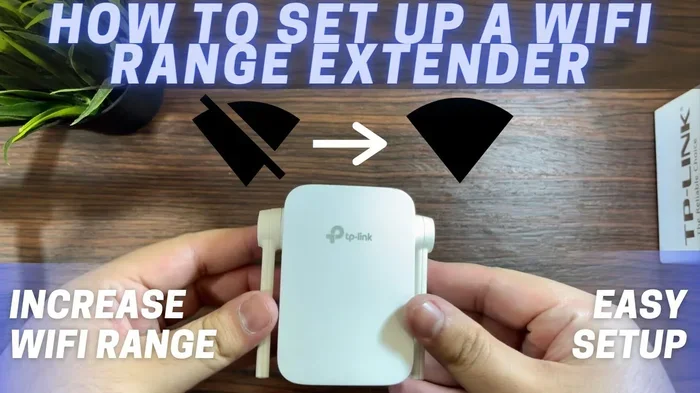
Sometimes your phone hotspot just is not enough. Maybe you need a more reliable connection for work, or your data plan does not support heavy hotspot use. In those cases, it is worth considering alternatives. You can get a dedicated hotspot device instead of Wi-Fi from various carriers. These devices are designed specifically for mobile internet and often perform better than phone hotspots for long-term use.
Keep Your Phone Charged
Running a hotspot drains your battery quickly. If you plan to use your hotspot for an extended period, keep your phone plugged into a charger. Better yet, use a portable power bank. This ensures your hotspot stays active even when you are on the go.
MetroPCS Hotspot vs. Other Carrier Hotspots
How does MetroPCS hotspot compare to other carriers? Since MetroPCS is now part of T-Mobile, it shares the same network infrastructure. This means MetroPCS hotspot performance is very similar to T-Mobile’s. In many cases, the experience is nearly identical.
Compared to carriers like AT&T or Verizon, MetroPCS generally offers competitive hotspot features, especially on its unlimited plans. The main differences come down to specific plan details and data allowances. For instance, if you are comparing options, you might wonder about buying hotspot data on AT&T versus MetroPCS. Both carriers offer ways to add data, but the process and costs may differ.
The key takeaway is that MetroPCS provides solid hotspot functionality for most users. If you are already a MetroPCS customer, your phone likely supports personal hotspot already. You just need to check your plan details and enable the feature.
Final Thoughts
So, does Metropcs have personal hotspot? Yes, it does. MetroPCS supports personal hotspot on most of its plans, making it easy to share your mobile data with other devices. Whether you are using an Android phone or an iPhone, enabling the hotspot feature takes just a few minutes.
Remember to check your plan for data limits and hotspot allowances. Keep your hotspot password secure. And do not hesitate to contact MetroPCS support if you run into any issues. With the right setup and a little awareness of your data usage, your MetroPCS phone can serve as a reliable mobile hotspot whenever you need it.
Staying connected should not be a hassle. With MetroPCS personal hotspot, you have the power to get online anywhere. Just set it up, stay aware of your data, and enjoy the freedom of mobile internet on your terms.
Frequently Asked Questions
Can I use MetroPCS personal hotspot on any device?
Yes, you can connect almost any Wi-Fi-enabled device to your MetroPCS personal hotspot. This includes laptops, tablets, other phones, and even some smart home devices. Just make sure the device can connect to a Wi-Fi network and enter the password you set for your hotspot.
Does MetroPCS charge extra for personal hotspot?
It depends on your plan. Some MetroPCS plans include hotspot data at no extra cost. Other plans may require you to add a hotspot feature or upgrade to a higher-tier plan. Check your specific plan details or contact MetroPCS support to confirm whether there are any additional charges for tethering.
How much hotspot data do I get on MetroPCS?
Data allowances vary by plan. Unlimited plans typically include 15 GB to 50 GB of hotspot data per month. Basic plans may have less hotspot data or may not include it at all. Always review your plan details to understand your hotspot data limit.
Why is my MetroPCS hotspot so slow?
Slow hotspot speeds can be caused by several factors. Weak cellular signal, too many connected devices, data throttling, and network congestion are the most common culprits. Try moving to an area with better coverage or reducing the number of connected devices to improve speeds.
Can I use my MetroPCS hotspot while traveling internationally?
MetroPCS is part of T-Mobile, which offers international roaming on many plans. However, hotspot use while traveling internationally may have different data limits or restrictions. Check with MetroPCS before traveling to understand any international roaming terms that apply to your hotspot usage.
What is the difference between mobile hotspot and tethering?
Mobile hotspot and tethering are essentially the same thing. Both refer to sharing your phone’s cellular data connection with other devices. The term “hotspot” usually refers to Wi-Fi sharing, while “tethering” can also include USB or Bluetooth connections. MetroPCS supports both methods on most plans.
=== CONCLUSION ===
Does Metropcs have personal hotspot? The answer is a clear yes. MetroPCS offers personal hotspot capabilities on most of its plans, giving you the freedom to share your mobile data with laptops, tablets, and other devices wherever you go. From enabling the feature to managing data limits and troubleshooting issues, this guide has covered everything you need to know.
Remember that your experience will depend on your specific plan and data allowance. Take the time to review your plan details, set up your hotspot securely, and monitor your usage. With the right approach, your MetroPCS phone becomes a powerful tool for staying connected on the go.
Now that you know how to use your MetroPCS personal hotspot, put it to work. Stay productive, stay connected, and enjoy the convenience of mobile internet in your pocket.