Does B550 F Wifi Have Bluetooth Here Is the Answer
The B550 F WiFi motherboard does include built-in Bluetooth support, making it a solid choice for wireless connectivity. You can connect Bluetooth peripherals like keyboards, mice, and speakers without extra hardware. This guide walks you through everything about the B550 F WiFi Bluetooth capabilities, setup steps, and common troubleshooting tips.
Key Takeaways
- Built-In Bluetooth: The B550 F WiFi comes with Bluetooth 5.0 support right out of the box.
- WiFi and Bluetooth Combo: This board pairs WiFi 6 with Bluetooth for full wireless flexibility.
- Easy Setup: Enabling Bluetooth on the B550 F WiFi takes just a few minutes through Windows settings.
- Driver Matters: Installing the correct drivers ensures stable Bluetooth and WiFi performance.
- Multiple Devices: You can pair several Bluetooth devices at once without interference issues.
- Common Issues Fixable: Most Bluetooth problems on the B550 F WiFi are solved with driver updates or simple resets.
📑 Table of Contents
- Does B550 F Wifi Have Bluetooth? The Short Answer
- What Bluetooth Version Does the B550 F WiFi Use?
- How WiFi and Bluetooth Work Together on the B550 F WiFi
- Setting Up Bluetooth on the B550 F WiFi
- Common Bluetooth Issues on the B550 F WiFi and How to Fix Them
- What Bluetooth Devices Work Best with the B550 F WiFi?
- How the B550 F WiFi Bluetooth Compares to Other Motherboards
- Expert Tips for Getting the Most Out of B550 F WiFi Bluetooth
- Final Thoughts
Does B550 F Wifi Have Bluetooth? The Short Answer
Yes, the B550 F WiFi motherboard comes with built-in Bluetooth. This is one of the reasons why this board has become so popular among PC builders and upgraders. You do not need to buy a separate Bluetooth adapter or dongle. The wireless features are already baked right into the board.
When you are building a new PC or upgrading an old one, wireless connectivity matters a lot. Nobody wants a nest of cables running across their desk. The B550 F WiFi board handles both WiFi and Bluetooth, which makes it a convenient all-in-one solution for wireless peripherals and network access.
But having Bluetooth on the board is only part of the story. The version, range, stability, and setup process all play a role. Let us dig deeper into what the B550 F WiFi offers when it comes to Bluetooth and wireless performance.
What Bluetooth Version Does the B550 F WiFi Use?
The B550 F WiFi motherboard supports Bluetooth 5.0. This is a significant upgrade over older Bluetooth versions. Bluetooth 5.0 brings faster data transfer speeds, longer range, and better power efficiency. These improvements make a real difference in everyday use.
Why Bluetooth 5.0 Matters
Bluetooth 5.0 is not just a minor update. It represents a big step forward in wireless technology. Here is why it matters for your B550 F WiFi setup:
- Faster Data Transfer: Bluetooth 5.0 moves data at up to 2 Mbps. That is double the speed of Bluetooth 4.2.
- Longer Range: You can connect devices up to 240 meters in open space. That is much farther than older versions.
- Lower Power Consumption: Your Bluetooth peripherals last longer on a single battery charge.
- Better Stability: Bluetooth 5.0 handles interference from other wireless devices more gracefully.
When you pair a Bluetooth 5.0 mouse or keyboard with the B550 F WiFi, you get a smooth and responsive experience. There is less lag and fewer connection drops. This is especially important for gaming and work setups where reliability matters.
How WiFi and Bluetooth Work Together on the B550 F WiFi
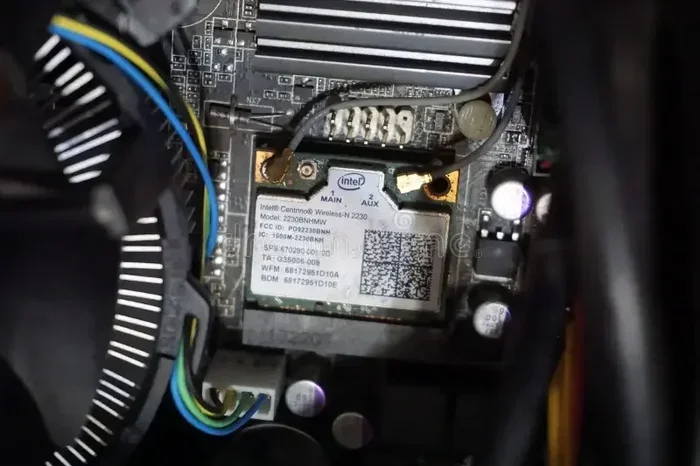
The B550 F WiFi uses a combo WiFi and Bluetooth module. This single chip handles both wireless functions. It connects to your router for internet access and also communicates with your Bluetooth devices. This design saves space and reduces clutter inside your PC case.
One thing to keep in mind is that WiFi and Bluetooth share the same 2.4 GHz frequency band. This means they can sometimes interfere with each other. If your WiFi signal is weak, your Bluetooth connection might also suffer. The good news is that Bluetooth 5.0 handles this interference much better than older versions.
Some users wonder if they can extend their WiFi using an Ethernet cable. The answer is yes. If you ever need a more stable connection, you can check out our guide on Can I Extend WiFi With Ethernet Cable for helpful tips on boosting your network reach.
WiFi 6 on the B550 F WiFi
The B550 F WiFi supports WiFi 6, which is the latest wireless standard. WiFi 6 brings faster speeds, better performance in crowded areas, and improved power efficiency. Combined with Bluetooth 5.0, the B550 F WiFi offers a complete wireless package.
WiFi 6 uses technologies like OFDMA and MU-MIMO. These features help your board manage multiple wireless connections at the same time. So if you have a Bluetooth mouse, a WiFi keyboard, and a wireless headset all connected, the B550 F WiFi handles them without breaking a sweat.
Setting Up Bluetooth on the B550 F WiFi
Setting up Bluetooth on the B550 F WiFi is straightforward. You do not need any extra hardware. Here is a step-by-step guide to get you started.
Step 1: Check Your Drivers
Before you try to connect any Bluetooth device, make sure your drivers are up to date. The B550 F WiFi needs the correct wireless and Bluetooth drivers installed. You can find these on the motherboard manufacturer’s website. Download the latest version for your specific model.
Having the right drivers is crucial. Without them, Bluetooth might not show up in your Windows settings. Some users skip this step and then wonder why their Bluetooth is not working. Do not make that mistake.
Step 2: Enable Bluetooth in Windows
Once your drivers are installed, follow these steps:
- Open the Windows Settings menu.
- Click on Devices.
- Select Bluetooth and other devices.
- Toggle Bluetooth to On.
- Click Add Bluetooth or other device.
Your PC will now search for nearby Bluetooth devices. Make sure the device you want to connect is in pairing mode. Select it from the list, and Windows will handle the rest.
Step 3: Test Your Connection
After pairing, test your Bluetooth device. Move around your room and check for any connection drops. A strong Bluetooth 5.0 connection on the B550 F WiFi should hold up well even at a distance. If you experience issues, try moving closer to the board or restarting the Bluetooth service.
If you are having trouble connecting to WiFi in the first place, you might want to check out our article on Can I Connect To WiFi Without WiFi Adapter for troubleshooting tips that can also apply to motherboard WiFi setups.
Common Bluetooth Issues on the B550 F WiFi and How to Fix Them
Even with built-in Bluetooth, you might run into occasional issues. Here are the most common problems and their solutions.
Bluetooth Not Showing Up in Settings
This usually means the drivers are missing or outdated. Go to the motherboard manufacturer’s website and download the latest Bluetooth and WiFi drivers. Install them and restart your PC. The Bluetooth option should appear in your Windows settings after that.
Connection Drops or Intermittent Issues
Bluetooth drops can be frustrating. They often happen because of interference from other wireless devices. Here is what you can do:
- Move your PC closer to the Bluetooth device.
- Remove other wireless devices temporarily to test for interference.
- Update your Bluetooth drivers to the latest version.
- Check if other devices on the same WiFi network are causing congestion.
Paired Device Won Connect
If a device that used to work suddenly refuses to connect, try removing it from the Bluetooth list and pairing it again. Sometimes the pairing information gets corrupted. A fresh connection often fixes the problem. You can also try restarting your Bluetooth adapter through the Device Manager in Windows.
For users who want to block unauthorized devices from using their WiFi, we have a helpful guide on Can I Block A Device From Using My WiFi Xfinity that covers network security in more detail.
What Bluetooth Devices Work Best with the B550 F WiFi?
The B550 F WiFi works well with a wide range of Bluetooth devices. Here are some popular options that pair smoothly with this motherboard.
Keyboards and Mice
Wireless keyboards and mice are the most common Bluetooth peripherals. The B550 F WiFi handles them without any issues. You get a clean desk setup with no cables. The Bluetooth 5.0 connection ensures low latency and responsive clicks and keystrokes.
If you are looking for a Bluetooth mouse, you can check out our guide on Can A Mouse Be Connected To Bluetooth for tips on choosing the right one.
Headsets and Speakers
Bluetooth headsets and speakers work great with the B550 F WiFi. Whether you are gaming, listening to music, or on a video call, the audio quality is solid. Bluetooth 5.0 provides clear sound with minimal lag. You can also connect multiple speakers for a richer audio experience.
For gaming setups, wireless headsets are a popular choice. The B550 F WiFi supports Bluetooth gaming headsets without any extra hardware. Just pair them and you are good to go.
Smart TVs and Other Devices
Many modern smart TVs now support Bluetooth. You can connect your TV to the B550 F WiFi for streaming and audio output. Samsung smart TVs, for example, come with Bluetooth enabled. This makes it easy to cast audio or use your PC as a media center.
If you are curious about Bluetooth support on Samsung TVs, check out our article on Are Samsung Smart TVs Bluetooth Enabled for more details.
How the B550 F WiFi Bluetooth Compares to Other Motherboards
Not all motherboards with WiFi include Bluetooth. Some boards have WiFi only, which means you need a separate Bluetooth adapter. The B550 F WiFi stands out because it offers both in one package. This saves you money and desk space.
Here is a quick comparison of the B550 F WiFi with other common options:
| Feature | B550 F WiFi | B550 (No WiFi) | WiFi Adapter Required |
|---|---|---|---|
| Built-in WiFi | Yes | No | Yes |
| Built-in Bluetooth | Yes | No | Yes |
| Bluetooth Version | 5.0 | N/A | Varies |
| WiFi Standard | WiFi 6 | N/A | Varies |
| Extra Hardware Needed | No | Yes (WiFi + Bluetooth) | Yes |
| Setup Complexity | Low | Medium | Medium |
As you can see, the B550 F WiFi offers the best convenience. You get WiFi 6 and Bluetooth 5.0 without buying anything extra. This makes it an excellent choice for clean, cable-free setups.
Expert Tips for Getting the Most Out of B550 F WiFi Bluetooth
Here are some pro tips to help you get the best Bluetooth experience on your B550 F WiFi motherboard.
Keep Your Drivers Updated
Motherboard manufacturers regularly release driver updates. These updates often include improvements for Bluetooth and WiFi performance. Check for updates every few months to keep everything running smoothly.
Place Your PC Strategically
Bluetooth works best when there are few obstacles between the transmitter and receiver. If your PC is tucked behind a desk or inside a closed case, your Bluetooth range might suffer. Try to keep your PC in a more open location for better connectivity.
Use Bluetooth 5.0 Compatible Devices
To get the full benefits of Bluetooth 5.0, make sure your peripherals also support Bluetooth 5.0. Older Bluetooth devices will still work, but they will not take advantage of the faster speeds and longer range.
Limit Interference
Other wireless devices can interfere with Bluetooth. USB 3.0 devices, for example, can cause Bluetooth noise. If you notice connection issues, try unplugging other USB devices temporarily and see if the Bluetooth connection improves.
Final Thoughts
The B550 F WiFi motherboard does have Bluetooth, and it is a great one at that. With Bluetooth 5.0 and WiFi 6 built in, you get a powerful wireless package that covers all your connectivity needs. Whether you are gaming, working, or streaming, the B550 F WiFi handles it all without any extra hardware.
Setting up Bluetooth is simple, and the connection is stable and fast. Most issues you might encounter are easy to fix with driver updates or a quick reset. The B550 F WiFi is a strong choice for anyone who wants a clean, wireless PC setup.
If you are planning a new build or an upgrade, the B550 F WiFi is worth serious consideration. It gives you the freedom to connect all your wireless devices without the hassle of extra adapters. Enjoy the convenience of built-in Bluetooth and WiFi 6 on one motherboard.
Frequently Asked Questions
Does the B550 F WiFi support Bluetooth 5.0?
Yes, the B550 F WiFi motherboard supports Bluetooth 5.0. This version offers faster speeds, longer range, and better power efficiency compared to older Bluetooth versions. You can connect all your Bluetooth 5.0 peripherals without any issues.
Do I need a separate Bluetooth adapter for the B550 F WiFi?
No, you do not need a separate Bluetooth adapter. The B550 F WiFi has Bluetooth built right into the motherboard. This saves you money and keeps your setup clean and cable-free.
Can I connect multiple Bluetooth devices to the B550 F WiFi at the same time?
Yes, you can connect multiple Bluetooth devices simultaneously. The B550 F WiFi handles several Bluetooth connections at once. Just make sure your drivers are up to date for the best performance.
Why is my Bluetooth not showing up on the B550 F WiFi?
This is usually caused by missing or outdated drivers. Visit the motherboard manufacturer website and download the latest Bluetooth and WiFi drivers. After installing them and restarting your PC, Bluetooth should appear in your Windows settings.
Can I use a Bluetooth keyboard and mouse with the B550 F WiFi?
Absolutely. The B550 F WiFi works great with Bluetooth keyboards and mice. Bluetooth 5.0 ensures low latency and a responsive connection. You can enjoy a completely wireless desk setup with this motherboard.
Does Bluetooth on the B550 F WiFi interfere with WiFi performance?
Bluetooth and WiFi share the 2.4 GHz band, which can cause minor interference. However, Bluetooth 5.0 handles this much better than older versions. If you notice any issues, updating your drivers and reducing the number of active wireless devices usually solves the problem.
=== CONCLUSION ===
The B550 F WiFi motherboard comes with built-in Bluetooth 5.0, and that makes it a fantastic choice for wireless PC setups. You get WiFi 6 and Bluetooth in one package, which means no extra adapters, no extra cables, and no extra hassle. The setup process is simple, and the connection is fast and stable.
Whether you are a gamer, a remote worker, or a casual user, the B550 F WiFi Bluetooth features will serve you well. Keep your drivers updated, place your PC wisely, and you will enjoy a seamless wireless experience every day. The B550 F WiFi truly delivers on its promise of full wireless connectivity.